How to Set Up Auto-Updates
Last updated: February 27, 2026
Guide to connecting tools to OKRs and Initiatives to enable auto updates
Why Auto-Updates Help You Stay Current
Manually updating Key Results and Initiatives takes time and creates delays between when progress happens and when it's reflected in your OKRs. Auto-updates solve this by connecting your Key Results and Initiatives directly to the tools where work actually happens like Linear, Google Sheets, Salesforce, or Monday.com.
When you set up auto-updates, progress flows automatically into Rhythms. Your Key Results and Initiatives stay current without manual data entry, giving your team and leadership real-time visibility into what's working.
Best used when:
Your Key Result or Initiative tracks a metric/data that already exists in another tool
You want to eliminate manual update work
You need real-time progress visibility
Multiple people need to see the same current data
Not a replacement for check-ins: Auto-updates handle the numbers, but you still need to provide context through regular check-ins. This guide explains how auto updates and check ins work together.
Before You Begin
Check that your integration is enabled: Your workspace administrator controls which integrations are available. If you don't see the integration you need, you can ask your administrator to either enable or request it.
Verify your access: You need permission to access data in the external tool. For example, if you're connecting to a Google Sheet, you must have at least view access to that sheet with your Google account.
Setting Up Auto-Updates for a Key Result or Initiative
During Key Result Creation (Recommended)
The easiest time to connect an integration is when you're first creating your Key Result or Initiative:
Create your Key Result with a numeric target (e.g., "Increase MRR to $50K")
Click More on the Key Result detail section
Select Set up auto update
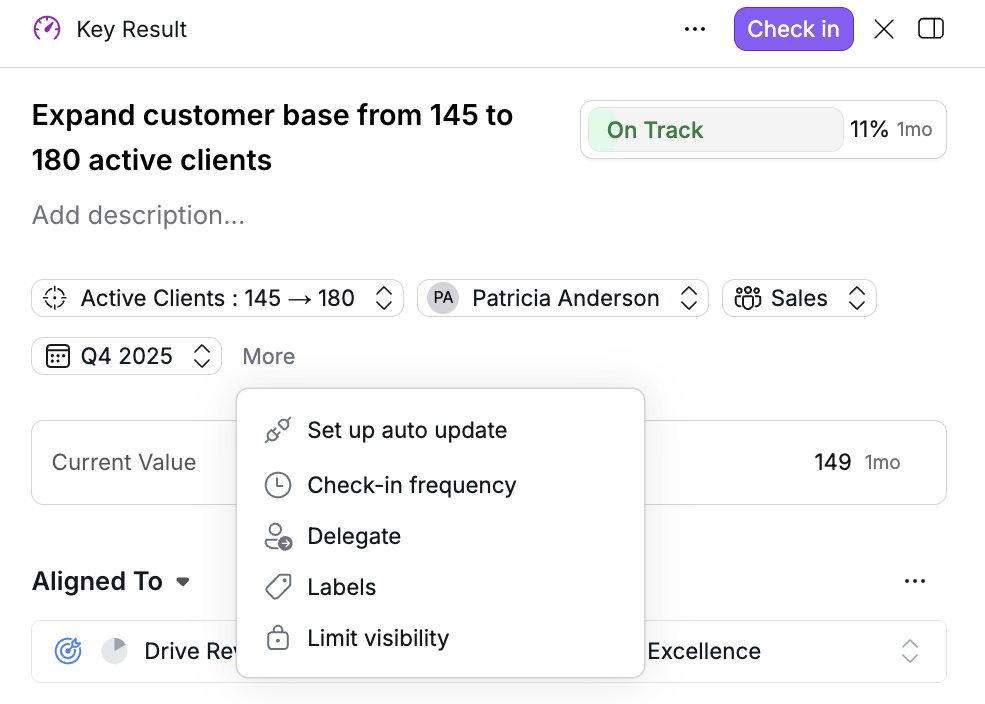
Choose which integration to connect
If this is your first time using this integration, you'll authenticate with your account through a secure OAuth flow
Follow the integration-specific setup (see tool-specific guides below)
Confirm the connection
Verification: Your Key Result will show an integration badge and display the current value pulled from your connected tool.
Adding Auto-Updates to Existing Key Results or Initiatives
You can connect an integration to any existing Key Result at any time:
Open the Key Result detail page
Click More
Select Set up auto-update
Follow steps 4-7 above
Common scenario: You might set this up during your first check-in when you realize you're manually copying numbers from another tool.
Understanding What Auto-Updates Do
Once connected, your integration:
Pulls current values automatically from your connected tool
Updates your Key Result or Initiative progress in real-time or near real-time (frequency depends on the specific integration)
Maintains history so you can see progress over time
Keeps working as long as you have access to the data source
What auto-updates DON'T do:
They don't replace check-ins (you still provide context, blockers, and insights)
They don't change your target or description
They don't give access to people who can't see the original data source
Integration-Specific Setup Guides
Different tools require different configuration steps. Choose your integration below for detailed instructions:
💡 More guides coming soon
Disconnect an Integration
If you need to stop auto-updates:
Go to the Key Result or Initiative with the connected integration
Click on the Connected to <tool name> button
Click Disconnect
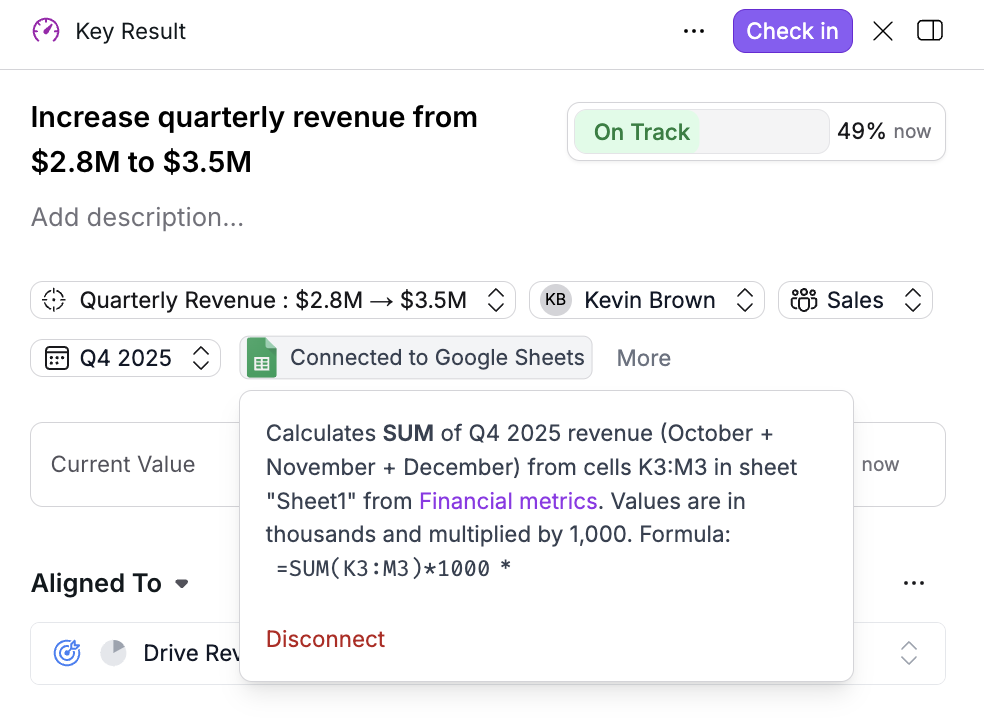
⚠ Warning: Disconnecting removes auto-updates but doesn't delete historical progress data. Your Key Result or Initiative will stop receiving updates and you'll need to update it manually.
Adjusting or Reconfiguring Auto-Updates
Auto-update connections cannot be edited in place. To change any aspect of your configuration (which data source you're tracking, the calculation method, or filters), you must disconnect and create a new connection.
Before You Disconnect
Before disconnecting an auto-update:
Document your current setup: Note what data you're tracking and how progress is calculated
Consider alternatives: Can you reorganize data in the source tool instead of reconfiguring the connection?
Understand the impact: Configuration details are lost when you disconnect, though historical progress data is preserved
The Reconfiguration Process
Click the Connected to [Tool Name] button on your Key Result or Initiative
Click Disconnect and confirm
Click Set up auto-update to begin a new connection
Select the same integration and configure with your updated requirements
What's preserved: All previous check-ins and progress history remain in your Key Result's timeline
What's lost: The old connection configuration (data source location, calculation method, filters) cannot be retrieved
Gap in updates: No automatic updates occur between disconnection and completing the new setup. You can add manual check-ins during this time if needed.
Testing Configuration Changes
Consider creating a test Key Result to try new configurations before applying them to critical OKRs. Once you disconnect, you cannot revert to your previous setup, so testing on a separate Key Result helps ensure the new configuration works as expected.
Frequently Asked Questions
Can I connect multiple integrations to the same Key Result or Initiative?
Currently no. Each Key Result or Initiative can only connect to one integration at a time. If you need to track data from multiple sources, consider creating separate objects or using a tool that aggregates the data first.
What happens if I lose access to the connected tool?
Auto-updates will stop working. Your Key Result or Initiative will show the last successfully pulled value, and you'll need to either update manually or connect a different data source. Rhythms can't pull data you don't have permission to access.
Do auto-updates work for Objectives ?
No. Objectives are based on the concept of progress, which can either be entered manually or rolled up from contributing progress of their children.
How often do auto-updates refresh?
Refresh frequency varies by integration. Most update every few minutes to every hour. Some integrations (like Google Sheets) update near real-time, while others refresh on a scheduled basis. Check your integration-specific guide for details.
Can other people see my connected integration?
Other people can see that your Key Result or Initiative has an integration connected and can see the progress data it provides. However, they cannot see your connection credentials or access your personal integrations settings. If they want auto-updates for their own Key Results, they need to connect their own accounts.
Can I change my auto-update configuration without disconnecting?
No. Auto-update connections cannot be edited in place. You must disconnect and create a new connection with your updated requirements. Your historical progress data is preserved during this process.
What happens to my progress history when I reconfigure?
All previous check-ins and progress data remain in your Key Result's timeline. Only the connection configuration is replaced. There may be a gap in automatic updates while you reconfigure.
Can I test a new configuration before disconnecting my current one?
There's no preview or test mode. However, you can create a separate test Key Result to try new configurations before applying them to critical OKRs. Once you disconnect, you cannot retrieve your previous configuration settings.