How parent OKR progress and status roll up
Last updated: September 17, 2026
When an Objective, Key Result or Initiative has children aligned to it, Rhythms can keep the parent's progress and status current without anyone updating it by hand. Progress comes from the contributing children: for most parents it is a weighted average of their progress, and for a parent that tracks a number of its own Rhythms works out whether to add the children's values up or average them. Status compares that progress with where the goal should be by now. Both recalculate whenever a contributing child checks in, and both are controlled by the parent's Update mode on the goal page.
The three update modes
Every OKR has an Update mode. It appears as an attribute on the goal page and inside the check-in form; click it to change it.
- Update from children: progress and status are calculated from the contributing children. Offered only when the goal has children.
- Update from ‹connection› (for example "Update from Jira"): progress comes from a connector. Offered on Key Results and Initiatives that have an auto-update connection; see Set up automatic updates from a connector.
- Manual update: you enter progress and status yourself in check-ins. Always available.
Rhythms chooses the Update mode for you when the structure of a goal changes. A goal with an active connection uses Update from ‹connection›; a goal with children uses Update from children; anything else uses Manual update. A goal that already has manual check-ins stays on Manual update when children are aligned to it, so switch it yourself if you want the rollup. A parent that loses its last child falls back to Manual update.
Rollup never runs on a parent that is a draft, pending approval, closed or postponed.
Two kinds of parent
How the parent itself is measured decides how Rhythms combines its children.
- Progress-based parents use the default Progress metric, 0 to 100%. This is the default for Objectives and Initiatives. Their progress is the weighted average of the children's progress.
- Metric-based parents have a metric of their own: a revenue target, a headcount, a customer count, or a percentage other than plain progress. This is the default for Key Results. Their progress is calculated by AI rollup, which reads the parent and its children and decides whether to sum or average, as described below.
You can change a goal from one kind to the other on its Metric attribute; see Metric types for Key Results. AI rollup can also be turned on for progress-based parents as a workspace setting, enabled by Rhythms Support on request; by default they use the plain weighted average.
Which children contribute
A child contributes to its parent when its contribution weight is above 0%. Whether a newly published child contributes by default depends on its type in your OKR model: Key Results contribute by default; Objectives and Initiatives aligned under another goal do not, until someone turns contribution on. Rhythms Admins change these defaults under Settings › OKRs › Model customization; see Model customization: alignment, contribution and terminology.
Three kinds of children are left out of the rollup even if they have a weight:
- Draft children (Draft or Pending Approval) are ignored until they are published. On publishing, the child receives its default contribution and the parent recalculates.
- Postponed children have their weight set to 0% and their share redistributed to the other contributors. When a postponed child is reactivated, its weight stays at 0% until someone turns contribution back on.
- Children the parent's viewers cannot see. A limited-visibility child under a public parent is excluded, and so is a limited-visibility child under a limited-visibility parent when some of the parent's viewers cannot see the child. Its weight is set to 0% so the parent's progress does not leak what the child is doing. Fixing the visibility does not restore the weight; turn contribution back on.
Closed children keep contributing their final progress. Children whose contribution is off stay visible in the alignment hierarchy; they simply do not move the parent.
Contribution weights
Weights say how much each contributing child counts toward the parent. They are equal by default and always add up to 100%. When a child starts contributing it takes an equal share and the existing contributors shrink proportionally, so three contributing Key Results sit at 33.33% each. When a contributor stops contributing, is postponed, is deleted or becomes invisible to the parent's viewers, its share is spread across the remaining contributors in proportion to their weights. If an Objective in the middle of a hierarchy is deleted, its children are adopted by its parents and its weight is split among them in proportion to what they carried.
Use custom weights when one piece of work genuinely matters more, or to keep a lead indicator visible under the parent at 0% so it does not inflate the parent's progress.
Who can set weights
You can manage a parent's contribution weights if you are a Rhythms Admin, or if you can edit the parent and can see all of its published children. No workspace setting is involved. Weights cannot be changed while the parent is closed or postponed, and they have no effect while the parent is on Manual update.
Where to set them
- Open the parent OKR, or find it in a list.
- Open the parent's ⋯ menu and choose Manage contribution. You can also click the contribution ring shown next to the parent in a child's Aligned to path.
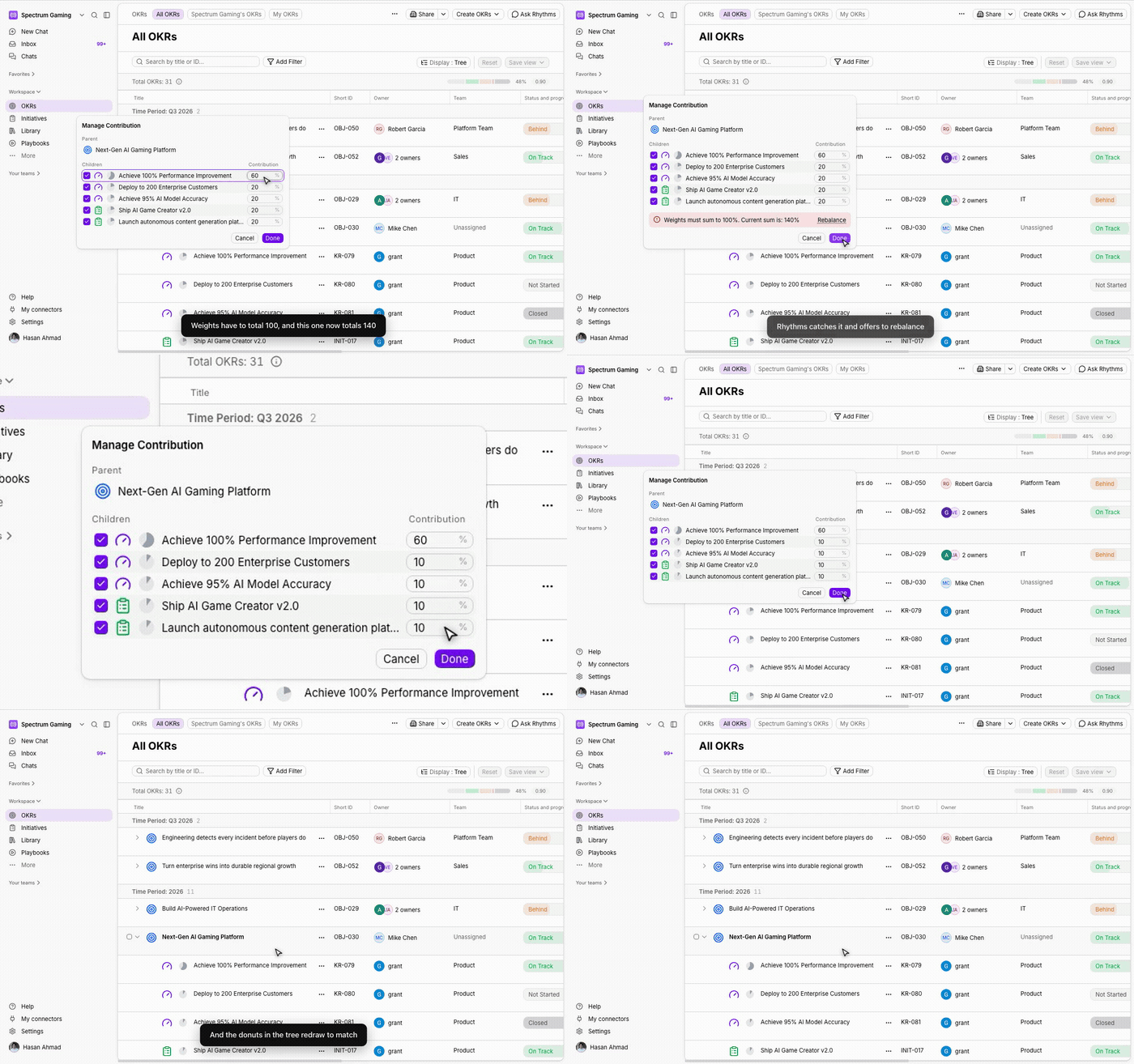
- In the Manage Contribution popover, tick the children that should contribute and type a percentage for each. The percentages must total 100%; if they do not, Rhythms shows the current total and offers Rebalance, which scales the weights you have not edited to fill the gap.
- Click Done. The parent recalculates immediately and the new weights appear on the children.
On a metric-based parent the popover has checkboxes only: you choose which children AI rollup includes, and the AI works from their values rather than from percentages.
Turning a single child's contribution on or off
Unticking a child in Manage Contribution sets its weight to 0% and hands its share to the remaining contributors. When you create Key Results in the OKR creation form, each one has a Contribute to parent option in its ⋯ menu, ticked by default for Key Results. It is unavailable when the child's visibility is narrower than the parent's, because such a child cannot contribute.
Progress-based parents: the weighted average
Parent progress is the weighted average of the contributing children's progress: each child's progress multiplied by its weight, added together, divided by the total weight. Three Key Results at 80%, 60% and 40% with equal weights give the parent 60%. With custom weights of 50%, 30% and 20% the parent shows 40 + 18 + 8 = 66%.
Every rollup is recorded as a check-in by the Rhythms bot on the parent, so the activity timeline shows what the children looked like at that moment. Rollups cascade: when a Key Result checks in, its Objective recalculates, then that Objective's parent, and so on to the top of the hierarchy.
If no child contributes, the parent shows 0% and Not Started, and the Update mode attribute explains that no children are set to contribute.
Metric-based parents: sum or average
A parent with its own metric cannot simply average percentages: three revenue Key Results for different tiers should be added up against the parent's revenue target, while three unrelated initiatives under a quality goal should be averaged. Each time a contributing child checks in, AI rollup reads the parent's title, metric and target, and each child's unit, value and weight, and settles on one of four methods. The chosen method and the reasoning are written into the rollup check-in on the parent, so you can open that check-in in the activity timeline to see exactly how a number was produced.
- Aggregation (sum). Used when the parent has a numeric target and the children are parts of that whole in compatible units: revenue by tier, hires by department, features by product area. Rhythms adds the children's current values and compares the sum with the parent's target. Three revenue Key Results at $1M, $300K and $150K against a $2M parent give $1.45M, so 72.5%, not the 64% you would get by averaging the three percentages.
- Weighted average. Used when you have set custom weights that are not all equal. Rhythms treats the weights as an instruction and averages the children's progress accordingly.
- Composite (average). Used when the children are separate efforts rather than parts of a sum: a quality Objective with test coverage, bug reduction and a satisfaction score underneath it. Rhythms averages the children's progress. Composite is also what a percentage-based parent gets whenever no summing pattern is found.
- No rollup. Used when the parent tracks an actual outcome in a non-percentage unit, such as website visitors, revenue or a bug count, but the children only track activities or rates that cannot produce that number: conversion rate, campaign completion, blog posts shipped. Summing or averaging them would invent a figure, so Rhythms creates no check-in and leaves the parent as it was.
When Rhythms sums, weights only decide which children are included; the children's real values do the rest. Weights change the result only when Rhythms averages.
Confidence and the fallback
Every AI decision carries a confidence of High, Medium or Low. Summing compatible units and clear incompatibility are High; mixed cases are Medium. When confidence is Low, Rhythms does not trust the AI result: a progress-based parent falls back to the standard weighted average of the children's progress, and a metric-based parent is left unchanged until the next update. The same fallback applies if the AI service is unavailable.
When the outcome is No rollup, the parent's Update mode attribute shows that the rollup is not updating the goal, with the explanation. From there you can ask Rhythms in chat why the parent is not updating from its children. The usual fixes are to give the children compatible metrics, to align an outcome-bearing Key Result under the parent, or to switch the parent to Manual update and check in with the real figure.
How status is derived from progress
Status comes from the gap between expected progress and actual progress. Expected progress is how far the goal is through its dates: halfway between the start date and the end date means 50% expected. If the parent has a progress plan, expected progress follows the plan instead; see Set a progress plan for an OKR.
| Gap (expected minus actual) | Status |
|---|---|
| 25 points or more behind | At Risk |
| 10 to 24 points behind | Behind |
| Less than 10 points behind, progress above 0% | On Track |
| Less than 10 points behind, progress at 0% | Not Started |
| Ahead of expected | On Track |
A parent at 57% progress halfway through its period is 7 points ahead, so On Track. A parent at 60% with 90% of the time gone is 30 points behind, so At Risk even though the progress looks respectable.
Status is only calculated once at least one contributing child has a check-in; until then the parent is Not Started. Your admins may have renamed the statuses; see Rename OKR status labels.
Optional: status from the children's statuses
By default the children's own statuses do not influence the parent's status; only their progress does. A workspace-level setting, off by default and enabled by Rhythms Support on request, makes Rhythms derive the parent's status from the children's statuses instead of from the progress gap:
- If every contributing child is Closed, the parent is Closed. If every child is Not Started, the parent is Not Started.
- If the children are a mix of Closed and Not Started only, the parent is In Progress.
- Otherwise Rhythms lines up the active children from the worst status to the best (At Risk, Behind, In Progress, On Track) and adds up their weights in that order. The status at which the running total reaches half of the active weight becomes the parent's status. Two children At Risk carrying 60% of the weight make the parent At Risk even when the progress gap alone would say On Track.
When this rule cannot decide (for example the active children carry no weight), the progress gap decides. When the setting is on it also overrides the status suggested by AI rollup.
Overriding the calculated status
You can still check in on a parent that is in Update from children mode. The check-in form is pre-filled with the calculated progress and status; change the status if you know something the numbers do not show, and say why in the note. The override stands until the next rollup, which happens the next time a contributing child checks in, so the note is what tells the story afterwards. See Write and submit check-ins.
Children with more than one parent
A goal aligns to one parent unless a Rhythms Admin turns on "Allow alignment to multiple parents" for its type in Model customization. Each alignment then has its own contribution weight: the same Key Result can contribute 25% to one Objective and 0% to another, and its progress counts fully in every parent it contributes to.
Frequently asked questions
How do I know which mode a parent is using? Open the goal page and look at the Update mode attribute. It reads Update from children, Manual update, or Update from followed by the connection name.
Can I switch modes after starting? Yes. Switching to Update from children immediately replaces the displayed progress and status with the values calculated from the children. Earlier manual check-ins remain in the activity timeline.
Why is my parent Not Started when its children have progress? Either none of the contributing children has a check-in yet, or every child is excluded because it is a draft, postponed, not contributing, or not visible to the parent's viewers. Open the Update mode attribute to see which children are counted.
How do I know whether Rhythms summed or averaged? Open the parent's latest rollup check-in in the activity timeline. The note states the result and the explanation lists the method and the calculation.
Rhythms picked the wrong method. What can I do? Check that the children's units match the parent's, and that the parent's target is set on its metric rather than only in its title. If the children genuinely cannot produce the parent's number, switch the parent to Manual update and check in with the actual figure.
Does a 0% weight hide the child? No. It stays in the hierarchy, lists and reports; it simply does not move the parent. This is the recommended way to keep lead indicators visible without letting pipeline look like results.
Why does a reactivated child no longer count? Postponing set its weight to 0% and reactivating does not undo that. Open the parent's Manage contribution popover and tick the child again.
Does a closed child still count? Yes. A closed child keeps contributing its final progress. Only drafts, postponed children and children hidden from the parent's viewers are excluded.
Why can't I see Manage contribution? Either the parent is on Manual update, it is closed or postponed, or you cannot see every published child of the parent. A Rhythms Admin can manage the weights in that last case.