Intelligent Progress Rollup: How Rhythms Calculates Parent Progress
Last updated: June 22, 2026
Rhythms intelligently determines whether to sum or average child progress based on your goals' semantic meaning. See how AI calculates parent progress for revenue goals, hiring targets, and strategic initiatives—automatically, with no configuration needed
When you have parent OKRs with contributing children, calculating accurate progress isn't as simple as just averaging percentages. Should you sum revenue from different customer tiers, or average progress across strategic initiatives? Should a hiring goal aggregate headcount across departments, or does it need manual updates?
Rhythms uses AI to analyze the semantic meaning of your parent and child goals, automatically determining the right calculation method. This intelligent rollup ensures your parent progress accurately reflects reality, whether that means summing contributions, averaging efforts, or recognizing when automatic calculation isn't appropriate.
For an overview of how progress and status rollup work together, see 📄 Understanding OKR Automatic Rollup
How this helps:
Semantic understanding: Rhythms knows when to sum vs. average based on what your goals actually mean
Automatic accuracy: Parent progress updates instantly with the right calculation method
No configuration needed: AI determines the appropriate approach from your goal titles and metrics
Handles complexity: Works across multiple hierarchy levels and metric types
Transparent reasoning: See exactly how and why progress was calculated
When AI Rollup is Used
Rhythms uses AI rollup differently depending on your goal's tracking method:
Metric-Based Goals (Always AI-Powered) Goals tracking specific metrics (revenue, headcount, feature counts) always use AI rollup. This ensures accurate aggregation across different metric types and cannot be disabled.
Progress-Based Goals (Optional AI) Goals tracking 0-100% completion respect your organization's AI rollup settings. If disabled, they fall back to simple averaging.
What's the difference between progress-based and metric-based tracking?
Rhythms offers two ways to track progress:
Progress-based tracking (0-100%): Track overall completion as a percentage. Used by default for Objectives and Initiatives. Progress updates manually during check-ins, or automatically for parent Objectives based on child Key Results (when using automatic rollup).
Metric-based tracking (specific numbers): Track actual values and let Rhythms calculate progress. Used by default for Key Results. Progress updates by entering current values during check-ins or automatically through auto-updates from connected tools.
You can switch between methods anytime on the OKR detail page by clicking "Change to metric-based" or "Change to progress-based."
How Intelligent Rollup Works
Rhythms analyzes your parent and child goals to determine the appropriate calculation method. For metric-based goals, this analysis always runs to ensure accurate aggregation. For progress-based goals, the analysis runs only if AI rollup is enabled in your organization settings. When the analysis runs, the system identifies two primary patterns:
Aggregation (Summing): When children represent parts of a whole that combine to form the parent
Example: Revenue from Enterprise + Professional + Basic tiers = Total revenue
Formula: Sum all child values, compare to parent target
Averaging: When children represent separate efforts working toward the parent
Example: Multiple strategic initiatives each contributing to one outcome
Formula: Average child progress (equally weighted or custom weighted)
This happens automatically every time contributing children update, no manual configuration required. Draft and postponed children are excluded from all rollup calculations (their weight is automatically set to zero).
When Rhythms Sums Progress (Aggregation)
Aggregation is used when your parent goal has a numeric target and children represent portions that add up to that target.
Common Aggregation Patterns
Revenue Goals:
Parent: "Achieve $2M ARR from SaaS subscriptions"
Children represent revenue from different tiers or segments
Children sum to calculate parent progress
Hiring Goals:
Parent: "Hire 50 new employees"
Children represent hiring across different departments
Headcount additions sum across teams
Feature/Deliverable Goals:
Parent: "Ship 20 features this quarter"
Children represent features from different product areas
Feature counts sum across workstreams
Customer Acquisition:
Parent: "Acquire 1,000 new customers"
Children represent acquisition from different channels
Customer counts sum across sources
Example: Revenue Aggregation
Parent Goal: Achieve $2M ARR from SaaS subscriptions
Contributing Children:
Child Key Result | Target | Actual | Progress |
Generate $1.2M from Enterprise tier | $1.2M | $1M | 83.3% |
Generate $500K from Professional tier | $500K | $300K | 60% |
Generate $300K from Basic tier | $300K | $150K | 50% |
How Rhythms Calculates:
❌ Wrong approach (averaging): (83.3% + 60% + 50%) / 3 = 64.4%
✅ Right approach (aggregation): $1M + $300K + $150K = $1.45M
Parent progress: $1.45M / $2M = 72.5%
Why aggregation? Rhythms detects:
Parent has "$2M" target pattern
All children use currency units (compatible)
Children represent revenue PARTS of the whole
Decision: Sum the actual values
This gives you accurate progress. You're 72.5% to your $2M goal, not 64.4%.
How Rhythms Detects Aggregation
Rhythms AI analyzes:
1. Parent title patterns: "Hire [N]", "Achieve $[N]", "Ship [N]", "Close [N]", "Acquire [N]". Numeric targets with specific units
2. Metric compatibility: Do all children use the same unit type? (currency, headcount, counts). Can values be meaningfully summed?
3. Semantic relationships: Do children represent PARTS that combine into the parent? Example: Enterprise + Professional + Basic = Total SaaS revenue ✓
4. Target alignment: Do child targets sum to approximately the parent target. Example: $1.2M + $500K + $300K = $2M ✓
When these patterns align, Rhythms uses aggregation automatically.
When Rhythms Averages Progress
Averaging is used when children represent separate efforts working toward a common outcome, rather than portions that sum to a target.
Common Averaging Patterns
Strategic Initiatives:
Parent: "Complete Q4 strategic priorities"
Children: Enterprise expansion, Product quality, Operational efficiency
Each initiative progresses independently toward the parent outcome
Quality Improvements:
Parent: "Improve overall product quality"
Children: Test coverage, Bug reduction, User satisfaction
Different metrics that don't sum, but collectively indicate quality
Cross-Functional Goals:
Parent: "Successfully launch new product line"
Children: Marketing campaign, Sales enablement, Product readiness
Separate workstreams that must all succeed
Default Behavior: Equal Weight Averaging
By default, all contributing children have equal impact on parent progress. This means if you have three Key Results at 80%, 60%, and 40% progress, your parent Objective shows 60% progress (the simple average).
The calculation:
Parent Progress = (Child 1 + Child 2 + Child 3) / Number of Contributing Children
Example: (80% + 60% + 40%) / 3 = 60%
This equal weight model works well for most teams because:
It's simple and predictable
Each deliverable matters equally by default
No configuration needed
Easy to explain to stakeholders
When equal weights work best:
All children have similar strategic importance
You want a straightforward calculation
The team is just getting started with OKRs
Advanced: Custom Weight Averaging
⚠ Availability: This feature must be enabled by your organization admin. If you don't see weight controls in your goal views, your organization uses the default equal weight averaging. If you need weight controls, ask your admin to request this feature be enabled by the Rhythms Support team.
What Are Custom Weights?
Custom weights allow you to assign different importance levels (0-100%) to each contributing child, rather than treating all children equally. This lets you model strategic priorities where some work matters more than others.
Use cases:
Prioritize strategically critical initiatives over supporting work
Reflect revenue/impact differences (Enterprise deals vs. SMB deals)
Model complex portfolio prioritization
Give major deliverables more weight than minor ones
Set lead indicators to 0% weight while keeping them visible
How Custom Weights Work
Without custom weights (equal averaging):
3 Key Results at [80%, 60%, 40%] progress
Parent = (80 + 60 + 40) / 3 = 60%
With custom weights:
3 Key Results with weights [50%, 30%, 20%] at [80%, 60%, 40%] progress
Parent = (80% × 50%) + (60% × 30%) + (40% × 20%)
Parent = 40% + 18% + 8% = 66%
Key principle: Higher weight = greater impact on parent progress.
Setting Custom Weights
Prerequisites:
Your organization has custom weights enabled
You have edit access to the parent OKR
You can view all contributing children
Steps:
Open the parent OKR
Expand the relevant section (Key Results, Initiatives, or Child Objectives)
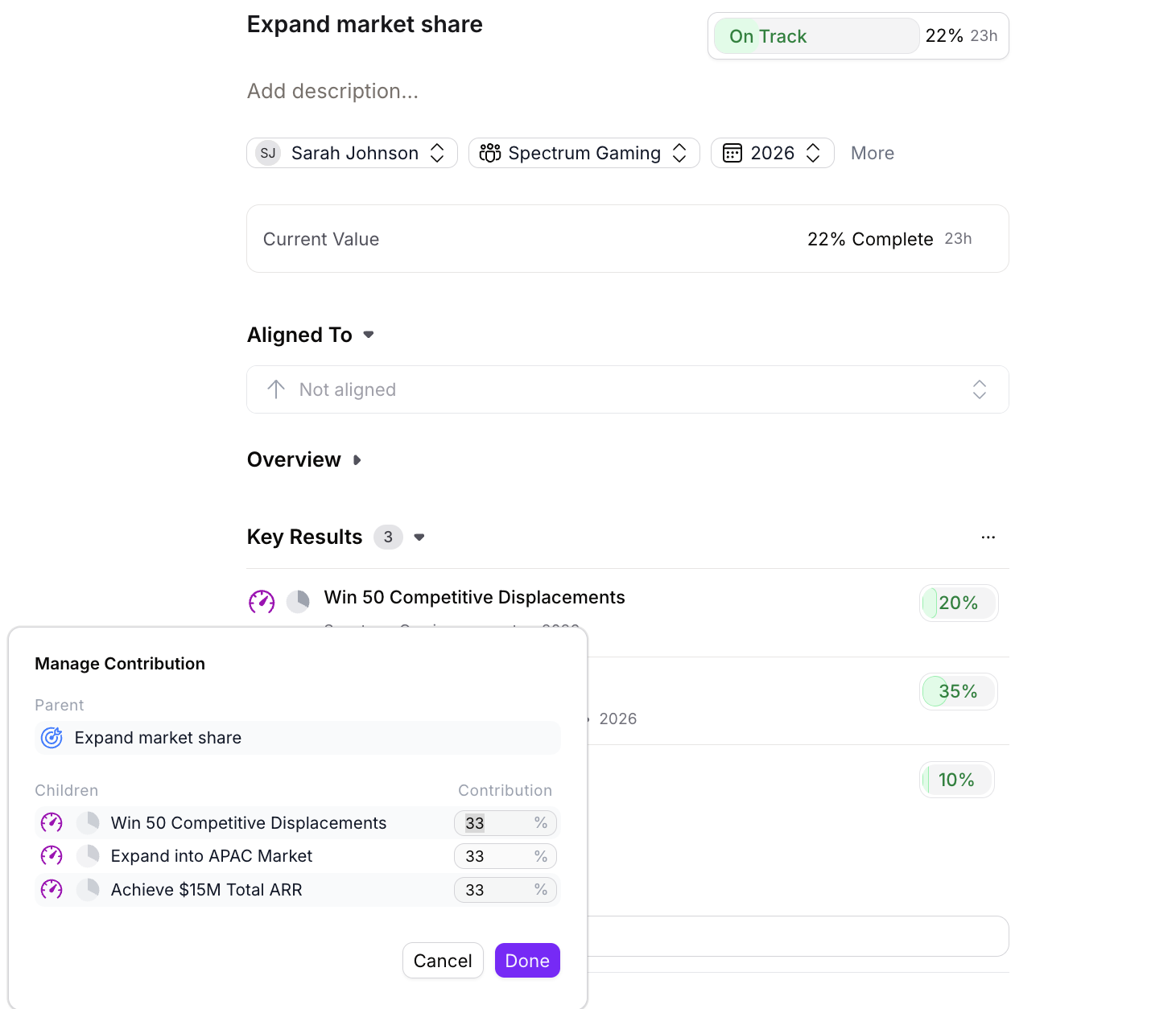
Click the weight button next to each child (it displays the current percentage)
Enter a custom weight percentage (0-100%)
Click Done
What happens:
Rhythms will help rebalance the weights if they don't sum to 100%
Parent progress recalculates immediately
Weight values display in the contribution list
Custom Weight Examples
Example 1: Strategic Prioritization
Parent: Complete Q4 Strategic Priorities
Child Initiative | Progress | Weight | Contribution |
Enterprise expansion | 80% | 50% | 40% |
Product quality improvements | 60% | 30% | 18% |
Operational efficiency | 40% | 20% | 8% |
Parent progress: 40% + 18% + 8% = 66%
Equal weights would show 60%, but the weighted calculation reflects that Enterprise expansion (the most important work) is actually doing well at 80%.
Example 2: Lead Indicators at 0% Weight
Parent: Close 10 Enterprise Deals
Child Key Result | Progress | Weight |
10 Closed Deals (lag indicator) | 30% | 100% |
50 Qualified Opportunities (lead) | 80% | 0% |
100 Discovery Calls (lead) | 90% | 0% |
Parent progress: 30% (from closed deals only)
Lead indicators remain visible for early warning signals but don't inflate progress with predictive metrics. See "Lead vs. Lag Indicators" section below for why this matters.
Best Practices for Custom Weights
DO:
✅ Start with equal weights; only customize when there's clear strategic rationale
✅ Document why weights differ in goal descriptions or check-in notes
✅ Review weights quarterly as priorities shift
✅ Use 0% weight for lead indicators and experimental work
✅ Keep weights stable during execution to avoid gaming
DON'T:
❌ Change weights mid-period to make progress look better
❌ Use weights to hide underperforming initiatives (address root causes)
❌ Make every child a different weight without clear reasoning
❌ Set weights based on current progress (that's gaming)
❌ Forget that 0% weight items still show in reports
Custom Weights Permissions
Who can edit weights:
Your organization must have custom weights enabled (admin setting)
You must have edit access to the parent goal
You must be able to view all contributing children
The goal cannot be closed or postponed
Visibility:
Weight values are visible to anyone who can view the parent
Limited-visibility children show as "[Limited Access Goal]" with their weight
Weight controls are hidden from users without edit permissions
Controlling Which Children Contribute
Not every aligned child needs to contribute to parent progress. You control which children affect the parent's calculated progress. How you do this depends on whether your organization has custom weights enabled.
Without custom weights (default)
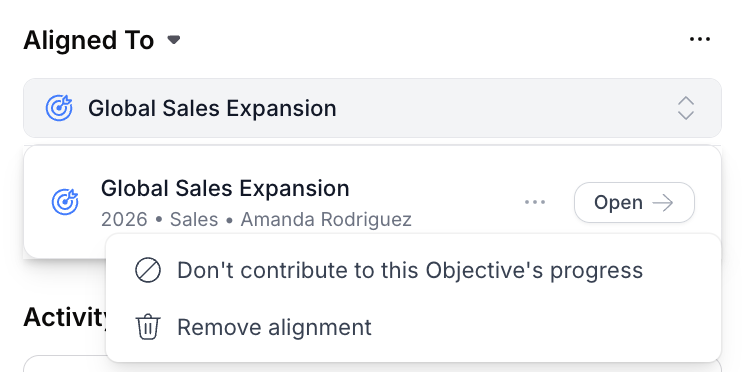
If your organization uses equal weight averaging, you'll see a simple contribution toggle:
Open the child OKR In the "Aligned To" section, click on the parent alignment to open its popover
Click on the three-dots more options menu
Select "Contribute to this parent's progress" or "Don't contribute to this parent's progress" to toggle contribution on or off
Changes are saved automatically.
With custom weights enabled
If your organization has custom weights enabled, the simple toggle is replaced by weight percentage controls:
Open the parent OKR Expand the relevant section (Key Results, Initiatives, or Child Objectives)
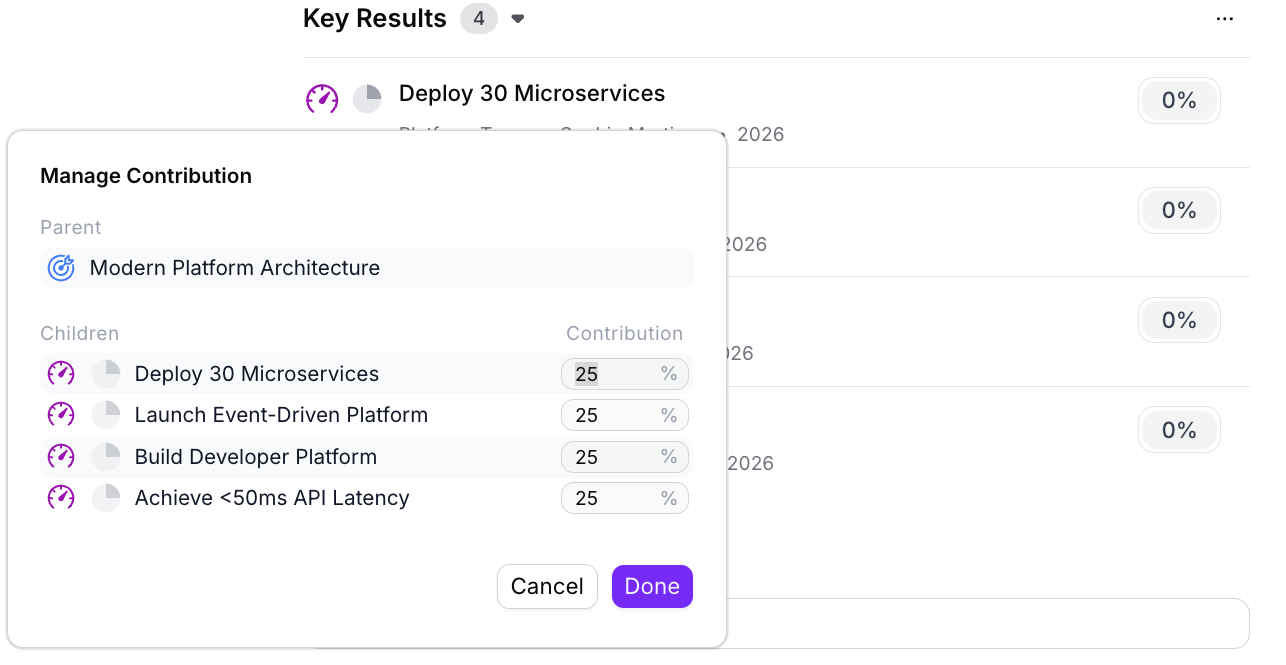
Click the weight button next to the child you want to adjust (it displays the current percentage, like "25%")
In the weight popover, set the contribution weight:
For percentage-based rollup: Enter a specific weight percentage (set to 0% to stop contributing)
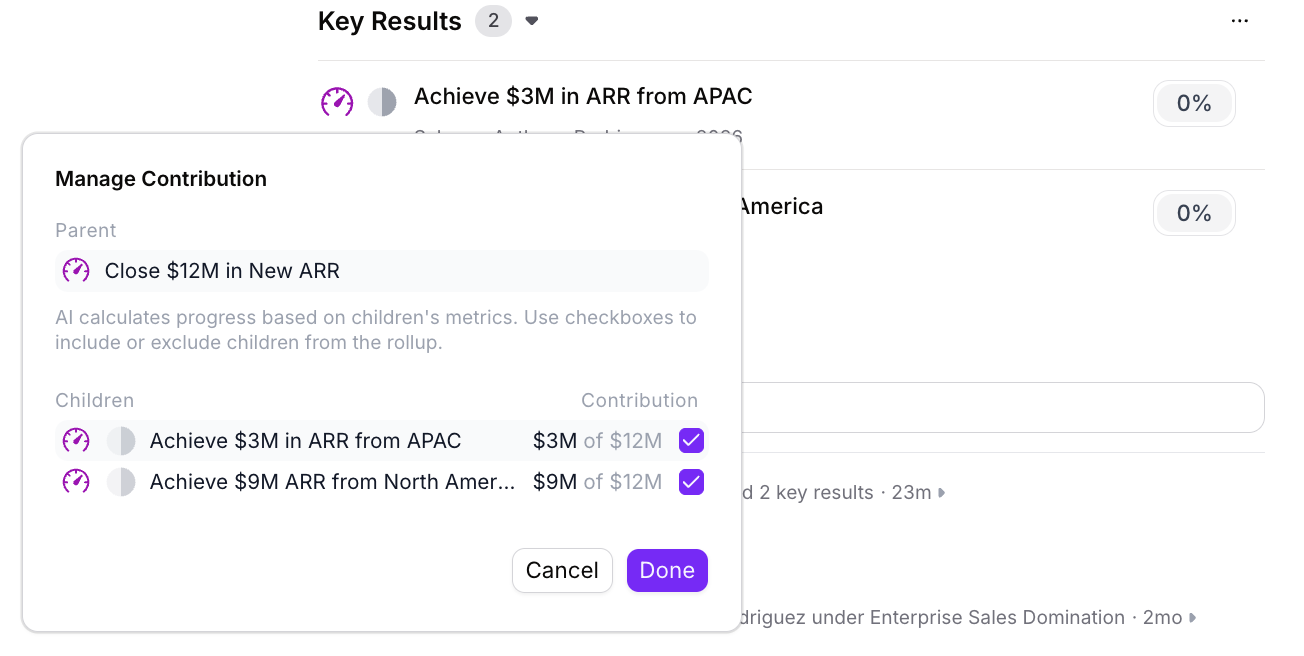
For metric-based rollup: Use the checkbox to include or exclude the child from the rollup Changes are saved automatically
When to enable contribution:
Child's progress directly reflects parent achievement
Child's completion is required for parent success
Delays would genuinely threaten parent progress
When to disable contribution (or set weight to 0%):
Lead indicators: Predictive metrics that don't represent actual results
Experimental work: Projects with uncertain impact
Supporting context: Items aligned for visibility but not core to success
Early planning: Work that hasn't started yet
Automatic exclusions
Draft goals and postponed goals are automatically excluded from rollup calculations. Their contribution weight is set to zero by the system. Draft goals begin contributing once published, and postponed goals resume contributing when reactivated.
Children with contribution disabled remain visible in the alignment hierarchy, they just don't affect parent progress or status.
Lead vs. Lag Indicators
Understanding lead vs. lag indicators is critical for configuring contribution correctly:
Lag indicators (results) - Enable contribution ✅
Measure outcomes that already happened
Example: "Close 10 deals" measures actual closed revenue
These represent real progress toward the parent
Lead indicators (predictive) - Disable contribution ❌
Measure activities that predict future outcomes
Example: "50 qualified opportunities" predicts future closes
These don't represent actual progress yet
💡 Organizational Best Practice: Disabling contribution for lead indicators is a recommended approach based on OKR methodology, not a system-enforced rule. The system treats all metrics equally—it's up to you to configure settings that reflect your measurement strategy.
Why this matters: If lead indicators contribute, your parent might show 80% progress based on pipeline while actual results are at 20%. This creates false confidence and masks real problems.
Recommended pattern: Align lead indicators to the parent for visibility and early warnings, but set contribution weight to 0% (or disable contribution) so only actual results drive parent progress.
When Rollup Can't Calculate (Manual Mode Required)
Sometimes Rhythms detects that automatic rollup isn't appropriate—typically when the parent measures an outcome but children measure activities that influence it.
Example: Headcount Goal
Parent: Grow team to 200 employees (requires actual headcount number)
Children:
Launch employer branding campaign (% progress)
Reduce time-to-hire to 3 weeks (time metric)
Partner with 5 job boards (count)
Why no rollup:
Parent needs the ACTUAL employee count
Children track activities and improvements, not headcount itself
These activities influence hiring but can't mathematically calculate headcount
What happens: Rhythms recognizes the incompatibility and doesn't calculate parent progress automatically. You need to update the parent manually with actual headcount in check-ins.
Other no-rollup scenarios:
Parent is qualitative ("Improve team culture") with quantitative children
Parent measures external outcome (market share) children can influence but not calculate
Parent and children use fundamentally incompatible metrics
In these cases, switch the parent to Manual mode and update progress through check-ins based on your judgment and actual data.
Frequently Asked Questions
How does Rhythms know whether to sum or average?
Rhythms analyzes your goal titles, metric types, and semantic relationships to determine the appropriate calculation. For example, if your parent is "Achieve $2M revenue" with children for different customer tiers, Rhythms detects this should be summed. If your parent is "Complete strategic initiatives" with separate workstreams, it uses averaging. This happens automatically.
Can I see why Rhythms chose a specific calculation method?
Yes. Click on the parent's progress value to see how each child contributes and which calculation method is being used. Children are organized under Key Results, Initiatives, and Child Objectives sections.
What if Rhythms gets the calculation wrong?
If automatic rollup doesn't accurately reflect your goal's reality, you can switch the parent to Manual mode. This gives you full control to update progress based on your judgment. Click the progress value and select "Update manually" from the dropdown.
Do all children contribute equally by default?
For averaging calculations, yes. When contribution is enabled, all children have equal impact unless your organization has custom weights enabled and you've configured specific weights. For aggregation calculations, Rhythms sums the actual values regardless of weights.
How do I know if custom weights are enabled?
If you see a weight button (showing a percentage like "25%") next to each child goal when viewing a parent OKR, custom weights are enabled for your organization. If you don't see weight controls, your organization uses equal weight averaging by default.
What happens when I postpone a contributing child?
When you set a child to Postponed status, Rhythms automatically sets its contribution weight to 0 and excludes it from parent progress calculation. This prevents paused work from creating false progress signals or making the parent appear ahead/behind based on inactive work. When you reactivate the child by changing status back to an active state (On Track, Behind, At Risk), it resumes contributing to the parent.
What happens to draft goals in the rollup?
Draft goals are automatically excluded from rollup calculations. Their contribution weight is set to zero until they're published. This prevents unfinalized work from inflating or deflating parent progress. Once a draft goal is published, it begins contributing to the parent automatically.
Should lead indicators contribute to my parent?
No. Lead indicators predict future performance but aren't actual results. Disable contribution (or set weight to 0%) so they don't inflate parent progress. Align them for visibility and early warnings only.
Can I adjust contribution weights?
Only if your organization has custom weights enabled. If enabled, click the weight button next to any child goal and enter custom percentages.
Does 0% weight hide the child from reports?
No. 0% weight items remain visible in alignment views, reports, and dashboards. They just don't affect parent progress or status.
What happens if I delete a contributing child?
For averaging calculations, remaining weights are automatically renormalized. For aggregation calculations, the sum adjusts to reflect the removed contribution.
Can Rhythms aggregate across different metric types?
Only if they're compatible. For example, revenue in USD from different sources can be summed. But you can't sum revenue with headcount—Rhythms will recognize this and either use averaging (if progress percentages make sense) or indicate manual mode is needed.
Related Articles
📄 Understanding OKR Automatic Rollup- How progress and status rollup work together and when to use automatic vs. manual modes
📄 Automatic Status Rollup for Parent OKRs- How status is computed and when to override with strategic judgment
📄 Effective Check-ins to Track OKR Progress in Rhythms- How to conduct check-ins and update OKR progress