Model Customization: Configuring Alignment and Contribution Rules
Last updated: June 22, 2026
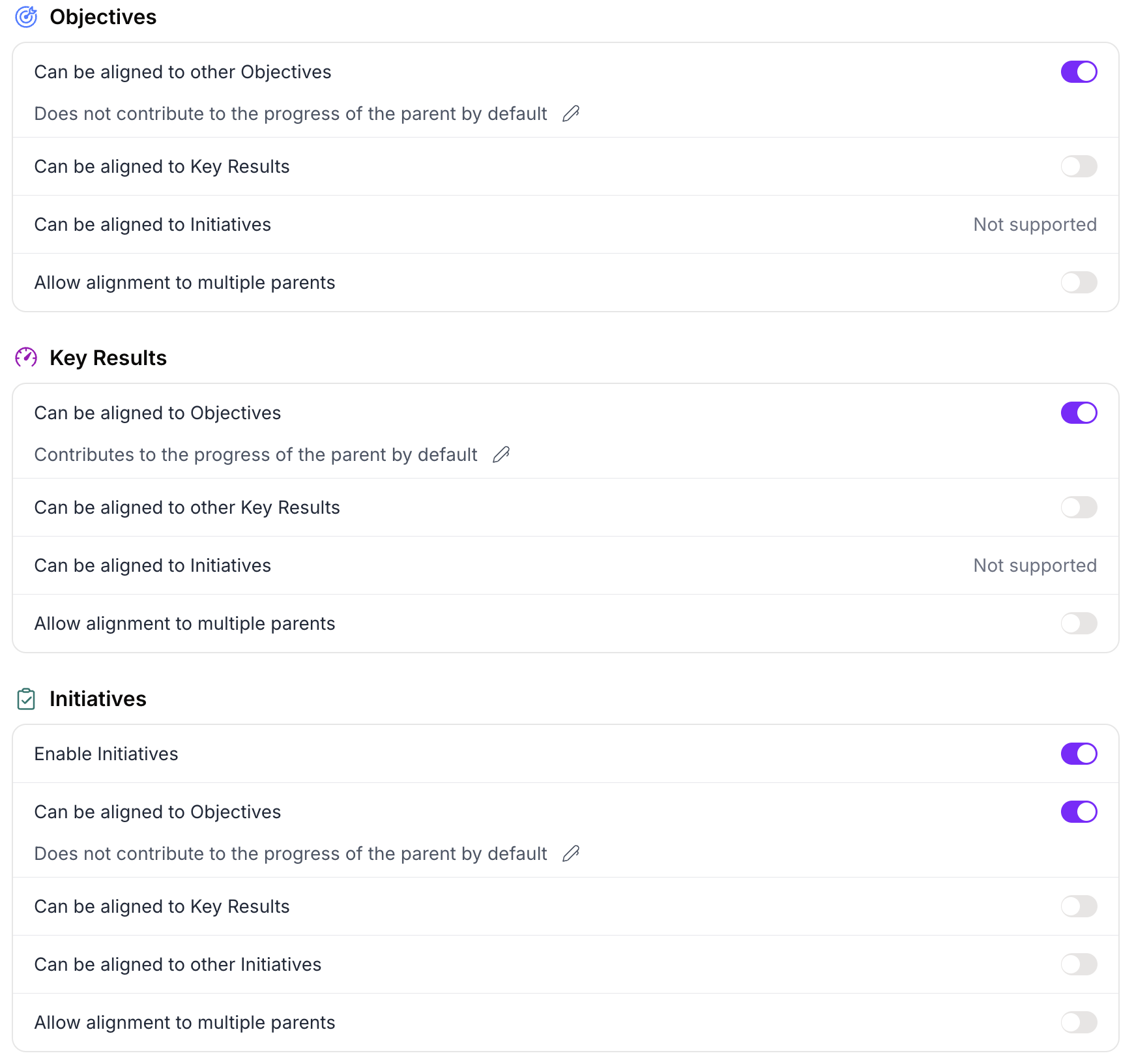
Overview
Model Customization lets you configure how Objectives, Key Results, and Initiatives align and contribute in your workspace. These settings apply organization-wide and determine which structural patterns your teams can use. All teams operate under the same rules, ensuring goals connect coherently across your organization.
As a workspace administrator, you'll use Model Customization to implement the organizational design decisions from [LINK: Designing Your Organization's OKR Model]. This article provides step-by-step instructions for configuring each setting.
Who Should Read This
This article is for:
Rhythms Platform Administrators with permissions to modify workspace settings
Looking for something else?
OKR program administrators deciding which settings to enable → Designing Your Organization's OKR Model
Team owners and individual contributors working within existing configuration → OKR Alignment and Time Horizons: Building Effective Goal Hierarchies
What This Article Covers
How to access Model Customization settings
Configuring Objectives (alignment, contribution, multi-parent)
Configuring Key Results (alignment, contribution, multi-parent)
Configuring Initiatives (enable/disable, alignment, contribution, multi-parent)
Setting up custom terminology for your organization
Testing configuration changes before teams use them
Resetting to default settings if needed
Prerequisites:
Rhythms Platform Administrator
Understanding of your organization's OKR model design (see Designing Your Organization's OKR Model)
Familiarity with alignment and contribution concepts (see OKR Alignment and Time Horizons: Building Effective Goal Hierarchies)
Accessing Model Customization
Who Can Access
Only users with Rhythms Platform Administrator roles can access and modify Model Customization settings.
If you don't see Model Customization in your settings menu, you don't have the required permissions. Contact your workspace owner or Rhythms Platform Administrator to request admin access.
See Rhythms OKR Roles and Permissions for complete role definitions and permissions.
How to Access
Click on Settings in the lower left hand corner of Rhythms
Navigate to Model Customization in the left sidebar under OKR settings
You'll see three sections: Objectives, Key Results, and Initiatives
Configuring Objectives
The Objectives section controls how Objectives can be structured in your workspace. This is the first section you'll see in the Model Customization interface.
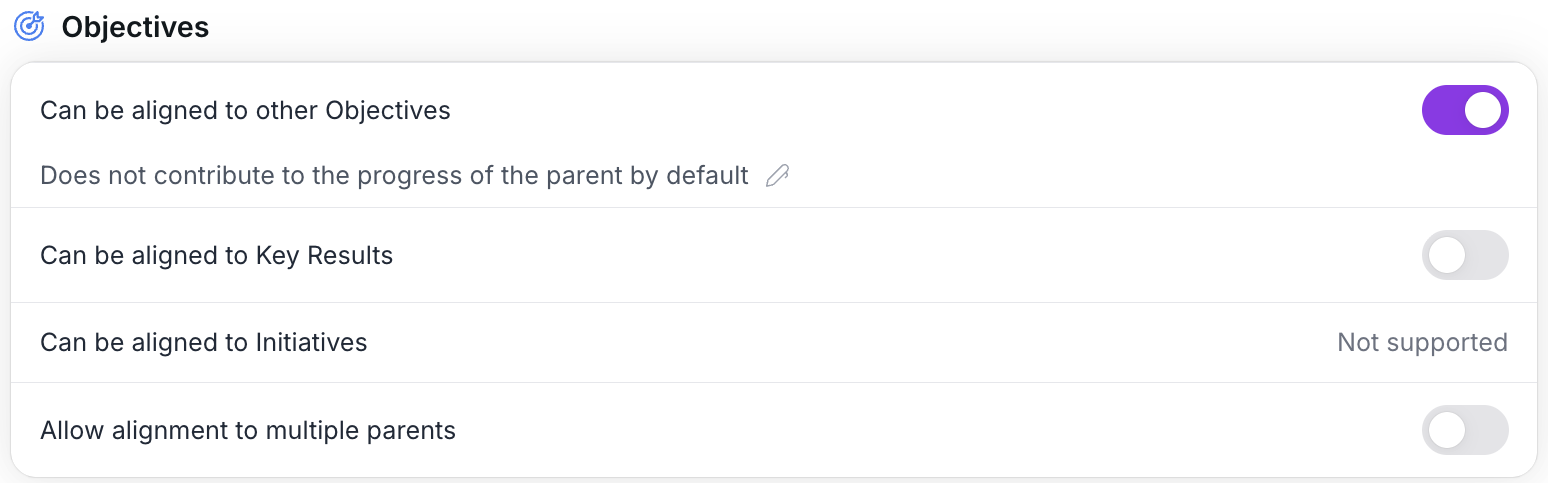
Objective Alignment Settings
Can be aligned to other Objectives
This configuration enables:
All organizational models (Models A, B, C, D) - this is the fundamental company → team → sub-team cascade
Examples 1, 3, 5 from OKR Alignment and Time Horizons: Building Effective Goal Hierarchies
Child Objectives supporting parent Objectives at any organizational level
Default state: Enabled
What this controls: Whether Objectives can be children of other Objectives (the standard OKR hierarchy pattern).
When to disable: Almost never. This is the fundamental Objective-to-Objective alignment that enables organizational cascades (company Objectives → team Objectives). Disabling prevents teams from aligning their Objectives to company Objectives.
How to configure:
Expand the Objectives section in Model Customization
Find "Can be aligned to other Objectives"
Toggle ON (should already be ON by default)
Can be aligned to Key Results
Default state: Disabled
What this controls: Whether Objectives can be children of Key Results.
When to enable: Rarely. This creates non-standard OKR structures where an Objective measures a Key Result. Standard OKR model has Key Results measuring Objectives, not the reverse.
⚠ Not recommended for most organizations. Keep disabled unless you have specific structural need validated by pilot testing.
Objective Contribution Setting
Does not contribute to the progress of the parent by default
This configuration enables (if changed to "Contributes"):
Model B (Enterprise Divisional) pattern where divisional Objectives compose company Objectives
Automatic progress rollup across organizational altitude levels
See Model B in Designing Your Organization's OKR Model for when this makes sense
Default state: Does not contribute (shown as text with pencil icon indicating it's editable)
What this controls: Whether child Objective progress rolls up to parent Objective progress.
When to change to "Contributes by default": See Designing Your Organization's OKR Model Configuration Decision 4. Enable only when child Objectives mathematically compose parent Objectives (rare). Most organizations keep the default.
How to configure:
In the Objectives section
Click the pencil icon next to "Does not contribute to the progress of the parent by default"
Select "Contributes by default" from the dropdown
Changes apply automatically
Impact of enabling:
Child Objective progress affects parent Objective progress as weighted average
Creates nested progress dependencies across organizational levels
Only works if child Objectives are true subdivisions, not supporting activities
Objective Multi-Parent Setting
Allow alignment to multiple parents
This configuration enables:
Model C (Matrix Organizations) pattern
Model D (Project-Driven) when objectives serve multiple strategic dimensions
Objectives appearing under multiple parents in different parts of your organizational structure
See Models C and D in Designing Your Organization's OKR Model
Default state: Disabled
What this controls: Whether an Objective can align to multiple parent Objectives simultaneously.
When to enable: When matrix organizations need Objectives serving multiple strategic dimensions. See Designing Your Organization's OKR Model Configuration Decision 2.
How to configure:
In the Objectives section
Find "Allow alignment to multiple parents"
Toggle ON
Changes apply to Objectives immediately
Impact of enabling:
When creating Objectives, users can add multiple parent Objectives
Same Objective appears in tree view under each parent
Useful for matrix structures but adds complexity
Configuring Key Results
The Key Results section controls how Key Results can be structured in your workspace.
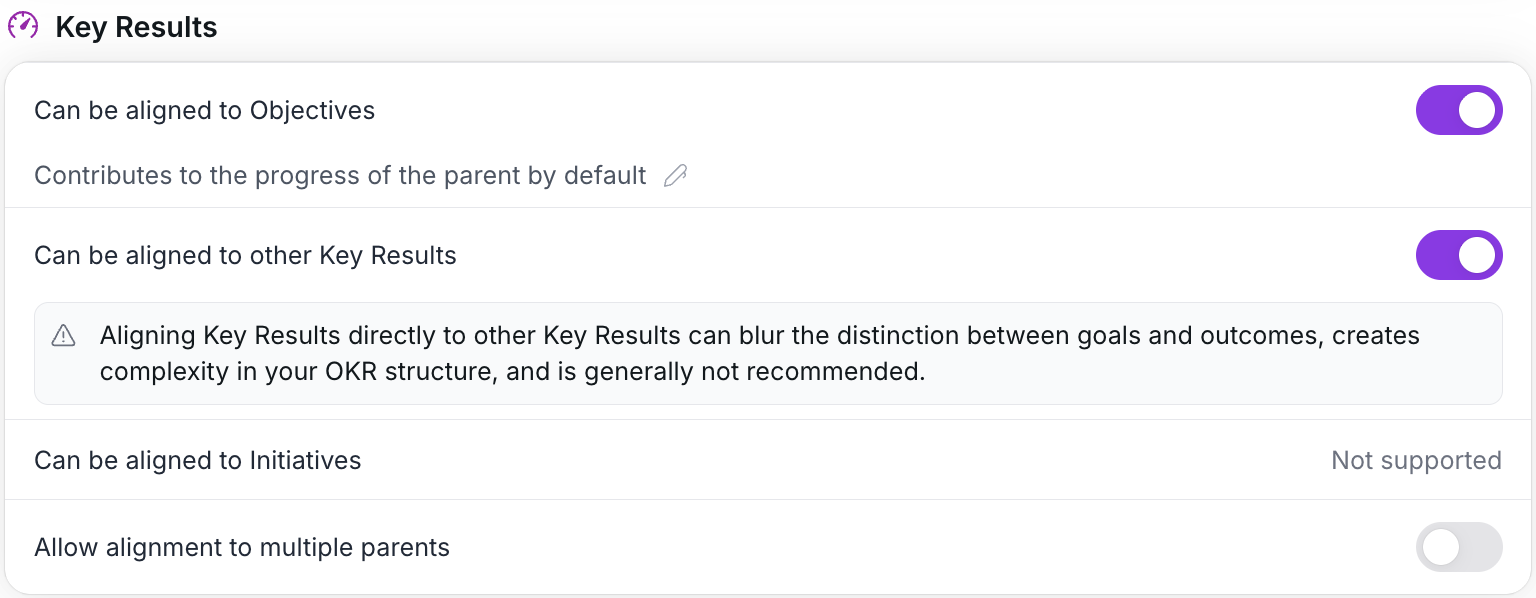
Key Result Alignment Settings
Can be aligned to Objectives
Default state: Enabled
What this controls: Whether Key Results can be children of Objectives (the fundamental OKR relationship).
When to disable: Never. This is the core OKR model (Key Results measure Objective success). Disabling breaks the OKR framework. Keep enabled always.
Can be aligned to other Key Results
Default state: Disabled (toggle available but OFF)
What this controls: Whether Key Results can be children of other Key Results.
⚠ Warning in interface: "Aligning Key Results directly to other Key Results can blur the distinction between goals and outcomes, creates complexity in your OKR structure, and is generally not recommended."
When to enable: Rarely. This creates nested Key Result hierarchies (KR with Sub-KRs). While shown in some examples (like Example 2 in OKR Alignment and Time Horizons), most organizations don't need this enabled. The product supports showing KR composition without requiring this alignment type.
Keep disabled unless you have validated use case from pilot testing.
Key Result Contribution Setting
Contributes to the progress of the parent by default
Default state: Contributes (this is the core OKR behavior)
What this controls: Whether Key Results contribute to parent Objective progress.
When to change to "Does not contribute": Never. Key Results measuring Objective success is the fundamental OKR model. Changing this breaks automatic progress rollup. Keep enabled always.
Key Result Multi-Parent Setting
Allow alignment to multiple parents
This configuration enables:
Example 2 (Shared Metrics Across Organizational Levels) from OKR Alignment and Time Horizons: Building Effective Goal Hierarchies
Key Results serving dual purposes (company composition tracking + team primary metric)
Same metric appearing in multiple organizational contexts
Model C (Matrix Organizations) when metrics span multiple dimensions
Default state: Disabled
What this controls: Whether a Key Result can align to multiple parent Objectives simultaneously.
When to enable: When you need shared metrics across organizational levels (see Example 2 in [LINK: OKR Alignment and Time Horizons]). Example: Product A team's "2,000 customers" KR that also serves as Sub-KR to company's "10,000 total customers" KR.
Typically enabled together with Objective multi-parent and Initiative multi-parent for consistency.
How to configure:
In the Key Results section
Find "Allow alignment to multiple parents"
Toggle ON
Impact of enabling:
Key Results can align to multiple parent Objectives
Same metric serves different purposes in different contexts
Requires careful communication about dual-purpose metrics
Configuring Initiatives
The Initiatives section controls whether Initiatives are available and how they work in your workspace.
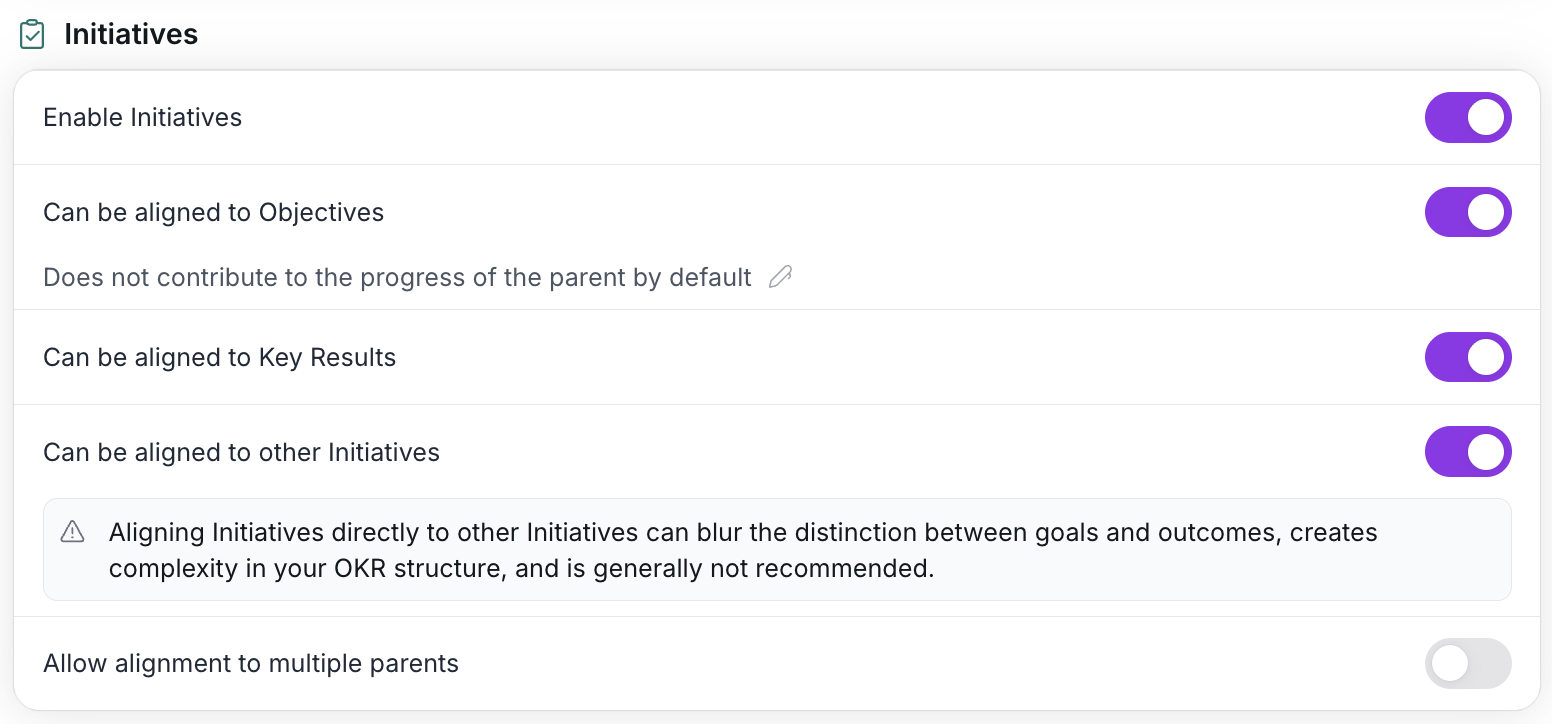
Enable/Disable Initiatives
Enable Initiatives
Default state: Enabled
What this controls: Whether Initiatives are available as a goal type in your workspace.
When to disable: Rarely. Initiatives connect OKR outcomes to daily work and integrate with project management tools (Jira, Linear, Monday.com). Most organizations keep Initiatives enabled.
If disabled: Users cannot create Initiatives. The Initiative option disappears from creation interfaces. Existing Initiatives remain visible but cannot be edited or created.
How to configure:
In the Initiatives section
Find "Enable Initiatives" toggle at the top
Toggle ON to enable, OFF to disable
All other Initiative settings only apply when Initiatives are enabled
Initiative Alignment Settings
Can be aligned to Objectives
Default state: Enabled (when Initiatives are enabled)
What this controls: Whether Initiatives can be children of Objectives (the standard Initiative placement).
When to disable: Never (if Initiatives are enabled at all). This is the primary way Initiatives connect to goals.
Can be aligned to Key Results
This configuration enables:
Model A's annual initiative with quarterly child initiatives pattern (requires Initiative-to-Initiative which this automatically enables)
Nesting initiatives under specific Key Results they're designed to drive
Tying specific work to specific metrics
See Model A in Designing Your Organization's OKR Model Configuration Decision 1
Default state: Disabled
What this controls: Whether Initiatives can be children of Key Results instead of only Objectives.
When to enable: When teams frequently have initiatives that drive one specific metric. See Designing Your Organization's OKR Model Configuration Decision 1.
How to configure:
In the Initiatives section
Find "Can be aligned to Key Results"
Toggle ON
Impact of enabling:
Initiatives can align to either Objectives or Key Results
Enables nesting Initiatives under specific metrics they're designed to drive
Also enables Initiative-to-Initiative alignment automatically
Can be aligned to other Initiatives
Default state: Disabled (becomes available when "Can be aligned to Key Results" is enabled)
What this controls: Whether Initiatives can have child Initiatives.
⚠ Warning in interface: "Aligning Initiatives directly to other Initiatives can blur the distinction between goals and outcomes, creates complexity in your OKR structure, and is generally not recommended."
When useful: Annual initiative programs with quarterly child initiatives (each phase is a child Initiative). Example from Model A in Designing Your Organization's OKR Model: Annual "Enterprise expansion program" with Q1 child "Foundation phase", Q2 child "Growth phase", etc.
Automatically enabled when you enable "Can be aligned to Key Results."
Initiative Contribution Setting
Does not contribute to the progress of the parent by default
This configuration enables (if changed to "Contributes"):
Model D (Project-Driven Organizations) pattern where delivery is measured alongside outcomes
Initiative progress affecting parent Objective calculations
See Model D in Designing Your Organization's OKR Model Configuration Decision 3
Default state: Does not contribute
What this controls: Whether Initiative progress affects parent Objective progress calculations.
When to change to "Contributes by default": See Designing Your Organization's OKR Model Configuration Decision 3. Enable when your organization measures success by project completion alongside outcomes. Most organizations keep the default (non-contributing).
How to configure:
In the Initiatives section
Click the pencil icon next to "Does not contribute to the progress of the parent by default"
Select "Contributes by default" from the dropdown
Changes apply automatically
What this does:
Initiative progress % affects parent Objective progress mathematically
Changes rollup calculations to include Initiatives
What this doesn't do:
Does NOT create intelligent risk assessment or delay detection
Risk status remains mathematical (actual vs expected progress %)
To understand initiative delays, review the initiative directly or check connected work management tools
Contribution affects the math, not intelligent risk assessment
Initiative Multi-Parent Setting
Allow alignment to multiple parents
This configuration enables:
Example 4 (Cross-Functional Initiative Supporting Multiple Objectives) from OKR Alignment and Time Horizons: Building Effective Goal Hierarchies
Model C (Matrix Organizations) and Model D (Project-Driven) from Designing Your Organization's OKR Model
Cross-functional work appearing under multiple team Objectives
Shared initiatives serving multiple strategic dimensions
Default state: Disabled
What this controls: Whether an Initiative can align to multiple parent Objectives simultaneously.
When to enable: For cross-functional work advancing multiple goals. See Model C and Model D in Designing Your Organization's OKR Model. Typically enabled together with Objective and Key Result multi-parent for consistency.
How to configure:
In the Initiatives section
Find "Allow alignment to multiple parents" at the bottom
Toggle ON
Impact of enabling:
Initiatives can align to multiple parents
Same Initiative appears under each aligned Objective in tree view
Useful for cross-functional initiatives serving multiple teams
Configuring Custom Terminology
The Terminology section at the bottom of Model Customization lets you change the labels used throughout Rhythms for OKR concepts.
Understanding the Terminology Table
The Terminology section presents editable input fields for customizing terms:
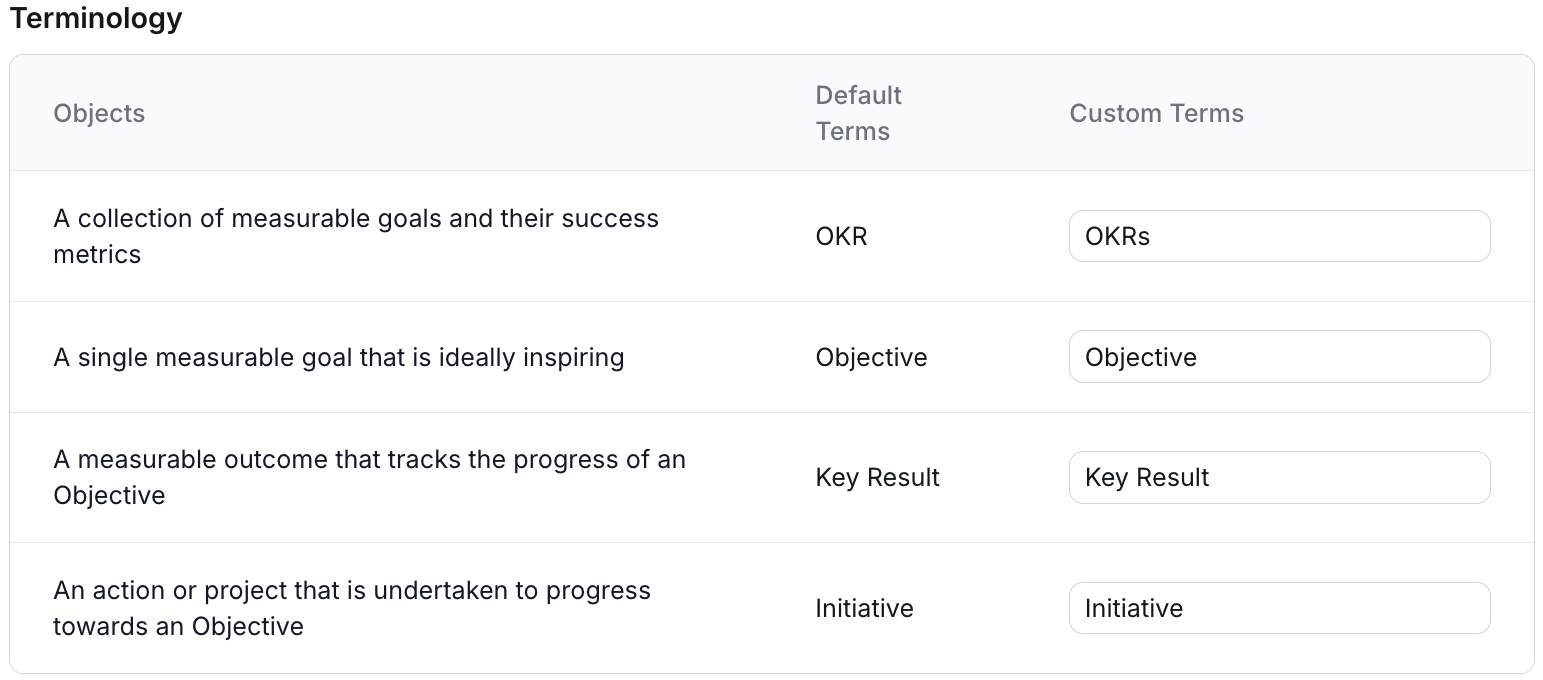
The Objects column describes what each term represents. The Default Terms column shows standard OKR terminology. The Custom Terms column contains editable input fields where you enter your organization's preferred terms.
When to Customize Terminology
Consider custom terminology when:
Your organization uses established language different from standard OKR terms (Goals instead of Objectives, Metrics instead of Key Results)
Industry-specific terms resonate better with your culture
Change management: easing transition from existing goal-setting frameworks
Example: Some organizations prefer "Outcome" instead of "Objective" or "Target" instead of "Key Result"
See Designing Your Organization's OKR Model Configuration Decision 5 for decision guidance.
Most organizations start with defaults. Only customize if different terminology provides clear organizational benefit.
How to Configure Custom Terminology
Navigate to the Terminology section at the bottom of Model Customization
Find the row for the term you want to customize
Click in the Custom Terms input field for that row
Enter your preferred singular form
Press Enter or click outside the field to save
Plural form is automatically generated from your singular term
Example:
Change "Objective" to "Goal"
Plural automatically becomes "Goals"
Throughout Rhythms: "Create Goal", "My Goals", "Align to Goal"
What Changes Throughout Rhythms
After customizing terminology:
All interface labels update to your custom terms
Buttons: "Create Goal" instead of "Create Objective"
Dropdowns: "Align to Goal" instead of "Align to Objective"
Navigation: "My Goals" instead of "My OKRs"
Reports: "Goals without Targets" (if you customized Key Result to Target)
Help text in interface updates to match
What doesn't change:
Underlying data model (just display labels)
Help center documentation (still uses standard terms but concepts apply)
API field names (remain technical standard names)
Reverting to Standard Terminology
To return to standard OKR terminology:
Navigate to Terminology section
Clear the text in the Custom Terms field
Field reverts to showing the default term
Interface returns to standard OKR terminology throughout
Testing Your Configuration Changes
Before rolling out configuration changes, test with sample goals to verify behavior matches your expectations and that users can successfully work with the new settings.
Pre-Rollout Testing Workflow
Step 1: Create Test Goal Hierarchy
Create a test parent Objective with one Key Result
Create test child goals using your new configuration:
If you enabled Initiative-to-KR: Create Initiative aligned to the Key Result
If you enabled multi-parent: Create a goal and align it to two parents
If you enabled contribution settings: Set different progress values and verify rollup
Step 2: Verify Alignment Options
Create a new test goal
Click "Align to" dropdown
Verify you see expected parent types based on your configuration:
Initiative with "align to KR" enabled: Should see both Objectives and Key Results as options
With multi-parent enabled: Should be able to add additional parents after creating first alignment
Step 3: Check Contribution Behavior
Set test parent Objective to use automatic rollup from children
Create contributing children (Key Results by default, plus Initiatives if you enabled contribution)
Set children to different progress percentages
Verify parent progress calculates as expected (weighted average)
Change contribution weights and verify recalculation
Step 4: Test Terminology Display
If you customized terminology:
Navigate through Rhythms interface
Verify all labels show your custom terms consistently
Create a test goal and check that dialogs use new terminology
Check tree view labels, reports, and navigation
Step 5: Have Non-Admin Test
Ask a team member (Team Owner or Member role) to create a test goal
Verify they see expected options based on configuration
Ensure new options are discoverable and understandable
Confirm they don't see disabled options
Step 6: Clean Up
Delete all test goals after verification
Document any unexpected behavior before org-wide communication
Common Configuration Combinations
Most organizations use one of these configuration combinations:
Configuration 1: Standard (Default Settings)
What's enabled:
Objectives align to Objectives ✓
Key Results align to Objectives ✓
Initiatives align to Objectives ✓
Key Results contribute ✓
Everything else disabled
Best for: Most organizations starting with OKRs, hierarchical structures, outcome-focused cultures
Configuration 2: Initiative Flexibility
What's enabled:
All standard settings ✓
Initiatives align to Key Results ✓
Initiatives align to other Initiatives ✓ (automatic)
Best for: Organizations with annual initiative programs broken into quarterly phases, teams needing to tie specific work to specific metrics
Configuration 3: Matrix Organization
What's enabled:
All standard settings ✓
Multi-parent for all goal types ✓
Optionally: Initiative-to-KR ✓
Best for: Matrix organizations (product × function × geography), heavy cross-functional work, need for shared metrics
Configuration 4: Project-Driven
What's enabled:
All standard settings ✓
Initiative contribution ✓
Multi-parent for Initiatives ✓
Best for: Project-driven cultures measuring success by delivery, consulting firms, agencies
Note: Most organizations start with Configuration 1 (defaults) and evolve to 2, 3, or 4 based on observed needs.
Resetting to Default Settings
If you need to return to default Model Customization settings:
How to Reset

Navigate to Settings > Model Customization
Click "Reset to Defaults" button in the top right hand corner
Confirm the reset action in the confirmation dialog
All settings return to defaults:
Objectives: Align to Objectives (ON), contribution (OFF), multi-parent (OFF)
Key Results: Align to Objectives (ON), contribution (ON), multi-parent (OFF)
Initiatives: Enabled (ON), align to Objectives (ON), contribution (OFF), align to KR (OFF), multi-parent (OFF)
Custom terminology: Cleared (reverts to standard terms)
What Resetting Does
Reset DOES:
Restore all alignment and contribution rules to defaults
Clear custom terminology (reverts to Objective, Key Result, Initiative, OKR)
Change what options appear in creation/editing interfaces going forward
Affect what users see when creating new goals
Reset DOES NOT:
Change existing goal alignments or relationships
Delete any goals or data
Affect current progress calculations for existing goals
Modify goals created before the reset
Break existing multi-parent relationships (they remain, just can't create new ones)
After Resetting
Existing goals:
Maintain their current structure and relationships
Continue to function normally
Alignments created under old configuration remain intact
Progress calculations continue using existing contribution settings
New goals:
Follow default rules only
Users cannot create alignments that were possible under old configuration
Options disappear from dropdowns and interfaces
When to Consider Resetting
Reset when:
Pilot testing revealed configuration doesn't match organizational needs
Complexity from enabled options exceeds organizational benefit
Starting over with simpler model after learning what doesn't work
Organizational structure changed and old configuration no longer fits
Before resetting:
Document your current configuration settings (take screenshots or notes)
Understand impact on user experience (options will disappear from interfaces)
Communicate change to teams (existing goals won't break, but creating new similar structures won't be possible)
Consider whether targeted fixes (disabling one setting) are better than full reset
Configuration Quick Reference: Which Models Need Which Settings
Use this table to quickly identify which settings to enable based on your organizational model from Designing Your Organization's OKR Model:
Organizational Model | Required Settings | Optional Settings | Keep Disabled |
Model A: | • Obj → Obj alignment (default) | • Initiative → KR (if using annual programs with quarterly phases) | • Multi-parent (all types) |
Model B: Enterprise Divisional | • Obj → Obj alignment (default) | • Obj-to-Obj contribution (if divisions compose company) | • Initiative contribution (usually) |
Model C: Matrix Organizations | • Obj → Obj alignment (default) | • Initiative contribution (if delays should affect all dimensions) | Usually none |
Model D: Project Driven | • Obj → Obj alignment (default) | • Initiative contribution (if measuring by delivery) | Varies by needs |
Frequently Asked Questions
Can I configure different settings for different teams?
No. Model Customization is workspace-wide. All teams operate under the same alignment and contribution rules. This is intentional. Organizational consistency ensures goals connect coherently across your entire organization. If teams need different structures, that's a signal to refine your org-wide model, not create team-specific configurations.
What happens to existing goals when I change configuration?
Existing goals and their alignments are not affected. Configuration changes only impact new goals created after the change and what options appear in interfaces going forward. Goals created before configuration changes maintain their structure even if that structure wouldn't be possible under new settings.
Can I enable Initiative contribution but keep Objective contribution disabled?
Yes. Each goal type has independent contribution settings. You can mix and match based on your organizational needs. Common pattern: Key Results contribute (default), Initiatives contribute (if enabled), Objectives don't contribute (default). However, most organizations keep Initiatives non-contributing to maintain outcome focus.
If I enable multi-parent alignment, do users HAVE to use it?
No. Multi-parent is optional when enabled. Users can still create single-parent goals (standard behavior). Enabling multi-parent simply makes the option available for goals that genuinely serve multiple parents. Most goals will still have single parents even when multi-parent is enabled.
How do I know which settings to enable for my organization?
Start with defaults and only enable features when you observe clear organizational need. See Designing Your Organization's OKR Model for decision frameworks based on your organizational model (Model A, B, C, or D), structure type, and culture. Run pilot tests with default settings first. Enable additional features only if pilot reveals specific needs the defaults don't support.
Can I change settings mid-quarter?
Technically yes, but not recommended. Configuration changes affect user experience and what's possible going forward. Better to make configuration changes between quarters when teams are setting new goals anyway. This avoids confusion about why options suddenly appeared or disappeared mid-cycle.
What if I enabled the wrong setting?
You can disable it or use reset to defaults. Existing goals maintain their structure and continue functioning. New goals will follow the updated configuration. If you enabled something teams aren't using, that's okay (enabled features are optional, not mandatory). If you enabled something creating problems, disable it between quarters and communicate the change.
Where can I see which settings are currently enabled?
Navigate to Settings > Model Customization. The current state of all toggles is visible. Enabled settings show as ON (purple toggle), disabled settings show as OFF (gray toggle). Contribution settings show as text descriptions. Custom terminology appears in the Custom Terms column of the Terminology table.
Why are some options marked "Not supported"?
"Not supported" means that alignment type is not available in the product. Examples: Objectives cannot align to Initiatives, Key Results cannot align to Initiatives. These restrictions maintain OKR model integrity. Enabling them would break fundamental OKR principles (outcomes measured by metrics, not by activities).
Related Articles
Before Configuring (Understand Why):
Designing Your Organization's OKR Model - Decision frameworks for which settings to enable based on organizational context and patterns
OKR Alignment and Time Horizons: Building Effective Goal Hierarchies - How teams use these configurations in practice
After Configuring (Implementation):
Creating OKRs and Initiatives in Rhythms - How users create goals with your configured rules
Managing and Updating OKRs in Rhythms - How users work within alignment constraints
Understanding Impact:
Understanding OKR Automatic Rollup - How contribution settings affect progress rollup calculations
Intelligent Progress Rollup: How Rhythms Calculates Parent Progress - Detailed rollup mechanics with contribution
Monitoring Configuration:
Reports in Rhythms: Monitoring and Improving OKR Program Health - Track how teams use configured options
Using Views to Organize and Monitor OKRs - Filter and analyze goal structures
Permissions and Access:
Rhythms OKR Roles and Permissions - Who can access Model Customization and role definitions