Using Views to Organize and Monitor OKRs
Last updated: April 9, 2026
Understanding Views in Rhythms
Views are saved perspectives on your OKR data that help you focus on what matters most to you. Whether you're tracking your personal objectives, monitoring your team's progress, or reviewing company-wide strategic goals, views organize OKRs in ways that match how you actually work.
Where You Work with Views
Rhythms provides two interfaces for working with views, each serving a different purpose:
The OKRs Section: This is where administrators pin views for organization-wide access. When you click OKRs in the left navigation, you see tabs at the top representing views that have been pinned by your Rhythms Admins. These commonly include views like "All OKRs," "My OKRs," and "[Your Organization]'s OKRs" (for example, "Rhythms's OKRs" in the Rhythms workspace). The OKRs section provides quick access to perspectives your organization considers most important for everyone to reference.
The Views Section: This is your complete view library and management interface. Click Views in the left navigation to see all available views (system-generated, custom, and shared with you), create new views, and manage your personal favorites. Here you'll find tabs for "All," "Created by me," and "Shared with me" to help you navigate your view collection. The Views section shows which views were created by Rhythms (system-generated) versus custom views created by users.
Understanding this dual nature helps you make the most of views. You're already using them when you click tabs in the OKRs section. The Views section is where you take control and create exactly the perspectives you need.
Default Views Created for You
When you first access Rhythms, several views are already set up and ready to use. Administrators control which of these appear as pinned tabs in the OKRs section.
System views commonly pinned as organization-wide tabs:
My OKRs: Shows your personal objectives and key results for the current time period
All OKRs: Every objective and key result across all time periods organization-wide
[Your Organization]'s OKRs: Your organization's strategic objectives (the view name matches your organization name, for example, "Rhythms's OKRs" in the Rhythms workspace)
My Initiatives: Shows your initiatives
All Initiatives: All initiatives organization-wide
Additional system views available in the Views section:
On Track - Current Quarter: Goals progressing as expected
At Risk / Behind - Current Quarter: Goals needing attention
My Key Results: Your key results without parent objectives
My Check-ins: OKRs where you're responsible for updates
You'll also find the Organization OKR Program Pulse in the Reports section (not Views). This provides program health analytics for everyone. Learn more about Reports and how they can help you manage your OKR's program health here.
Important note about view behavior: How "My OKRs" and similar views work depends on how they were created. System-generated views with names like "My OKRs" are designed to show each user their own data when clicked. However, if a user creates a custom view and names it "My OKRs," that view will show the creator's OKRs to everyone who accesses it. When sharing personal views with others, use descriptive names like "Jane's Q4 OKRs" to avoid confusion.
These defaults give you immediate starting points without configuration. Administrators can pin additional views or unpin existing ones based on organizational needs.
Pinning vs. Favorites: Understanding the Difference
Rhythms provides two ways to organize views for quick access:
Pinned Tabs (organization-wide):
Set by Rhythms Admins
Appear as tabs at the top of the OKRs section
Visible to everyone in your organization
Used for standardizing key perspectives across teams
Favorites (personal):
Set by you (star icon on any view you can access)
Appear in your Favorites section and the Views library
Only you see your favorites
No limit on how many views you can favorite
Used for personalizing your workspace
Example: Your organization has "All OKRs" pinned as a tab for universal access. You work with a custom "Product Team Q1 Planning" view specific to your workflow. You favorite this view for quick personal access without asking an admin to pin it organization-wide.
Creating Views
You can create views in two ways: through conversational AI in Chat, or through manual configuration in the Views interface.
Creating Views Through Chat
You can create views by having a conversation with Rhythms AI in the Chat interface. Open Chat and describe what you want to see. Rhythms AI interprets your request, creates an appropriate view with the right filters and display settings, and saves it to your Views library.
Be specific for better results. Effective requests include clear scope and criteria:
"Create a view of all Q4 engineering objectives that are at risk"
"Show me key results owned by the product team that are behind schedule"
"I need a view of initiatives with the 'priority-1' label that haven't been updated in 2 weeks"
These work well because they specify team, time period, status, object type, and relevant criteria. Vague requests like "Show me some goals" or "What's happening?" are too broad for useful view creation.
Rhythms AI understands all filter types: time periods (Q4, current quarter), teams (including sub-teams), owners (individuals or management chains), status levels (at risk, on track), check-in recency, and labels. You can describe complex combinations like "objectives owned by my team that are behind schedule but not yet marked as at-risk."
Specify display preferences:
"Show as a flat list" (List display)
"Display with parent-child relationships" (Tree display)
"Create a board view" (Board display)
"Group by team" or "Group by owner" (List view grouping)
Build on existing views: If you're in a view when you open chat, reference it: "Add the finance team to this view" or "Remove the time period filter."
Tips for better results: Mention your intended use ("for weekly reviews"), be specific about teams and time periods, include display preferences, and reference criteria that matter to your workflow.
When chat-created views work best:
You're new to Rhythms and exploring filter options
You want to describe your need conversationally
You're not sure which filter combination will work
You want Rhythms AI assistance for your role
Once created, these views appear in your Views library like any other view. You can adjust them, change display types, or share them.
Manual Configuration
For precise control, use manual configuration in the Views interface.
To create a view manually:
Navigate to Views in the left panel and click New View
Apply Filters to focus on specific OKRs (time period, team, owner, status, etc.)
Choose your Display type: Tree, List, or Board
Click Save
Name your view descriptively
Set Visibility: Private (only you) or Everyone (shared)
When manual configuration works best:
You know exactly which filters you need
Creating views for recurring use (weekly reviews, monthly meetings)
Building views others will use (want predictable, documented filters)
You prefer direct control over each setting
For complete details on all available filters and how to combine them, see 📄 Filtering and Grouping OKRs in Views.
Three Display Types
Views can display your filtered OKRs in three formats, each optimized for different use cases.
Tree View: For Strategic Alignment
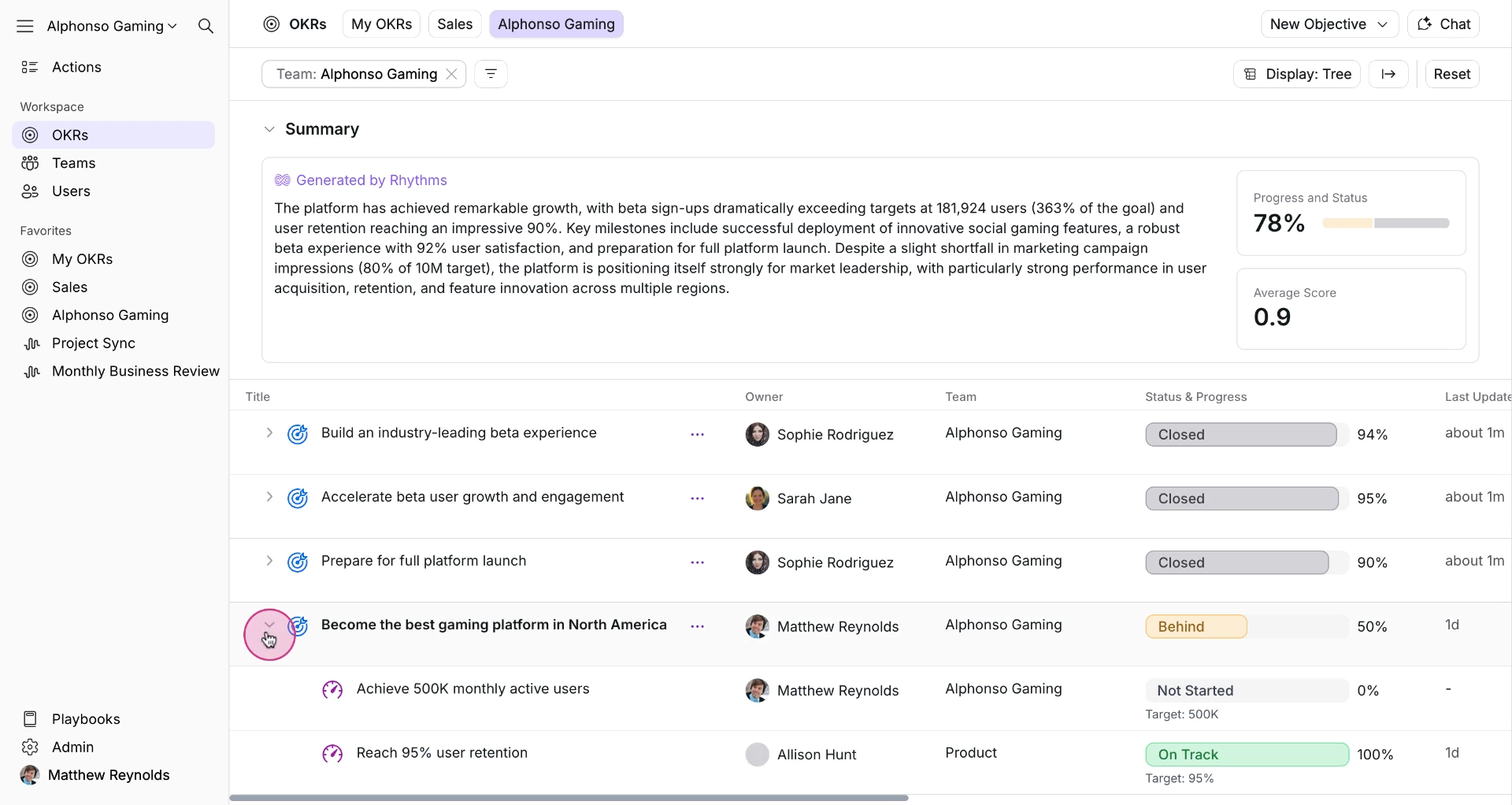
Tree View organizes OKRs hierarchically, showing how company objectives cascade to team and individual goals. When fully collapsed, you see only top-level objectives. Expand each item to reveal supporting key results and child objectives.
When to use Tree View:
Quarterly planning sessions verifying alignment across organizational levels
Goal revision reviews confirming vertical and horizontal coherence
Onboarding new employees to show how their work connects to priorities
Executive presentations demonstrating cross-departmental alignment
List View: For Comprehensive Monitoring
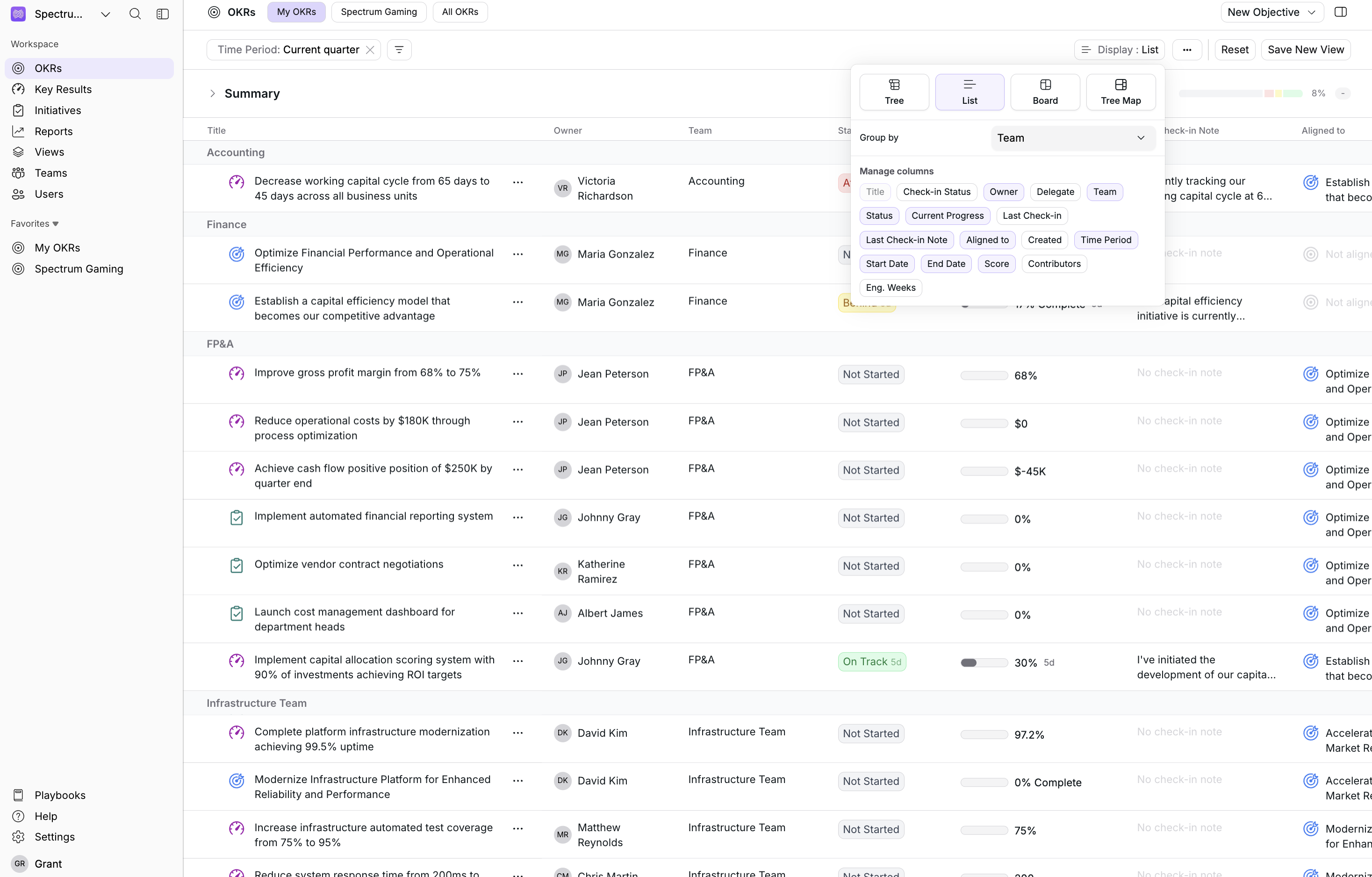
List View displays OKRs in a flat table format regardless of hierarchy, offering complete oversight of active goals. Group by team, owner, time period, parent objective, user relationship, or label groups. Toggle additional columns (contributors, delegates, score, combined status) to see more information without opening individual OKRs.
When to use List View:
Weekly team check-ins assessing progress across all active OKRs
Data audits identifying goals needing attention (missing check-ins, at risk status)
Preparing detailed performance reports with specific filter criteria
Cross-team monitoring when hierarchy isn't the primary concern
Board View: For Visual Reviews and Rhythms AI Insights
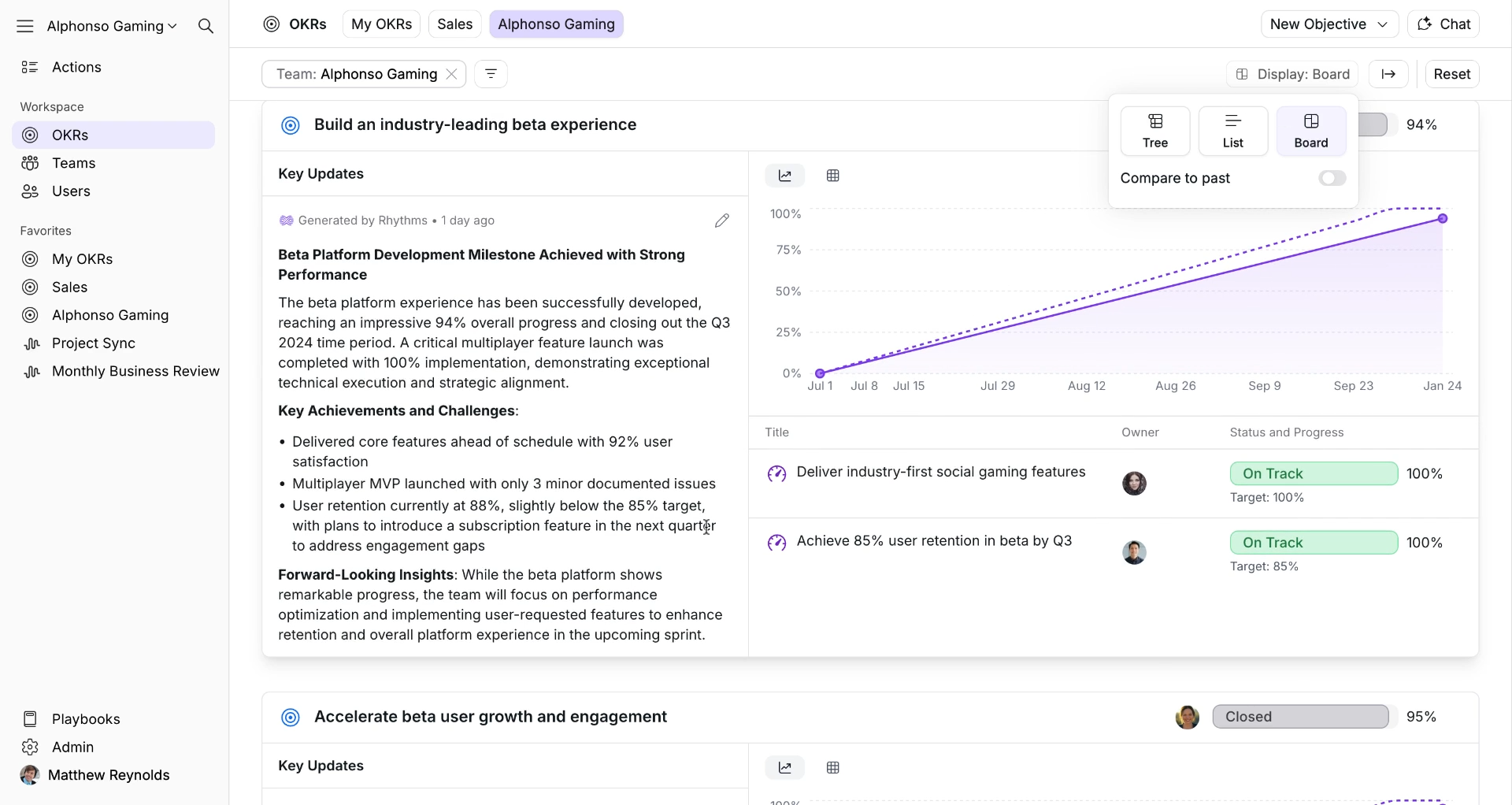
Board View provides a card-based layout optimized for reviews and presentations. Each objective appears as a visual card showing progress, status, key results, and AI-generated summaries.
Board View includes sophisticated capabilities like AI-powered insights, progress comparisons over time, and business review templates. Because of its complexity and unique features, we've created a dedicated guide.
When to use Board View:
Executive reviews requiring visual summaries
Monthly or weekly business reviews (MBR/WBR)
All-hands meetings presenting organizational status
Team stand-ups addressing blockers while maintaining strategic context
Using Labels with Views
Labels provide a way to add custom attributes to OKRs and initiatives that go beyond the standard fields like team, owner, or status. Use labels to capture themes, indicate priority levels, mark projects, or apply any other categorization that makes sense for your organization.
Common label use cases:
Strategic themes (Customer Experience, Operational Excellence, Innovation)
Priority levels (High, Medium, Low)
Project associations (Project Phoenix, Q4 Initiative)
Custom categories specific to your workflows
Once labels are applied to OKRs, they become available as filter options when creating or editing views. For example, you could create a view showing all OKRs with the "High" priority label, or filter to see everything tagged with "Customer Experience" regardless of which team owns those goals.
Creating labels: Work with your Rhythms administrator to create label sets that suit your organization's needs. Administrators control which labels are available to ensure consistency across your OKR portfolio.
Filtering by labels: When configuring a view, use the Labels filter to select one or more labels. This shows only OKRs with those labels applied. For complete details on the Labels filter, see Filtering OKRs in Views.
Managing Your Views
As you create and work with multiple views, Rhythms provides features to keep your workspace organized.
Favorites: Personal Quick Access
Star any view to add it to your Favorites. Favorited views appear in your Favorites section and at the top of your Views library.
To favorite a view, click the star icon next to the view name. Your favorites are personal and don't affect what other team members see. Star liberally based on which views you reference regularly.
Pinning: Organization-Wide Tabs
Rhythms Admins can pin views as tabs that appear for everyone in the organization. These pinned views show up in the OKRs section at the top, making them accessible to all users.
Administrators should thoughtfully select which views benefit the entire organization or support key rituals like quarterly planning or monthly reviews. While there's no technical limit on pinned tabs, too many tabs can make navigation overwhelming. Common choices include company-level strategic objectives, current quarter focus areas, or views highlighting goals needing attention.
Who can pin: Only Rhythms Admins can pin or unpin views. Regular users cannot change which views appear as organization-wide tabs.
Sharing Views
Views can be shared with specific users or teams, granting different permission levels.
Permission Levels
View: See the view and use its filters, cannot modify
Edit: Change filters and settings, cannot manage sharing or delete
Manage: Complete control including editing, sharing, and deletion
Sharing with Teams vs. Individuals
Team Sharing: When you share with a team, all current and future members automatically receive access at the specified permission level.
Individual Sharing: Share with specific users when access should be independent of organizational structure (cross-functional groups, executive stakeholders).
Example: Create a "Product Team Weekly Review" board view. Share with the Product team (Edit permissions) so anyone can adjust filters during meetings. Share with your VP (View permission) for monitoring without changing configuration.
System Views and Sharing
Default system views (like "My OKRs" and "All OKRs") and pinned tabs cannot be made private. These remain accessible to all users.
Best Practices
Start with defaults: Work with system-generated views first to understand capabilities, then create custom views for specific needs.
Use chat for exploration, manual for precision: Ask Rhythms AI in Chat when exploring. Use manual configuration for recurring views with consistent results.
Pin strategically (admins): Pin views that benefit the entire organization or support critical rituals. Consider what most people need regularly and what helps new employees understand priorities.
Favorite liberally: Star any view you reference more than once a week for quick personal access.
Frequently Asked Questions
What's the difference between the OKRs section and the Views section?
The OKRs section shows pinned tabs (views designated for organization-wide access). The Views section is your complete library showing all views (system-generated, custom, shared with you), where you manage favorites and create new views. Think of OKRs section as your daily workspace and Views section as your management interface.
Can I create a view that only I see?
Yes. When creating a view, set visibility to "Private." The view will only appear in your Views library, not for other users. You can favorite it for quick personal access.
How many views can I favorite?
There's no limit on personal favorites. Star as many as you find useful.
Who can pin views as organization-wide tabs?
Only Rhythms Admins can pin or unpin views. Regular users can request that administrators pin useful views, but cannot change tabs themselves.
Can I modify a system view like "My OKRs" with different filters?
You can't modify system views directly, but you can start with any view and adjust its filters. After applying changes, save as a new view with a different name. For example, open "My OKRs," add a filter for "At Risk" status, then save as "My At-Risk OKRs."
What happens to views I created when I leave the company?
Views you created persist. If you shared them, those users retain access. If you pinned views organization-wide (as an admin), they remain pinned until another administrator unpins them.
How do I find views that were shared with me?
Go to the Views section and click the "Shared with me" tab. You'll see all views others have shared with you along with your permission level for each.
Can I export or share a view with people outside Rhythms?
Views live within Rhythms, but you can export the OKR data from a view. See Exporting OKR Data from Rhythms for export workflows. For collaborating with people who have Rhythms access, use view sharing instead.
Related Resources
Filtering and Grouping OKRs in Views: Complete guide to all filter types, combinations, and advanced filtering techniques for creating precise views.
Exporting OKR Data from Rhythms: Export views to Excel, Word, or PowerPoint for sharing with stakeholders outside Rhythms.
Reports in Rhythms: Assess OKR program health with gap-focused analytics. Reports complement Views by showing program-level metrics while Views help you organize and execute daily work.