Add and manage users
Last updated: September 4, 2026
Rhythms Admins add people, change their roles and deactivate accounts at Settings › Workspace › Users. Every user is a Rhythms Admin, a Member or a Guest. Users are never deleted: when someone leaves, you deactivate them, their OKRs stay where they are, and you can reactivate the account later.
Open the Users page
Click Settings in the left navigation, then Workspace › Users. Only Rhythms Admins can open Settings. The Users page has two tabs, Active and Deactivated, a Search by name or email box, filters, and a count such as "Total Active Users: 42". Each row shows Name (with email), Status, License (standard, guest or hris_only), Role, Manager, Team, Timezone, Account Created and Source. The Export button downloads the current tab, with your filters applied, as a CSV.
Invite users
- Click + Add in the top-right corner of the Users page. The Invite Users panel opens.
- In Email IDs, type or paste one or more work email addresses. You can invite up to 500 people at once.
- Choose a Role: Rhythms Admin, Member or Guest. The panel defaults to Guest, so change it to Member for anyone who will own or update OKRs.
- If your workspace uses teams, optionally pick one or more Teams. The new users are added to those teams as team members.
- Click Invite. Rhythms confirms with "3 users invited" and, if some addresses already belonged to the workspace, "2 users already part of organization".
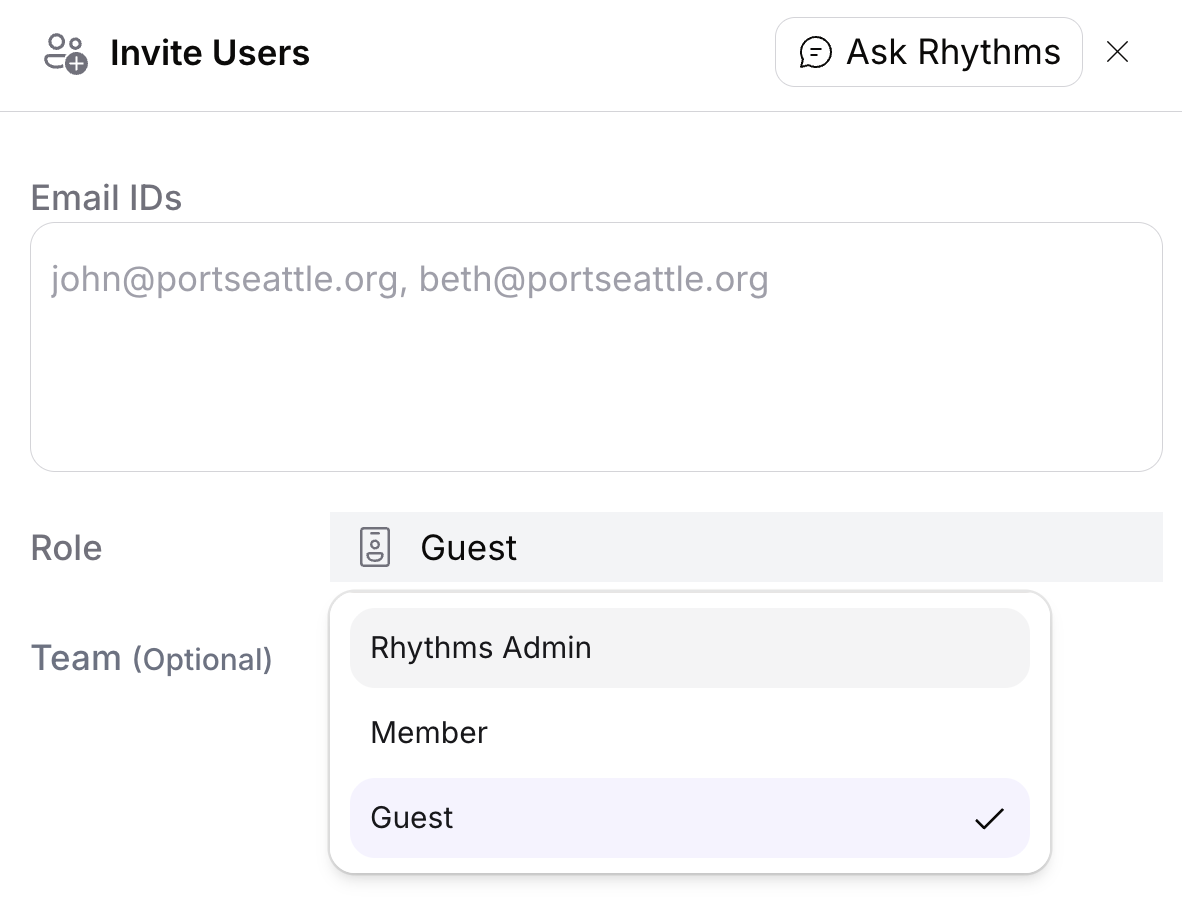
Each new user gets an account straight away and an email from Rhythms with a link to the sign-in page. They sign in with the invited address (through your identity provider if SSO is enforced for your domain). People who were already in the workspace are skipped and their role and teams are not changed. You can also invite someone by @mentioning their email in a document, comment or chat; see Invite teammates by @mention.
By default only Rhythms Admins can invite. To let every Member invite, set Invite Permissions to All Members at Settings › Workspace › General. Members can invite Members and Guests, but only a Rhythms Admin can grant the Rhythms Admin role.
Change a user's role
Use the dropdown in the Role column of the user's row and pick Rhythms Admin, Member or Guest. Rhythms shows a Confirm Role Change dialog that lists what will change; click Change Role to apply it. The new role takes effect immediately.
- Only Rhythms Admins can grant the Rhythms Admin role.
- If you change your own role from Rhythms Admin to anything else, you cannot change it back yourself; the dialog warns "You can't undo this." Ask another Rhythms Admin if you need it restored.
- Changing a user to Guest removes them as owner and delegate from every OKR the moment you confirm, even though the dialog lists those OKRs as items that "may need reassignment". Reassign their OKRs first. See Guest users: read-only access.
For what each role can do, see OKR roles and permissions.
Deactivate a user
Click the three dots at the end of the user's row. The menu offers Profile, Log in as this user, OKRs and Deactivate. Choose Deactivate; the confirmation reads "This action will immediately remove {name}'s access to the workspace. This action can be reversed by an administrator later." and lists any active OKRs they own and teams they own so you can plan the handover.
When a user is deactivated:
- They can no longer sign in, and they move to the Deactivated tab.
- Their OKRs stay assigned to them until you reassign or close them (see below).
- They are removed as a Delegate from every OKR, and the owners of those OKRs are notified that the delegate has left.
- Their team memberships and profile are kept, so reactivating restores them as they were.
- They stop counting as a billable seat.
To reactivate someone, open the Deactivated tab, click the three dots on their row and choose Activate. The confirmation reads "Confirm User Activation: {name}?" and reactivation restores their access immediately. There is no delete option: accounts remain in the workspace, deactivated, so history and ownership records stay intact.
If your workspace uses directory sync (SCIM), deprovisioning the person in your identity provider deactivates them in Rhythms automatically; they appear under Deactivated in the same way.
Reassign the OKRs of someone who has left
Deactivating does not change ownership. To find OKRs that still belong to a deactivated user, open an OKR view, add the Owner filter and pick Deactivated users, or search for the person by name. You can also click the three dots on their row on the Users page and choose OKRs to open their OKR view. Then transfer each OKR to a new owner or close it. See Filtering and grouping OKRs in views.
Log in as a user
To see Rhythms exactly as a colleague sees it, for example to troubleshoot what they can or cannot access, click the three dots on their row and choose Log in as this user. Confirm in the "Log in as {name}?" dialog. Rhythms shows a banner while you are logged in as someone else. This option is available to Rhythms Admins only, only for active users, and not while you are already logged in as another user.
Where a user came from
The Source column tells you how each account was created: "Added by {name}" for people invited from the Users page or by @mention, "Imported from Viva Goals" for accounts created during a Viva Goals import, or the name of your directory sync for accounts provisioned by SCIM or an HRIS feed. Directory sync also keeps profile fields such as manager, department and job title up to date; see Set up automated user provisioning (SCIM) and HRIS integration.
Frequently asked questions
Can I delete a user? No. Deactivate them instead. Deactivated users cannot sign in, keep their history, and can be reactivated at any time.
What happens to a deactivated user's OKRs? They stay assigned to the deactivated user. Use the Owner filter's "Deactivated users" option to find them and reassign or close them.
Does directory sync override what I do on the Users page? Directory sync creates accounts, updates synced profile fields and deactivates people who are deprovisioned. Roles are set in Rhythms, not by SCIM, except that members of your guest group are made Guests automatically.
Which roles can I assign? Rhythms Admin, Member and Guest. Team Owner is set per team on the team's Manage members page, and Delegate is set per OKR.
Can Members invite people? Only if Invite Permissions at Settings › Workspace › General is set to All Members. Members cannot grant the Rhythms Admin role.
The person I invited never received the email. What now? The invitation only links to the normal sign-in page. Ask them to sign in with the invited work email address; the account already exists.
Do deactivated users or Guests count towards billing? Deactivated users do not. Guests do. See Billing and subscription.