Create and manage teams
Last updated: September 4, 2026
Teams group the people who share OKRs: departments, functions or project groups. Rhythms Admins create teams at Settings › Workspace › Teams; Team Owners add members and create sub-teams from the same list. OKRs assigned to a team are listed under that team in the left navigation, and the Team tab of Settings › OKRs › Permissions decides who can create, edit and manage them.
Open the Teams page
Click Settings in the left navigation, then Workspace › Teams. The page has an Active and an Archived tab, a Search teams box and a Create Team button. Each row shows the team's Name (with an arrow to expand its sub-teams), Team Members count and Owners. The three dots at the end of a row open the actions menu: Edit, Manage members, Add sub teams, Archive and Delete (archived teams show Unarchive instead). Team Owners see Manage members, Add sub teams, Archive and Delete only for teams they own.
Create a team
Only Rhythms Admins can create a top-level team.
- On the Teams page, click Create Team.
- Enter the Team name.
- Pick one or more Team owners. At least one owner is required; adding a second owner means the team is not dependent on one person.
- Optionally Add description.
- Leave Parent team empty for a top-level team, or select a team to create the new team under it.
- Click Create Team.
Create a sub-team
Rhythms Admins, and Team Owners of the parent team (or of any team above it), can create sub-teams. On the Teams page, click the three dots on the parent team's row and choose Add sub teams. The same form opens with Parent team already set; fill in the name and owners and click Create Team. The new team appears nested under its parent.
Sub-teams do not inherit anything from the parent team. Membership, owners and check-in settings are set on each team separately, and OKR permissions are workspace-wide rather than per team. Owners of a parent team can, however, manage its sub-teams: they can add members, edit, archive and create further sub-teams under them.
Add and remove members, and set Team Owners
Rhythms Admins and the team's owners (including owners of a parent team) manage membership.
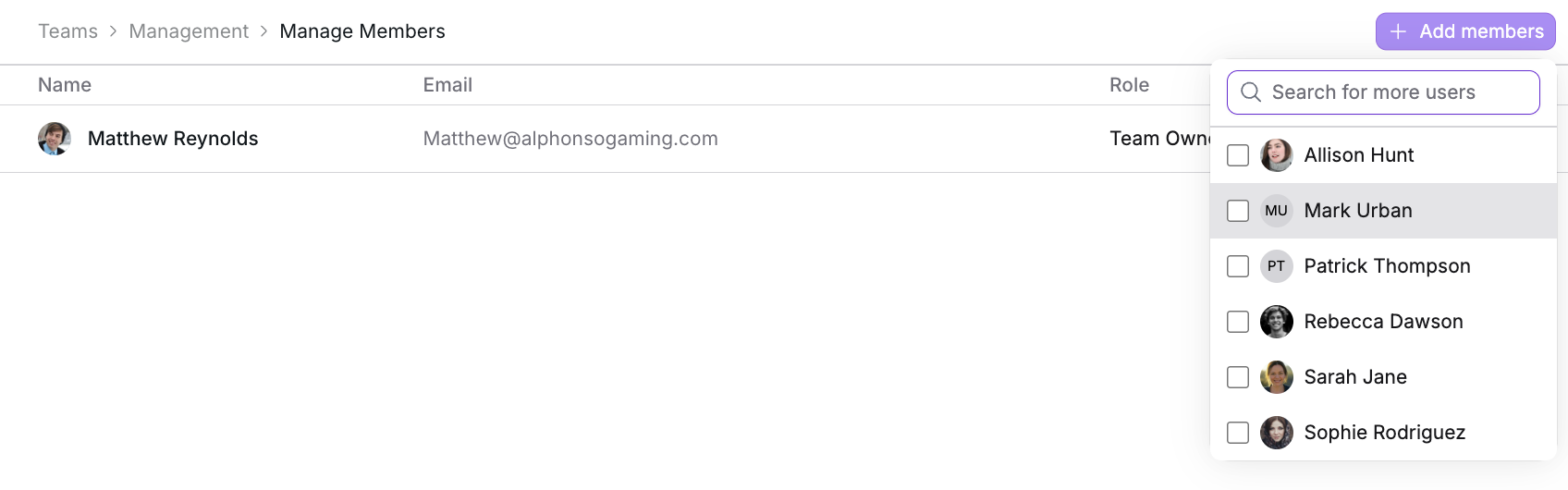
- On the Teams page, click the three dots on the team's row and choose Manage members. The members page opens with the breadcrumb Teams › {team} › Manage Members.
- Click Add members, then tick the people to add. Any active user can be added, including Guests. New members join as Team Member.
- To make someone a Team Owner, use the dropdown in the Role column and switch Team Member to Team Owner. Switch it back to demote them.
- To remove someone, click the three dots on their row and choose Remove. Removing yourself is labelled Leave Team.
Guests can be team members so that they see the team's OKRs, but do not make a Guest a Team Owner: Guests cannot perform any team-management action. The Export button on the members page downloads the member list as a CSV.
Edit, archive, unarchive or delete a team
- Edit opens the team's page where you can change the name, description, owners and parent team.
- Archive opens an archive page that lists the team's current and future OKRs and its active sub-teams. Choose whether to reassign those OKRs to another team or unassign them, and where any active sub-teams should go; a team cannot be archived while it still has active sub-teams. Archived teams move to the Archived tab and keep their history.
- Unarchive (on the Archived tab) makes a team active again. Its parent team must be active first.
- Delete is available only for a team that has no OKRs and no sub-teams; otherwise the menu shows "Teams with OKRs or sub teams cannot be deleted" and you should archive instead. Deleting removes the team permanently.
Team OKRs and permissions
Assign an OKR to one or more teams when you create or edit it. Team members find their team's OKRs under Your teams in the left navigation (collapsed by default). Who can create, edit, manage and approve team OKRs is set on the Team tab at Settings › OKRs › Permissions: by default Team Owners can create OKRs for their teams ("OKR team owners"), while editing and managing an OKR is limited to its owners and their managers. See OKR roles and permissions.
Teams and directory sync
Directory sync (SCIM) creates and deactivates users; it does not create teams or map identity-provider groups to teams. The only group Rhythms reads is the guest group, which assigns the Guest license. Add people to teams on the Manage members page, or through the Rhythms REST API. See Set up automated user provisioning (SCIM) and HRIS integration.
Frequently asked questions
Who can create teams? Rhythms Admins create top-level teams. Team Owners can create sub-teams under the teams they own.
Can a team have more than one owner? Yes. Add as many owners as you need; a second owner is a good safeguard.
Do sub-teams inherit settings from the parent? No. Members, owners and check-in settings are separate per team, and OKR permissions apply to the whole workspace.
Can Guests join a team? Yes, as team members, which lets them view the team's OKRs. Guests cannot own OKRs or manage the team.
Should I archive or delete a team? Archive when the team has, or has had, OKRs or sub-teams; it keeps history and you decide where the OKRs go. Delete only removes empty teams.
Where do team members see the team's OKRs? Under Your teams in the left navigation, and by filtering any OKR view by team.