Set up SCIM user provisioning
Last updated: September 4, 2026
Directory Sync (SCIM) connects your identity provider's directory to Rhythms so that people assigned to the Rhythms app in your IdP are created, updated and deactivated in Rhythms automatically, and their profile attributes (name, job title, department and so on) stay in sync. A Rhythms Admin sets it up from Settings › Security (the page is titled Security and Permissions) under Directory Sync (SCIM); the connection itself is configured in a setup portal powered by WorkOS. This article covers the general setup, the attribute mapping Rhythms expects, a full Okta walkthrough, and how deprovisioning and the guest group work.
What Directory Sync does
- Creates users. When someone is assigned to the Rhythms app in your IdP, Rhythms creates them as an active Member. Combined with SSO they can sign in straight away.
- Updates profiles. Changes to mapped attributes in the IdP flow into the user's Rhythms profile. First and last name also set the display name unless an Admin has set it manually.
- Deactivates users. When someone is unassigned from the app or deactivated in the IdP, Rhythms deactivates them. They move to the Deactivated tab in Settings › Users and can no longer sign in.
- Maps one group to the Guest licence. Members of your configured guest group (default name Rhythms Guests) become Guests; removing them from the group makes them Members again.
- Sets managers. If you map a manager email attribute, Rhythms links each user to the Rhythms user with that email.
Directory Sync does not manage roles: who is a Rhythms Admin is decided in Rhythms. It does not create Teams from IdP groups; the guest group is the only group Rhythms acts on. And it does not revoke active sessions when it deactivates someone (see How deprovisioning works).
Before you start
- You must be a Rhythms Admin to open the Directory Sync setup.
- Someone with admin access to your identity provider must configure provisioning there. If that is not you, ask Rhythms support to send the setup link directly to your IdP administrator.
- Rhythms works with any directory provider WorkOS supports, including Okta, Microsoft Entra ID (Azure AD), Google Workspace, OneLogin, CyberArk, PingFederate, JumpCloud, Rippling, BambooHR and others, plus Custom SCIM. The full list appears in the setup portal.
- Decide which IdP groups should be synced. Sync specific groups rather than "all users and groups": syncing everything pulls in service accounts and non-employees, and the groups you choose also control deprovisioning, so anyone outside them loses Rhythms access.
Open Directory Sync setup in Rhythms
- Open Settings from the bottom of the left sidebar and choose Security.
- In the Directory Sync (SCIM) section, the card reads No directory provider connected until a directory exists. Click Setup.
- Read the Sync only the groups you need dialog. It reminds you to pick specific groups, and that if your provider does not prompt for groups you should assign them to the Rhythms app in your IdP instead. Click Continue to setup. The WorkOS setup portal opens in a new tab.
- On Select your identity provider, choose your directory provider (usually the same as your SSO provider). The portal then shows a numbered wizard for that provider.
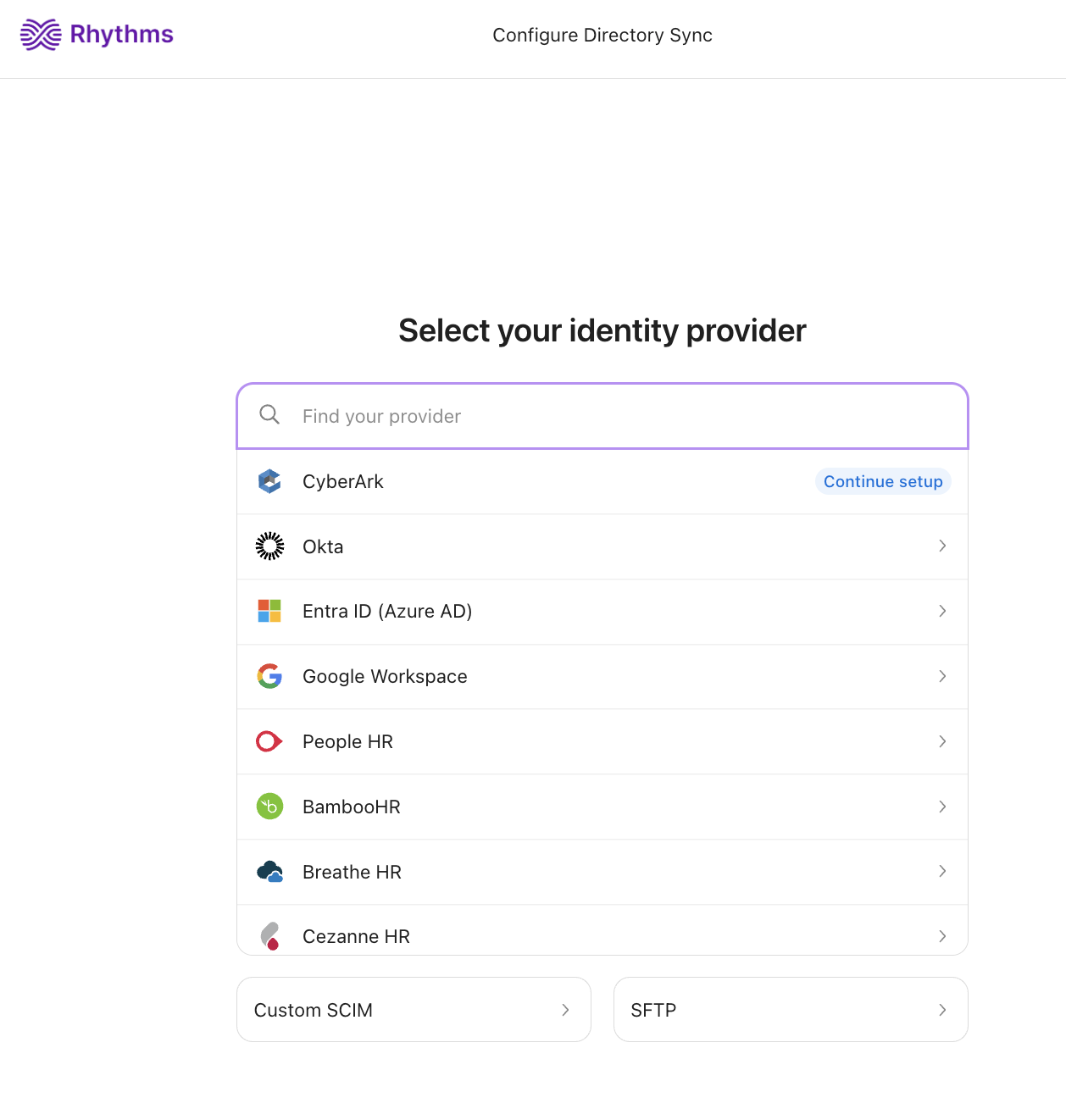
You can leave and come back; the portal shows Continue setup next to a provider you have started. Once the directory is connected, the Rhythms card shows the provider name, its state and Last sync, and the Setup button becomes Manage (which shows the same groups reminder before reopening the portal).
Map user attributes
The wizard's attribute-mapping step lists the attributes Rhythms accepts. Map your IdP's fields to these names; anything not mapped is simply left empty.
| Rhythms attribute | What it fills |
|---|---|
first_name, last_name | Name fields; also the display name unless an Admin set it manually |
job_title | Job Title |
department_name | Department |
division_name | Division |
cost_center_name | Cost Center |
employee_type | Employee Type |
custom_field_1 to custom_field_5 | Five free-text custom fields, labelled Custom 1 to Custom 5 until you rename them |
manager_email | The user's manager, matched to an existing Rhythms user by email |
Two rules to know. Directory Sync only ever sets values: a blank or removed attribute in the IdP does not clear the value already in Rhythms, and a manager link, once set, is not cleared by Directory Sync (an Admin can change it in Rhythms). And there are exactly five custom fields; if you need more, choose the five that matter most for filtering and reporting.
Attribute labels and visibility are controlled in Settings › Security under User Profile Attributes, further down the same page. First name, last name and job title are enabled by default; enable the other attributes you sync and rename the custom fields to match your terminology. Enabled attributes appear on profiles, in the Users list, and as filters and groupings in OKR views. See Enterprise User Management in Rhythms.
Okta: connect Okta to Rhythms with SCIM
The portal's Okta wizard has seven steps. Complete them in the Okta admin console with the portal open alongside.
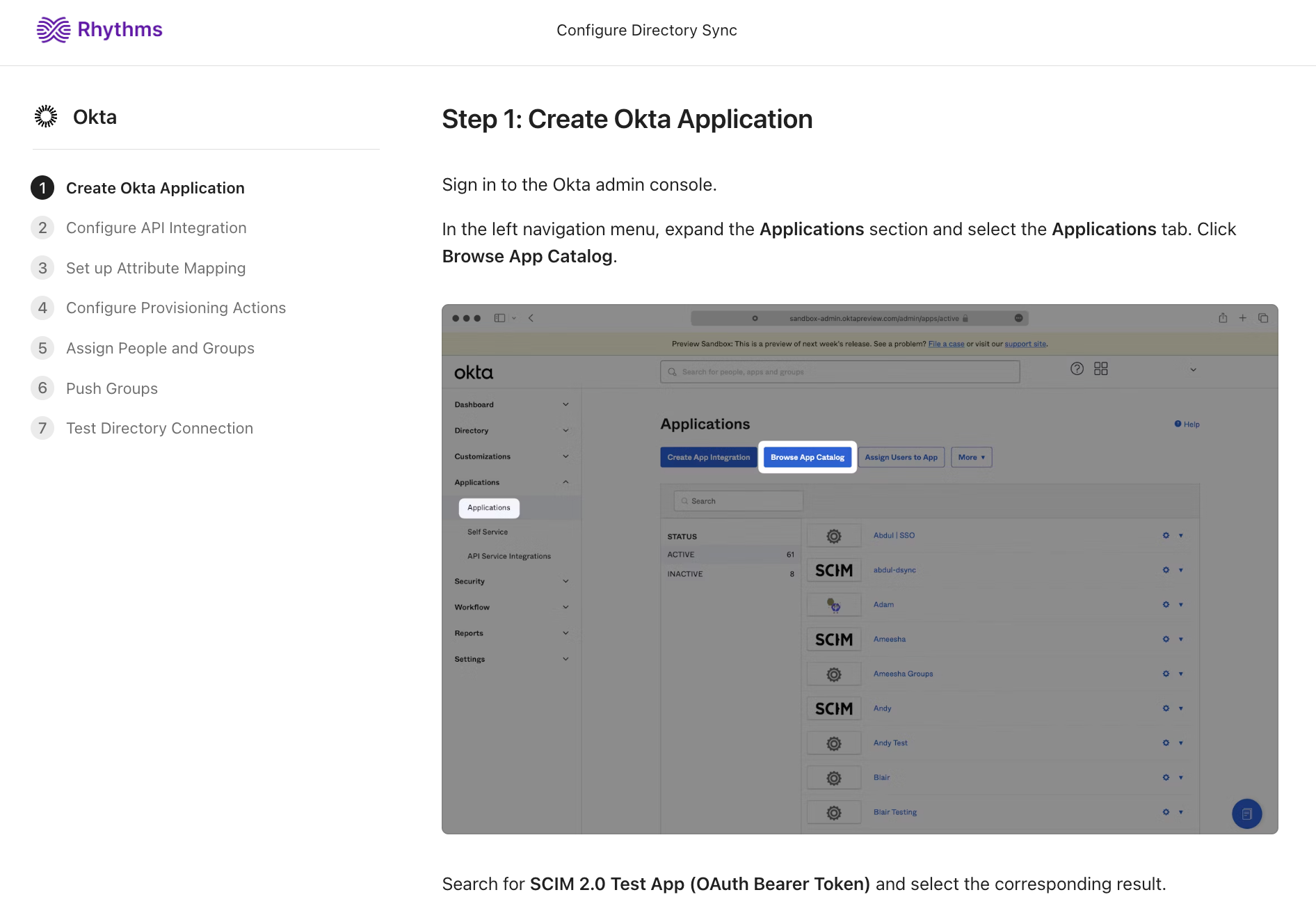
1. Create the Okta application
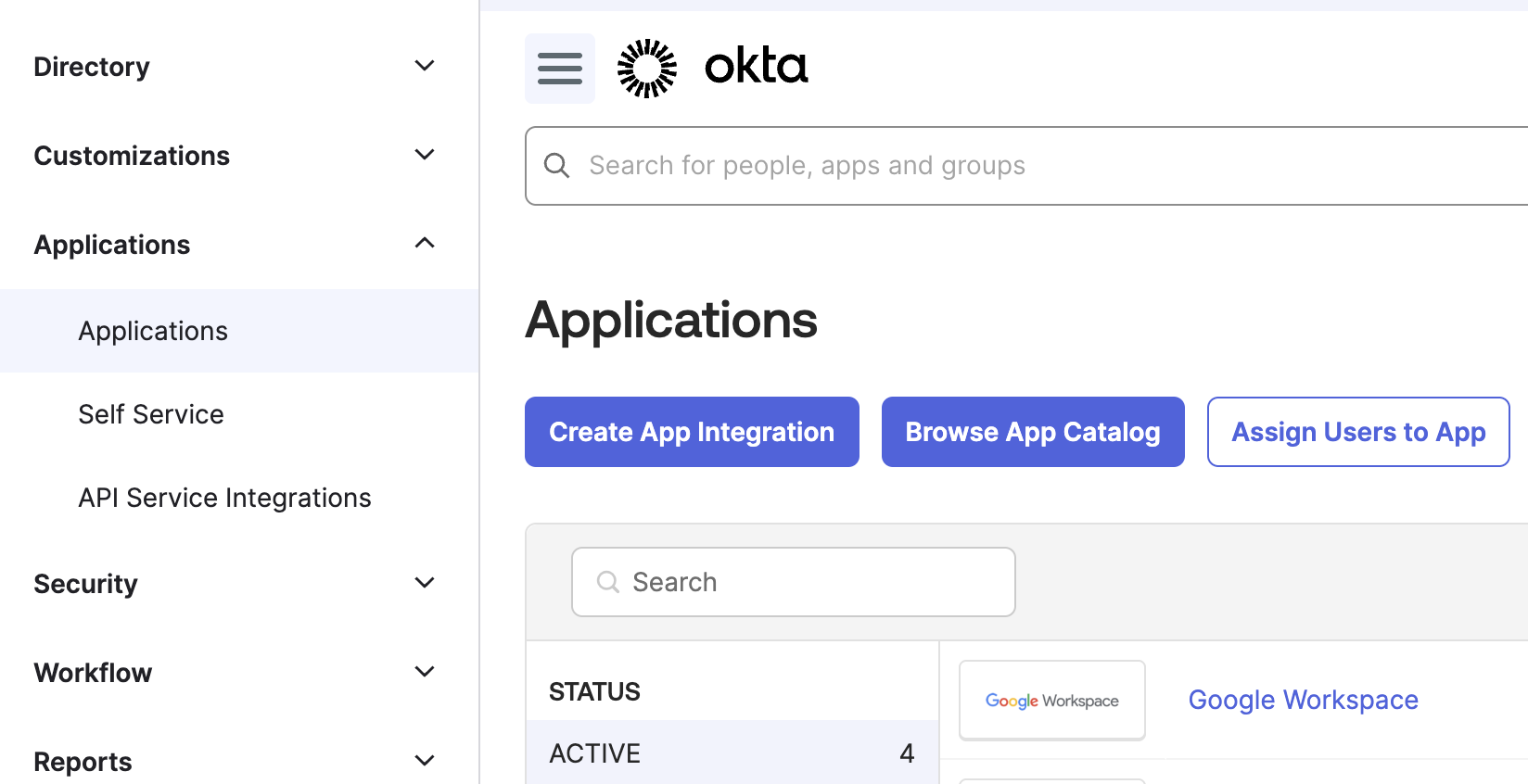
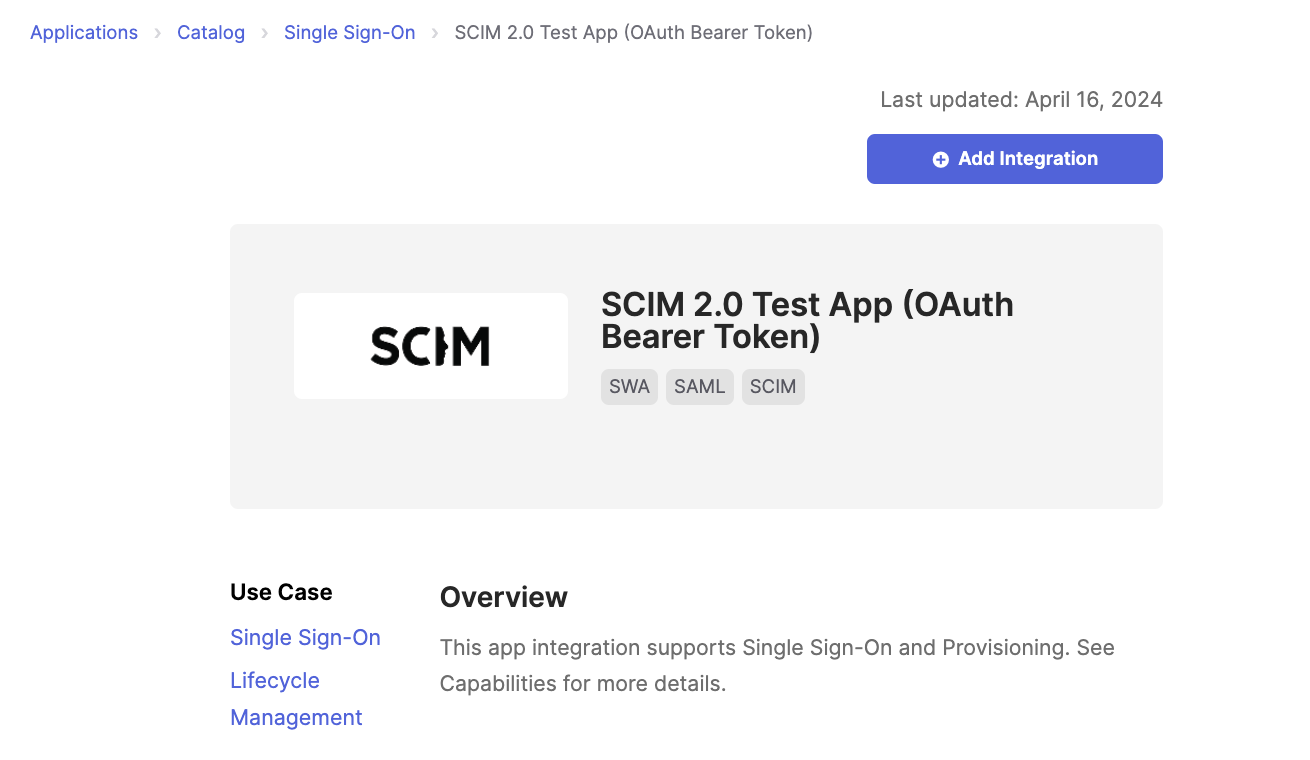
- In the Okta admin console, open Applications › Applications and click Browse App Catalog.
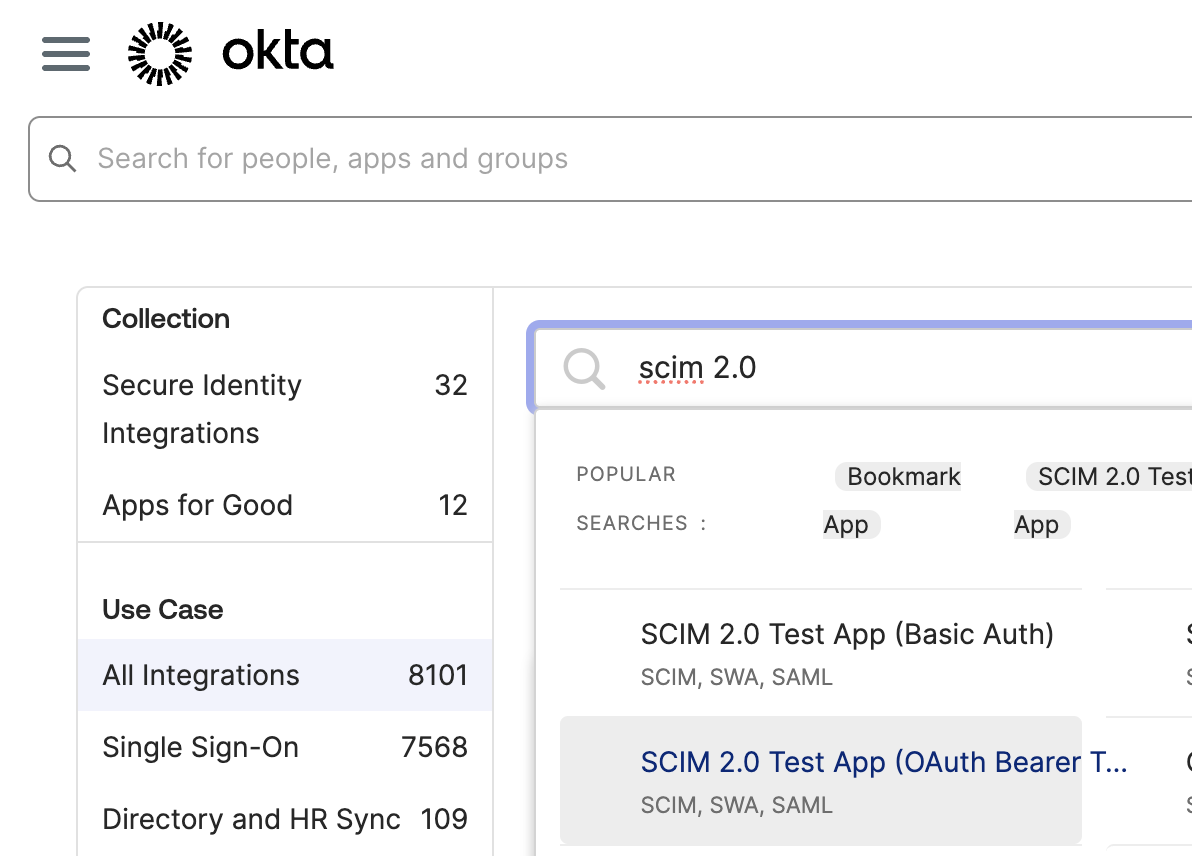
- Search for SCIM 2.0 Test App (OAuth Bearer Token) and select it.
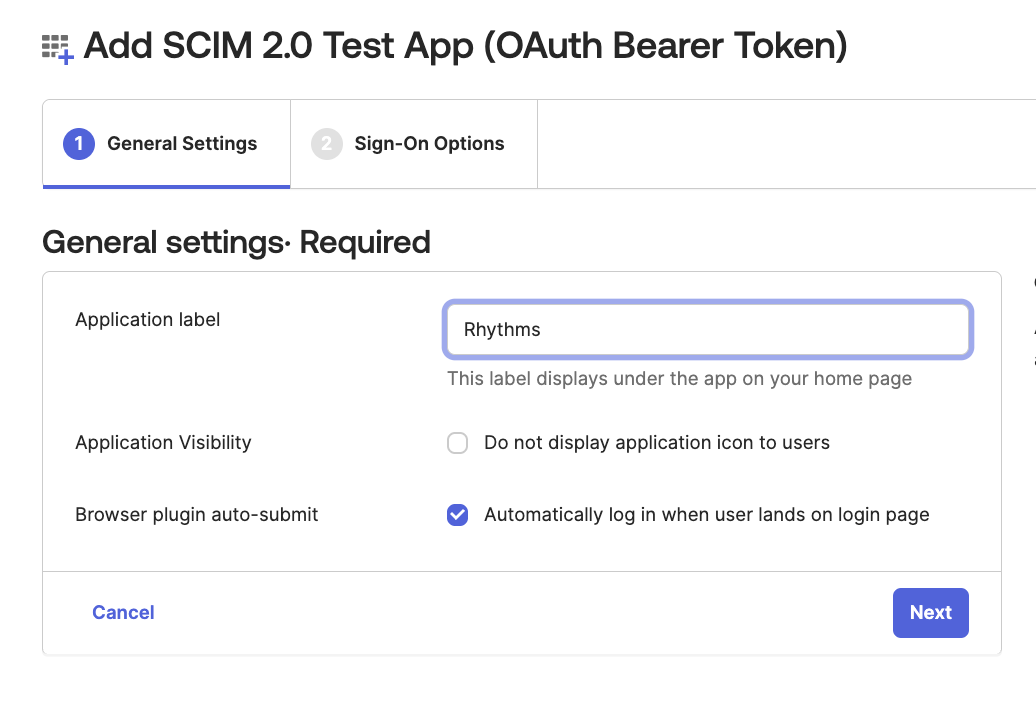
- Click Add Integration, give the app a name such as "Rhythms", click Next, then Done. The default settings are fine.
2. Configure the API integration
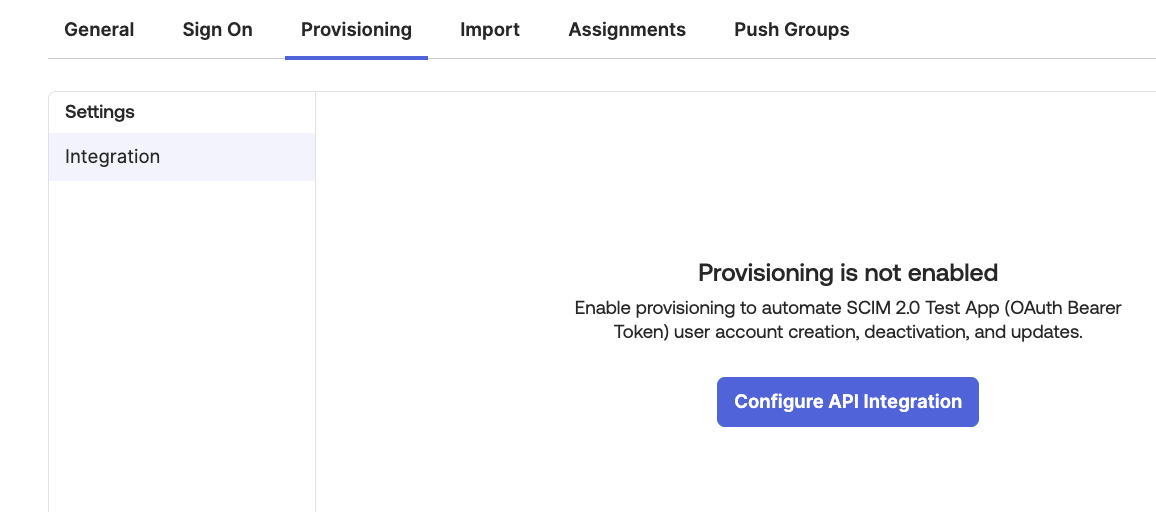
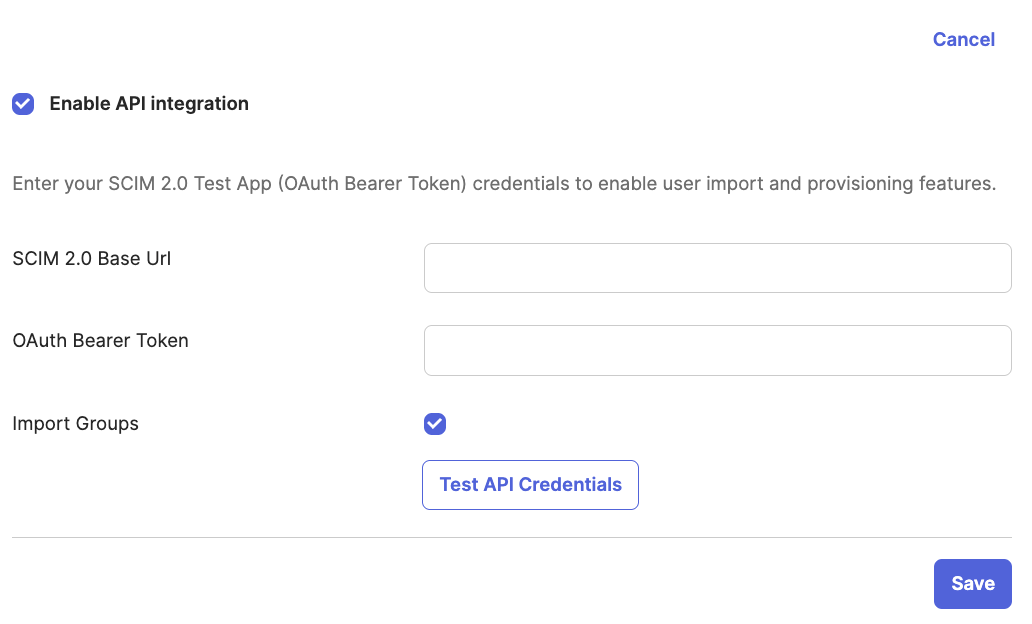
- Open the new app and go to the Provisioning tab. Click Configure API Integration, then select Enable API integration.
- Copy the Endpoint from the portal into SCIM 2.0 Base URL, and the Bearer Token from the portal into OAuth Bearer Token. Treat the token as a secret.
- Click Test API Credentials, then Save.
3. Configure provisioning actions
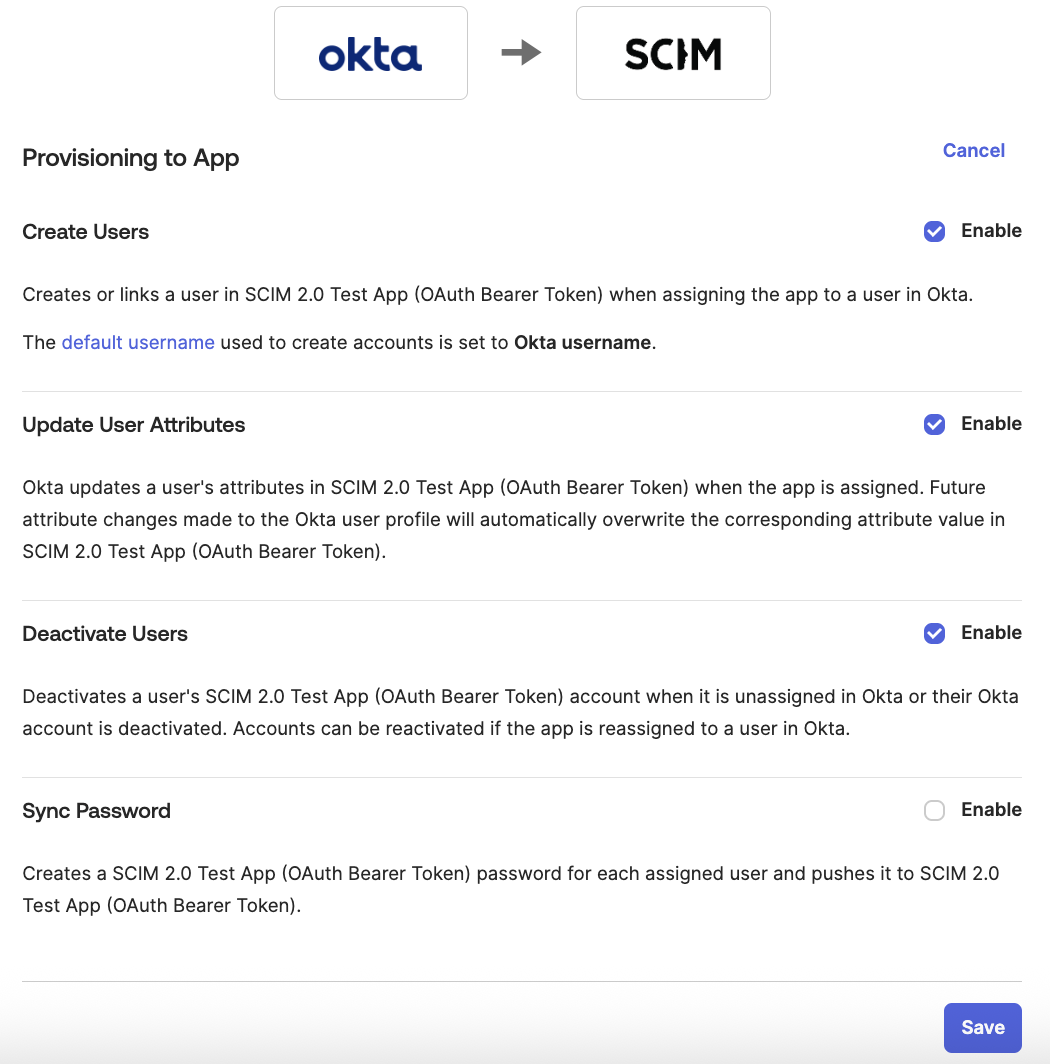
Still on the Provisioning tab, open To App, click Edit and enable Create Users, Update User Attributes and Deactivate Users. Click Save.
4. Set up attribute mapping
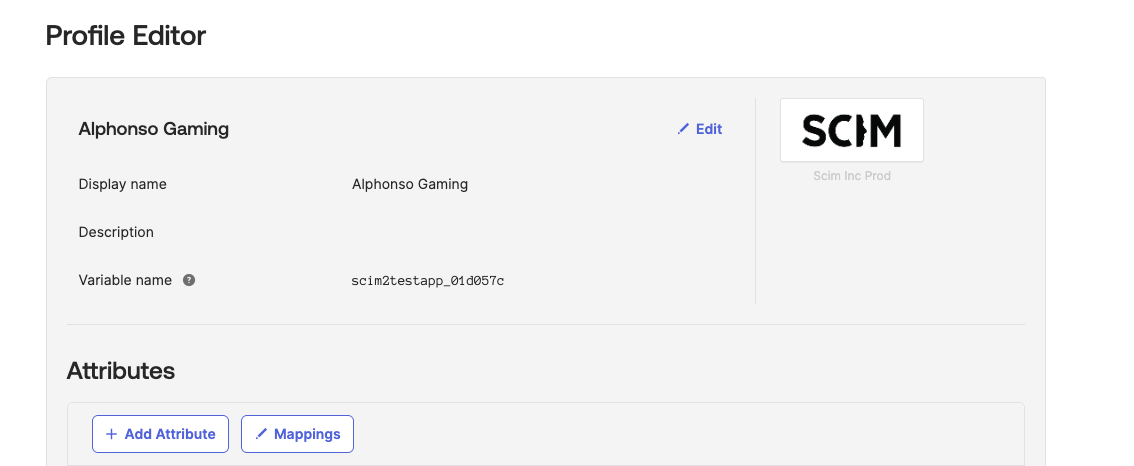
Standard attributes (name, email, title, department and so on) map through Okta's default SCIM profile. To send a custom attribute, for example an HR field you keep in Okta:
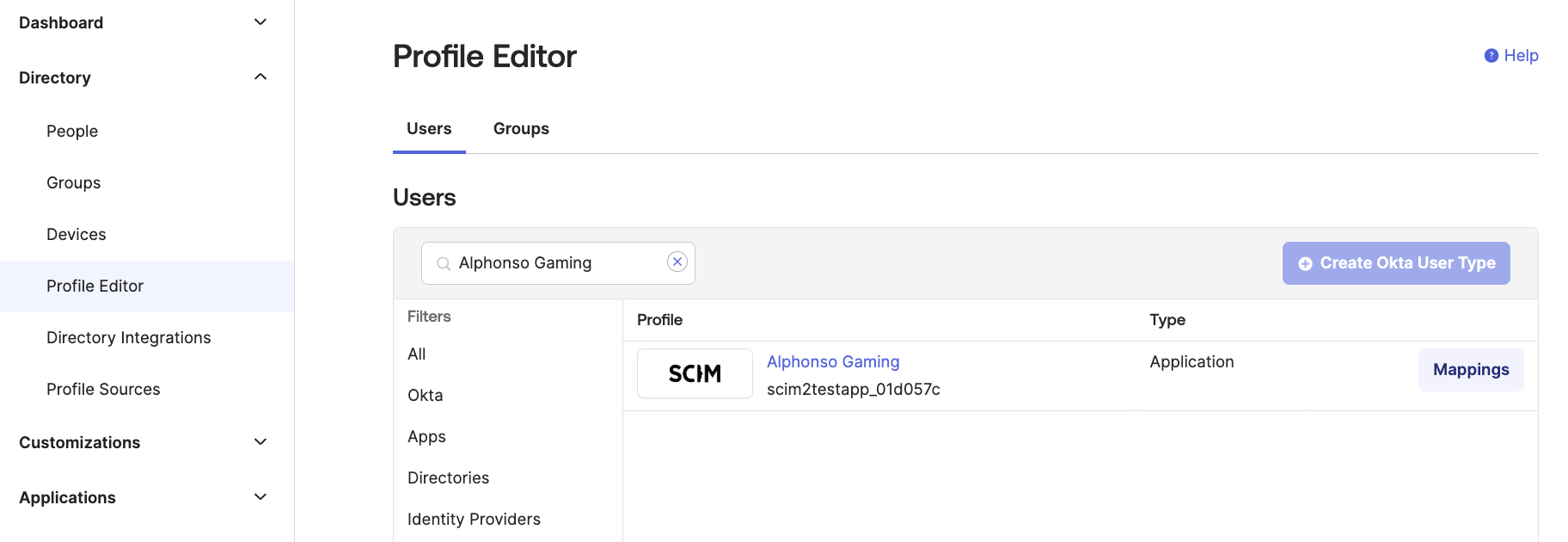
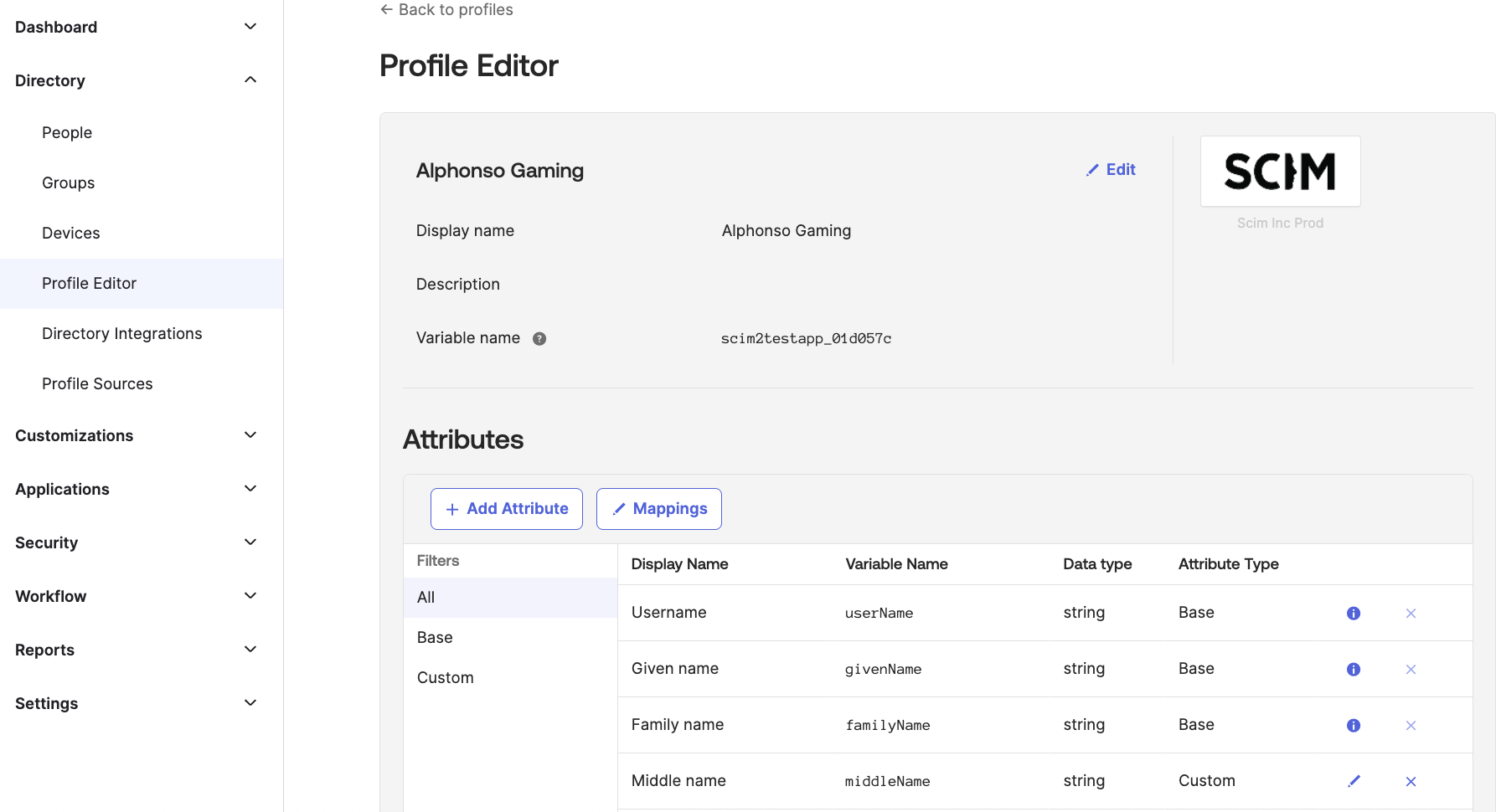
- Go to Directory › Profile Editor and open the Rhythms app's profile.
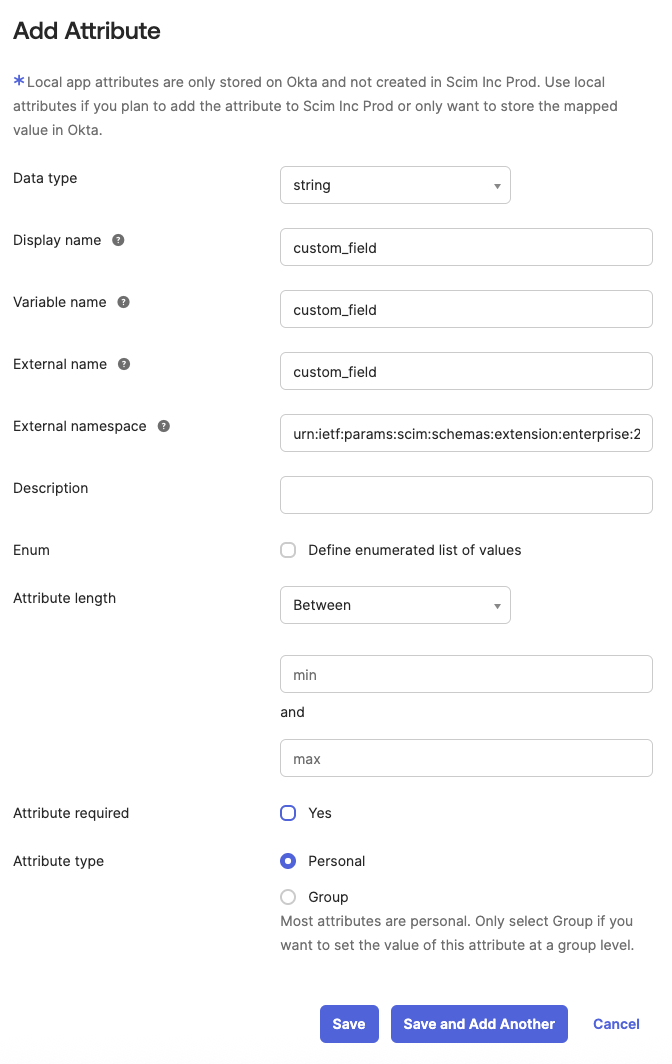
- Click Add Attribute. Enter a display name and variable name, and set External name to the Rhythms attribute you are filling, for example
custom_field_1. Use the external namespace the portal's attribute-mapping step shows for that attribute. Click Save. - Click Mappings, find the new attribute in the right-hand column, and in the left-hand column choose the Okta user profile attribute that should feed it. Set it to Apply mapping on user create and update and click Save Mappings.
Remember there are five custom fields in Rhythms. Note which Okta field feeds each one so you can name them in User Profile Attributes.

5. Assign people and groups
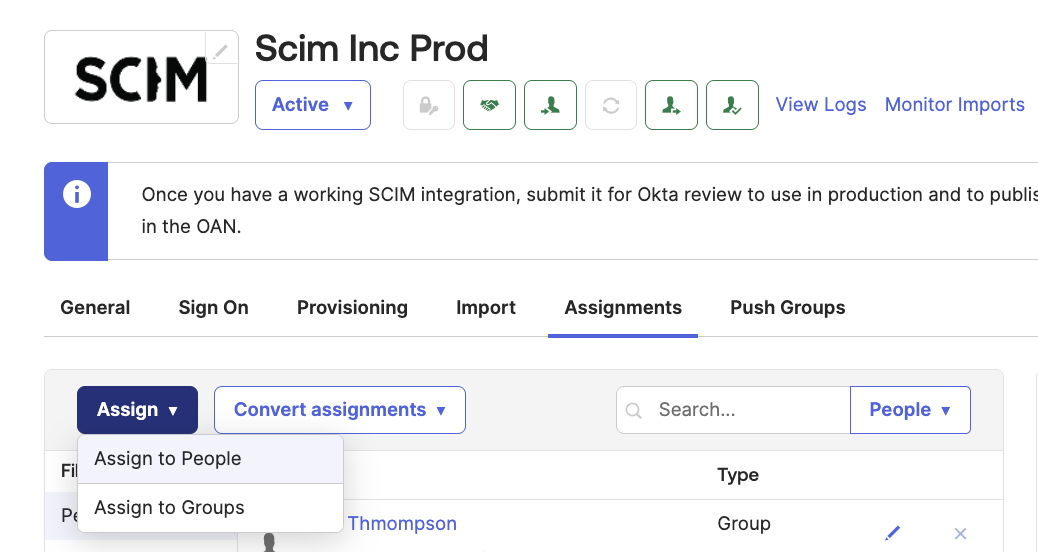
On the app's Assignments tab, click Assign and choose Assign to People or Assign to Groups. Only people assigned to the app (directly or through a group) are provisioned and kept in sync, and unassigning them deactivates them in Rhythms. Prefer groups over "everyone".
6. Push groups
If you use a guest group, push it to the Rhythms app on Okta's Push Groups tab so Rhythms receives its membership. Rhythms only acts on the guest group; other pushed groups are ignored.
7. Test the directory connection
Finish the wizard's test step. Then check the results in Rhythms as described in Test the connection.
Other identity providers
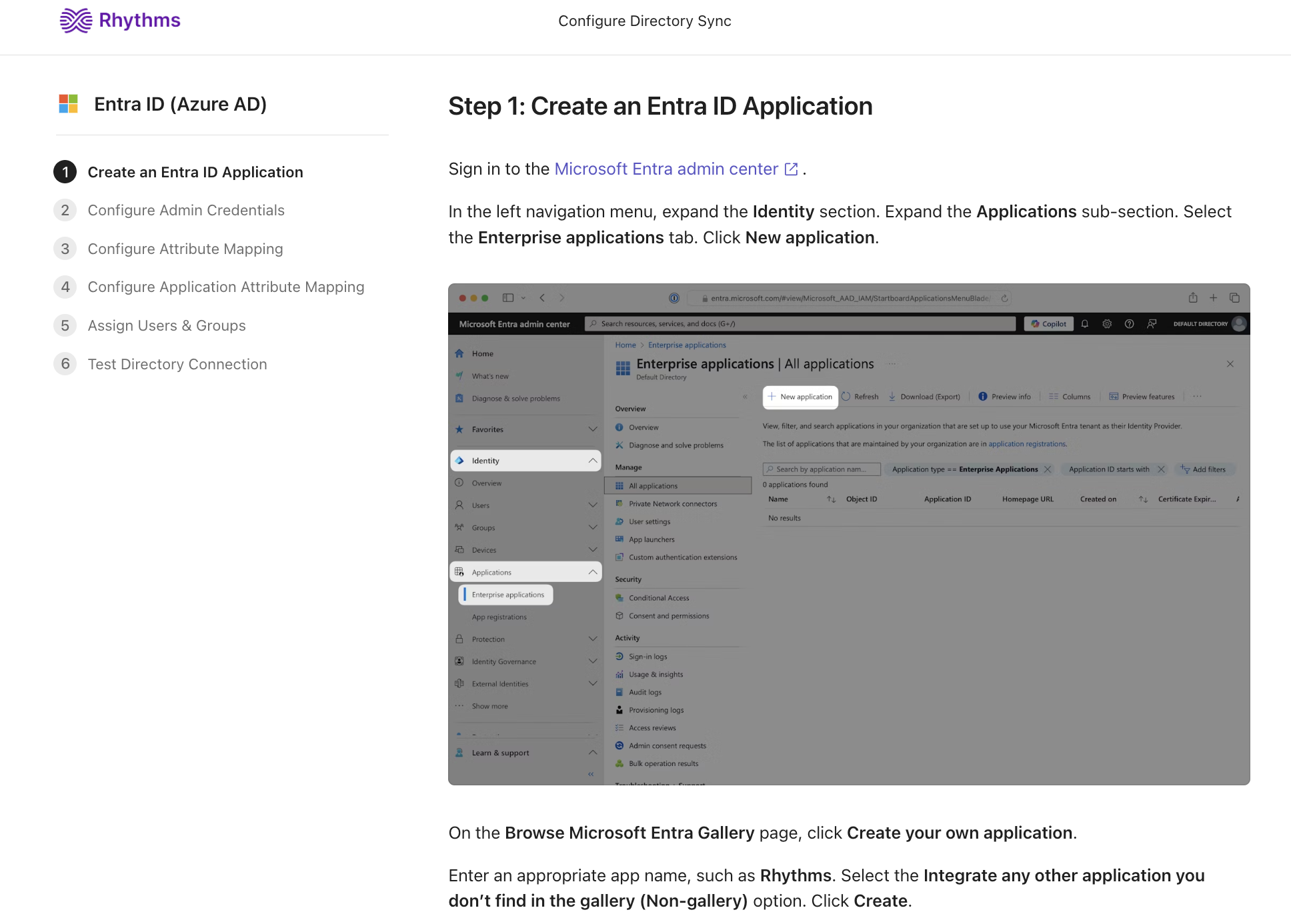
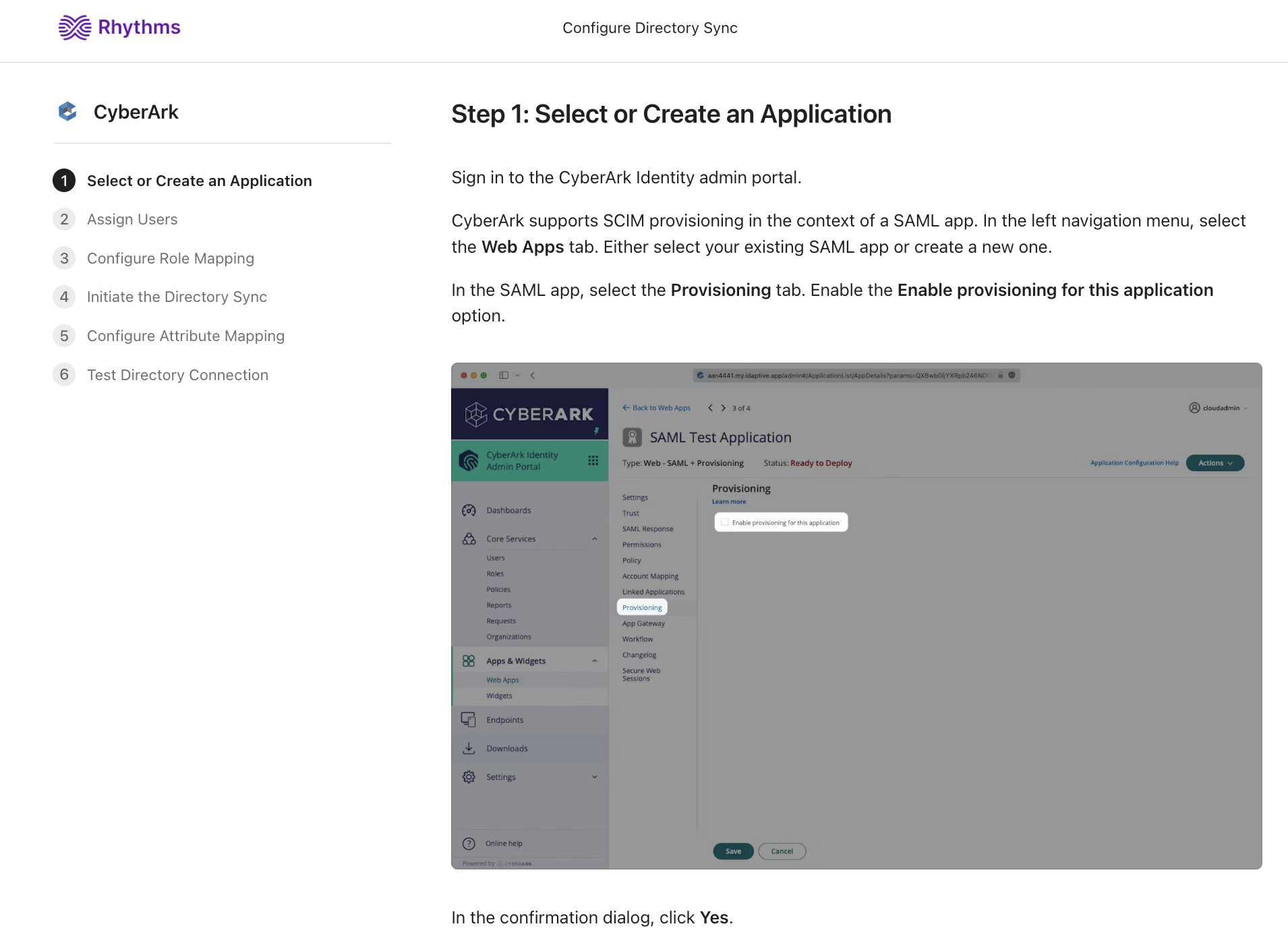
Every provider has its own wizard in the portal with the same shape: create a provisioning app, paste the endpoint and token, map attributes, assign groups, test. Microsoft Entra ID and CyberArk are shown below; Google Workspace, OneLogin and the others follow the same pattern. If your provider is not listed, choose Custom SCIM.
Test the connection
- Assign a test user who is not yet in Rhythms to the Rhythms app in your IdP.
- In Rhythms, open Settings › Users. The user should appear on the Active tab within a few minutes, with the mapped attributes filled in. Okta usually pushes changes within minutes; large initial assignments take longer.
- Change a mapped attribute in the IdP and confirm it updates in Rhythms.
- Unassign the test user. They should move to the Deactivated tab.
Back in Settings › Security, the Directory Sync card shows Last sync with the time of the most recent change Rhythms received.
The guest group
Rhythms watches one IdP group for Guest licensing. By default it is named Rhythms Guests; contact Rhythms support if you want to use a different group name. When a synced user is added to that group they become a Guest (read-only access); when they are removed they go back to being a Member. The group must be synced to Rhythms for this to work (in Okta, push it). See Guest Users in Rhythms: Read-Only Access.
How deprovisioning works
- When a user is unassigned from the Rhythms app, deactivated, or deleted in your IdP, Rhythms sets them to Deactivated. They still appear in Settings › Users on the Deactivated tab. The OKRs they own and their team memberships are kept for an Admin to reassign; any OKR delegations they held are removed and the OKR owners are notified.
- A deactivated user cannot sign in; they see a message that their account has been deactivated and to contact a workspace administrator.
- Deactivation does not force-end a session that is already open. If someone must lose access this minute, use Logout all users under the SSO section in Settings › Security, which revokes every session in the workspace.
- Reassigning the user in the IdP reactivates their account. Anything an Admin reassigned in the meantime stays with its new owner.
- Rhythms can notify Admins in Rhythms each time Directory Sync deactivates someone, so OKRs and teams can be reassigned. This is off by default; ask Rhythms support to turn it on.
Manual sync
Directory Sync is event-driven: Rhythms applies each change as your IdP sends it. If Rhythms has switched your directory to manual syncing, a Sync button appears next to Manage on the Directory Sync card; clicking it replays your directory's events. If you do not see a Sync button, your directory syncs automatically and nothing needs doing.
FAQ
Does Directory Sync manage roles? No. It creates Members (and Guests via the guest group). Which users are Rhythms Admins is set in Settings › Users.
Does Directory Sync create Teams from my IdP groups? No. Rhythms only reads the guest group. Create and populate Teams in Rhythms.
How many custom attributes can I sync? Five, into custom_field_1 to custom_field_5. Rename them under User Profile Attributes in Settings › Security so they show meaningful labels.
A user deactivated in the IdP is still in my Users list. That is expected: deactivated users stay on the Deactivated tab so their OKRs and teams can be reassigned. They cannot sign in.
I removed an attribute value in the IdP but Rhythms still shows the old value. Directory Sync only sets values; it never clears them. An Admin can clear the field in Rhythms.
My HR system is not connected to my IdP. How do I get department, cost centre and manager into Rhythms? Either enrich your IdP with those fields so they flow through SCIM, or send a CSV export from your HRIS to Rhythms over SFTP. See Sync users from Workday over SFTP.
I am not the IdP administrator. Ask Rhythms support to send the setup link directly to your IdP administrator.