Configure Okta for SSO
Last updated: September 4, 2026
This guide walks through connecting Okta to Rhythms as your SAML identity provider. You start from Settings › Security (titled Security and Permissions) › Single Sign-On (SSO) › Setup, which opens a setup portal powered by WorkOS. The portal gives you two values to paste into a new SAML app in Okta, and you paste Okta's metadata URL back into the portal. For what SSO changes for your users, who is exempt, and how to sign everyone out, see Set up single sign-on (SSO).
Before you start
- You must be a Rhythms Admin to open the SSO setup in Rhythms.
- You need an Okta administrator who can create and manage applications. If that is not you, ask Rhythms support to send the setup link directly to your Okta administrator.
- Rhythms matches users by email address, so the email Okta sends must match each user's email in Rhythms exactly.
The WorkOS portal shows its Okta steps in a numbered wizard. The order below follows that wizard; if your portal lists a step in a slightly different position, follow the order on screen.
Step 1: Start SSO setup in Rhythms
- Open Settings from the bottom of the left sidebar and choose Security.
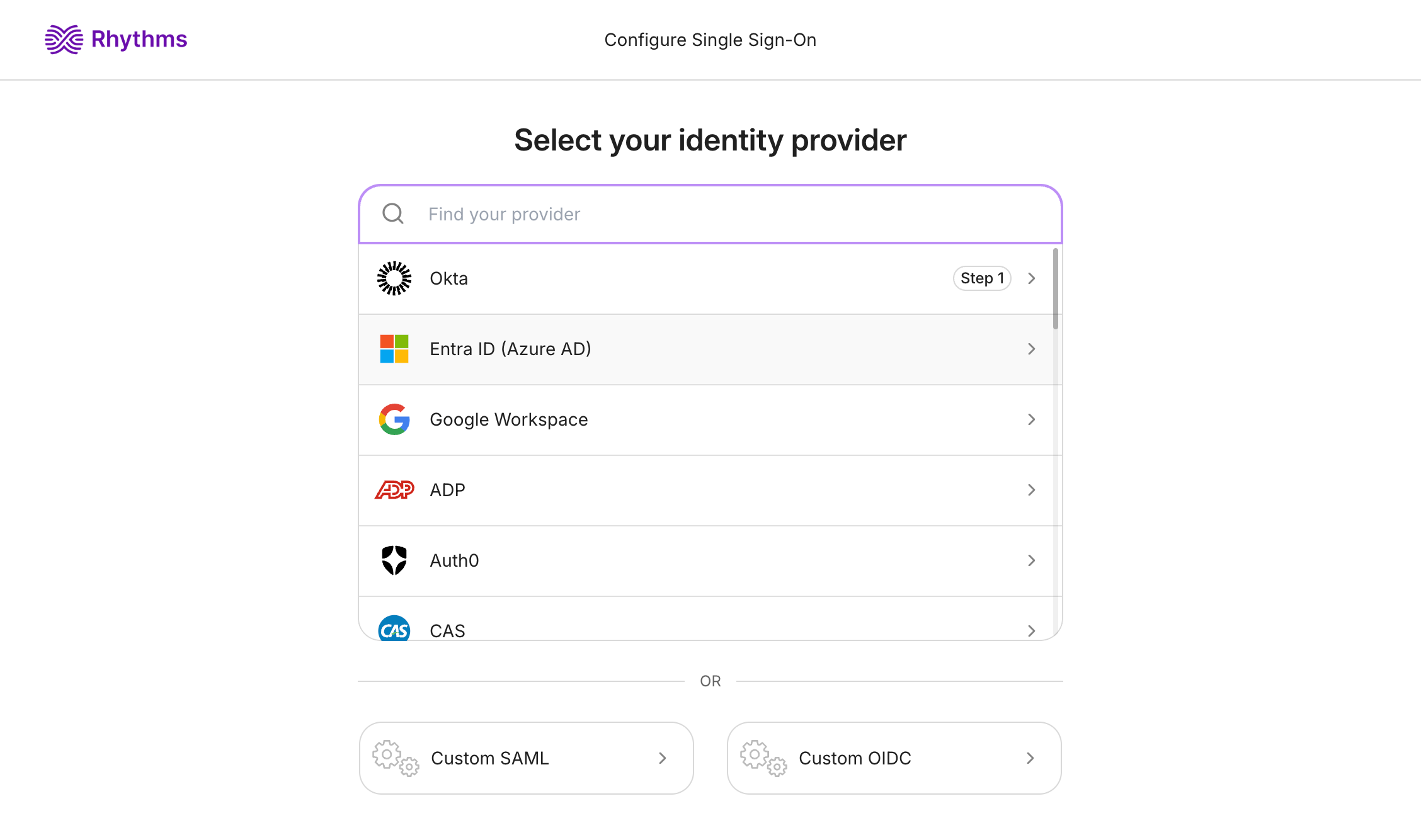
- In the Single Sign-On (SSO) section, click Setup. The WorkOS setup portal opens in a new tab.
- On Select your identity provider, choose Okta.
Step 2: Create the SAML app integration in Okta
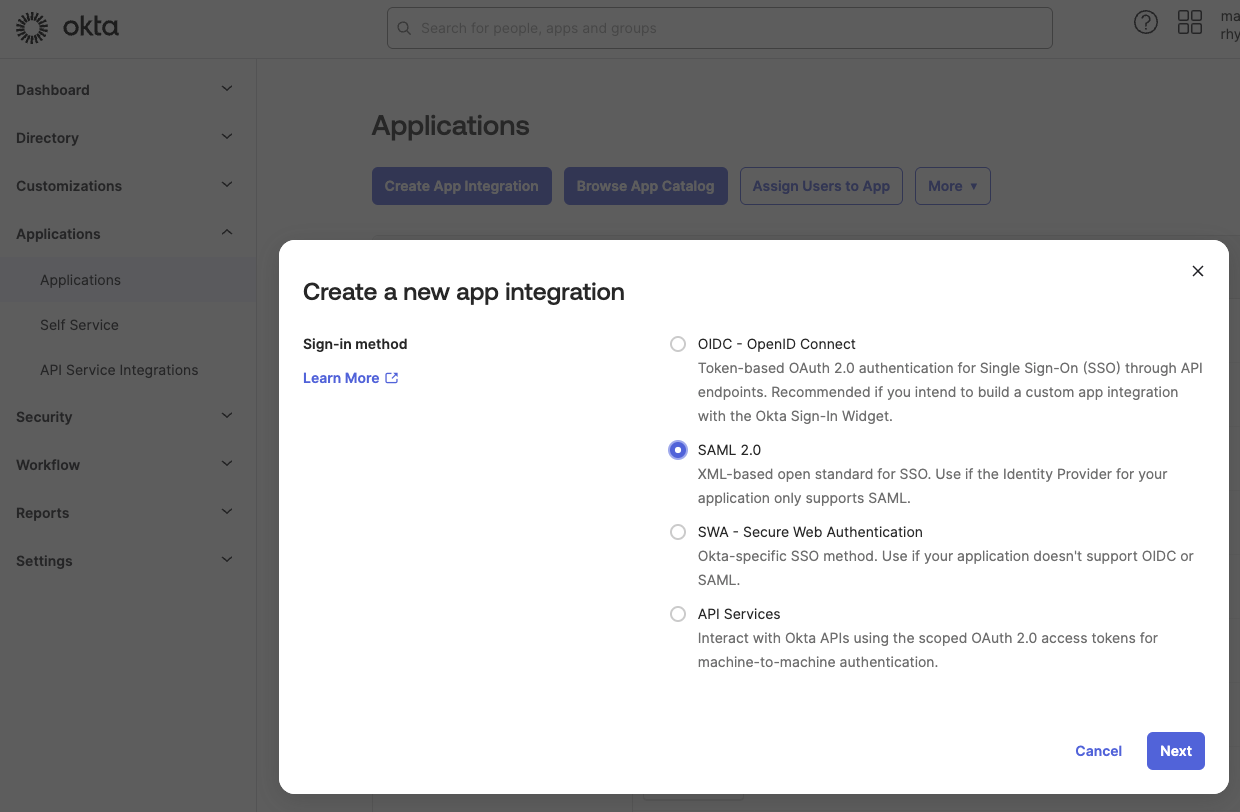
- Sign in to the Okta admin console, expand Applications in the left menu and select the Applications tab.
- Click Create App Integration.
- Select SAML 2.0 as the sign-in method and click Next.
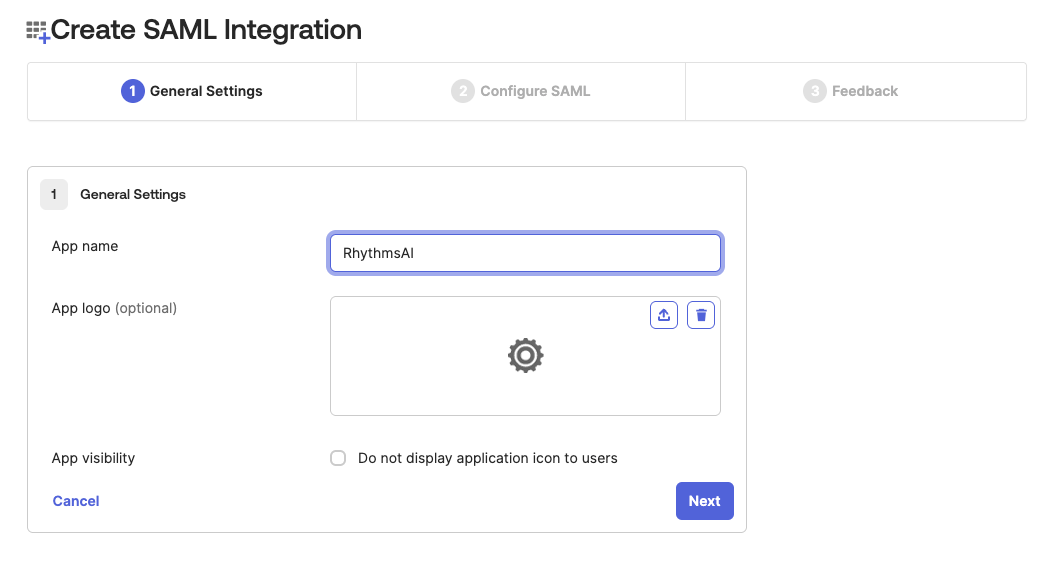
- Give the app a name such as "Rhythms" and click Next.
Step 3: Configure SAML settings
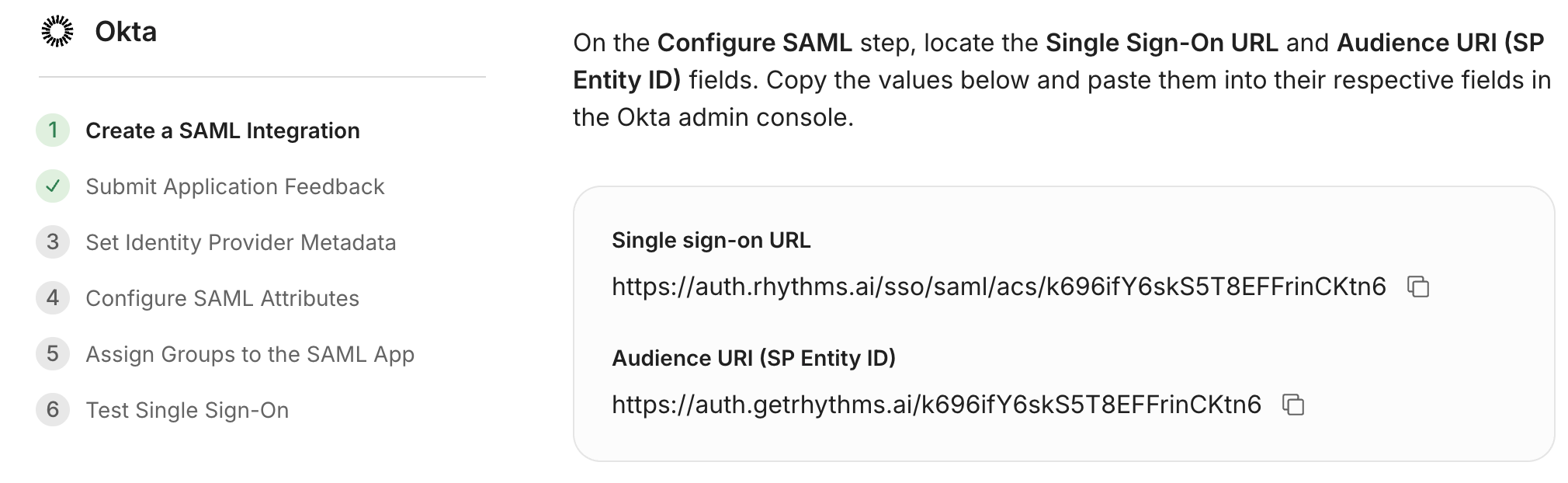
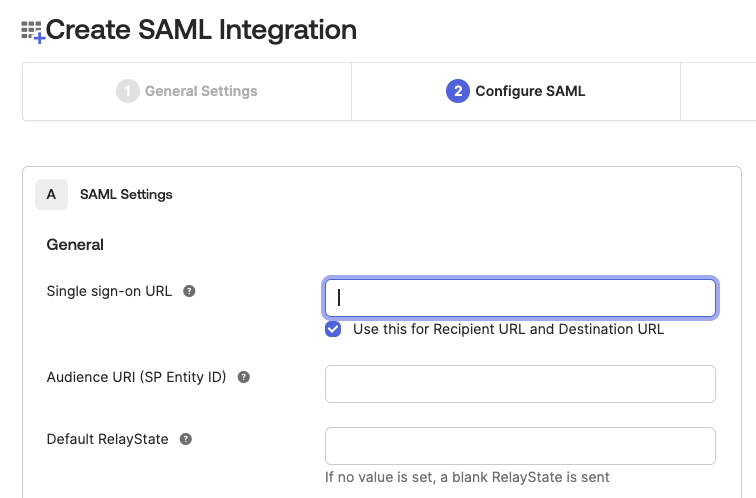
- In the WorkOS portal, find the Single sign-on URL and the Audience URI (SP Entity ID). Copy the actual values from your portal; the ones in the screenshot are an example.
- In Okta's Configure SAML screen, paste the Single sign-on URL into the Single sign-on URL field.
- Paste the SP Entity ID into the Audience URI (SP Entity ID) field.
- Scroll to the bottom and click Next.
Step 4: Submit application feedback
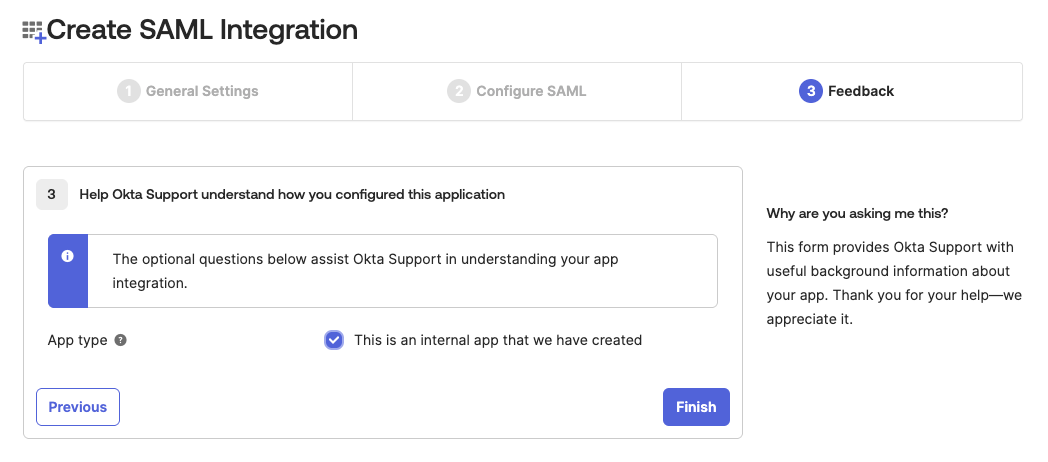
On Okta's Feedback step, select This is an internal app that we have created and click Finish.
Step 5: Set the identity provider metadata
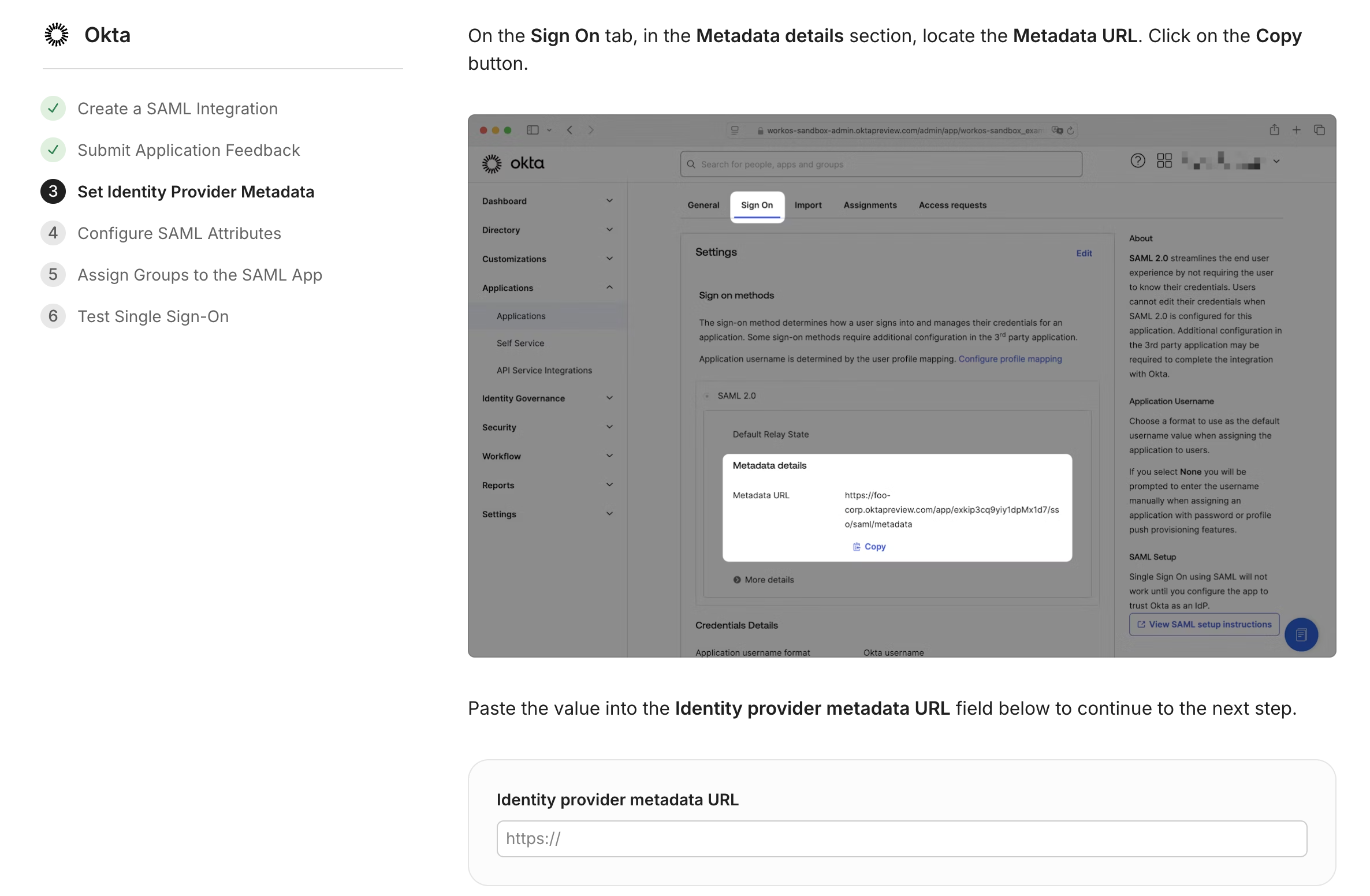
- In your new Okta app, open the Sign On tab. In the Metadata details section, copy the Metadata URL.
- In the WorkOS portal, paste it into the Identity provider metadata URL field on the Set Identity Provider Metadata step and continue.
Step 6: Configure SAML attribute statements
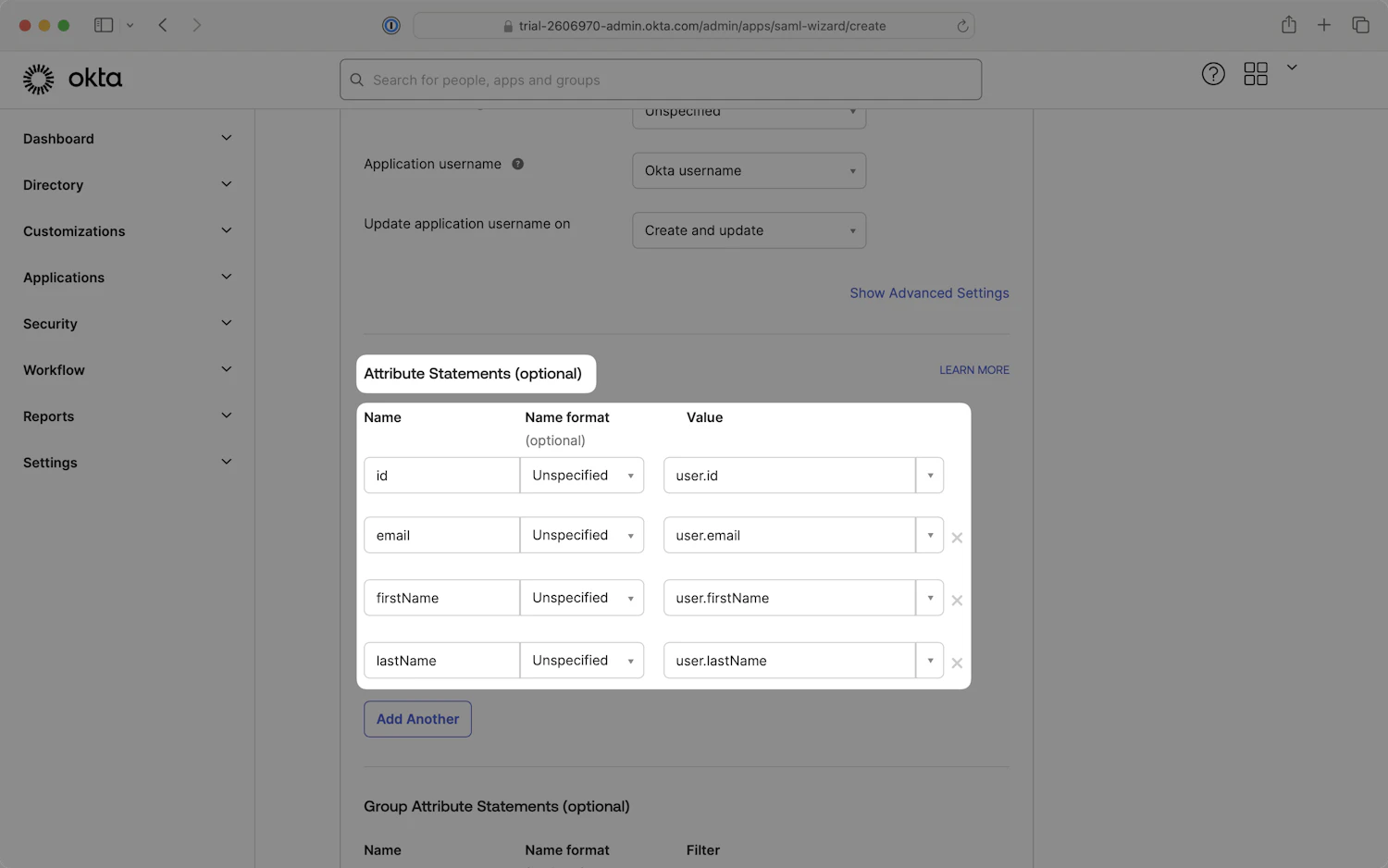
- In the Okta app, open the General tab, find SAML Settings and click Edit.
- Scroll to Attribute Statements (Optional) and add the four attributes the portal lists:
id,email,firstNameandlastName, each mapped to the matching Okta user profile value. The name format can stay unspecified. - Click Next, then Finish.
Depending on which features are enabled in your Okta org, the attribute settings may live in a slightly different place; the WorkOS portal step shows where.
Step 7: Assign people and groups in Okta
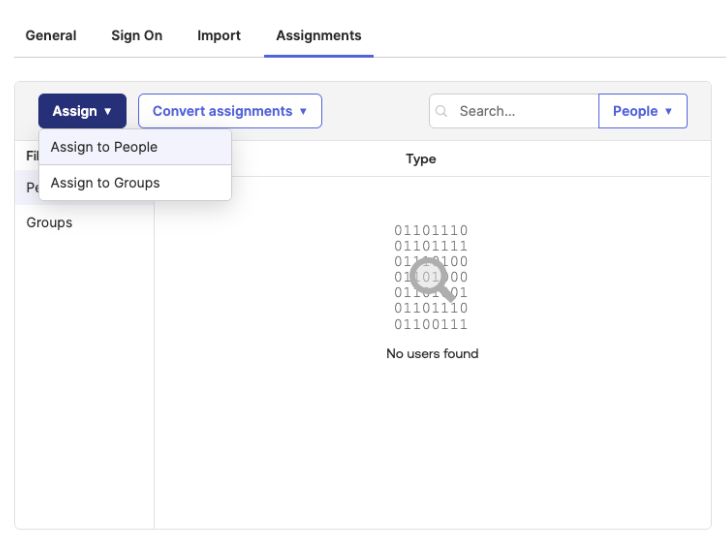
- In the Okta app, open the Assignments tab.
- Click Assign and choose Assign to People or Assign to Groups.
- Select the users or groups who should be able to sign in to Rhythms and complete the assignment.
Only people assigned to the Okta app can sign in through SSO. Assignment does not create Rhythms users; for that, set up Directory Sync (SCIM) as well.
Step 8: Test single sign-on
- Sign out of Rhythms.
- Go to app.rhythms.ai and enter your work email address.
- Rhythms redirects you to Okta. Authenticate there.
- You land back in Rhythms, signed in. In Settings › Security, the SSO card now shows Okta with an active badge and your email domain.
What changes for your users
Once the Okta connection is active, everyone whose email is on your workspace domain must sign in through Okta; Rhythms redirects other sign-in attempts to Okta. Guests and external users on other domains, including rhythms.ai support accounts, are not affected. Enabling SSO does not end existing sessions and Rhythms sets no fixed session timeout; to make everyone re-authenticate immediately, use Logout all users under the SSO section. If users will launch Rhythms from their Okta dashboard, copy the RelayState value from IdP-Initiated SSO Configuration in Settings › Security into the Okta app's Default RelayState.
Troubleshooting
- Authentication errors. Re-copy the Single sign-on URL and Audience URI (SP Entity ID) from the portal into Okta; a single stray character breaks the connection. Confirm the user is assigned to the Rhythms app on Okta's Assignments tab.
- A user sees an error that their account does not have access to the product. The email in the SAML assertion does not match a Rhythms user. Check the
emailattribute statement maps to the user's primary work email, and that the user exists in Rhythms under exactly that address. - Attribute mapping not working. Check the spelling and case of
id,email,firstNameandlastNamein Attribute Statements, and that your test users' Okta profiles have values for all four.
FAQ
What do I need from Rhythms to configure Okta? Two values shown in the WorkOS setup portal: the Single sign-on URL (ACS URL) and the Audience URI (SP Entity ID). Step 3 shows where to find them.
Which attribute statements are required? Four: id, email, firstName and lastName. Step 6 covers them.
Where do I get the metadata URL? Okta generates it after the app is created. Step 5 shows where it is on the app's Sign On tab and where to paste it in the portal.
Does this also provision users from Okta? No. SSO only controls sign-in. To create, update and deactivate Rhythms users from Okta, set up Directory Sync (SCIM) separately; see Set up SCIM user provisioning.
I am not the Okta administrator. Ask Rhythms support to send the setup link directly to your Okta administrator.