Set up single sign-on (SSO)
Last updated: September 4, 2026
Single sign-on (SSO) lets everyone at your company sign in to Rhythms through your identity provider (IdP) instead of with a separate login. A Rhythms Admin turns SSO on from Settings › Security (the page is titled Security and Permissions) under Single Sign-On (SSO); the connection itself is configured in a setup portal powered by WorkOS. Once the connection is active, every user whose email address is on your workspace email domain must sign in through the IdP. Guests and external users, including rhythms.ai support accounts, are not subject to SSO and keep signing in as before.
Before you start
- You must be a Rhythms Admin to open the SSO setup.
- Someone with admin access to your identity provider must register Rhythms as an application there. If that is not you, ask Rhythms support to send the setup link directly to your IdP administrator.
- Rhythms works with any SAML or OIDC identity provider that WorkOS supports. Common choices are Okta, Microsoft Entra ID (Azure AD), Google Workspace, Auth0, CyberArk, OneLogin, JumpCloud and PingFederate. The setup portal also offers Custom SAML and Custom OIDC for anything else.
- Rhythms identifies people by email address. The email your IdP sends in the SAML assertion must match the user's email in Rhythms exactly.
Open SSO setup in Rhythms
- In Rhythms, open Settings from the bottom of the left sidebar.
- In the Settings sidebar, choose Security. The page that opens is titled Security and Permissions.
- In the Single Sign-On (SSO) section, the card reads No SSO provider configured until a connection exists. Click Setup. The WorkOS setup portal opens in a new browser tab.
Only Admins see the Setup button. The text above the card names the email domain that SSO will apply to once it is active.
Choose your identity provider
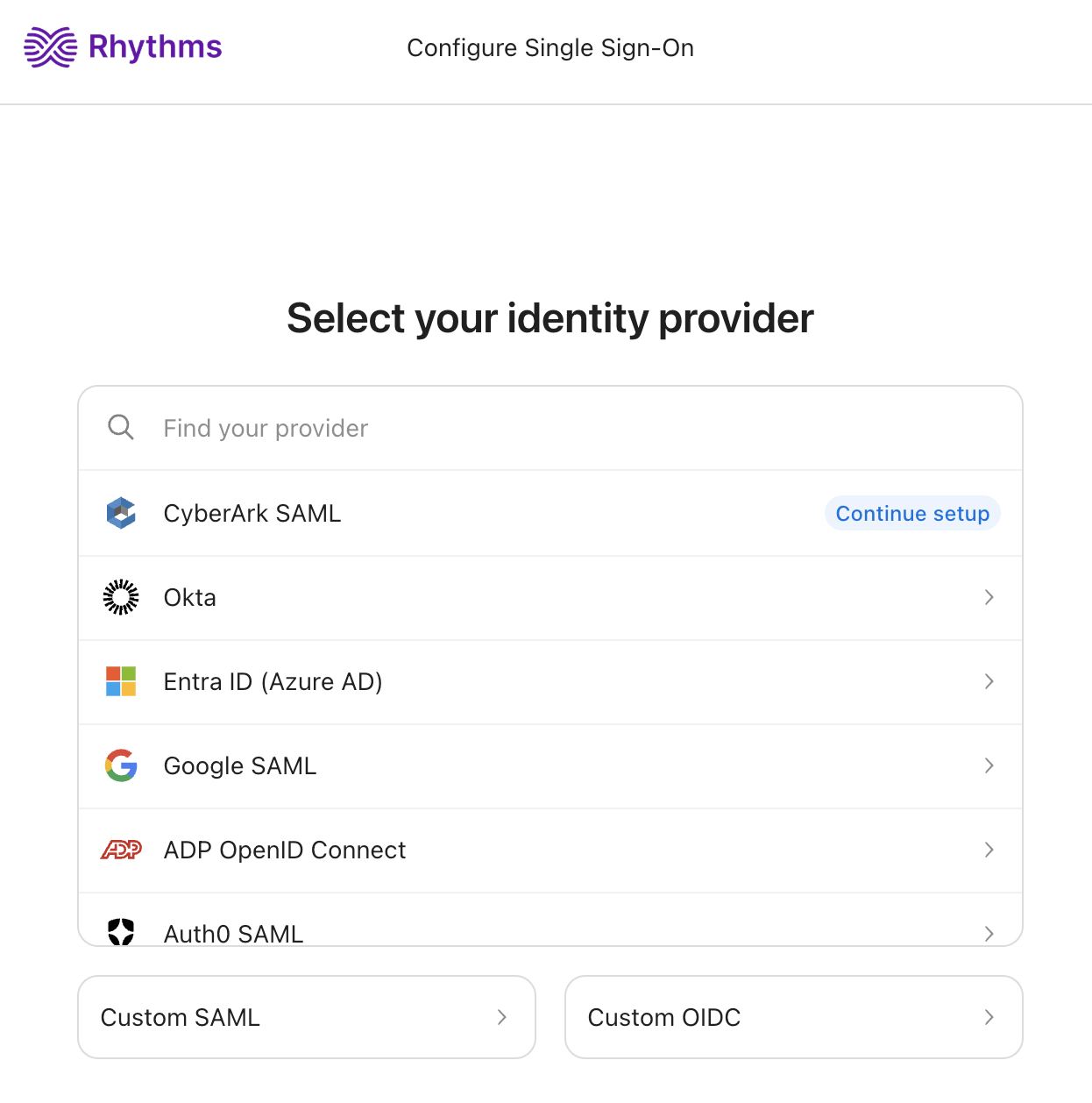
The setup portal opens on Select your identity provider. Search for your IdP and select it, or choose Custom SAML or Custom OIDC if your provider is not listed. The portal then shows the steps for that provider in order: create a Rhythms application in the IdP, copy the sign-in URL and entity ID that the portal gives you, paste the IdP metadata back, assign users, and test. You can leave and come back later; the portal shows Continue setup next to a provider you have already started.
Configure your identity provider
The exact clicks depend on the provider, and the setup portal walks you through them. In every case you will:
- Create a new SAML (or OIDC) application for Rhythms in your IdP admin console.
- Copy the Single sign-on URL (also called the ACS URL) and the Audience URI (SP Entity ID) from the portal into that application.
- Send the user's email address in the assertion, plus the id, first name and last name attributes the portal asks for.
- Paste the IdP metadata URL from your application back into the portal.
- Assign the people or groups who should be able to sign in to Rhythms.
Okta
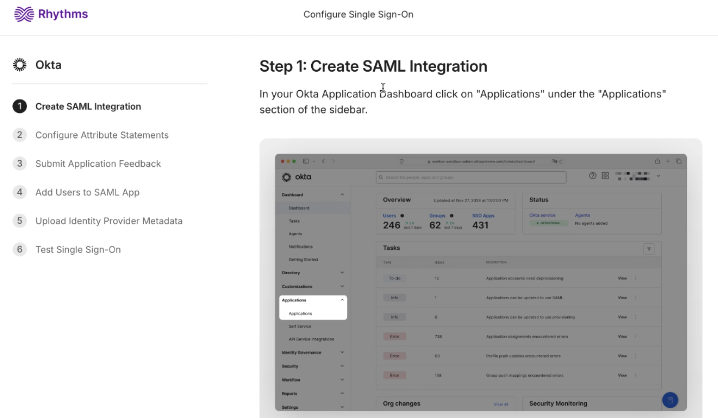
For a click-by-click walkthrough of the Okta admin console, see Configure Okta for SSO. The portal's Okta wizard looks like this:
Microsoft Entra ID
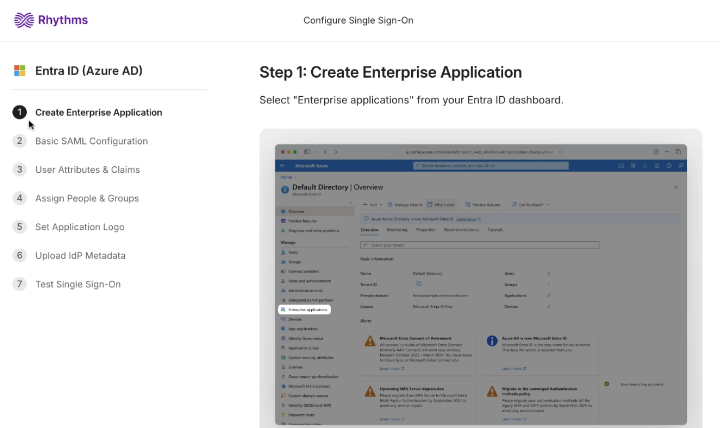
Select Entra ID (Azure AD) in the portal and follow its steps to create an enterprise application, set the identifier and reply URL, and upload the federation metadata.
CyberArk
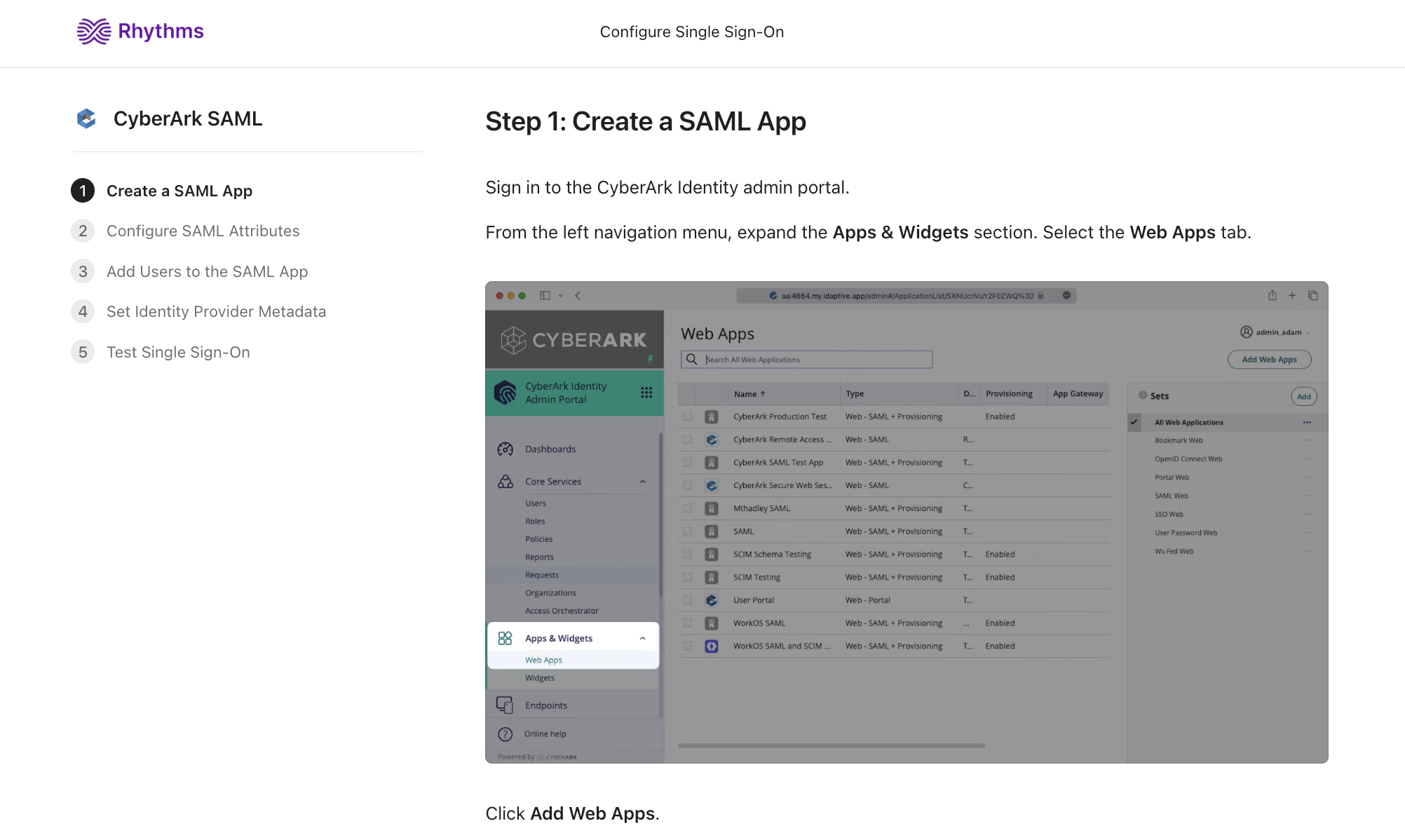
Select CyberArk SAML in the portal and follow its steps to add a custom SAML application and exchange metadata.
Test the SSO connection
- Sign out of Rhythms.
- Go to app.rhythms.ai and enter your work email address.
- Rhythms redirects you to your identity provider. Authenticate there.
- You land back in Rhythms, signed in. If you already had an active IdP session, you may not see a login prompt at all.
Back in Settings › Security, the SSO card now shows your provider's name, an active badge and the email domain the connection covers. The Setup button becomes Manage, which reopens the portal.
What changes once SSO is active
- Users with your workspace email domain must sign in through the identity provider. If they try another sign-in method, Rhythms sends them to the IdP instead.
- Guests and external users whose email is on another domain, including rhythms.ai support accounts, are not subject to SSO and keep signing in the way they did before.
- Turning SSO on does not end anyone's existing Rhythms session. People who are already signed in stay signed in until they sign out or their session expires. To make everyone re-authenticate through the IdP right away, use Logout all users (next section).
- Rhythms does not impose a fixed session length of its own. How long a session lasts follows WorkOS and your identity provider's session policies.
Sign everyone out
Below the SSO card, the Logout all users card lets an Admin revoke active sessions for everyone in the workspace, including their own. Click Logout all users, then Confirm logout in the "Log out everyone in this workspace?" dialog. Rhythms shows "Session revocation queued" and revokes sessions in the background over the next few minutes, so you may need to sign in again yourself. Use this straight after enabling SSO if you want the switch to take effect for everyone immediately.
IdP-initiated sign-in
If your users start from the IdP's app dashboard (for example the Rhythms tile in Okta) rather than from app.rhythms.ai, expand IdP-Initiated SSO Configuration under the SSO card and click Copy to copy the RelayState value. Enter it as the default RelayState in the Rhythms application in your IdP so that users land in the right workspace.
FAQ
Which identity providers can I use? Any SAML or OIDC provider that WorkOS supports, including Okta, Microsoft Entra ID, Google Workspace, Auth0, CyberArk, OneLogin, JumpCloud and PingFederate, plus Custom SAML and Custom OIDC. The full list appears in the setup portal.
I am not the IdP administrator. What do I do? Ask Rhythms support to send the setup link directly to your IdP administrator. They can complete the portal steps without needing a Rhythms Admin account.
A user sees an error saying their account does not have access to the product. The email address in the SAML email claim does not match a user in Rhythms. Check that the SAML attribute mapping sends the user's primary work email, and that the user exists in Rhythms under exactly that address (add them if they are missing). If it still fails, send Rhythms support the SAML response log.
Does enabling SSO sign everyone out? No. Existing sessions continue. Use Logout all users under the SSO section if you want everyone to sign in again through the IdP immediately.
Do guests have to use SSO? No. SSO applies only to users whose email is on your workspace domain. Guests, external users and rhythms.ai support accounts sign in with their usual method.
What should I set up next? Directory Sync (SCIM), so that your IdP also creates, updates and deactivates Rhythms users automatically. See Set up SCIM user provisioning.