Organize documents with folders and labels
Last updated: September 14, 2026
The Library gives you two ways to organize documents. A folder is a home for a set of documents: each document can sit in one folder, and everyone you add to the folder can open every document in it. A label is a tag: a document can carry as many labels as you like, the same labels are shared with OKRs and views, and labelling never changes who can see anything. Create folders from Library › Create › New folder, file documents from their ⋯ › Add to folder menu, and apply labels from ⋯ › Manage Labels.
Folders or labels: which should I use?
Use a folder when a set of documents belongs together and should be shared with the same people, for example a team's weekly reviews or the briefs for one customer account. Use a label when you want to mark documents with something that cuts across folders and applies to other things too, for example a quarter, a region, a priority, or "Needs review", and then filter by it. Most workspaces use both: folders decide where a document lives and who can reach it, labels describe what it is about.
Folders | Labels | |
|---|---|---|
How many per document | One. Filing a document that is already in a folder moves it. | Any number. |
What they apply to | Documents and layouts. | Documents, layouts, folders, OKRs, check-ins and saved views. |
Effect on access | People added to a folder can open every document in it, including documents added later. | None. A label never changes who can see a document. |
Who creates them | Any member. | Rhythms Admins, in Settings › Workspace › Labels. Anyone with Can edit on a document can apply an existing label to it. |
Structure | Flat. A folder cannot contain another folder. | Labels can be grouped, for example a Priority group that holds High, Medium and Low. |
How you find things | Open the folder, or filter the Library by Type › Folders. | Filter the Library by Label. Library search also matches label names. |
Create a folder
Open Library in the sidebar and click Create in the top-right corner.
Choose New folder.
Enter a folder name and, if you like, a one-line description, then click Create folder.
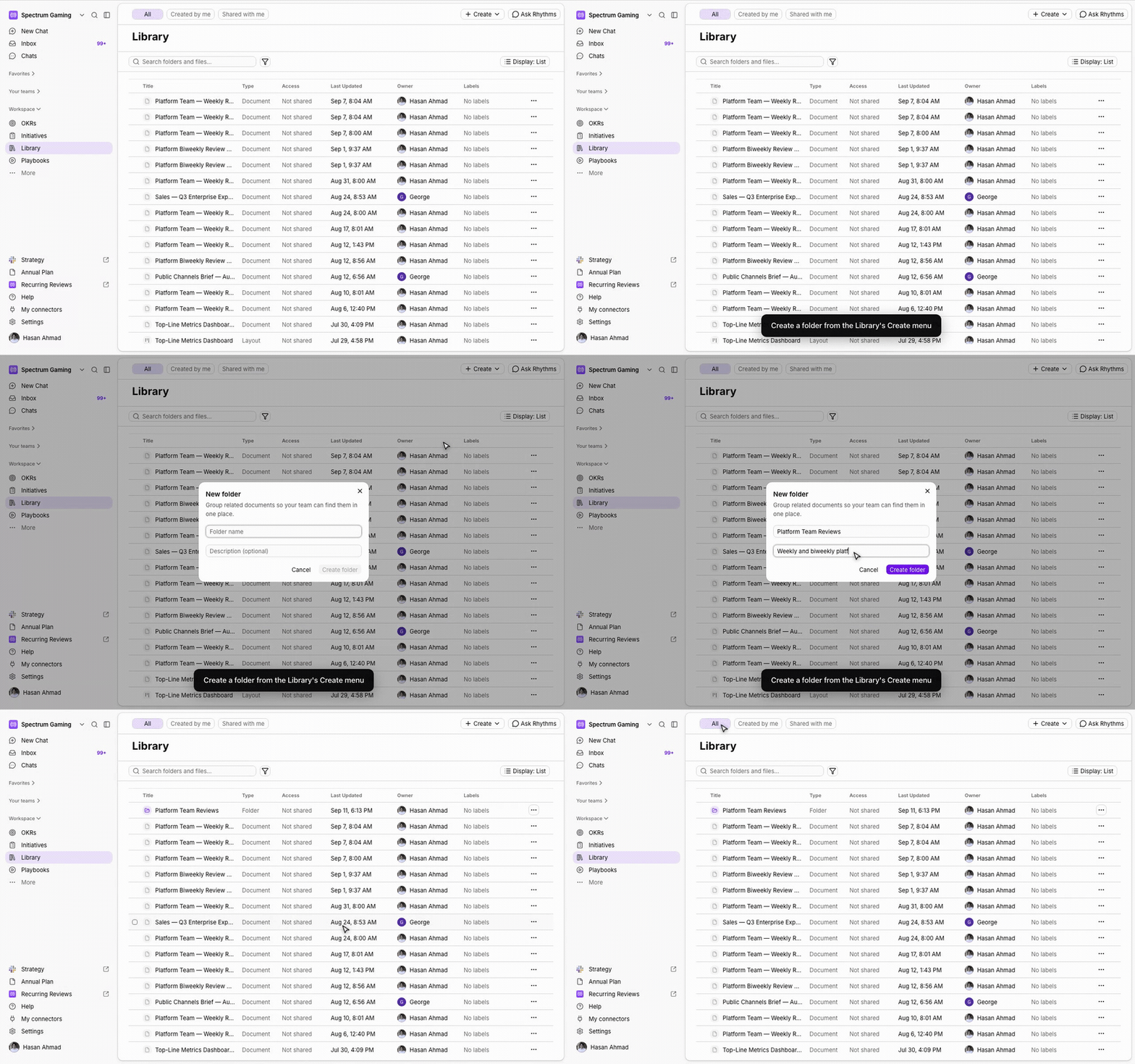
Rhythms opens the new folder straight away. It starts empty; click Library in the breadcrumb to go back and add documents from each document's ⋯ menu, as described next. Any member can create a folder, and the person who creates it can manage it. If a folder with the same name already exists, Rhythms adds a number to the new one, for example "Weekly Reviews (2)".
Add a document to a folder
In the Library, hover the document and click its ⋯ menu, or open the document and use the ⋯ menu in its header.
Choose Add to folder.
Pick a folder from the list, or type a name to search. You can also create a new folder from here.
Confirm. Rhythms reminds you that everyone with access to the folder will be able to open the document.
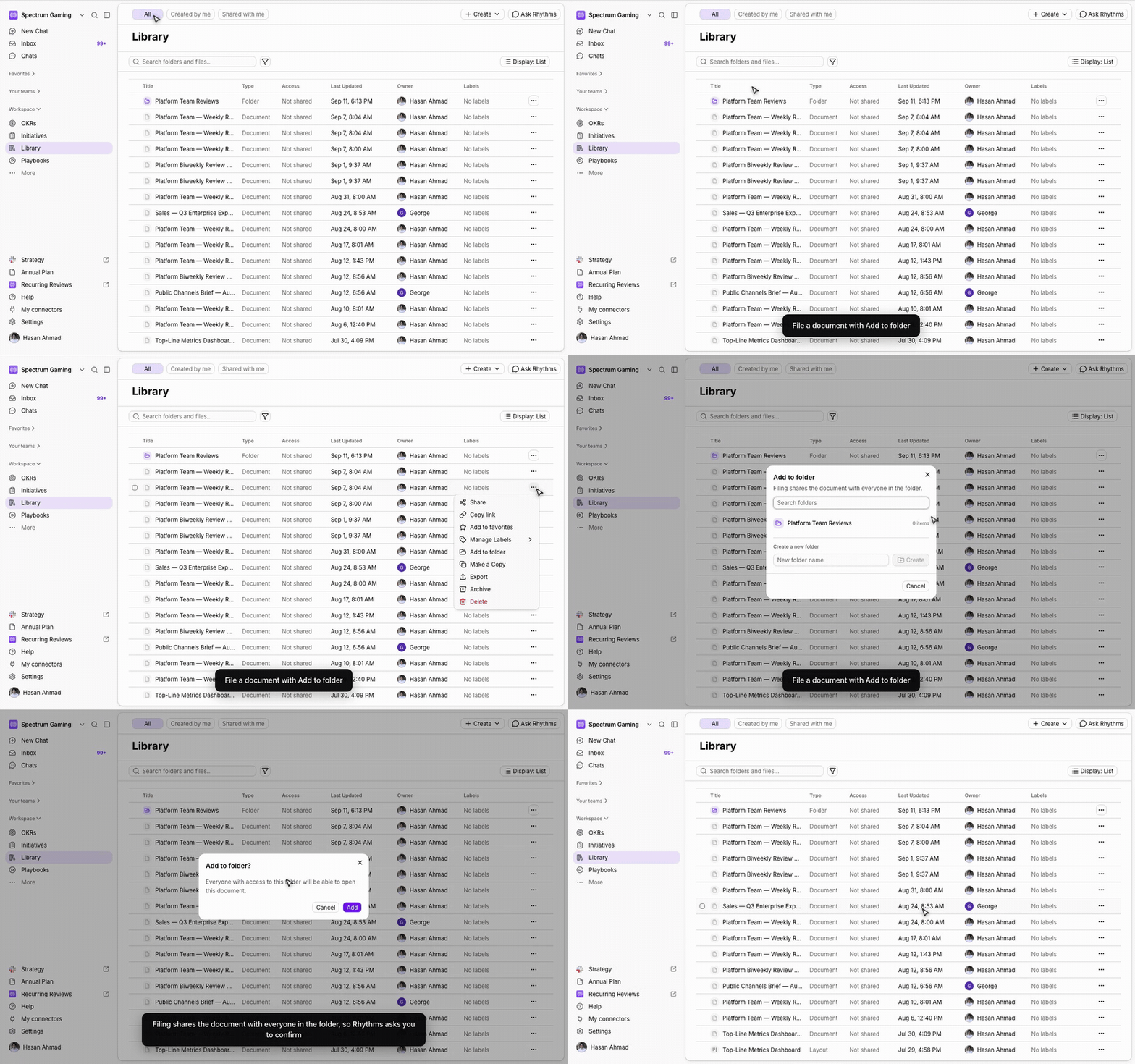
You need Can edit on the document and access to the folder. A document can be in only one folder: if it is already filed, the menu shows Move to folder instead, and choosing another folder moves it. Remove from folder takes the document out without deleting it. Moving or removing a document changes who can see it: people who could only reach the document through the old folder lose access, so Rhythms asks you to confirm.
Share a folder
Open the folder from the Library and click Share in the top-right corner.
Type a person's name, a team name or an email address and pick them from the list.
Set a level for each person or team: Can view, Can comment, Can edit or Can manage.
Click Save.
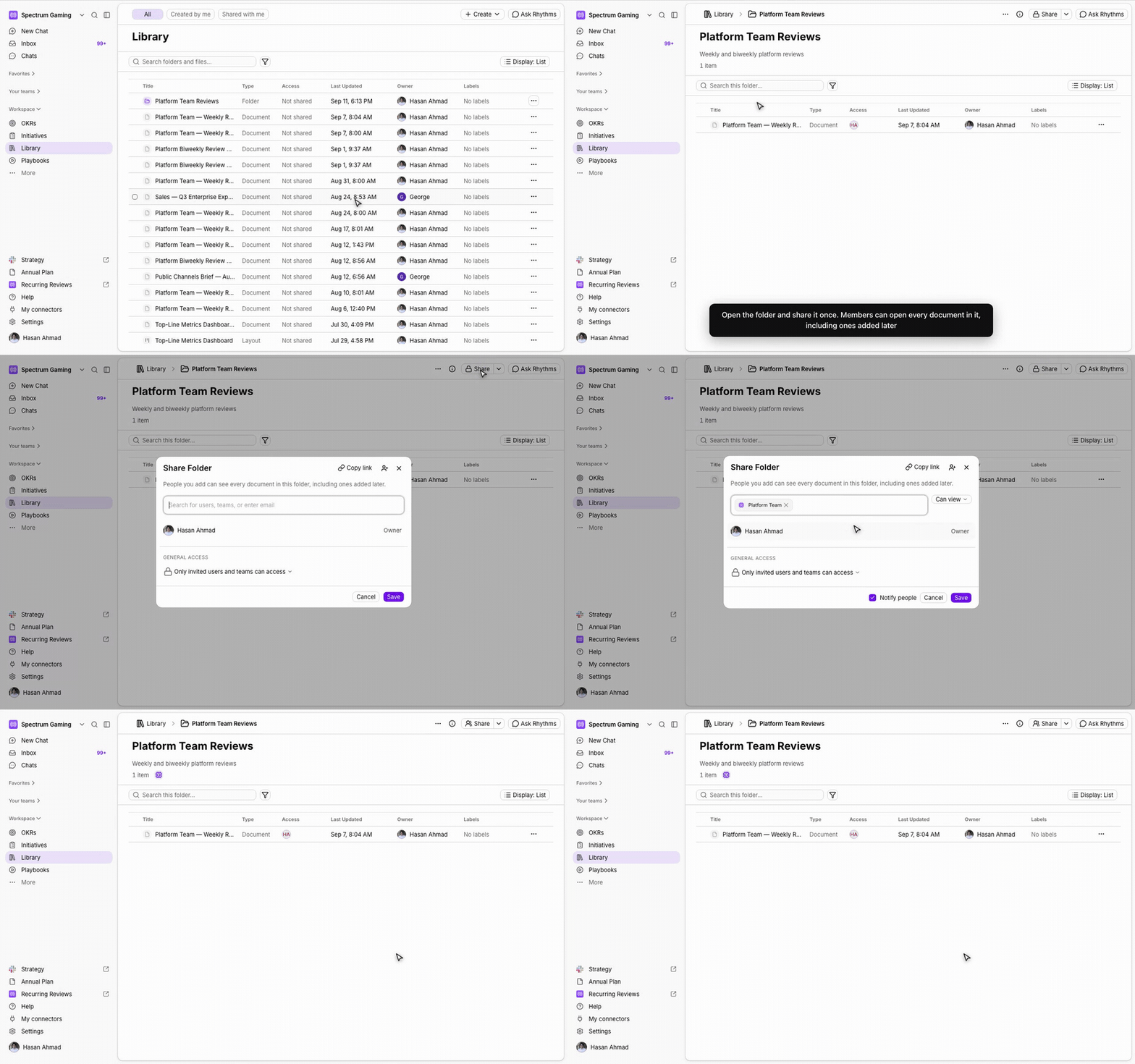
Everyone you add can open every document in the folder, including documents added later, at the level you gave them: a folder shared at Can edit lets its members edit every document inside it. The General access row reads Only invited users and teams can access by default; change it to share the folder with everyone in your workspace. If a document is also shared with someone directly, that person keeps the higher of the two levels. Only the folder's creator, people with Can manage on the folder, and Rhythms Admins can share, rename or delete it.
Rename or delete a folder
To rename a folder, open it and click its name at the top of the page, or hover the folder in the Library and choose ⋯ › Edit. To delete a folder, open its ⋯ menu and choose Delete. Deleting a folder does not delete its documents: they stay in the Library without a folder, and anyone who could only open them through the folder loses access.
Find documents that are in folders
On the Library's All tab, folders appear alongside your unfiled documents, with Folder in the Type column; documents that are filed appear inside their folder. The Created by me and Shared with me tabs list every matching document whether or not it is in a folder. Search also looks inside folders, and searching from within a folder searches only that folder. Use Add filter › Type to show only folders, only documents or only layouts.
Add labels to a document
In the Library, hover the document and click its ⋯ menu, then choose Manage Labels. Or open the document, open its info panel and use the Labels section.
Tick the labels you want, or type to search. Untick a label to remove it.
You need Can edit on the document to change its labels. Labels are created and maintained by Rhythms Admins in Settings › Workspace › Labels, where New Label creates a label with a name, description and colour, and New Group creates a group to hold related labels. Admins can also create a label on the spot from the label picker. Folders can carry labels too: choose ⋯ › Manage Labels on the folder. To find labelled documents, click Add filter › Label in the Library; the Labels column in list display shows each document's labels.
Frequently asked questions
Can a document be in two folders? No. A document has one folder at most. If a document belongs to two groupings, put it in the folder that decides who should see it and use a label for the other.
Does adding a label change who can see a document? No. Labels are only for finding and grouping. To change access, share the document or put it in a shared folder.
Are these the same as status labels? No. Status labels are the names of OKR statuses such as On track or At risk. The labels described here are tags that you apply to documents, folders, OKRs, check-ins and views.
Can I use the same label on OKRs and documents? Yes. Labels are shared across the workspace, so a label such as "Q4 priorities" can group goals in a view and the documents that support them in the Library.
What happens to my documents if I delete a folder? They stay in the Library without a folder. Access that people had only through the folder is removed; direct shares are unchanged.
I don't see New folder in the Create menu. Folders are switched on per workspace. If your Library has no New folder option, contact Rhythms support.