Check-in Rhythms: Align OKR Updates with Your Business Calendar
Last updated: August 21, 2026
Check-ins provide essential context that numbers alone can't capture. They explain what's driving progress, what's blocking work, and what decisions need attention. Check-in Rhythms ensure these updates happen consistently when your business processes need them.
By establishing organization-wide windows for OKR updates, Check-in Rhythms transform ad-hoc check-ins into predictable processes that align with your business calendar. They solve three critical challenges:
Eliminate the check-in chase. Automated reminders based on clear windows ensure everyone knows when updates are due, replacing manual follow-up.
Ensure data readiness for meetings. Monthly Business Reviews, quarterly planning sessions, and team stand-ups get current, reliable data because check-ins happen on predictable schedules.
Respect team autonomy. Different teams can maintain different update cadences while your organization tracks compliance consistently.
ℹ️ Availability: Check-in Rhythms is currently available to select customers. Contact your Rhythms Customer Support representative to request early access for your organization.
For guidance on writing effective check-in content, see Effective Check-ins to Track OKR Progress in Rhythms.
How Check-in Rhythms Work
Check-in Rhythms create recurring windows when OKRs need updates. Administrators configure a default rhythm at the organization level (weekly, bi-weekly, or monthly). Teams can inherit this rhythm or customize their own based on their specific business processes.
Understanding Check-in Status
Every OKR shows its check-in status in the Goal Explorer. Five statuses indicate where each goal stands in the current check-in cycle:
Due: Check-in required during the current window (shows time remaining)
Overdue: Window closed without a check-in (shows how long overdue)
Upcoming: Next window hasn't opened yet (shows when it opens)
Complete: Check-in submitted for the current window
Not Due: No check-in required (time period ended or goal exempt from rhythm)
Clicking any status opens the check-in modal for that goal.
Using Check-in Status in Views: Check-in Status becomes available as a filter parameter in the Goal Explorer, allowing you to focus on specific groups like overdue goals or completed check-ins. This uses the same filtering system as other view parameters. For details on filtering and organizing your OKRs, see Filtering and Grouping OKRs in Views.
Monitoring Program Health: Check-in status data feeds into the Check-in Coverage report, which shows completion rates across your organization. Use this report to identify teams maintaining strong check-in discipline and where additional support may be needed. See Reports in Rhythms: Monitoring and Improving OKR Program Health.
Configuring Organization-Wide Rhythms
Administrators set the default check-in rhythm that applies across the organization.
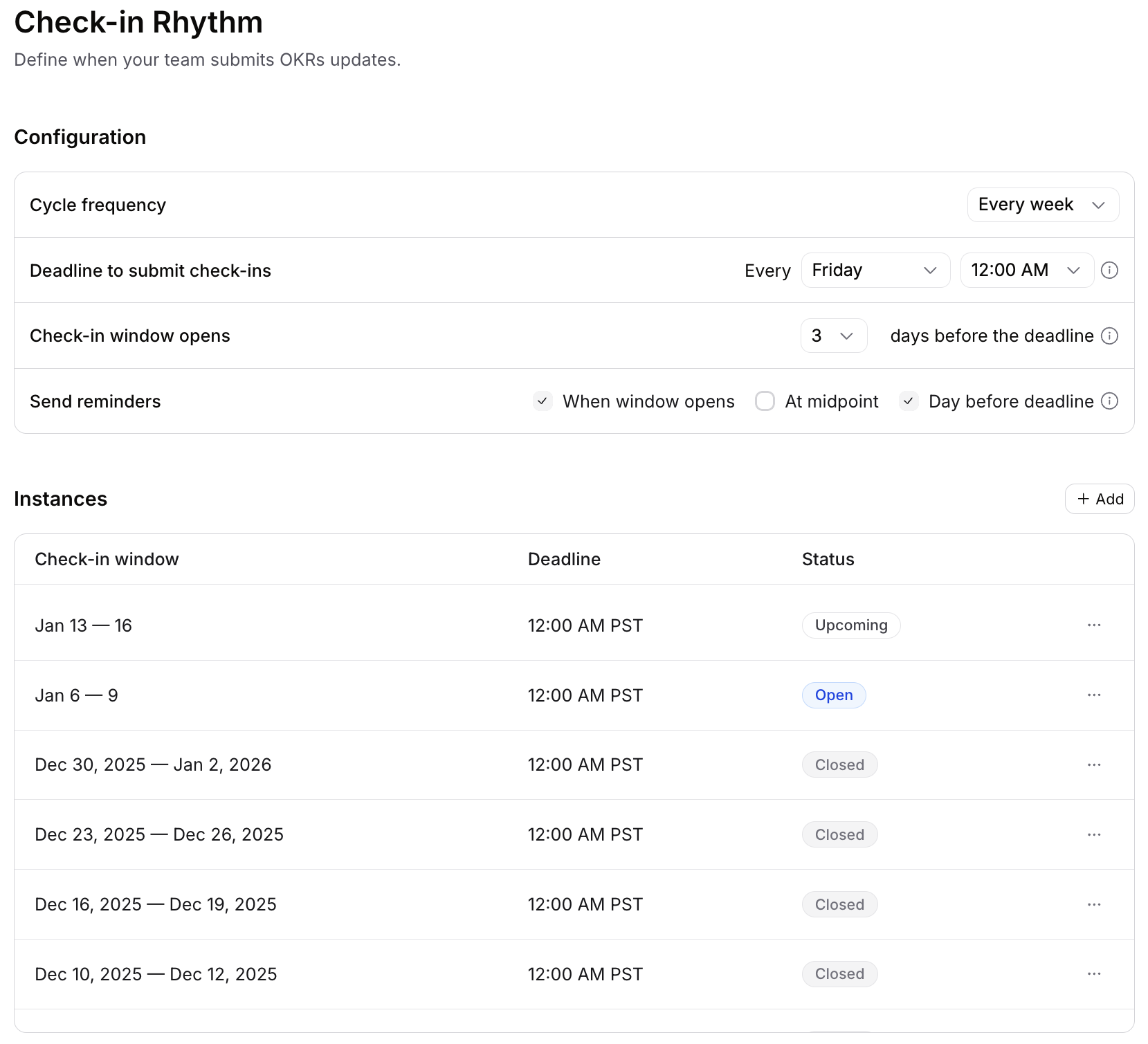
Navigate to Settings → OKRs → Check-ins
Enable Check-in reminders enabled
Configure your rhythm:
Cycle frequency: Every week, Every 2 weeks, or Every month
Deadline to submit check-ins: Day of week (for weekly/bi-weekly) or date pattern (for monthly), plus time
Check-in window opens: How many days before the deadline the window opens:
Weekly rhythms: 1-7 days before deadline
Bi-weekly or monthly rhythms: 1-14 days before deadline
Send reminders: Select when to send reminders (when window opens, at midpoint, day before deadline)
Example: A monthly rhythm starting the first Thursday at 9:00 AM with a 7-day window means OKRs become "Due" on the first Thursday of each month. Team members have seven days to complete check-ins before goals become "Overdue."
How Reminders Are Delivered
Check-in reminders are sent through your organization's connected communication channels:
Microsoft Teams: If you have Teams connected, reminders appear as activity notifications
Slack: If you have Slack connected, reminders arrive as bot messages
Email: Available as a backup option (requires administrator enablement)
⚠️ Important: You must have either Microsoft Teams or Slack connected to receive check-in reminders. Email notifications are disabled by default and serve only as a fallback when enabled by your administrator.
The system automatically uses the first available channel (Teams, then Slack, then Email if enabled). You'll receive reminders through only one channel per reminder event.
Managing Check-in Periods
The Instances section shows your upcoming check-in periods with their open dates, deadlines, and status. Each period generates automatically based on your rhythm, but you can manually adjust individual instances:
Click Add to create custom periods for special circumstances
Edit existing periods to adjust for holidays or company events
Delete periods that are no longer needed
Manual adjustments affect only that specific period without changing your overall rhythm pattern.
Timezone Considerations
All check-in deadlines use your organization's default timezone (displayed in Settings). Team members see deadlines in this timezone regardless of their location. The system handles daylight saving time transitions automatically.
Configuring Team-Specific Rhythms
Teams can customize their check-in rhythm to match their specific cadence while staying aligned with organizational processes.
When to Use Team-Specific Rhythms
Consider team-specific rhythms when:
Different operational cadences: For example, Engineering teams might work in weekly sprints which require more frequent check-ins while Finance teams may operate on a monthly cycle.
Organizational transitions: During major changes, some teams may benefit from temporary rhythm adjustments to provide closer monitoring without disrupting the entire organization
Most organizations start with one organization-wide rhythm and add team customization only when clear operational or compliance needs emerge.
Configuring a Team Rhythm
Navigate to Teams
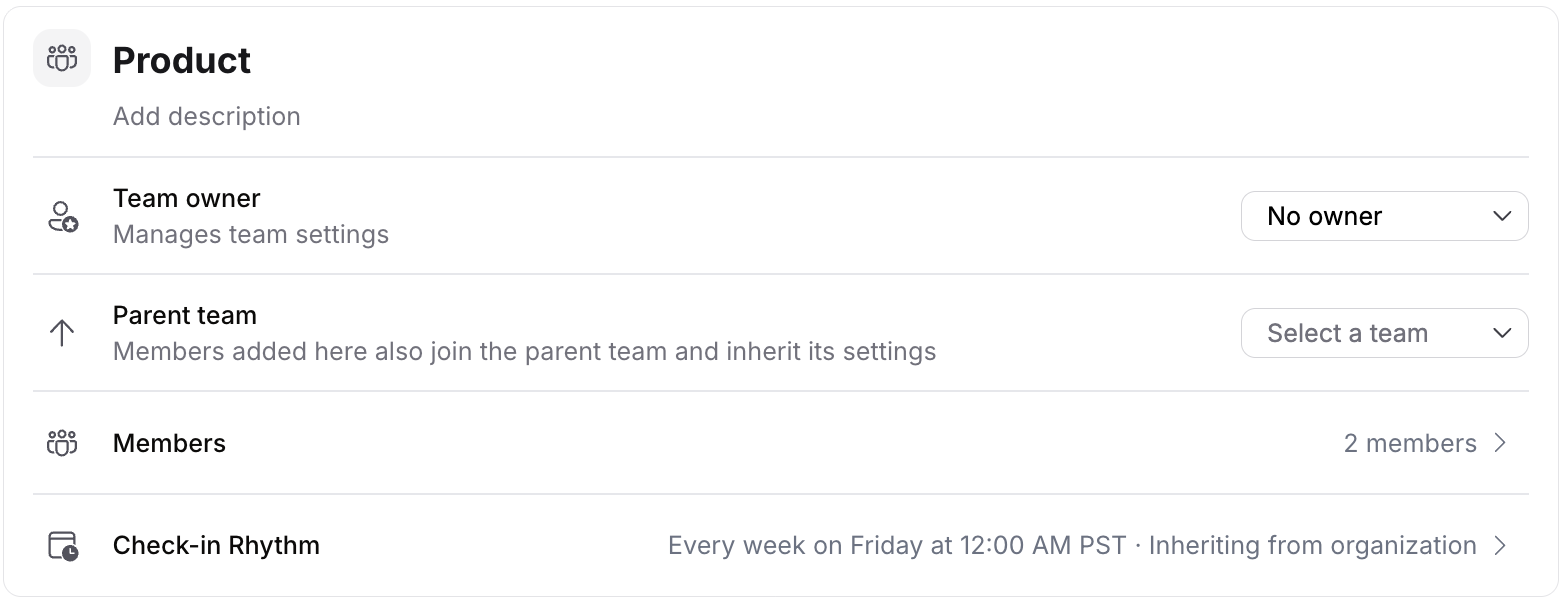
Click on the three dots "…" for the team want to configure and select Edit
Choose your Check-in Rhythm configuration approach:
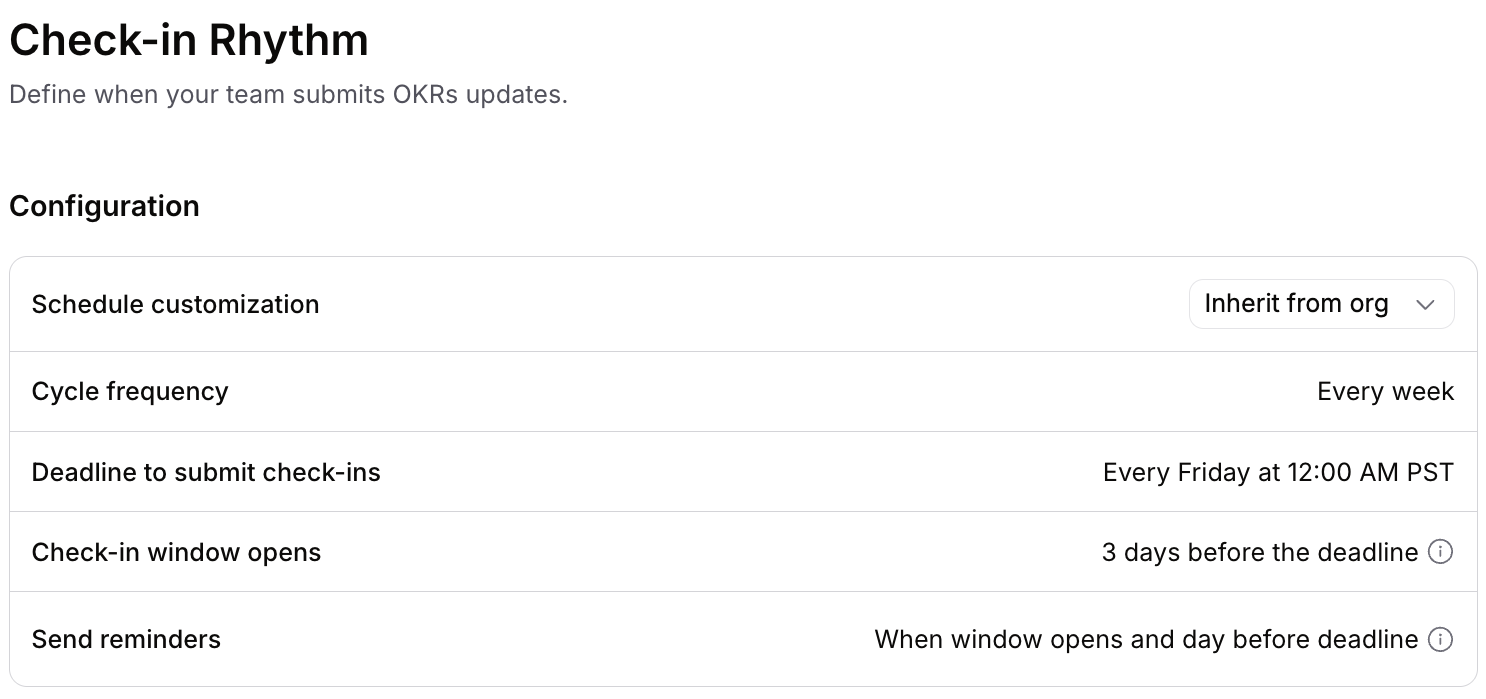
Inherit from org check-in rhythm (toggle ON): Use the organization-wide rhythm
Custom rhythm (toggle OFF): Configure team-specific settings
Teams that inherit from the organization see "Inheriting from organization" in their team settings. Sub-teams automatically inherit from their parent team unless they customize their own rhythm.
Disabling inheritance shows the same configuration options available at the organization level: cycle frequency, deadline timing, window duration, and reminder preferences.
How Multi-Team Goals Work
When a goal is assigned to multiple teams with different check-in rhythms, the "first-team-assigned" rule determines which rhythm applies. The team whose assignment happened earliest sets the check-in rhythm for that goal.
This ensures consistent behavior: each goal follows one primary rhythm based on its team assignment history. Status tracking and reminders follow this primary rhythm.
Frequently Asked Questions
How do Check-in Rhythms relate to per-goal check-in frequency settings?
Check-in Rhythms replace individual per-goal check-in frequency settings. When Check-in Rhythms are enabled for your organization:
Window-based tracking controls when all goals need updates
Individual frequency settings no longer apply
Reminders are sent based on window timing (when window opens, at midpoint, before deadline)
The five-status system provides visibility into check-in requirements
This shift from per-goal to window-based tracking creates predictable data collection that supports your business processes. See Effective Check-ins to Track OKR Progress in Rhythms
Can individual goals override the rhythm?
No. Check-in Rhythms apply consistently to all active goals in your organization. Unlike the legacy per-goal frequency system, individual goals cannot have custom check-in schedules. This design ensures predictable data collection and eliminates the administrative overhead of managing individual goal settings.
What happens if someone misses the check-in window?
Goals show an Overdue status after the window closes. Check-ins can still be completed (they're never locked), but they're marked as late in compliance tracking. This maintains visibility into timing for program health while ensuring no data is lost.
Can teams have different check-in rhythms?
Yes. Each team can either inherit the organization-wide rhythm or configure its own. For example, Engineering might check in weekly while Sales checks in monthly. Both rhythms are tracked and reported consistently.
Do auto-updated goals require check-ins?
Goals using auto-updates still show check-in status based on your rhythm. Auto-updates provide progress data automatically, so these goals may not need manual check-ins unless you want to add contextual notes. The status tracking helps you see which goals have been reviewed regardless of update method. See How to Set Up Auto-Updates
How do I adjust a check-in window for holidays?
Currently, windows are generated based on the configured rhythm and apply consistently. If a holiday falls during your window, team members can complete check-ins early (during the current window) or late (which shows as overdue but is still accepted).
How do I verify Check-in Rhythms are working?
After configuration, check the Goal Explorer for the Check-in Status column. You'll see status badges showing each goal's current state. The Instances section on your configuration page shows upcoming windows with their deadlines. Use the Check-in Coverage report to monitor completion rates.
Can we change our check-in rhythm after setup?
Yes. Navigate to the configuration page (organization or team level) and modify frequency, timing, or window duration. Changes apply to future windows while preserving historical data from previous cycles.
What's the difference between Check-in Rhythms and Time Periods?
Time Periods define when OKRs are active (quarterly or annual cycles). Check-in Rhythms define when those active OKRs should be updated (weekly, bi-weekly, or monthly windows within the period). They work together but serve different purposes in your OKR program structure.
Related Articles
Effective Check-ins to Track OKR Progress in Rhythms - Best practices for writing valuable check-in updates
Using Time Periods to Align OKR Cycles in Rhythms - Understanding how check-in rhythms work within OKR time periods
How to Set Up Auto-Updates - Configuring automatic progress updates for goals
Filtering and Grouping OKRs in Views - Using the Check-in Status filter to find goals needing updates
Reports in Rhythms: Monitoring and Improving OKR Program Health - Monitoring program health with the Check-in Coverage report