Filtering and Grouping OKRs in Views
Last updated: February 23, 2026
Filtering and grouping allow you to focus on specific subsets of OKRs and organize them logically. Effective filtering transforms Rhythms from a repository of hundreds of goals into a focused system that surfaces exactly what you need for your current task. Grouping then organizes those filtered results into logical sections for easier navigation.
Filters work by narrowing down the complete set of organizational OKRs to show only those matching your specified criteria. You can combine multiple filters to create highly specific views. For instance, filtering to your team for the current cycle with "At Risk" status shows exactly which goals need immediate intervention. Group those results by owner to see which team members need coaching.
Whether you're conducting weekly stand-ups, preparing executive reviews, managing compliance, or exploring cross-functional dependencies, filtering and grouping ensure you spend time analyzing insights rather than hunting for data. The combination of simple filters for common scenarios and advanced options for complex organizational structures means these capabilities adapt to both routine workflows and sophisticated analysis needs.
When you save a view, the filter and grouping configuration saves with it. Returning to that view later applies the same settings automatically, creating consistent, repeatable perspectives on your OKRs. To learn how to create and save views, see Using Views to Organize and Monitor OKRs.
Core Filter Types
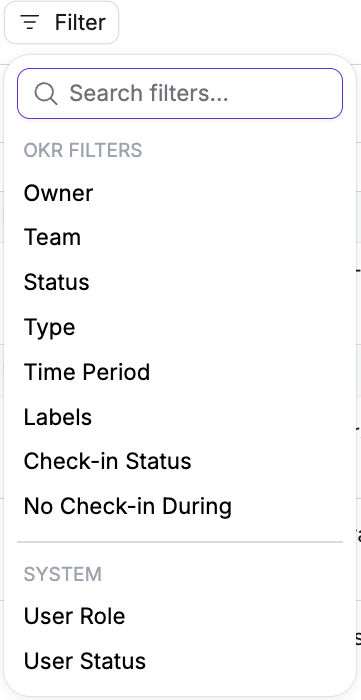
Time Period Filter
Focus on OKRs associated with specific strategic cycles. This is typically the first filter you'll apply when creating a view.
Available options:
Current cycle: Shows OKRs for your organization's current primary time period (this dynamically updates based on your cycle configuration, whether quarterly, annually, or custom)
Specific periods: Select from individual quarters (Q1 2025, Q2 2025), months, or years (past, current, or future)
The time period filter includes improved organization with month, year, and quarter labels displayed inline, making it faster to find the right timeframe. The current cycle option automatically updates to always show your active period without requiring manual filter changes.
When to use: Almost every view benefits from time period filtering. Without it, you see OKRs across all time periods, making it difficult to focus on what's active now versus historical or future goals.
Example: Filter to the current cycle for your weekly team reviews (this automatically shows the right period whether you're on quarterly, monthly, or custom cycles). Filter to "Q1 2026" when conducting next quarter's planning sessions.
Owner Filter
View OKRs assigned to specific individuals. This filter is particularly powerful for managers needing to see objectives across their entire team.
Basic usage: Search for a user's name and select them to see their OKRs.
Hierarchical options:
Include direct reports: Also shows OKRs from the selected person's immediate team members
Include all reports: Shows OKRs from the selected person's entire management chain (all levels down)
When to use: Weekly 1:1s with direct reports, skip-level reviews with entire management chains, reviewing OKRs for specific individuals.
Example: Filter to your name with "Include all reports" enabled to see your complete organizational scope. Filter to a direct report's name without hierarchy options to see just their individual OKRs.
Team Filter
Focus on OKRs belonging to specific functional teams or organizational units.
Basic usage: Select a team to see OKRs associated with that team.
Hierarchical options:
Include immediate sub-teams: Shows OKRs from teams directly nested under the selected team
Include all sub-teams: Shows OKRs from the complete team hierarchy below the selected team
When to use: Department reviews with all sub-teams included, specific team retrospectives, cross-team dependency identification.
Example: Filter to "Engineering" with "Include all sub-teams" to see complete engineering portfolio across frontend, backend, infrastructure, and all other engineering teams.
Status Filter
Group and view OKRs by current progress status. This helps identify objectives requiring immediate attention versus those proceeding as planned.
Available statuses:
Not Started: Goals that haven't begun work yet
On Track: Goals progressing as expected
At Risk: Goals that might miss targets without intervention
Behind: Goals currently behind schedule
Closed: Completed goals
In Progress: General active status
Postponed: Goals delayed to future periods
Multiple selection: Select multiple statuses simultaneously. For example, select both "At Risk" and "Behind" to see all problematic goals in one view.
When to use: Risk review meetings filtering to "At Risk" and "Behind" only, success celebrations filtering to "Closed," planning sessions filtering to "Not Started" to identify goals ready to begin.
Labels Filter
Labels allow flexible grouping by projects, strategic initiatives, themes, or any custom categorization your organization uses.
Usage: Select one or more labels from existing options.
Common label strategies:
Strategic themes (Customer Experience, Operational Excellence)
Priority levels (High, Medium, Low)
Project associations (Project Phoenix, Q4 Initiative)
Cross-cutting concerns (Security, Performance, User Experience)
When to use: Tracking thematic work spanning multiple teams, filtering to specific priority levels, viewing all OKRs related to a particular initiative regardless of which teams own them.
Type Filter
Focus on specific OKR object types to see only objectives, key results, or initiatives.
Available options:
Objectives: Shows only parent objectives
Key Results: Shows only key results (the measurable outcomes)
Initiatives: Shows only initiatives (the strategic projects)
Multiple selection: Select multiple types to see combinations. For example, select both "Objectives" and "Key Results" while excluding "Initiatives."
When to use: High-level strategic reviews where you want only objectives without tactical key result details, key result analysis sessions focusing on metrics and targets, initiative portfolio reviews tracking all strategic projects, presentations where showing certain object types would be distracting.
Example: Filter to Type = "Objectives" only for board presentations where executives want strategic overview without seeing every key result metric.
No Check-in During Filter
Find OKRs based on their most recent check-in activity. This filter uses rolling time periods from today, not calendar periods.
Available options:
Last day: No check-ins in the past 24 hours
Last week: No check-ins in the past 7 days
Last 2 weeks: No check-ins in the past 14 days
Last month: No check-ins in the past 30 days
Last quarter: No check-ins in the past 90 days
Custom period: Select a specific date range
Important: These are rolling windows from today's date. For example, "last quarter" means the past 90 days, NOT the previous calendar quarter. If today is June 30, "last quarter" checks April 1 through June 30, not Q1 (January through March). Similarly, "last month" means the past 30 days, not the previous calendar month.
When to use: Compliance monitoring to find goals without recent check-ins, pre-meeting preparation to identify which team members need to update status, risk identification (goals without updates often signal disengagement or blockers).
Example: On December 15, selecting "last month" identifies OKRs without check-ins since November 15, regardless of month boundaries.
Check-in Status Filter
Track whether check-ins are due, overdue, or complete. This filter focuses on check-in compliance (are updates being submitted on schedule?) rather than overall goal progress (which the Status filter tracks).
Your organization's configuration determines which options appear:
Standard Check-in Status (default):
Overdue: Check-ins that are past their due date
Due: Check-ins currently due for submission
Enhanced Check-in Status (with Check-in Cycles feature enabled):
Overdue: Check-ins that are past their due date
Due: Check-ins currently due for submission
Upcoming: Check-ins that will be due soon (typically within the next few days)
Complete: Check-ins that have been submitted for this cycle
Not Due: Check-ins not yet required (outside the current cycle window)
The enhanced options provide more granular check-in tracking and better visibility into upcoming requirements. To enable Check-in Cycles for your organization, contact your Rhythms Customer Success representative. This is an organization-level setting that affects all users.
Check-in Status vs. Goal Status: Check-in Status tracks whether updates are being submitted on time (compliance and process adherence). Goal Status (the Status filter) tracks whether the goal itself is progressing as expected (performance and outcomes). An OKR can be "On Track" in terms of progress but have "Overdue" check-ins, indicating good performance but poor communication discipline.
When to use: Pre-meeting preparation to identify who needs to submit updates before review sessions, compliance monitoring to ensure check-in discipline across teams, manager dashboards to see which direct reports are behind on updates, process improvement to identify patterns in check-in compliance.
Example: Combine with Team filter to see check-in compliance for specific groups. Filter to your team + "Overdue" check-in status to see which team members need reminders before your weekly review.
User Profile Attribute Filters
If your organization syncs user profile data from an HRIS or directory system, you can filter OKRs by employee attributes. These filters enable targeted analysis across organizational dimensions.
How these filters work: Profile attribute filters use exact matching from existing values, not text search. When you select a filter like "Job Title," you see a dropdown of all actual values that exist in your organization. Select one or more, and the filter shows OKRs owned by users with exactly those attributes (OR logic for multiple selections).
Available attributes (when directory sync is configured):
Job Title: Exact role or position titles from your HRIS
Department: Functional departments
Division: High-level organizational divisions
Employee Type: Full-time, contractor, part-time, intern, etc.
Cost Center: Financial tracking codes
Employee ID: Unique identifier from your HRIS
These standard fields can be customized with labels that match your organization's terminology. For example, "Cost Center" might be relabeled as "Location" in your instance if that's how your organization uses the field.
Important: These filters match exact values from your source system. If titles are inconsistently formatted ("Sr. Engineer" vs. "Senior Engineer"), they appear as separate filter options. Filter effectiveness depends on consistent data in your HRIS.
When to use: Job title analysis (filter to specific roles), departmental reviews (filter by department or division), financial tracking (filter by cost center), employee type analysis (distinguish contractors from full-time employees).
Example: To see OKRs for senior-level engineers, select the Job Title filter and choose all applicable titles from the dropdown: "Senior Engineer," "Staff Engineer," "Senior Software Engineer," "Principal Engineer."
Availability: Profile attribute filters require directory sync (SCIM or HRIS integration) to be configured. If you don't see these options or need attributes enabled, contact your administrator. For setup details, see Setting Up Automated User Provisioning (SCIM) and HRIS Integration.
User Role Filter
Filter OKRs by the role type of their owners. This helps distinguish between different permission levels and user types. User Role filters appear under the "System" section in the filter menu.
Available roles:
Rhythms Admin: Users with full administrative privileges who can manage organization settings, users, and all OKRs
OKR Admin: Users with OKR-specific administrative privileges who can pin views organization-wide and manage OKR settings
Member: Standard users with regular access who can create, edit, and manage their own OKRs based on permissions
Guest: Users with limited access (guest license type), typically with read-only or restricted permissions
Multiple selection: Select multiple roles simultaneously. For example, select both "Rhythms Admin" and "OKR Admin" to see OKRs owned by any administrator.
When to use: Administrator analysis to see OKRs owned by different permission levels, compliance checks to verify guest user OKR access is appropriate, organizational structure analysis distinguishing between internal team members and external guests.
Example: Filter to User Role = "Guest" to review all OKRs visible to or owned by guest users, ensuring appropriate access boundaries.
Learn more about roles in Rhythms OKR Roles and Permissions.
User Status Filter
Filter OKRs by whether their owners are currently active or have been deactivated. User Status filters appear under the "System" section in the filter menu.
Available statuses:
Active: Currently active users in the organization with valid access to the system
Inactive: Users whose accounts have been deactivated or closed (no longer have access, but historical OKRs remain)
When to use: Data hygiene to identify OKRs from departed employees, transition planning when employees leave, historical analysis including contributions from former team members.
Combining with Owner filter: Use User Status = "Inactive" to see all inactive users' OKRs, then use the Owner filter to search for a specific person's name if needed.
Example: Filter to User Status = "Inactive" to see all OKRs owned by departed employees that may need reassignment or archival.
Advanced Filtering and Organization
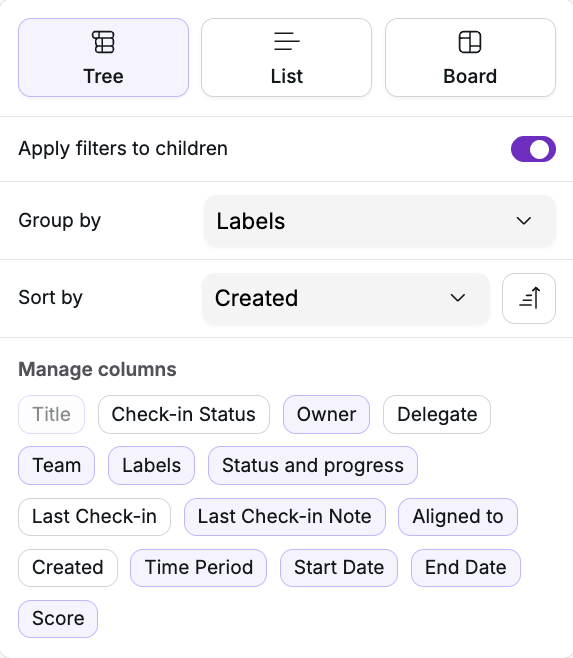
Apply Filters to Children Toggle
When working with hierarchical OKR structures (e.g. Tree View), this toggle controls whether filters cascade through parent-child relationships.
Toggle OFF (default): Filters apply only to parent-level OKRs. You see parents matching your criteria along with all their children, regardless of whether children match the filters. This gives you complete context around filtered items.
Toggle ON: Filters cascade to all levels. Only parents AND children matching your criteria appear, creating a strictly filtered view without unrelated children.
When to use each:
Toggle OFF is best when you want complete OKR hierarchies for selected parents. For example, filtering to your team shows all your team's OKRs plus all children, giving full context.
Toggle ON is best when hunting for specific characteristics at any level. For example, filtering to "At Risk" status with toggle ON shows only at-risk parents and at-risk children, hiding healthy children for a more focused risk view.
Example: You filter to Status = "At Risk". With toggle OFF, you see all "At Risk" parent objectives plus all their children (even "On Track" children). With toggle ON, you see only "At Risk" parents and "At Risk" children, creating a pure risk view.
Filter Combinations and Logic
When you apply multiple filters to a view, they work together using AND logic:
Time Period = Current cycle AND
Team = Engineering AND
Status = At Risk
This shows only current cycle Engineering OKRs that are At Risk (all criteria must be true).
Within a single filter type, multiple selections use OR logic:
Status = "At Risk" OR "Behind"
This shows OKRs with either status.
Building precise views: Start broad, then narrow:
Begin with time period (establishes baseline)
Add team or owner (narrows scope)
Add status or other criteria (focuses on specific needs)
Example progression:
Step 1: Time Period = current cycle (shows all active goals)
Step 2: Add Team = Product (shows active Product goals)
Step 3: Add Status = "At Risk" (shows only at-risk active Product goals)
Each filter addition narrows results further, helping you arrive at exactly the perspective you need.
Filter Persistence
Filters save as part of your view configuration. When you create a view with specific filters applied, those settings persist. Anyone accessing that view (if shared) sees the same filters applied. Your personal filter selections also remain when you return to a view during your session.
Grouping: Organizing Filtered Results
Once you've applied filters to narrow your OKR set, grouping organizes those results into logical sections. This makes large sets of goals easier to navigate and understand. Your selected grouping saves with the view, so anyone accessing a shared view sees the same organization.
List View Grouping
List View offers the most comprehensive grouping options:
Available Group By options:
None: Display OKRs in a flat list without sections
Aligned to (Parent): Groups OKRs by their parent objectives
Owner: Sections for each person who owns OKRs
My role: Groups by your relationship to the OKR (Owner, Delegate, Contributor) - requires check-in delegates feature
Status: Sections for each status (Not Started, On Track, At Risk, etc.)
Labels: Groups by applied labels
Label Groups: Groups by label categories (select specific label groups)
Team: Sections for each team - requires teams to be enabled
Time Period: Groups by associated time periods
List View grouping creates collapsible sections with headers for each group, shows item counts per section, and maintains your selected sort order within each group. Empty groups are hidden automatically.
Tree View Grouping
Tree View uses the same grouping options as List View but applies them to the hierarchical display. Groups create top-level sections while OKR hierarchies are maintained within each group. This is particularly useful with "Team" or "Owner" grouping to see how objectives cascade within organizational boundaries.
Board View
Board View doesn't use traditional grouping. Instead, it offers templates (None, MBR, WBR) for different review formats and properties toggles to show or hide different data elements. For details, see Understanding Board View and AI Insights.
When to Use Grouping
Team reviews: Group by "Team" in List View to see all OKRs organized by department, making it easy to navigate team-by-team discussions.
Individual check-ins: Group by "Owner" to navigate between people during 1:1 meetings or skip-level reviews.
Risk assessment: Group by "Status" to focus on at-risk items together, then on-track items, creating a natural triage flow.
Strategic themes: Group by "Label Groups" for thematic organization when your OKRs span multiple teams but share strategic themes.
Alignment verification: Group by "Aligned to" to see how OKRs support parent objectives, making it easy to verify strategic coherence.
Best Practices for Filtering and Grouping
Use Hierarchical Options for Comprehensive Oversight
When filtering by Owner or Team, use "Include direct reports" or "Include all sub-teams" to ensure you're seeing the complete picture. Managers often want to see not just their own OKRs but their entire team's goals in aggregate.
Combine Filters for Targeted Analysis
Single filters rarely provide enough focus. Combine time period + team + status for views that answer specific questions like "Which Engineering OKRs are behind schedule this cycle?"
Apply Filters to Children Thoughtfully
Consider whether you want complete context (toggle off) or strict filtering (toggle on) based on your task. For coaching conversations, complete context often helps. For compliance checks, strict filtering might be more efficient.
Manage Inactive User OKRs Proactively
Regularly use the User Status filter (select "Inactive") to identify OKRs from departed employees. Find orphaned OKRs and reassign them before institutional knowledge is lost.
Leverage User Attributes for Strategic Insights
If your organization has HRIS integration, use attribute filters to analyze OKR distribution across different organizational dimensions. Understand how different divisions, job titles, or departments contribute to objectives.
Group for Easier Navigation
When filtered views return many OKRs, apply grouping to organize results. Group by Team for departmental views, by Owner for individual reviews, by Status for risk prioritization.
Frequently Asked Questions
How do I see all my direct reports' OKRs?
Use the Owner filter, select your name, then toggle on "Include direct reports." This shows all OKRs owned by you and your immediate team members.
Can I save a set of filters I use regularly?
Yes. When you create a view with specific filters, those filter settings save with the view configuration. Return to that view anytime to see the same filters applied.
An employee has left. How do I find their OKRs?
Use the User Status filter and select "Inactive" to see all OKRs owned by deactivated users. You can then use the Owner filter to search for the specific person's name, or scan the inactive users' OKRs to locate the goals that need reassignment.
What's the difference between manual filtering and chat-created views?
Manual filtering involves selecting specific criteria from dropdown menus and checkboxes, either when creating a new view or adjusting filters within an existing view. You see all available options and select exactly what you want.
Chat-created views let you describe what you need in natural language, and Rhythms AI interprets your request to create a new view with appropriate filters. The AI selects the filter combinations based on your description.
Both methods create permanent, shareable views with the same filtering capabilities. Key differences:
Interface: Dropdowns and checkboxes vs. natural language conversation
Discovery: Manual shows you all available options; chat requires you to describe what you want
Speed: Chat can be faster for complex combinations; manual is faster when you know exactly which filters you need
Modification: Manual allows editing existing views; chat always creates new views
Use manual filtering when you know exactly which filters you need, want to see all available options, or need to modify an existing view. Use chat when you prefer describing your need conversationally or need help discovering the right filter combination.
How can I see a manager's complete "management chain"?
Use the Owner filter, select the manager, and toggle on "Include all reports." This shows OKRs from the manager and everyone in their organizational hierarchy at all levels below.
Can I filter by custom HR data like department or cost center?
Yes, if your organization has directory sync configured. The available user profile attributes depend on what your administrator has set up. Standard fields include Job Title, Department, Division, Employee Type, Cost Center, and Employee ID, though field labels can be customized to match your organization's terminology.
What happens if I use "Apply Filters to Children" with team hierarchies?
The "Apply Filters to Children" toggle affects how filters cascade through parent-child OKR relationships, not team hierarchies. Team hierarchy options (Include sub-teams) control which teams' OKRs appear. "Apply Filters to Children" controls whether filters apply to child OKRs under each parent objective.
How do I filter to see OKRs from multiple teams at once?
In the Team filter, select multiple teams. The filter will show OKRs from any of the selected teams (OR logic). For example, select both "Engineering" and "Product" to see OKRs from either team.
Related Resources
Using Views to Organize and Monitor OKRs: Learn how to create and manage views. Filters and grouping are the tools that make views useful for organizing and focusing your OKR data.
Exporting OKR Data from Rhythms: The filters and grouping you apply to a view determine what gets exported and how it's organized. Configure your filters first, then export for stakeholder communication.
Reports in Rhythms: Reports use a similar filtering system. Understanding filter options helps you create targeted report analyses using the filter controls at the top of the Reports page.
Setting Up Automated User Provisioning (SCIM) and HRIS Integration: Learn how to configure directory sync to enable User Profile Attribute filters for your organization.