Organization help: Add Key Resources to the Side Nav
Last updated: September 1, 2026
Every organization runs on resources that live across a variety of surfaces — the Slack channel where leaders debate strategy, the document holding this year's strategic plan, the SharePoint site outlining how to align divisional goals to company priorities.
Organization help lets a workspace admin put those destinations directly in everyone's side nav, so people stop asking where things live.
The payoff shows up in check-ins. Writing a good one can depend on knowing what format the monthly business review expects, when the review meeting is, and how a goal contributes to company priorities — three lookups before anyone types a word. And because every organization sets up its own OKR conventions, connector policies, and contribution weights, the resources your team needs at hand are not the ones another company needs. Organization help is where you make that choice explicit.
Add a link
Before you start, four things to know:
Everyone sees the same links — this is a workspace-wide setting, not personal bookmarks
Only admins can edit it, but every member sees the result
Five links, maximum — three to five works best, since each one takes a row in everyone's sidebar
Pick durable destinations — a link that goes stale in a month costs more attention than it saves
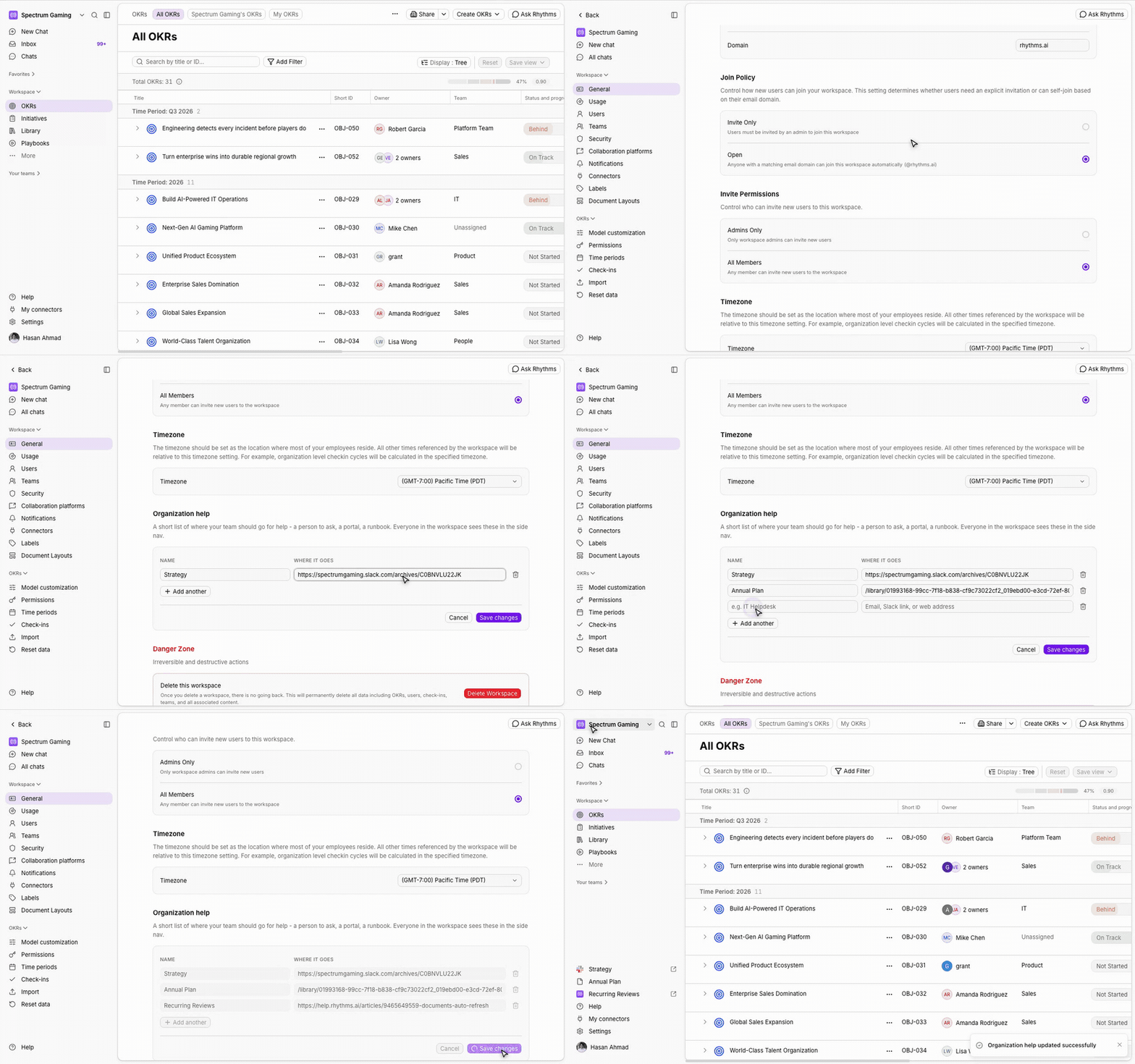
Rhythms admins can set up Organization help by following these steps:
Go to Settings → General
Scroll to Organization help
Under Name, type what people should see — Strategy, Annual Plan, IT Helpdesk
Under Where it goes, paste the destination: an email address, a Slack link, a Rhythms document, or any web address
Select Add another for more links, up to five
Select Save changes
The links appear as rows in the side nav, just above Help, and open in a new tab when someone selects them. You will see them straight away; everyone else picks them up the next time their page loads.
Add another greys out once five rows exist. If you need a sixth destination, consider whether one of the five should become a single page that links onward.
Linking to a Slack channel
Say your leadership team debates priorities in one channel, and those conversations shape what every team writes in their check-ins. People who need that context should not have to keep switching windows while writing check-ins.
Copy the link from Slack, then paste it into Where it goes.
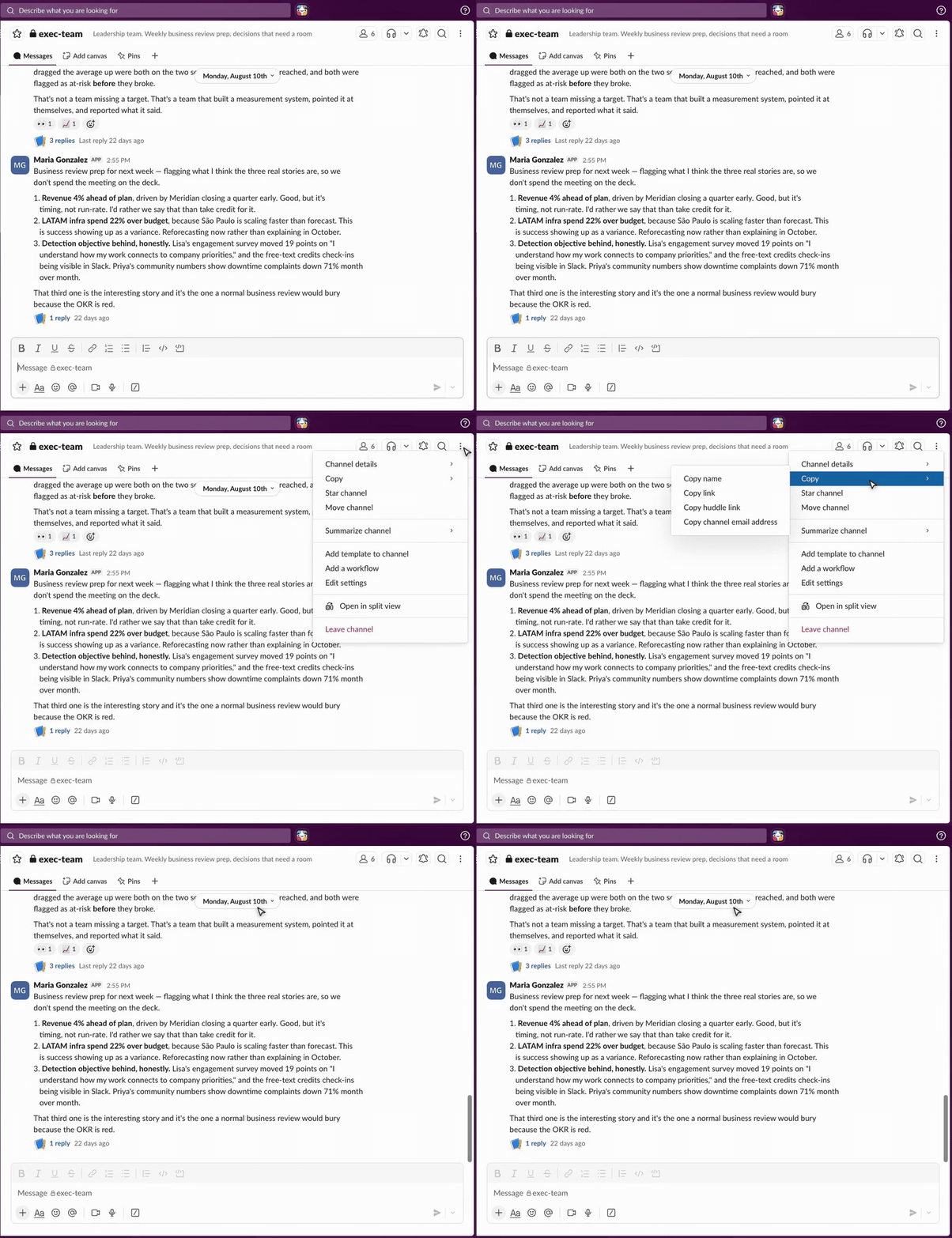
For a channel:
Open the channel in Slack, then select the three-dots menu at its top right
Select Copy, then Copy link — not Copy name, which copies the channel name as plain text and will not appear in the side nav
Paste it — it looks like
https://yourteam.slack.com/archives/C01ABCDEFGH
For a person — useful when one named human owns a process:
Select the person’s avatar to open their profile
Select the three-dots menu at the top of the profile, then Copy link to profile
Paste it — it looks like
https://yourteam.slack.com/team/U01ABCDEFGH
Links that start with slack:// are ignored, and the entry will not appear in the side nav. Use the https:// link that Copy link gives you — it still opens the Slack app.
Linking to a Rhythms document
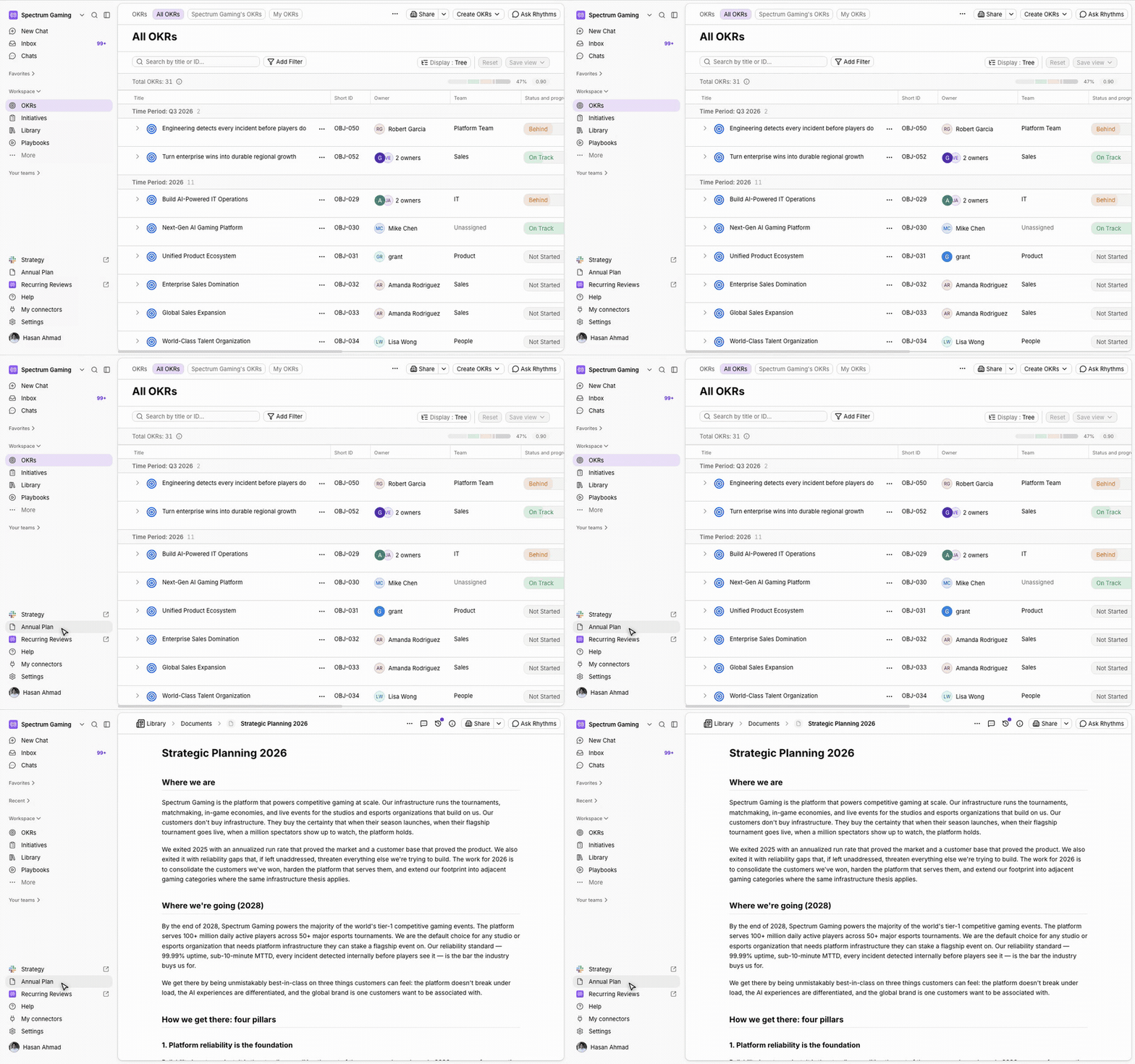
Say the company's annual plan lives in a Rhythms document, and you want everyone rereading it before they write quarterly OKRs. Linking it from the side nav puts it one click from the OKRs page, every day of the quarter.
Open the document, copy the address from your browser, and paste the part that starts with /library/. Rhythms documents open in the same tab rather than a new one, so people stay in their flow.
Linking to a Rhythms help article
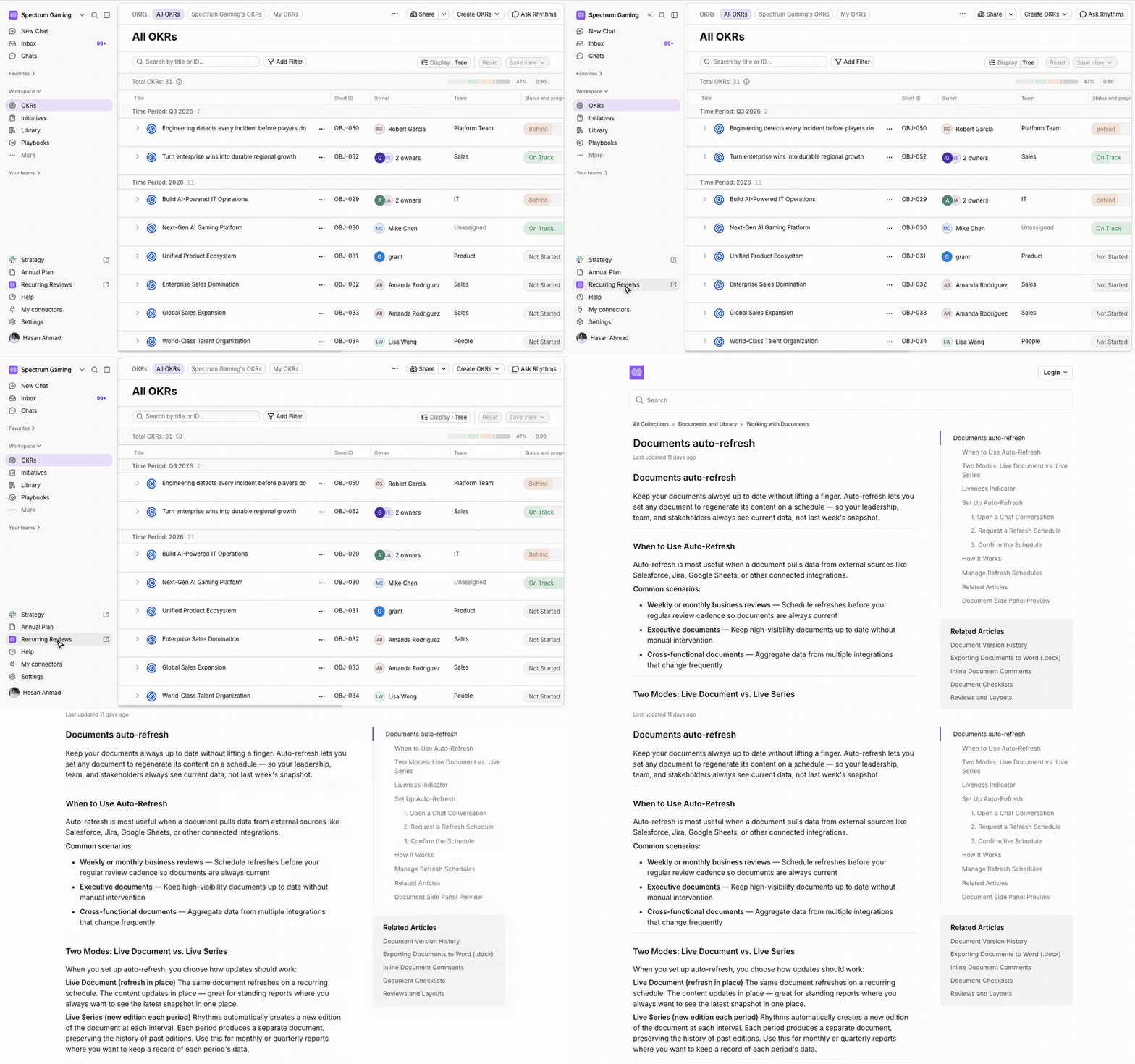
Say your monthly business review document rebuilds itself on a schedule, and you want anyone who owns a recurring document to be able to set one up without asking. Point a link at the instructions.
Paste the full address of the article, for example https://help.rhythms.ai/articles/9465649559-documents-auto-refresh for Documents auto-refresh. The same approach works for any Rhythms help article your team leans on.
What each link type does
You do not pick a link type. Rhythms works it out from what you paste, and picks the icon and the behavior to match.
What you paste | Icon | What happens when someone selects it |
|---|---|---|
| Envelope | Opens a new email to that address |
| Slack mark | Opens the channel or person in Slack, in a new tab |
| Document | Opens the Rhythms document in the same tab |
| The site's own icon | Opens the page in a new tab |
Icons come from the destination. Web links show that site's own icon, falling back to a generic one when the site does not publish it.
Links that leave Rhythms are marked with an arrow and open in a new tab, so nobody loses their place.
When the sidebar is collapsed, links show as icons only. Hover over one to see its name.
Reorder or remove links
Links appear in the side nav in the same order as the rows in Settings. To change the order, retype the entries in the order you want.
To remove a link, select the trash icon next to its row, then Save changes. Removing every row clears the menu, and the side nav goes back to showing just Help.
FAQ and troubleshooting
A link I saved does not appear in the side nav. The Where it goes field needs a real destination — an email address, a link, or a Rhythms document path. Entries like Ask in #ops-help or Ext. 4412 are not destinations, so there is nothing to select and the row is left out. Plain text saves without complaint but never shows up. Replace it with the actual channel link or email address.
Add another is greyed out. Five links is the maximum.
My links disappeared. Check whether the sidebar is collapsed. The links are still there as icons — hover over one to see its name — or expand the sidebar to get the names back.
A teammate cannot see a link I just added. They will see it the next time their page loads. Nobody needs to sign out.
Can members add their own links? No. The list is workspace-wide and only admins can edit it, which is what makes it a reliable answer to "where do I go for this?"
Can I rename the section? Not currently. The links sit directly in the side nav above Help, with no heading of their own.