Explore your OKRs in the graph view
Last updated: September 14, 2026
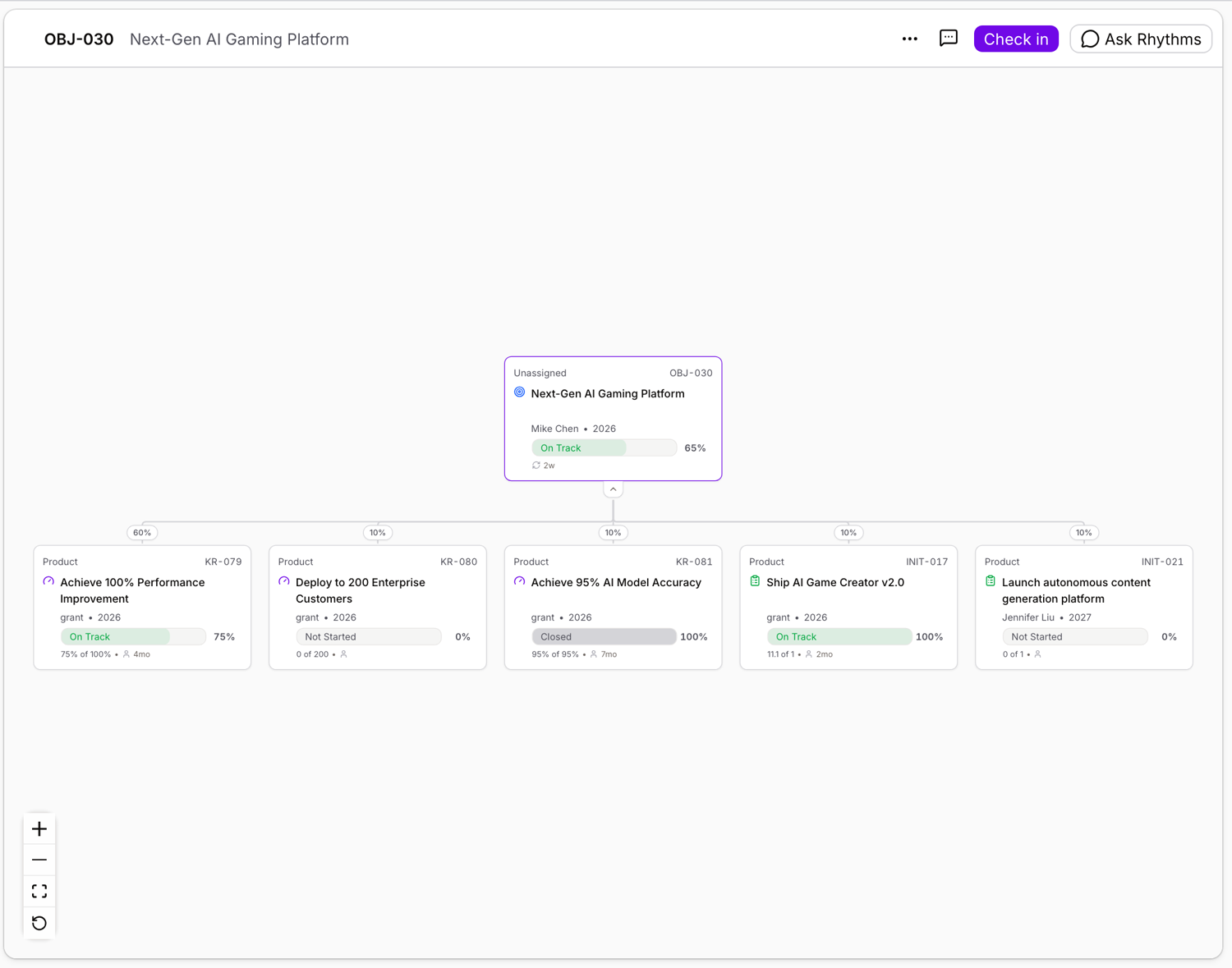
The graph view draws your OKRs as connected cards so you can see how work rolls up: which Key Results feed an Objective, which Initiatives feed a Key Result, and how much each one contributes. It is one of the display options on any OKR view, alongside Tree, List and Board. What sets it apart is that you can expand in both directions from any card, down to children and up to parents, and follow the alignment the way it actually branches.
Open the graph view
There are two ways in:
- On any OKR view, open the Display menu in the toolbar and choose Graph. Your current filters and the goals in view carry over.
- From a single goal, open its ⋯ actions menu and choose View in graph to open the graph focused on that goal.
Read a card and the lines between them
Each card shows the goal's title, type icon, owner, progress bar and status, the same information as a row in the other views.
The line connecting two cards is an alignment link, and its label is the contribution weight that rolls up to the parent. A link that carries nothing shows 0%: either the parent enters its own progress (a manual update, which takes nothing from its children) or the child is set not to contribute. Hover a link to read the full explanation.
Expand down and up
- A card with children has an Expand children control. Click it to load that goal's children and lay them out to the right; Collapse children hides them again. Children load only as you open them, so a large hierarchy stays fast.
- The leftmost cards also have an Expand parent goals control. Click it to walk up the hierarchy and see what a goal rolls up into: its parent objective, that objective's parent, and so on. Only the leftmost column offers this, because every other card already hangs from the parent it was reached from.
Focus the graph with filters
The Filter children toggle in the toolbar decides what the expansions show, in both directions.
- Off (the default): expanding shows the whole chain, even through goals your filters exclude. This is what makes walking up useful; you can reach a VP's objective above your own even when the filter would otherwise hide it.
- On: both directions show only goals that match your filters. Parents removed by the filter collapse into a “N parents hidden by filters” marker, so the up control never opens onto nothing.
Focus on one goal and share it
View in graph, from a goal's actions menu, opens the graph centered on that goal with its parents, children and siblings already expanded. You stay on the goal's own page, so its short ID, title, actions and the back control are all there: click into any card to open it, and use back to return to where you were.
The address bar reads /goal/<short-id>?view=graph. Copy it to share the same focused graph with a teammate. They open it exactly as you framed it, without inheriting anything you happened to have expanded elsewhere.
Search, reset and what is remembered
- Use the view's search box to find a specific goal inside a large graph.
- Reset returns the graph to how it first opened. Between visits the graph remembers what you expanded on each view, so you return to the same picture; Reset clears that back to the default.
Archived OKRs
Archived OKRs do not appear in the graph, the same as other lists and views. To find one, open the Archived OKRs view.
Related articles
- Create and share OKR views
- Filtering and Grouping OKRs in Views
- How parent OKR progress and status roll up