See how your OKRs align: Alignment graph and Strategy map
Last updated: September 17, 2026
Two of the OKR display options exist to show alignment. The Alignment graph draws one OKR's connections as cards and lines: up to what it rolls into, down to what feeds it, with the contribution on every line. The Strategy map shows the whole picture at once: one box per team (or owner, time period, label or parent objective), the OKRs inside each box, and the lines between boxes. Both are display options on any OKR view, next to Alignment tree, List and Board.

Choose a view
Open Display options in the toolbar (the button reads Display: Alignment tree, or whichever view you are in) and pick one:
- Alignment tree: alignment as expandable, indented rows. The default.
- List: a flat table with the columns you choose.
- Board: progress across report cards.
- Alignment graph: alignment as connected cards. Use it when your question is about one OKR.
- Strategy map: strategy by team, owner or theme. Use it when your question is how teams' work connects.
If you used Tree or Graph before, they are now Alignment tree and Alignment graph; saved views open in the right mode. Click Save view to keep a display choice for the view. The Filter bar works the same in every mode.
Alignment graph
There are two ways in: choose Alignment graph from Display options, and your current filters and goals carry over; or open a single goal's ⋯ menu and choose View in graph to open the graph focused on that goal.
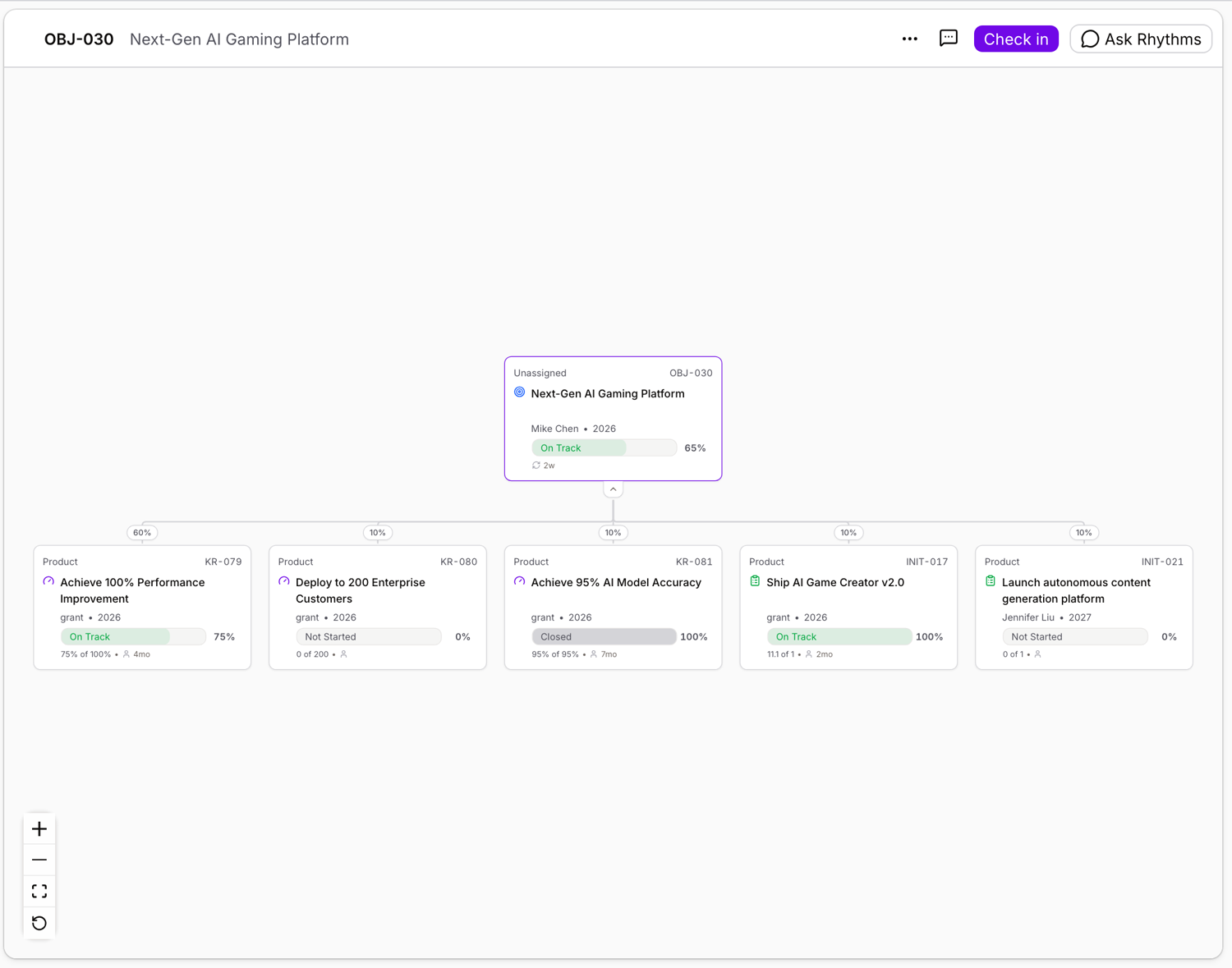
Read a card and the lines between them
Each card shows the goal's title, type icon, owner, progress bar and status, the same information as a row in the other views. The line between two cards is an alignment link, and its label is the contribution weight that rolls up to the parent. A solid line moves progress; a dashed line is connected but contributes nothing. A link shows 0% when the parent enters its own progress (a manual update takes nothing from its children) or the child is set not to contribute. Hover a link to read the full explanation.
Expand down and up
- A card with children has an Expand children control. Click it to load that goal's children; Collapse children hides them again. Children load only as you open them, so a large hierarchy stays fast.
- The top row of cards also has an Expand parent goals control. Click it to walk up and see what a goal rolls into: its parent objective, that objective's parent, and so on. Only the top row offers this, because every other card already hangs from the parent it was reached from.
The Filter children toggle in the toolbar decides what the expansions show, in both directions. Off (the default), expanding shows the whole chain, even through goals your filters exclude, which is what lets you reach a VP's objective above your own. On, both directions show only goals that match, and parents removed by the filter collapse into a N parents hidden by filters marker so the control never opens onto nothing.
Follow one OKR's path
Hover a card and its path lights up: the card, everything above it and everything below it, with the lines between them, while the rest of the graph dims. Move away and the graph returns to normal.
Direction and connections
In Display options, Direction lays the graph out Top to bottom (the default for the Alignment graph) or Left to right, and Connections draws the lines Curved (the default) or Stepped. Each of the two graph views remembers its own direction, connections, columns and grouping, so switching between them does not reset either.
Focus on one goal and share it
View in graph, from a goal's actions menu, opens the graph centred on that goal with its parents and children already expanded. You stay on the goal's own page, so its short ID, title, actions and the back control are all there. The address bar reads /goal/<short-id>?view=graph; copy it to share the same focused graph with a teammate, who opens it exactly as you framed it without inheriting anything you happened to have expanded elsewhere.
Strategy map
Choose Strategy map from Display options. It opens grouped by team (by parent objective in a workspace without teams), laid out left to right with stepped connections. On the left sits a card labelled View with the view's name and the number of teams; dashed lines run from it to one box per team.
Read a box
A box carries the team's icon and name, a status bar with the average progress and the count of OKRs in each status (for example 46% avg. progress · 1 Not Started · 2 Behind · 2 Closed), and up to three OKR rows showing title, short ID, time period, progress and owner. + N more OKRs opens the full list in a side panel. Click any row to open that OKR's quick view.
Open a box into boxes
A box whose OKRs have other teams' work aligned to them shows a tab on its right edge with a number: how many teams are below. Click it (Expand the goals aligned to this group) and those teams appear as boxes hanging off it, connected by solid lines and holding the Key Results and objectives that align to this team's OKRs. Those boxes open the same way, so you can follow the strategy down as far as it goes. Closing a box closes everything below it.

See who a team contributes to
A box also has a tab on its left edge (Show teams Sales contributes to). Click it to open the teams above: the ones whose objectives this team's OKRs align to, marked Alignment context. This is how you show a team where its work lands.
Change the grouping
Under Group by in Display options you can group the map by Team, Owner, Time Period, Labels, Label Group or Aligned to (the parent objective). OKR Status, Check-in Status and My role are available in List and Alignment tree only.
Follow one path
Hover a box to light the boxes above and below it and the lines between them, while everything else dims. Hover a single OKR row to narrow the highlight to that OKR's own path. Click to pin the highlight while you look around; click again to release it.
Filters, large maps, and what is remembered
- The view's filters decide which OKRs appear in the boxes. Filter children decides whether opened boxes show only matching OKRs; those it removes collapse into a N children hidden by filters row.
- A workspace with many teams loads more boxes as you move towards the far edge of the map.
- Use the view's search box to find a goal inside a large map. Reset returns the map to how it opened. Between visits, each view remembers what you opened on it.
Archived OKRs
Archived OKRs do not appear in either view, the same as other lists and views. To find one, open the Archived OKRs view.
FAQ
Where did Tree and Graph go? They are now called Alignment tree and Alignment graph. Strategy map is new. Saved views open in the right mode.
Why is a line dashed? It connects two goals without moving progress: a 0% link, a parent that enters its own progress, or a child set not to contribute. The View card's lines are dashed because they show membership, not roll-up.
Does opening boxes change the view for everyone? No. What you expand or open is remembered only for you. Display mode, direction, connections and grouping become part of the view when you click Save view.
Why can't I see a parent? Either Filter children is on and the parent does not match your filters (the hidden by filters marker says so), or you do not have visibility to it.