Set a workspace check-in rhythm
Last updated: September 4, 2026
A check-in rhythm is the recurring schedule on which OKR owners are expected to check in. Rhythms Admins set the workspace rhythm in Settings › OKRs › Check-ins: how often a check-in window opens, when it closes, and when reminders go out. Every workspace has a rhythm switched on from day one (weekly, due Monday, with a three-day window), so you only need this page to change it. Teams and individual goals can follow the workspace rhythm or set their own.
What a check-in rhythm does
The check-in rhythm turns check-ins into predictable cycles. Each cycle has a window that opens a set number of days before a deadline. During the window, every active OKR the rhythm governs shows a Due check-in status, the people responsible get reminders, and a check-in made inside the window counts as on time. Once the deadline passes without a check-in, the OKR is Overdue. Rhythms uses the cycle results to calculate compliance for each cycle and for the Check-in Compliance report.
The check-in rhythm governs published OKRs in the current time period that are not closed or postponed. Draft OKRs, closed and postponed OKRs, and OKRs whose dates fall outside the cycle are Not Due. See Set up time periods for how the current time period is chosen.
Set the workspace check-in rhythm
You must be a Rhythms Admin. Open Settings (bottom of the left sidebar), then OKRs › Check-ins. The page is titled Check-in Rhythm.
- Under Configuration, choose a Cycle frequency: Every week, Every 2 weeks, Every month, or Every quarter.
- Set the Deadline to submit check-ins. For weekly and two-week rhythms, pick a weekday (for example "Every Friday" or "Every other Friday"). For monthly and quarterly rhythms, pick a position and a weekday (for example "First Monday" or "Last Friday"). Deadlines are the end of that day in the workspace timezone.
- Set when the Check-in window opens, in days before the deadline. The maximum is 7 days for a weekly rhythm, 14 days for two-week and monthly rhythms, and 30 days for a quarterly rhythm. Changing the frequency resets this to a sensible default (2, 2, 3, or 5 days) that you can override.
- Tick which reminders to Send: When window opens, At midpoint, and On deadline date. Reminders go out around 9 AM in the workspace timezone. The midpoint reminder is skipped when the window is too short to have a distinct middle day.
- Click Save changes. Rhythms discards the cycles that have not started yet and recreates them from the new settings. Cycles that are open or finished are kept, so historical compliance is not rewritten.
The footer of the Configuration card shows the timezone deadlines use ("Due dates are end of day PST", for example) with a Change link to Settings › Workspace › General, where the workspace timezone lives.
Require a check-in for auto-tracked OKRs
Below the Configuration card, the Require check-in for auto-tracked OKRs switch decides how OKRs whose progress comes from a rollup or a connector are treated. When it is on (the default), those OKRs still need a manual check-in inside the window to count as complete. When it is off, an automatic progress update inside the window counts as the check-in, and auto-tracked OKRs with no update are Not Due rather than Overdue. Teams that inherit the workspace rhythm inherit this setting too; the same switch appears on a goal's own Check-in Rhythm when the goal is auto-tracked.
Review and adjust the schedule
The Schedule section lists each check-in cycle with its Due date, the date the window Opens, a Status (Upcoming, Current, or Completed), and a Compliance percentage. Clicking a compliance percentage opens a Check-in Compliance report for that cycle. Rhythms keeps one upcoming cycle scheduled ahead and creates the next one automatically each day.
- Add creates an extra cycle. In the New Check-in Cycle dialog, pick the Check-in deadline date and the Check-in window duration in days; the dialog shows the resulting window before you click Create. Use this for a one-off cycle, for example before a board meeting.
- To move or remove an upcoming cycle, open its ⋯ menu and choose Edit or Delete. Only upcoming cycles can be edited or deleted; the current and completed cycles are locked.
Adjusting a single cycle does not change the rhythm; the next automatically created cycle follows the Configuration settings.
Check-in statuses
Every OKR shows a Check-in Status column in OKR views, and you can filter any view by it. There are six statuses:
| Status | Meaning |
|---|---|
| Upcoming | The next check-in window has not opened yet. |
| Due | The window is open and no check-in has been made yet. |
| Overdue | The deadline passed with no check-in. |
| Complete | A check-in was made inside the window (on time). |
| Complete (Late) | A check-in was made after the deadline but before the next window opened. It counts towards completion but not towards on-time compliance. |
| Not Due | No check-in is expected: the OKR is a draft, closed, postponed, outside the cycle dates, or auto-tracked with the check-in requirement switched off. |
Clicking a status opens the check-in dialog for that OKR. Statuses are recalculated when a check-in is saved and on a schedule, so a status can lag a few hours behind a rhythm change. For filtering, see Filtering and Grouping OKRs in Views.
Who gets reminders, and where
A reminder goes to the people responsible for each OKR that still needs a check-in in the current cycle: the delegates if the OKR has any, otherwise the owners. Guests and deactivated users never receive reminders, and an OKR that has already been checked in this cycle is left out.
Reminders are delivered on every channel that is enabled for the workspace in Settings › Workspace › Notifications. The channels are independent, so a person can receive the same reminder in more than one place:
- Inbox: always. Each OKR that needs a check-in appears as its own notification in the Rhythms inbox, children listed before their parents so rollups are updated in the right order.
- Email: on by default. One email listing the OKRs due, with an Open in Rhythms button.
- Slack: off by default. Requires the Rhythms Slack app and a linked Slack account; the reminder is a direct message from the Rhythms bot.
- Microsoft Teams: off by default. Requires the Rhythms Teams app; the reminder arrives as an activity notification.
Turning off the Enable notifications switch on the Notifications page stops email, Slack, and Teams reminders; inbox notifications continue.
Give a team its own rhythm
A team can follow the workspace rhythm or use its own. Rhythms Admins and the team's Team Owners can change it.
- Open Teams, open the team, and click the Check-in Rhythm row. It shows the team's current rhythm and "Inheriting from organization" when the team has no rhythm of its own.
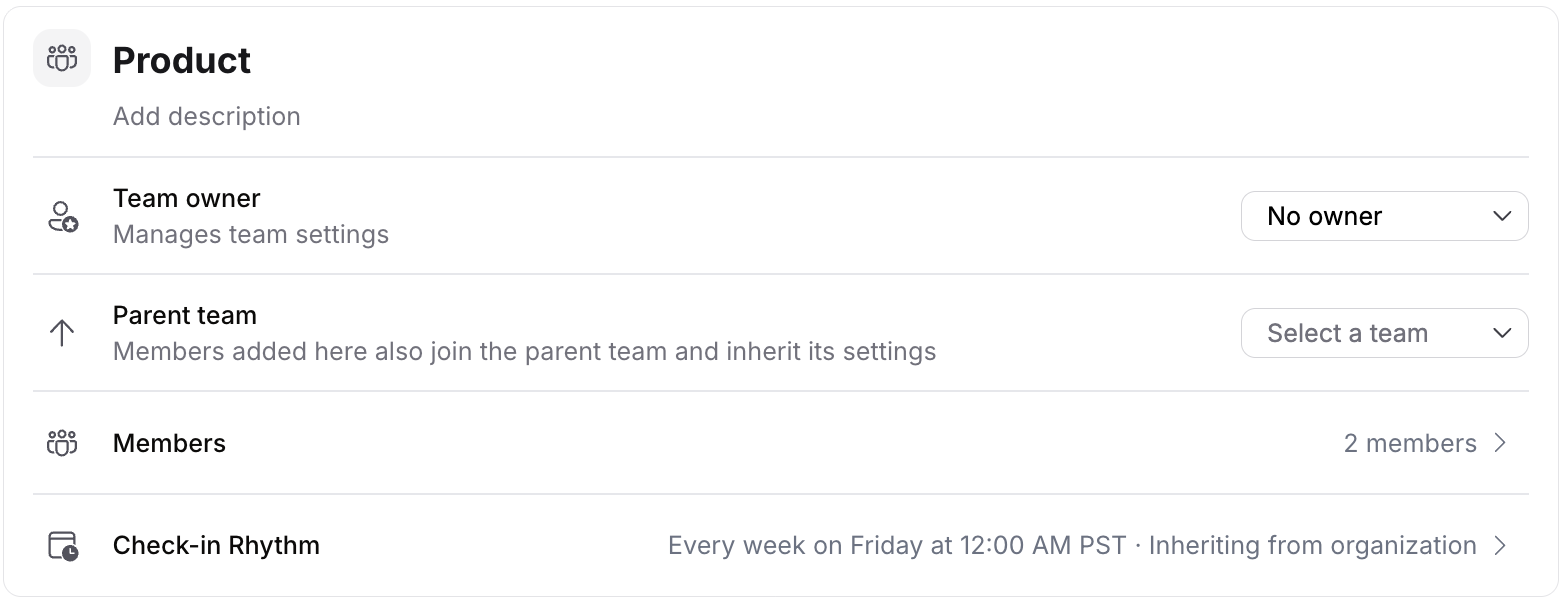
- Set Schedule customization to Use custom schedule. The Configuration rows become editable and the Schedule section shows the team's own cycles.
- Configure the frequency, deadline, window, and reminders as for the workspace, then click Save changes.
To return the team to the workspace rhythm, set Schedule customization back to Inherit from org. While a team inherits, its Configuration and Schedule are read-only copies of the workspace settings.
An OKR follows the rhythm of the first team it was assigned to that has its own rhythm. An OKR with no such team follows the workspace rhythm. Each OKR is governed by exactly one rhythm, so nobody is reminded twice for the same OKR.
Give one OKR its own rhythm
Anyone with manage permission on an OKR can give that OKR a custom rhythm from the Check-in Rhythm control on the goal. A goal rhythm overrides the team and workspace rhythm for that goal only. See Set a check-in rhythm for one goal.
Monitor compliance
The Schedule section shows compliance per cycle. For trends across cycles, teams, or people, use the Check-in Compliance report; for how many OKRs have any check-in at all in a period, use the Check-in Coverage report. Both are described in Reports in Rhythms.
Frequently asked questions
Can a check-in be made outside the window? Yes. Check-ins are never locked. A check-in made after the deadline but before the next window opens shows as Complete (Late); a check-in before the window opens updates the OKR but does not count for the coming cycle.
What happens to a person who owns OKRs in two teams with different rhythms? They receive a reminder for each team's cycle, listing only the OKRs governed by that rhythm.
Do OKRs updated by a connector or rollup need a check-in? By default, yes. Switch off Require check-in for auto-tracked OKRs if automatic updates should count instead.
How do I move a deadline for a holiday? In the Schedule section, edit the upcoming cycle and pick a new deadline date. Only that cycle changes.
Can I turn the check-in rhythm off? There is no off switch for the workspace rhythm itself. To stop reminders, disable the channels in Settings › Workspace › Notifications; check-in statuses continue to be calculated.
What is the difference between a check-in rhythm and a time period? A time period (a quarter or a year) defines when OKRs are active. A check-in rhythm defines how often those active OKRs are updated within the period.