Create OKRs and initiatives
Last updated: September 4, 2026
You create Objectives, Key Results and Initiatives from the Create OKRs button at the top right of any OKR view. It offers two paths: Create with Rhythms, which opens a chat that drafts a full set of OKRs with you, and Create manually, which opens a form with AI suggestions on every field. Key Results and Initiatives can also be added to an existing Objective from its ⋯ menu. Everything you create gets a short goal ID such as OBJ-001.
Not sure what a good Objective or Key Result looks like? Read Introduction to OKRs first.
Where to start
- Create OKRs (top right of an OKR view) → Create with Rhythms or Create manually. On a team page the button reads New Objective; on an Initiatives view it reads New Initiative.
- ⋯ on an existing goal → Add key result, Add initiative or Add child objective → Create manually or Generate (AI).
- Chat, from anywhere: "Create Q1 OKRs for the Sales team."
You need a Member or Admin licence to create goals; Guests cannot. Your Rhythms Admin decides who can create organization-level and team-level OKRs (by default: Admins for organization-level, Team Owners for team-level). Anyone can create OKRs for themselves.
Create OKRs with Rhythms (chat)
Chat is the fastest way to build a coherent set of OKRs, because Rhythms knows your teams, time periods and existing goals and drafts from that context.
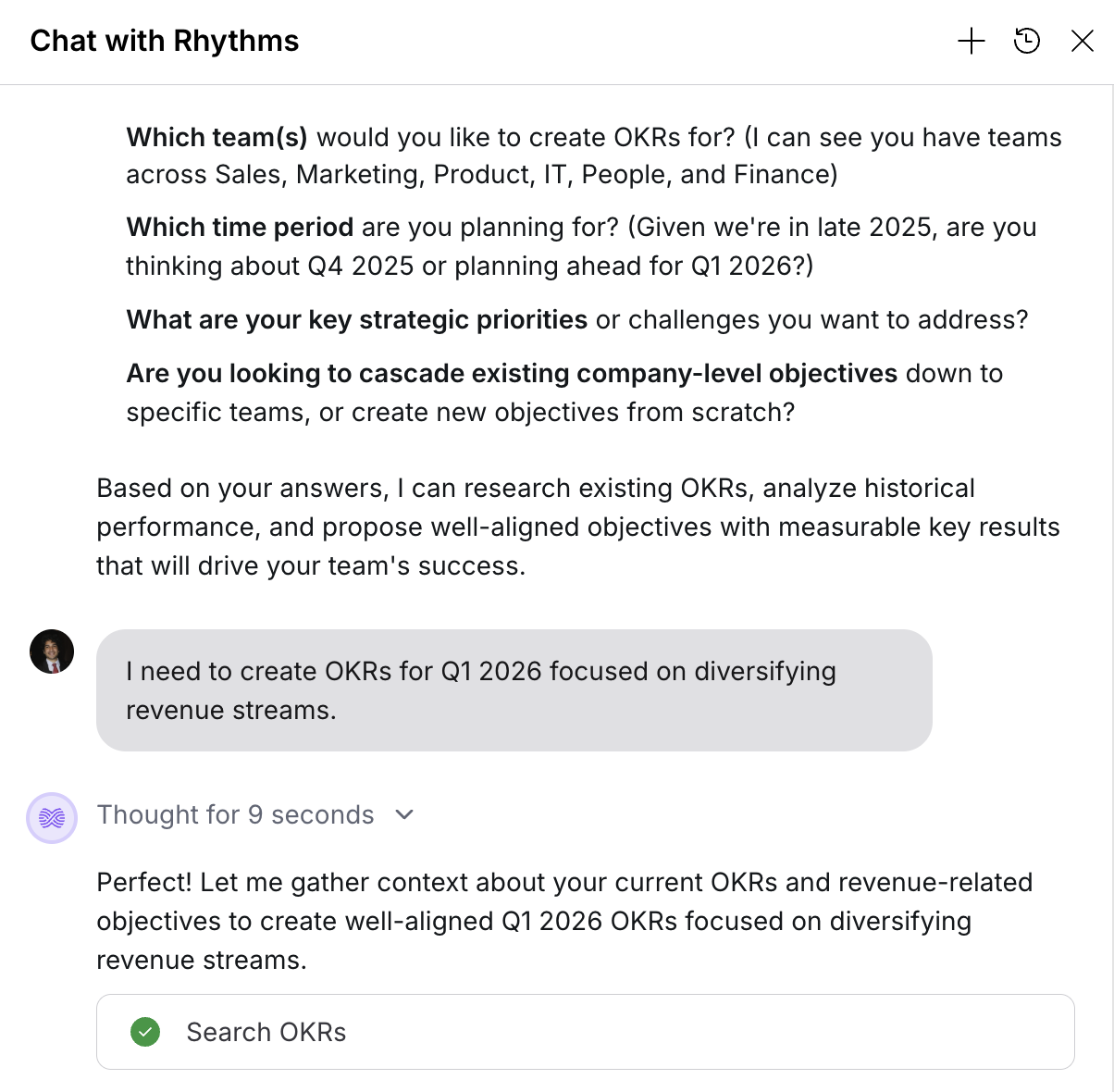
- Click Create OKRs → Create with Rhythms. Rhythms asks which team, which time period and what priorities you want to address.
- Answer in plain language. You can attach a strategy document, board deck or planning memo (PDF, Word, PowerPoint, spreadsheet or text) and say "Create OKRs based on this document."
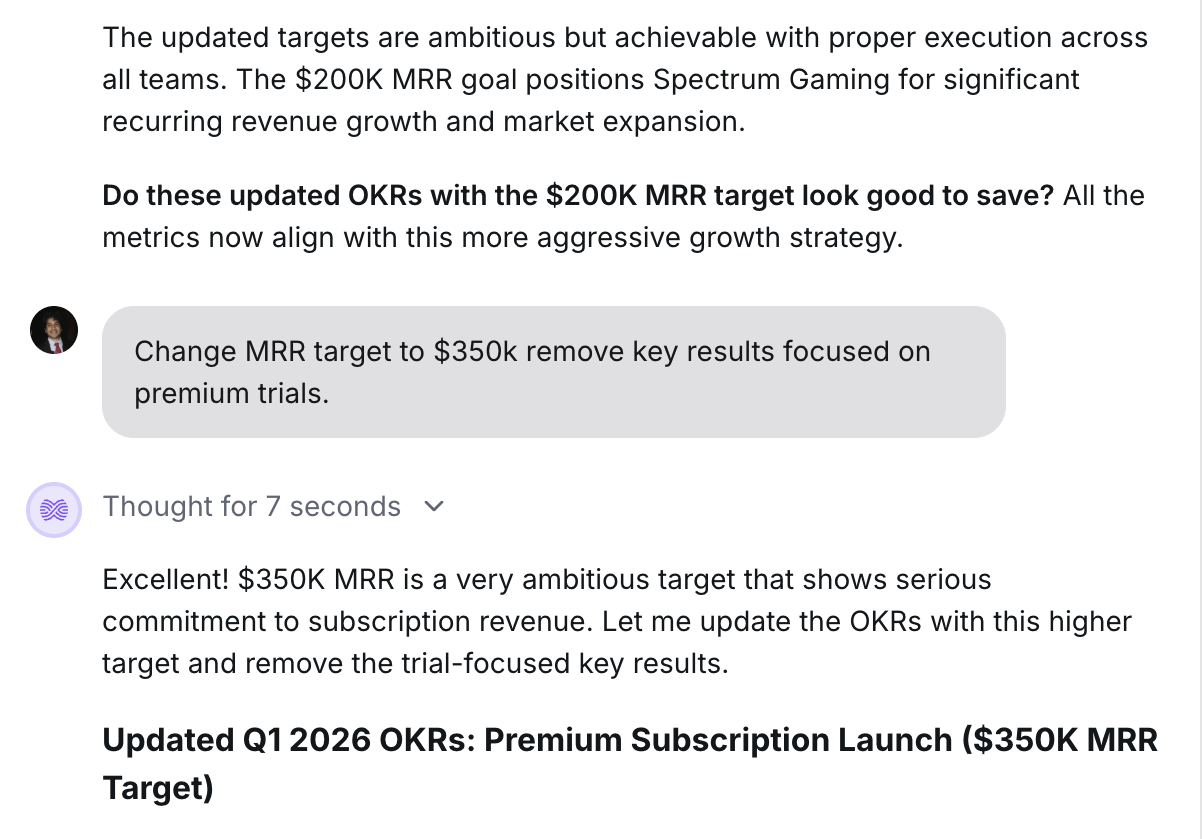
- Refine through conversation: "Make the revenue target $1.8M", "Change the owner to Sarah", "Remove the Initiative about conferences", "Suggest different Key Results for this Objective."
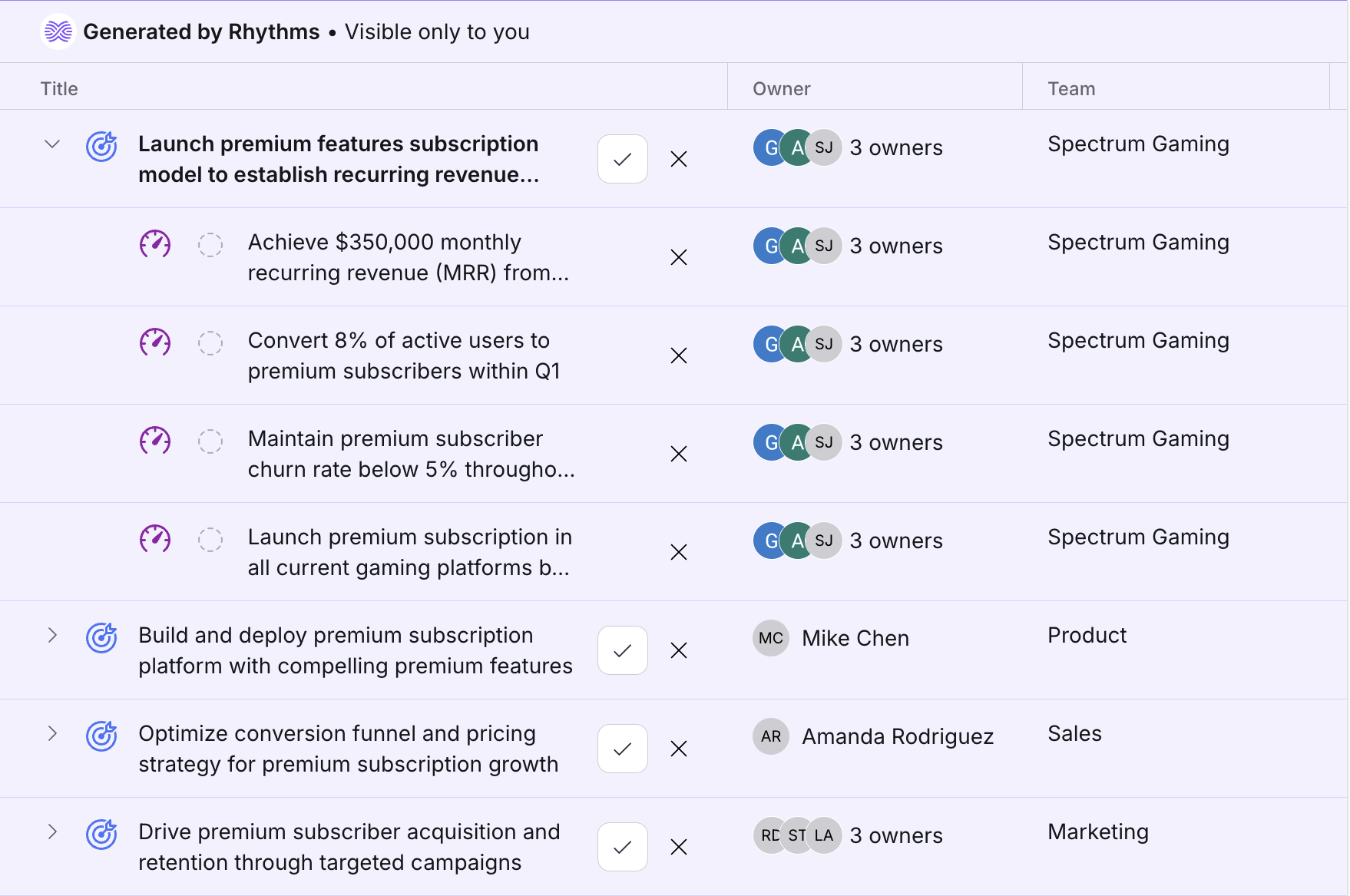
- When Rhythms proposes goals, they appear as editable cards in the chat. Change the type, title, owner, team, time period, metric or alignment on any card, remove cards you don't want, or click Add another.
- Click Publish OKRs to create them, or Draft OKRs to save them as drafts that only you, the owners and their teams can see until they are published.
If your workspace uses the approval workflow, Draft is the primary action and published goals go through approval.
Create an Objective manually (form)
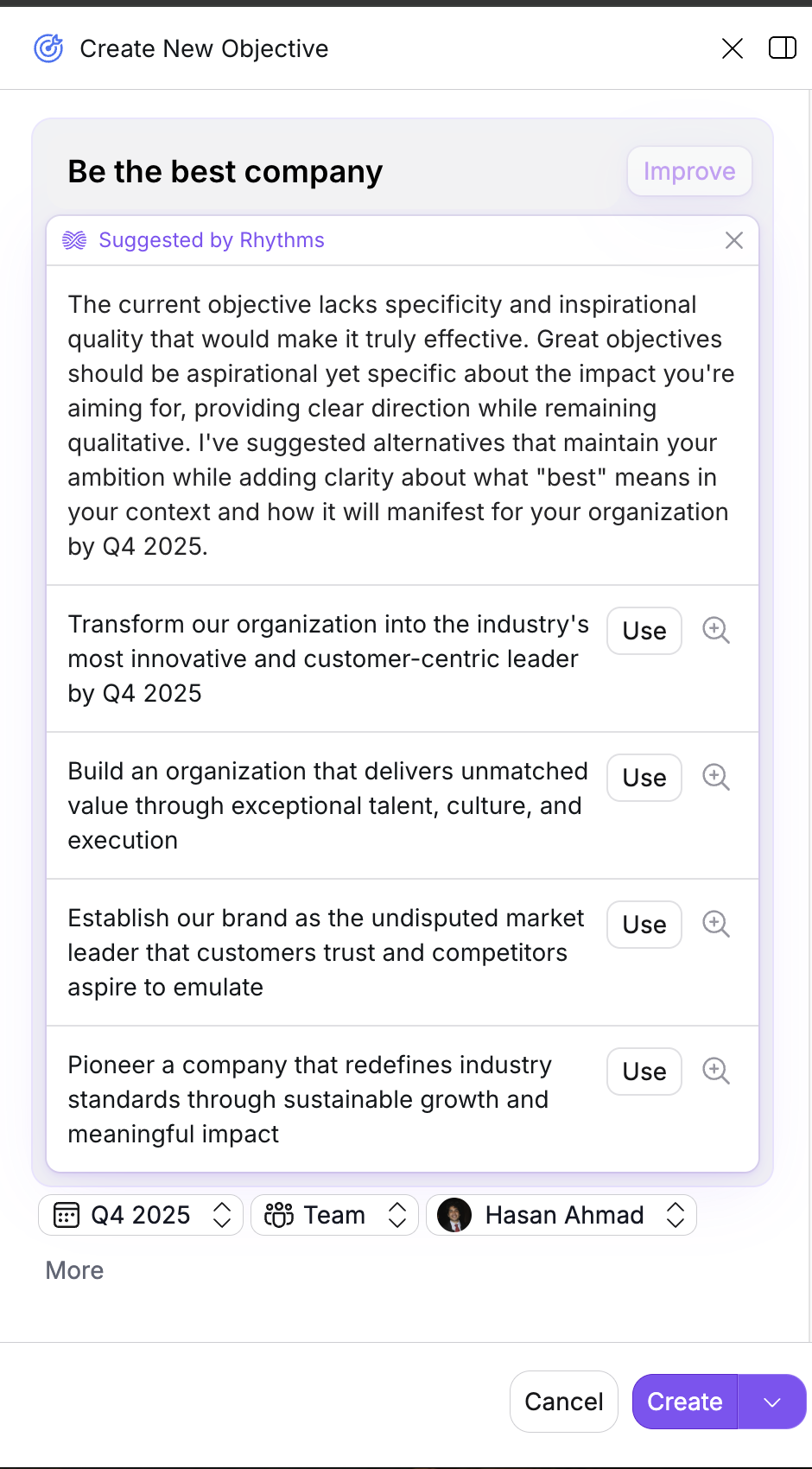
- Click Create OKRs → Create manually. The Create New Objective panel opens.
- Type a title. Click Suggest for AI proposals based on your team and time period, or Improve to have Rhythms rewrite what you typed. Click Use on a suggestion to take it.
- Set the attributes shown as pills under the title: Time period, Team, Owner (defaults to you), and optionally Delegate and Labels. Click More for Limit visibility.
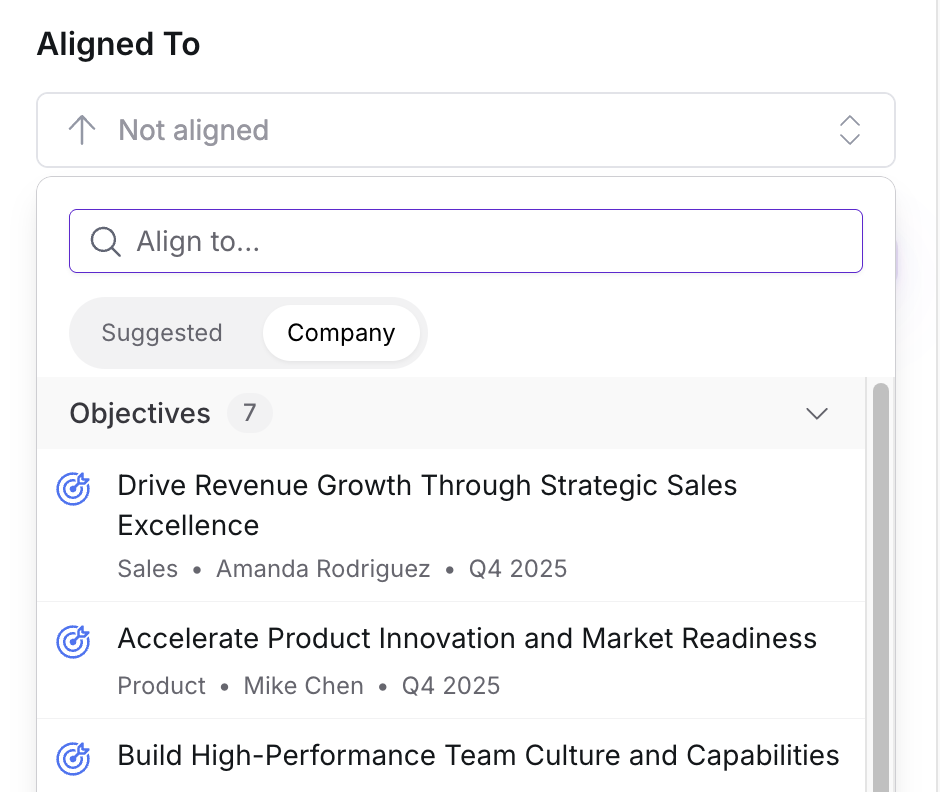
- Under Aligned To, pick the parent. The picker has Suggested (AI recommendations), your team, and Company tabs, plus an Align to… search.
- In the Key Results section, click Suggest to have Rhythms propose Key Results, or add your own.
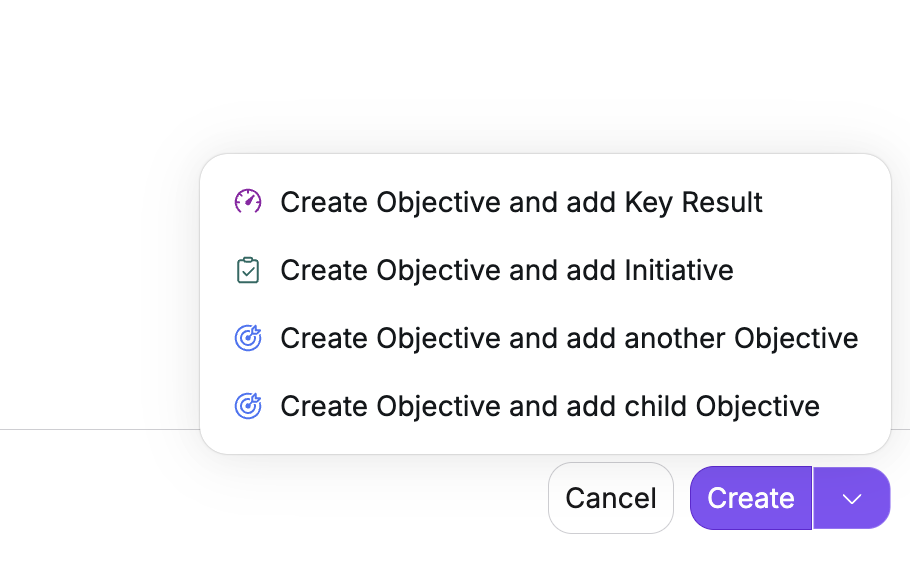
- Click Create. The arrow next to it offers Create Objective and add Key Result, … and add Initiative, … and add another Objective or … and add child Objective, so you can keep building without leaving the form.
Add Key Results and Initiatives to an existing Objective
- Find the Objective in a list, click ⋯, then Add key result (or Add initiative, Add child objective) → Create manually. Choose Generate instead to have Rhythms draft them in chat; see Draft OKRs with AI.
- Type the Key Result title. Rhythms reads numbers in the title and pre-fills the metric: "Increase revenue from $1M to $1.5M" becomes a dollar metric with start 1,000,000 and target 1,500,000. Click the Set target pill to adjust the metric name, start, target, unit and type. The four metric types are Reach to, Stay above, Stay below and Stay between; see Metric types for Key Results.
- Owner and time period default to the parent's; change them if needed.
- Click Create, or use the arrow to create and add another.
Goals created this way inherit the parent's visibility list, so a child of a Limited Objective starts Limited to the same people. Whether a child Objective, Key Result or Initiative contributes to the parent's progress defaults from your workspace's OKR model; while creating the child you can toggle Contribute to parent under More, and afterwards you adjust it with Manage contribution in the parent's ⋯ menu. How contributions roll up is explained in Understanding OKR Automatic Rollup.
Short goal IDs
Every published goal gets a short ID in the form PREFIX-NUMBER: OBJ-001 for Objectives, KR-042 for Key Results and INIT-007 for Initiatives by default. A Rhythms Admin can change the prefixes (2 to 6 letters, unique per type) alongside the type names in Settings under OKR model customization; see Model customization: alignment, contribution and terminology. Numbers count up per prefix and are never reused, even after a goal is deleted.
The short ID appears next to the goal title in the header. Use ⋯ → Copy Short ID or Copy link (the link uses the short ID), type it into search, or refer to it in chat: "What's the status of KR-042?". Converting a goal to another type gives it a new ID with the new prefix; the old ID keeps opening the goal.
Check what you created
- The new goals appear in the OKR view for their team and time period; drafts show with a Draft status until you publish them.
- Open the parent and confirm the children are listed under Key Results, Initiatives or Child Objectives.
- Owners and teams are correct, and each Key Result has a start and target value.
To change anything afterwards, see Edit and update OKRs. To record progress, see Write and submit check-ins.
Frequently asked questions
Should I use chat or the form? Use chat when you are planning a period and want help thinking through strategy or want a whole set at once; it can also read your planning documents. Use the form when you already know exactly what to enter or want control over every field. You can mix both, for example draft in chat and add Key Results from the form later.
What is the difference between progress-based and metric-based tracking? Progress-based goals track a percentage from 0 to 100, which Objectives and Initiatives use by default. Metric-based goals track a real value (revenue, users, hours) and Rhythms calculates the percentage; Key Results use this by default. To switch a Key Result to a percentage, open its metric pill and click Change to progress based. To give a progress-based goal a real metric, click its progress pill (labelled Set target when no metric is defined) and fill in the metric.
Where do drafts go? Drafts stay in your OKR views with a Draft status and are visible only to you, the owners and their teams. Publish them from the goal's ⋯ menu (Publish, or Request Approval when the approval workflow is on).
Can I create OKRs for several teams at once? Yes. In chat, name the teams and Rhythms proposes a set per team, each card carrying its own owner and team. Chat can also Cascade to Teams from an existing Objective's ⋯ menu.
Can I bring OKRs in from a spreadsheet? Yes; see Import OKRs from a spreadsheet.