Managing OKRs in Slack with Rhythms
Last updated: February 2, 2026
Introduction
Welcome to installing the Rhythms app for Slack! This integration brings OKR (Objectives and Key Results) management right into Slack, making it easy for your team to stay aligned and productive without leaving their daily workspace. With Rhythms, you can review OKRs, submit updates, and get AI-powered summaries—all in one place.
Signing up for Rhythms
To use the Rhythms app, your organization first needs to be a Rhythms customer. Rhythms offers enterprise subscription plans tailored to fit your organization’s size and needs. If your organization is not yet using Rhythms, the best next step is to contact our team at https://www.rhythms.ai/demo for a discussion or demo to explore pricing, plan options, and how Rhythms can support your success.
This guide will walk you through the installation process, explain required permissions, and share tips for a smooth setup.
Note:
You’ll need admin privileges in both Slack (to manage apps) and Rhythms (to configure the integration). When you sign up for Rhythms you will be provisioned with admin access.
Rhythms utilizes Large Language Models for features such as AI-powered summaries and responses to natural language queries. While we strive to provide accurate and helpful information, please be aware that AI-generated content may occasionally be incomplete, inaccurate, or reflect biases. It is advisable to review and verify critical information derived from these AI features before relying solely on it. If you need more information, encounter any objectionable AI-generated content, or have questions, please contact support@rhythms.ai.
How to Install the Rhythms app
Follow these steps to get Rhythms running in your Slack workspace:
Step 1: Access the Rhythms Admin Center
Log in to Rhythms as an admin. Follow instructions here for login.
Navigate to the admin dashboard by clicking the "settings" option in the main menu.
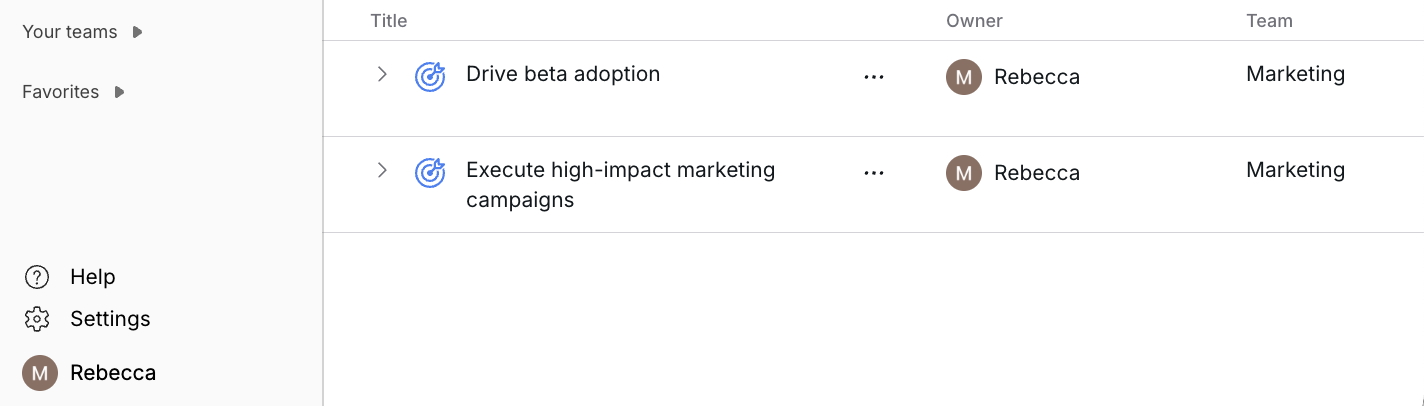
Tip: Bookmark the admin dashboard for quick access during future updates.
Step 2: Locate the Rhythms App Installation Option
In the admin dashboard, go to the "Collaboration Platforms" menu.
Find the Slack option and click "Install."
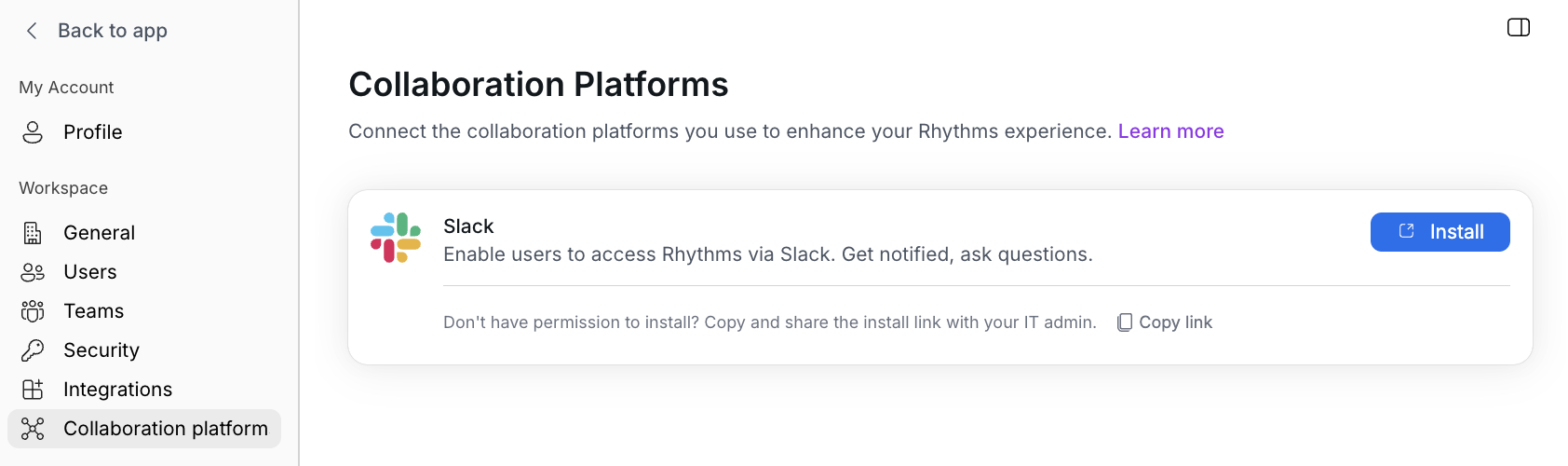
Tip: If you don’t see this option, ensure your Rhythms account has the latest updates—contact support if needed.
Step 3: Authorize the Rhythms App in Slack
Select the Slack workspace where you want to install Rhythms.
Click "Allow" to grant the necessary permissions (see "Required Permissions" below for details).
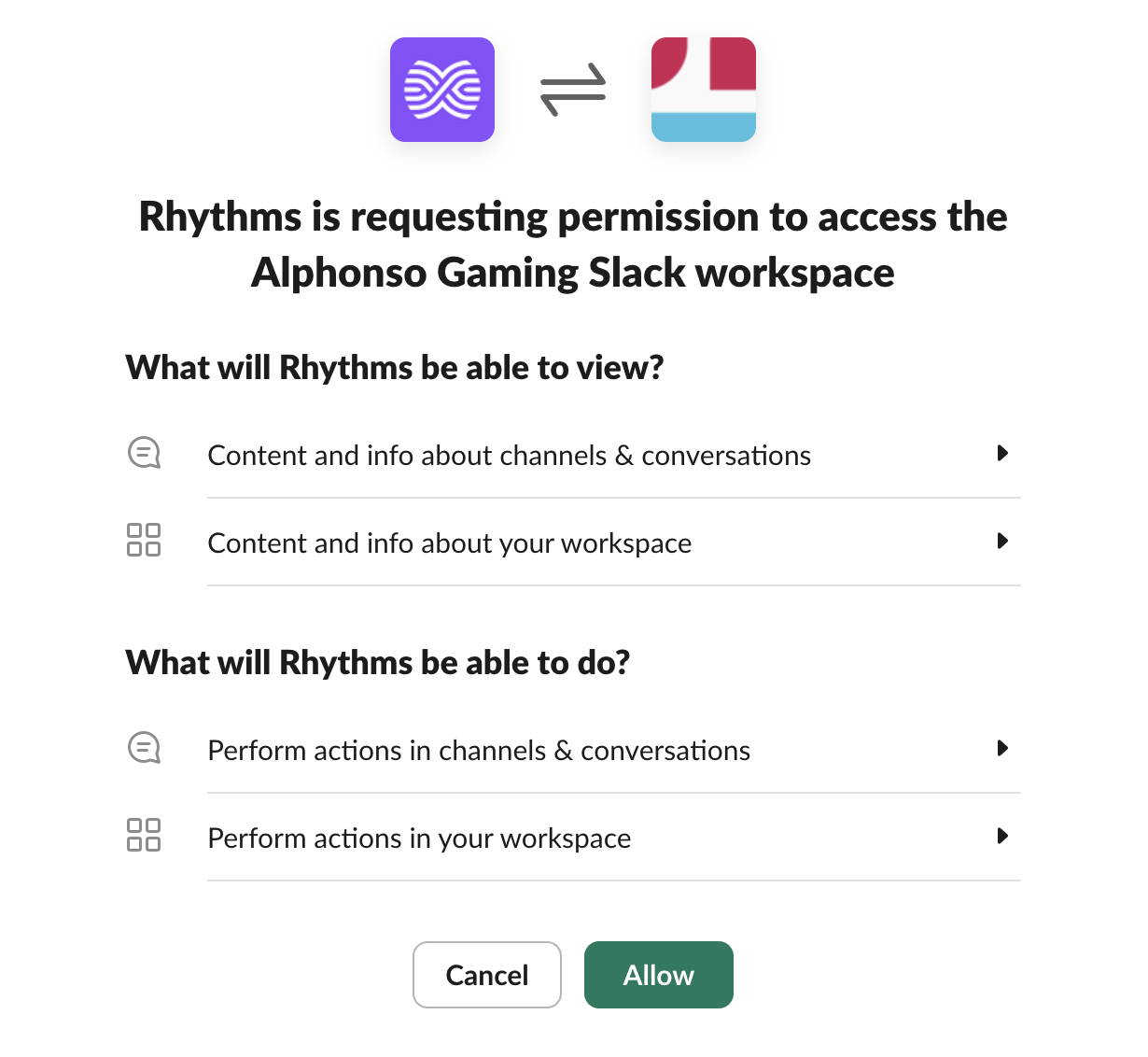
Tip: Double-check that you’re installing in the correct workspace—reversing this step requires uninstalling and reinstalling the app.
Step 4: Verify the Installation
Open Slack and check the Slack Marketplace (under "Apps" in the sidebar) or a user’s Slack client.
Confirm the Rhythms app appears and is active.
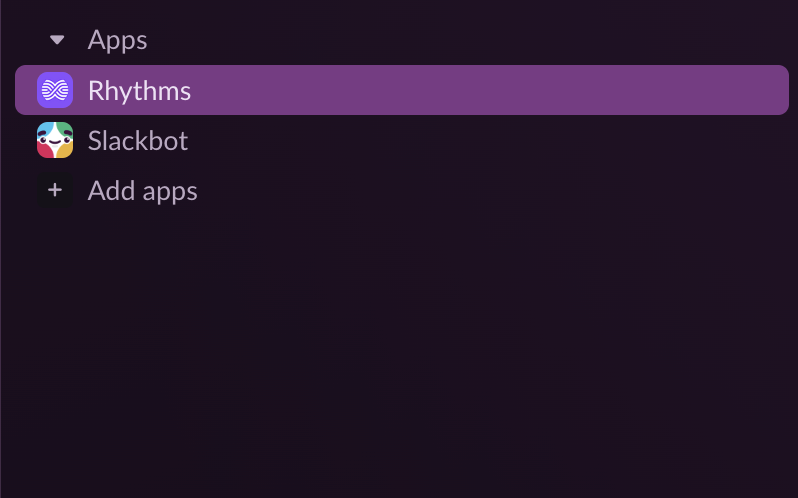
That’s it! Your team can now use Rhythms app to manage OKRs seamlessly. For example, users can get notifications to check-in OKRs, submit updates without switching tools.
Required Permissions
The Rhythms app needs specific permissions to work its magic. Here’s what it accesses and why, based on the RhythmsAl Connectivity Permissions document:
Content and Info About Channels & Conversations
What: View basic info (e.g., Channel IDs) and content (e.g., messages, links, files) in public/private channels and direct messages where Rhythms is added.
Why: Enables Rhythms to create notifications, summaries, and responses based on what’s shared.
Content and Info About Your Workspace
What: View workspace name, email domain, icon, and user details (e.g., names, email addresses).
Why: Helps Rhythms set up and manage user accounts tied to your Slack workspace.
Perform Actions in Channels & Conversations
What: Send messages as @rhythms, start direct messages, manage private channels, upload files, and show URL previews.
Why: Allows Rhythms to post updates, start conversations (e.g., reminders), and share reports in Slack.
Why It Matters: These permissions let Rhythms blend seamlessly into your workflow, keeping OKR management simple and secure. Access is limited to where Rhythms is invited.
Best Practices for a Successful Installation
Set yourself up for success with these tips:
Check Admin Access First: Ensure you have admin rights in both Slack and Rhythms—coordinate with IT if needed.
Communicate with Your Team: Give your team a heads-up about Rhythms so they’re excited to use it for OKRs.
Verify Post-Install: After setup, have a teammate test to confirm app access.
Using the Rhythms app for OKRs
The Rhythms app streamlines your OKR management process by bringing key functionality directly into your team's daily workflow.
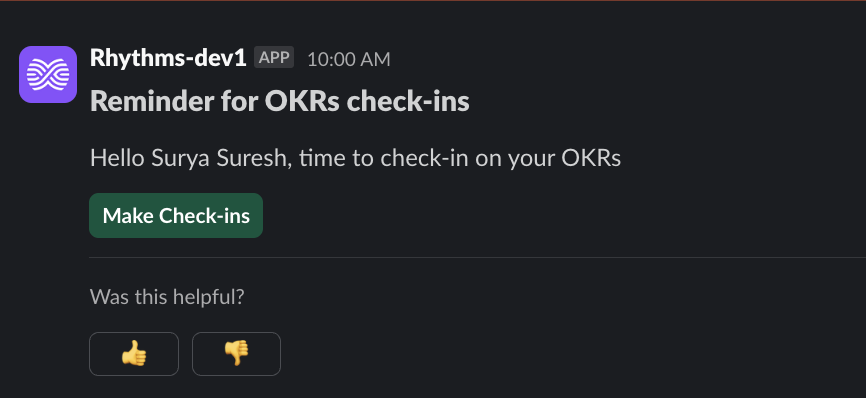
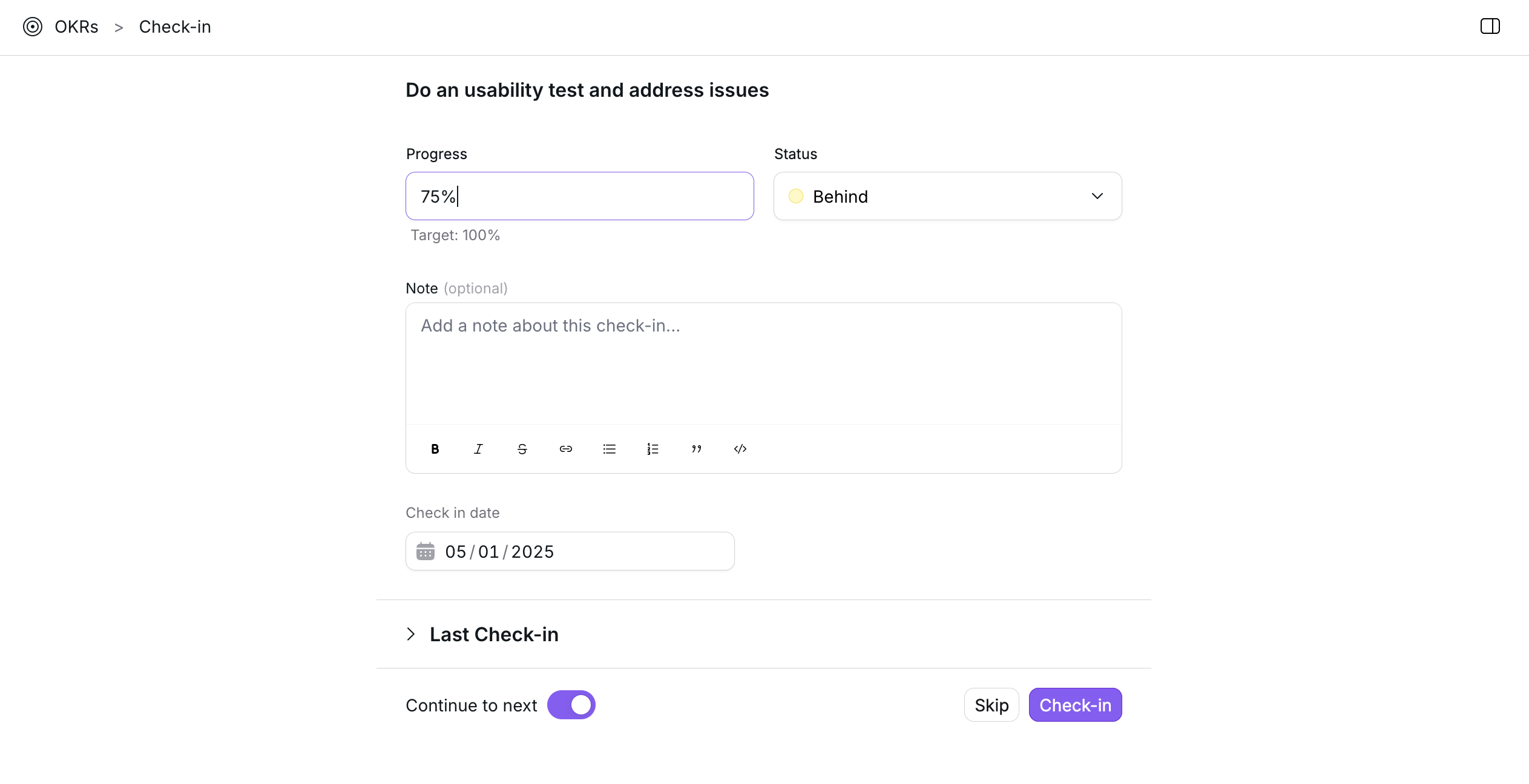
Check-in Notifications
Automated Reminders: Receive timely notifications in Slack when OKR check-ins are due
Direct Access: Each notification includes a link to complete your check-in on the Rhythms web platform
Custom Schedule: Notifications align with your organization's established check-in cadence
Quick Actions (Coming Soon!)
View Current OKRs: Check your current objectives and key results without leaving Slack
Status Updates: Get a quick overview of your team's OKR progress by asking queries in natural language to Rhythms
Using the Rhythms app for Business Rhythms
The Rhythms app helps your team maintain consistent business rhythms by streamlining daily updates and standups directly within Slack. Here's how to leverage this functionality:
Daily Standup Updates
Automated Prompts: Receive personalized reminders in Slack when it's time to submit your daily update
Quick Submission: Reply directly to prompts with your standup information (accomplishments, plans, blockers)
Flexible Timing: Configure reminders to align with your team's preferred schedule
Team Visibility
Centralized Updates: All team members' daily updates are collected and organized in one place
Easy Reference: Quickly find what teammates are working on without scheduling additional meetings
Blocker Identification: Highlight obstacles that need attention from managers or team members
Integration Benefits
Reduced Meeting Time: Capture routine updates asynchronously, reserving live meetings for discussions that need real-time collaboration
Historical Record: Maintain a searchable history of daily activities and progress
Consistent Participation: Increase update completion rates by meeting team members in their workflow
By integrating your daily business rhythms with Slack, your team can maintain better communication while reducing meeting overhead and creating a valuable record of progress over time.
For more details on this functionality, refer to the video here.
Frequently Asked Questions (FAQ)
Q: How can my organization get access to Rhythms if we are not existing customers?
A: Rhythms offers enterprise subscription plans tailored to fit your organization’s size and needs. To explore pricing and plan options, and to determine the best plan with the features and support required for your success, the best next step is to contact our team for a discussion or demo.
Q: Do I need to be a Slack admin to install Rhythms?
A: Yes, you’ll need Slack admin privileges to add apps, plus Rhythms admin access to start the process.
Q: Can I install Rhythms in multiple workspaces?
A: Absolutely—repeat the steps for each workspace, selecting the right one in Step 3.
Q: What if Rhythms doesn’t respond in Slack?
A: Ensure it’s installed (check the Slack Marketplace) and added to a channel. Try “Hi" or contact support.
Q: Can I adjust permissions later?
A: Yes, Slack admins can modify or remove Rhythms’ access anytime via Slack’s admin settings.
Q: Do I need to be a Rhythms customer to install the Rhythms app for Slack?
A: Yes, only existing Rhythms customer will be allowed to install the Rhythms app for Slack.
Q: How much does Rhythms cost?
A: Rhythms pricing varies based on your organization's size, selected features, and specific requirements. We offer flexible enterprise subscription plans designed to scale with your needs. For detailed pricing information and to find the most cost-effective solution for your organization, we recommend scheduling a consultation with our team who can provide a customized quote.
Get Started with Rhythms in Slack
If you are an existing Rhythms customer, you can visit the link here to install the Rhythms app for Slack.
If you are not yet a Rhythms customer and are interested in getting access, Rhythms offers enterprise subscription plans. We work closely with you to determine the best plan, ensuring you get the features and support required for success. Please contact our team for a discussion or demo to explore options tailored to your organization’s size and needs.
To find details on the Rhythms privacy policy, you can visit this link. For more help, visit Rhythms Resource Center or explore guides like "Creating Objectives in Rhythms."