Install Rhythms in Microsoft Teams
Last updated: September 4, 2026
Rhythms in Microsoft Teams is a personal tab called OKRs that opens your Rhythms OKRs inside Teams, plus Rhythms notifications in the Teams Activity feed. There is no Rhythms bot in Teams: you cannot chat with Rhythms in a Teams channel or chat. A Rhythms Admin installs the app once from Settings › Workspace › Collaboration platforms, a Microsoft Global Administrator grants consent, and Rhythms then adds the app for every user it can match by email.
Before you start
- You are a Rhythms Admin in the Rhythms workspace.
- The person who accepts the Microsoft consent screen is a Global Administrator (or Privileged Role Administrator) in your Microsoft Entra tenant. The consent is tenant-wide and covers application permissions, which a Teams Administrator alone cannot grant. This can be a different person from the Rhythms Admin: the Rhythms Admin starts the install and the Microsoft admin signs in on the consent screen.
- Your users have the same email address in Rhythms and in Microsoft 365. Rhythms matches people by email (or by their Entra ID user principal name for workspaces provisioned from Entra ID) to install the app for them.
Step 1: Start the install from Rhythms
- Sign in to Rhythms as a Rhythms Admin.
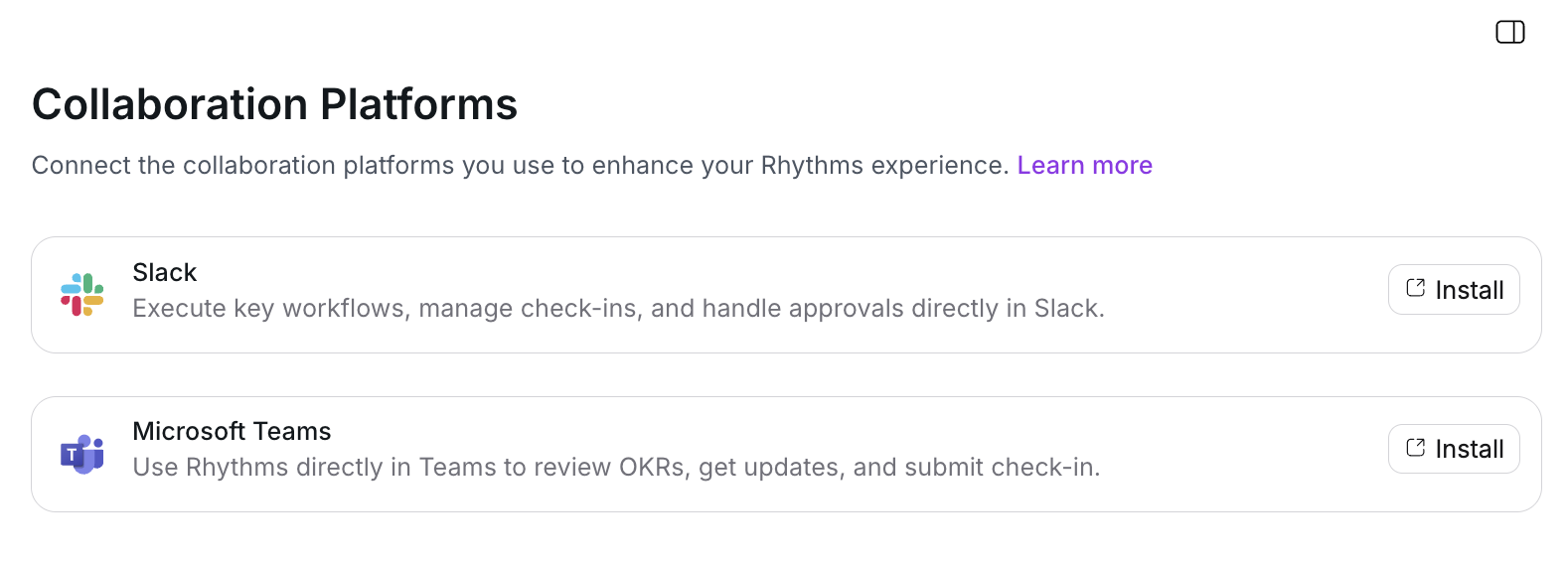
- Open Settings › Workspace › Collaboration platforms.
- On the Microsoft Teams card, click Install.
- You are sent to Microsoft's Permissions requested screen.
Step 2: Grant consent in Microsoft
Sign in on the Microsoft screen as a Global Administrator and review the permissions. Accepting grants them for your whole organisation, so nobody else is prompted later. The app asks for:
| Permission on the consent screen | What Rhythms uses it for |
|---|---|
| Read all app catalogs | Finds the Rhythms app in your organisation's Teams app catalog so it can be installed for users. |
| Allow the app to manage itself for all users | Installs the Rhythms tab for each matched user, so they do not have to add it themselves. |
| Send a teamwork activity to any user | Posts Rhythms notifications to the Teams Activity feed. |
| Read organization information | Reads your tenant's display name when the connection is created. |
| Read all users' full profiles | Looks each Rhythms user up by email to find their Microsoft account. |
| Read user mailbox settings | Reads each user's mailbox time zone so their Rhythms profile time zone is correct. |
| Sign in and read user profile; Maintain access to data you have given it access to | Standard Microsoft sign-in permissions shown on every consent screen. |
Click Accept. If you cancel, or the signed-in Microsoft account is not a Global Administrator, Rhythms shows Failed to setup integration for Teams and nothing is installed; ask a Global Administrator to run Step 1 again.
Step 3: Confirm the install in Rhythms
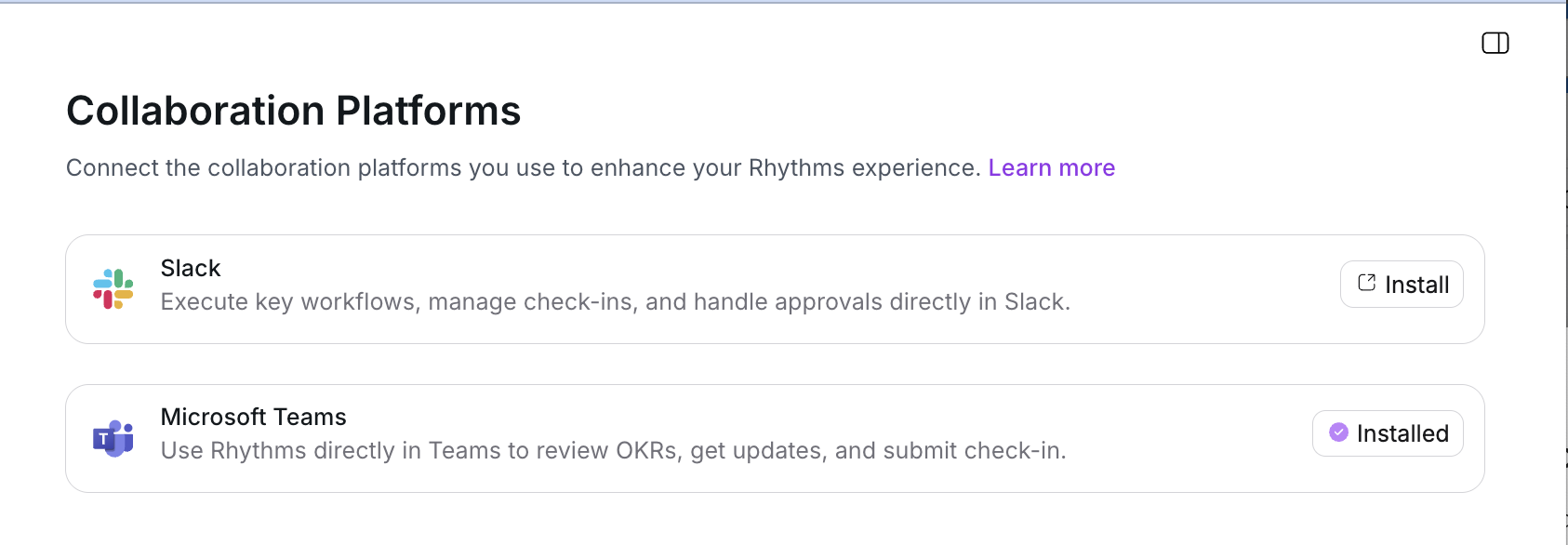
Back on Settings › Workspace › Collaboration platforms, the Microsoft Teams card shows Installed and a message confirms that all members of the organisation can now see and access Rhythms in Teams.
Step 4: What your users see
Rhythms matches each Rhythms user to a Microsoft account by email and installs the Rhythms app for them. It also installs the app for a user the first time it sends them a Teams notification. Users can then open it:
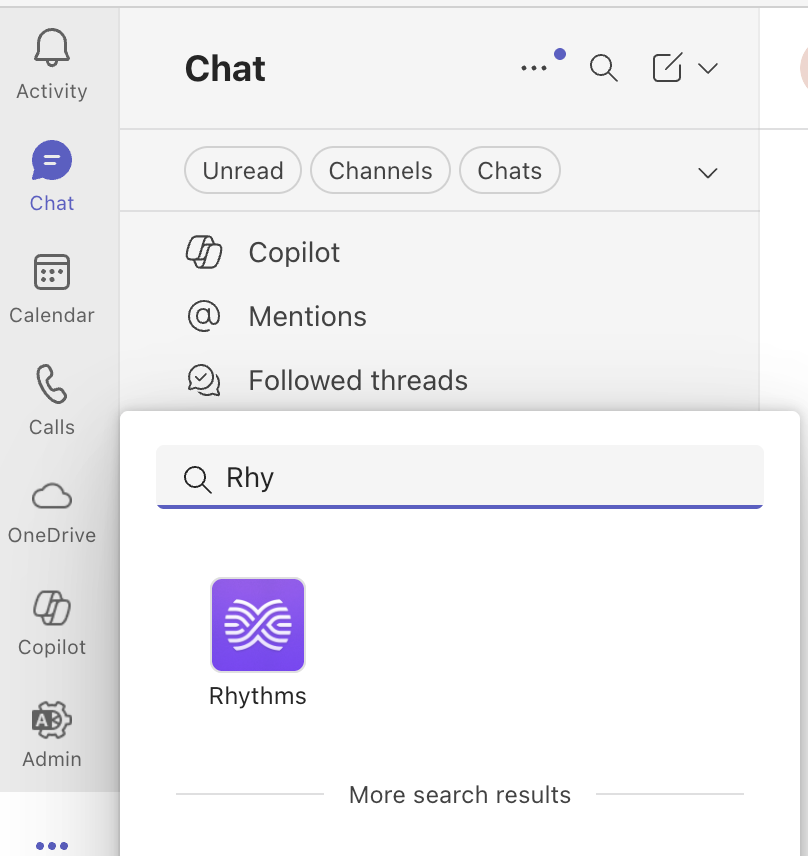
- In Teams, search for Rhythms in the top search bar or in Apps.
- Click the Rhythms app. The OKRs tab opens with the user's Rhythms OKRs. If they are not already signed in, sign-in opens in a small pop-up window.
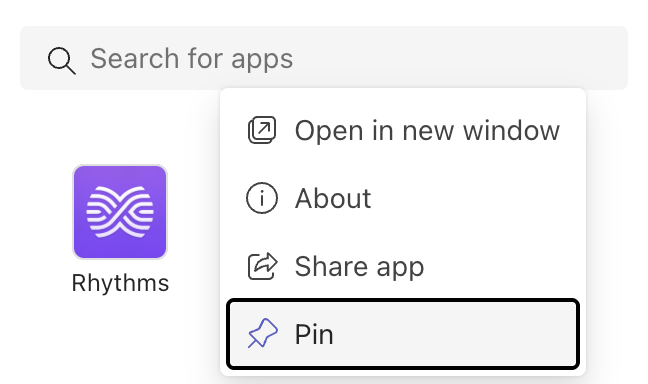
- Right-click the Rhythms icon in the left rail and choose Pin so it stays in the sidebar.
What the Teams app does, and does not do
The Rhythms app in Teams is a personal tab that loads the Rhythms OKRs page inside Teams. In the tab, users can do what they can do on the OKRs page in the web app: browse and filter OKRs, open a goal, and record check-ins. Rhythms notifications, such as check-in reminders, arrive in the Teams Activity feed and open the OKRs tab on the relevant goals.
The Teams app has no bot. Users cannot message Rhythms in a Teams chat or channel, and Rhythms does not read Teams conversations. For conversational use, open Rhythms in the browser or use Rhythms in Slack.
Reinstall or uninstall
On Settings › Workspace › Collaboration platforms, open the menu on the Microsoft Teams card. Reinstall runs the consent flow again and keeps everyone's history; use it when permissions change. Uninstall removes the connection for the whole workspace and ends Rhythms notifications in Teams; reinstalling later does not restore what was lost.
Troubleshooting
- A user cannot find Rhythms in Teams. Confirm the card shows Installed, that the user has a Rhythms account on the same email as their Microsoft account, and that your organisation's Teams policies allow third-party apps. Restarting Teams refreshes the app list.
- The tab asks the user to sign in or shows an access error. The user must sign in to Rhythms with the same email as their Teams account. Sign-in opens in a pop-up; allow pop-ups for Teams if it is blocked.
- The tab opens but shows no OKRs. The user sees the same OKRs as in the web app. Check their role, team membership and the visibility of the OKRs they expect.
- Consent failed. Rhythms shows Failed to setup integration for Teams when consent is cancelled or the Microsoft account is not a Global Administrator. Ask a Global Administrator to repeat Step 1.
FAQ
Do all Rhythms users get the Teams app automatically? Yes, once a Rhythms Admin completes the install. Rhythms installs the app for every user it can match by email, and again the first time it notifies a user who does not have it yet. Users still need to open and pin the app the first time.
Do users have to accept permissions individually? No. The Global Administrator's consent applies to the whole organisation and individual users are not prompted.
Who needs which admin role? A Rhythms Admin starts the install in Rhythms. A Microsoft Global Administrator (or Privileged Role Administrator) accepts the consent screen. Regular users need only their normal Teams access.
Does it work for external collaborators? Only for people who are members of your Rhythms workspace and have a matching account in your Microsoft 365 tenant. Add external collaborators to Rhythms first.
Can I chat with Rhythms in Teams? No. The Teams app is a tab showing your OKRs and delivers notifications to the Activity feed. Chat with Rhythms in the web app or in Slack.