Rhythms MCP is now available in Claude, ChatGPT, and Cursor
Last updated: May 4, 2026
Your OKRs, documents, and team data now go wherever your AI tools go.
Rhythms MCP is a single connection that brings your goals, documents, teams, and operational data into Claude, ChatGPT, and Cursor. Ask questions, create OKRs, update documents, and manage your workspace without leaving the tools you already think in.
Why this matters
Most teams already have an AI tool open all day. You draft in Claude, brainstorm in ChatGPT, code in Cursor. But when you need to check on a goal, update a key result, or pull context from your operating system, you switch tabs, find the right page, and copy the information back.
MCP eliminates that switch. Your AI assistant can read and write directly to Rhythms — so instead of context-switching, you just ask.
What changes
When Rhythms connects to your AI assistant, it brings organizational intelligence — not just data, but the connections between people, goals, work, and decisions that no single tool holds.
Follow the thread, not the tool — "Why was the API migration descoped last quarter?" — traces the decision through the review, the resource constraint, and the customer commitment it affected.
Get answers that cross boundaries — "What's actually at risk this quarter and why?" — connects the goal to the project, the team, and the hiring gap three months back.
Close the loop on decisions — "Prepare my Monday ops sync" — pulls what changed since last week, and after the meeting, writes decisions back into the model.
Surface what nobody's watching — "Are we investing in what we say matters?" — compares stated priorities against actual resource allocation across the org.
Your assistant doesn't just get data from Rhythms — it gets the organizational model. That's the difference between an answer and an insight.
How to set up
Connecting takes under two minutes. One admin step, then each user authenticates with their Rhythms email.
Claude
Admin: Go to Organization Settings → Connectors → Add custom connector.
Field | Value |
|---|---|
Name | Rhythms |
URL |
|
This makes Rhythms available to everyone in your Claude organization — on web and desktop.
User: Go to Settings → Connectors → click Connect on Rhythms → authenticate with your Rhythms email. If you're in multiple workspaces, you'll be asked to choose one. Start a new chat and ask away.
ChatGPT
Admin: Go to Admin Console → Create → enable Developer Mode.
Field | Value |
|---|---|
Name | Rhythms |
Description | Rhythms MCP provides secure, structured access to create, manage, and update OKRs, documents, and other core work in Rhythms. |
MCP Server URL |
|
Click "I understand and want to continue," then publish the app from the Drafts tab. Exit developer mode, and users can connect from Settings → Connectors.
Cursor
Add this to your MCP configuration:
json
{ "mcpServers": { "Rhythms": { "url": "https://mcpservers.rhythms.ai/rhythms/mcp" } } }
No admin step required — any user can add this directly.
Security
Rhythms MCP authenticates each user individually. Your AI assistant can only access data that user has permission to see in Rhythms — the same roles, teams, and visibility rules apply. No API keys are shared with the AI provider. Authentication uses OAuth, and users can disconnect at any time from their connector settings.
Availability
Rhythms MCP is available today for all Rhythms users on all plans. Connect from Claude, ChatGPT, or Cursor and start working.
How to connect Rhythms with Claude?
Admin setup
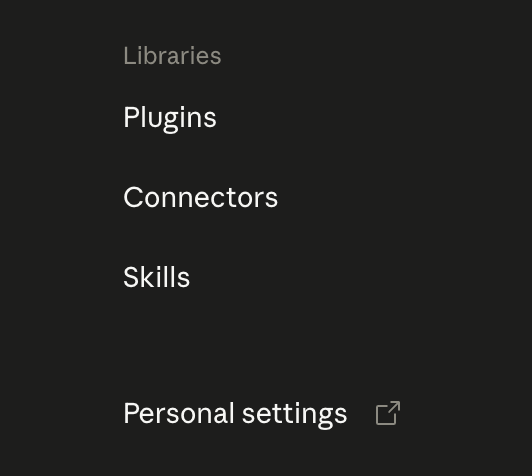
Go to https://claude.ai/admin-settings/organization. Click Connectors under Libraries section on the left.
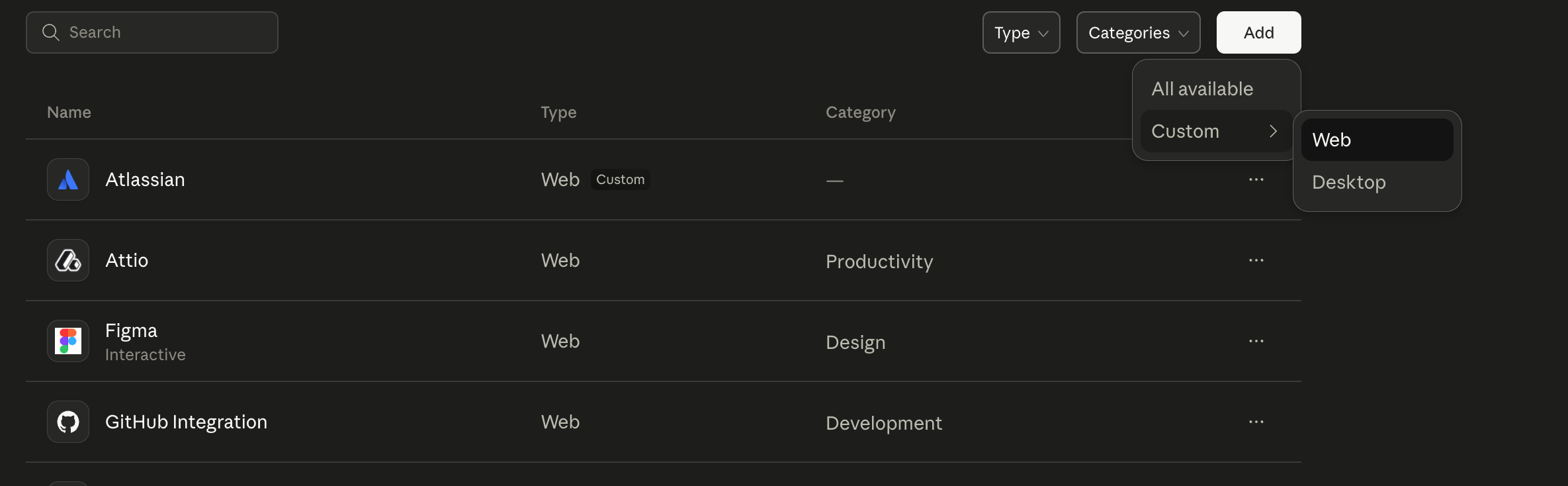
Add a custom connector from top for web (it will be available in both web as well as desktop)
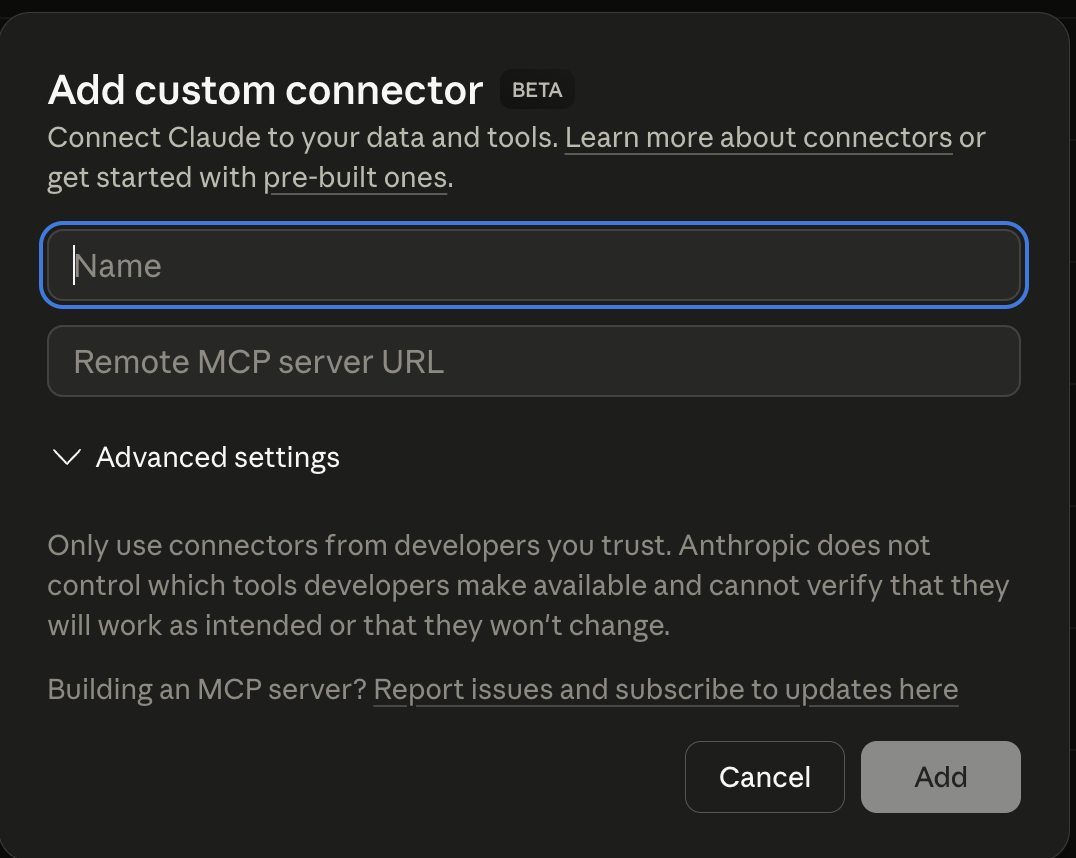
Add following details:-
Name: Rhythms
Url: https://mcpservers.rhythms.ai/rhythms/mcp
User Setup
Once it's added you will see, it available now to connect for everyone in the organization, under https://claude.ai/settings/connectors

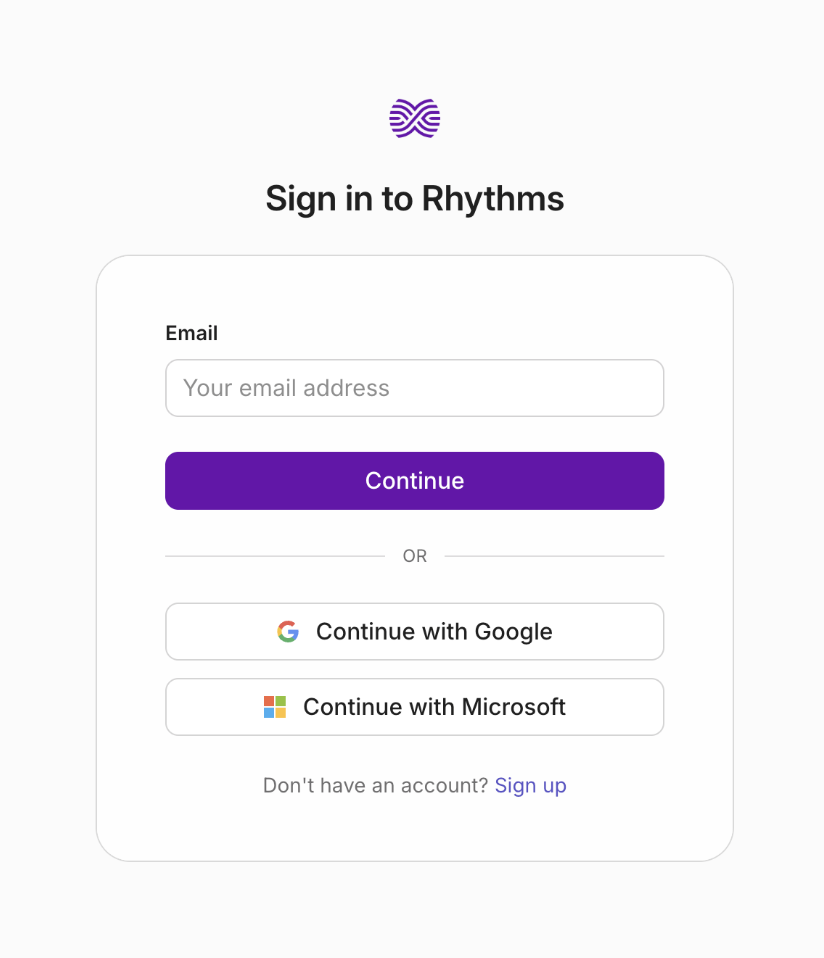
Now, to connect with Rhythms MCP, click on connect. It will start the authentication. Enter you email (which is used in Rhythms workspace) and continue.
If you are part of multiple workspace, you will workspace/organization selection modal
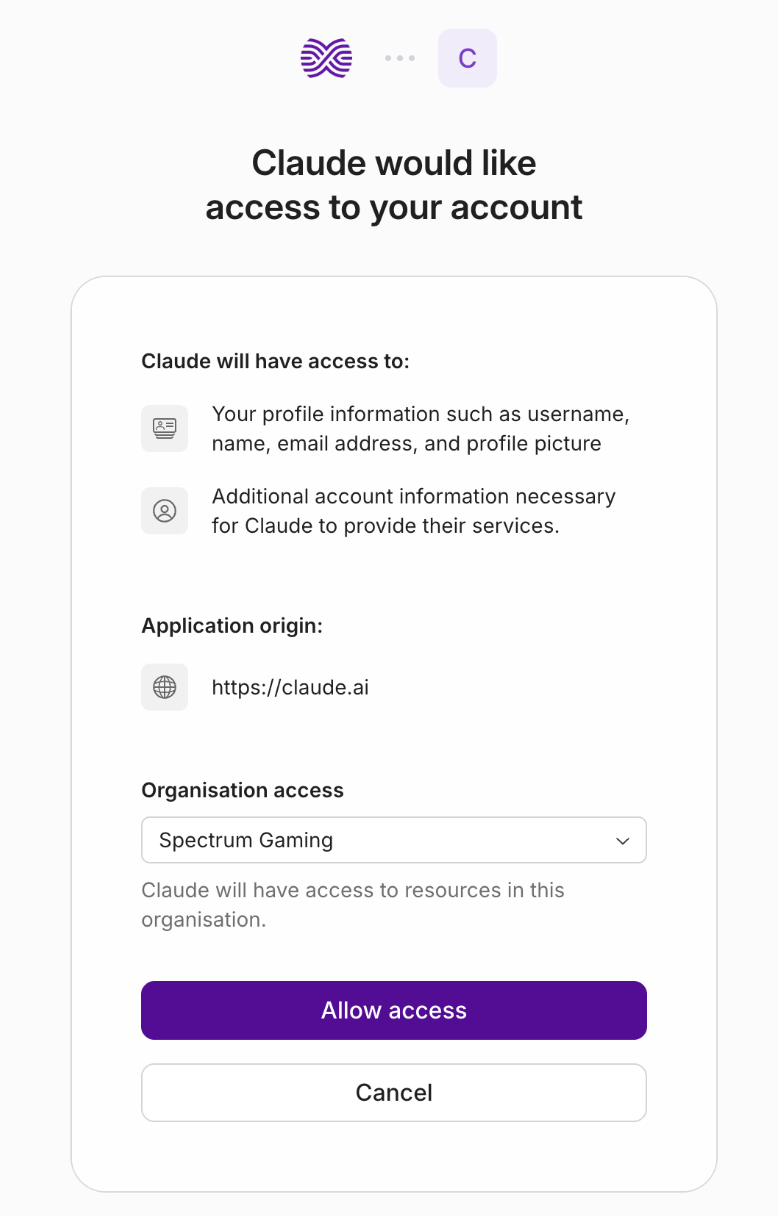
Once you are connected successfully, you will see
Connected to Rhythms pop up in the top right corner.
Now start a new chat (https://claude.ai/new) and ask questions related to your OKRs, Documents, Teams, Users etc.... Create and Manage your OKRs, Teams and Documents
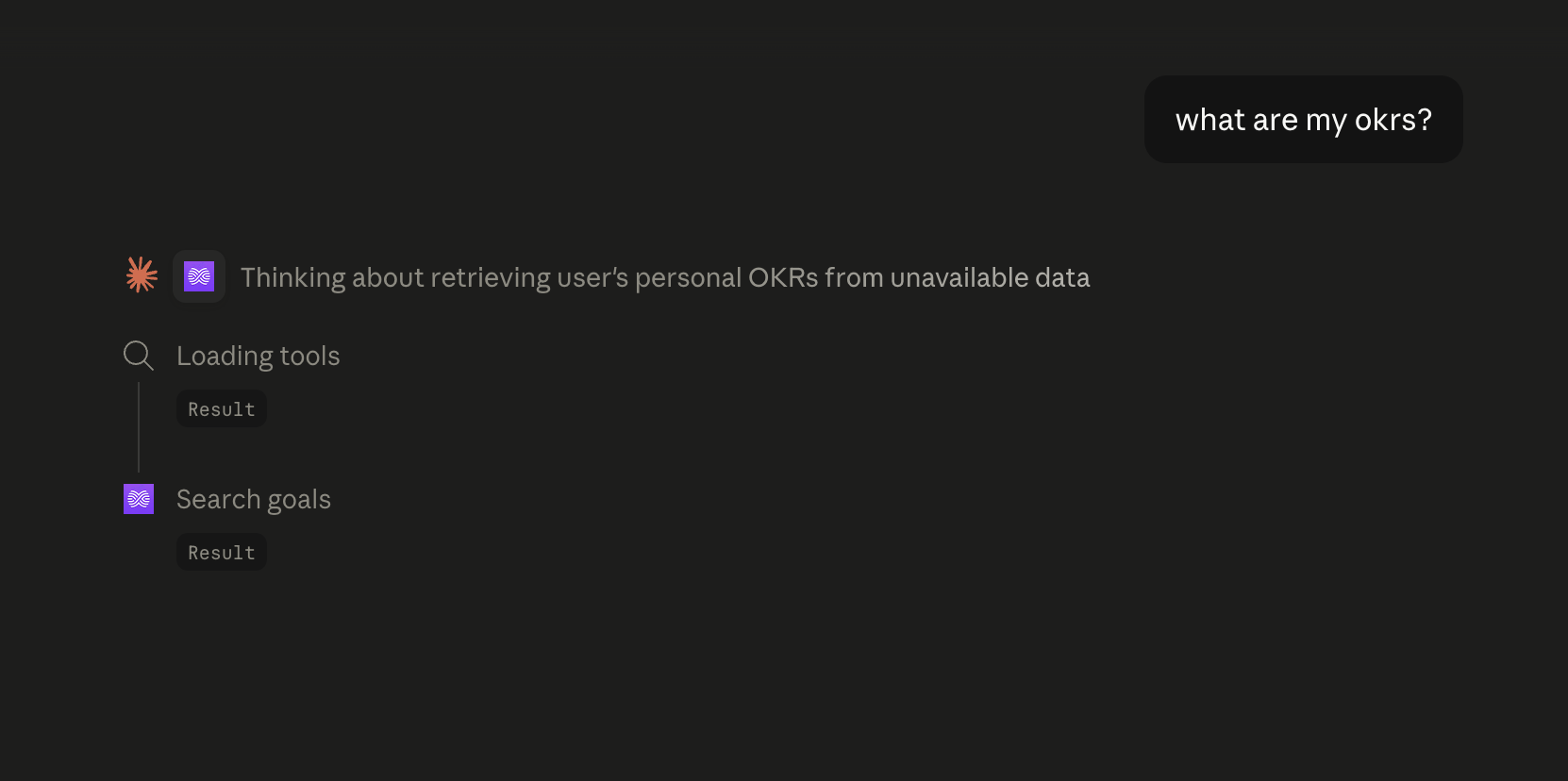
How to connect Rhythms with ChatGPT
Admin Setup
Click on Create
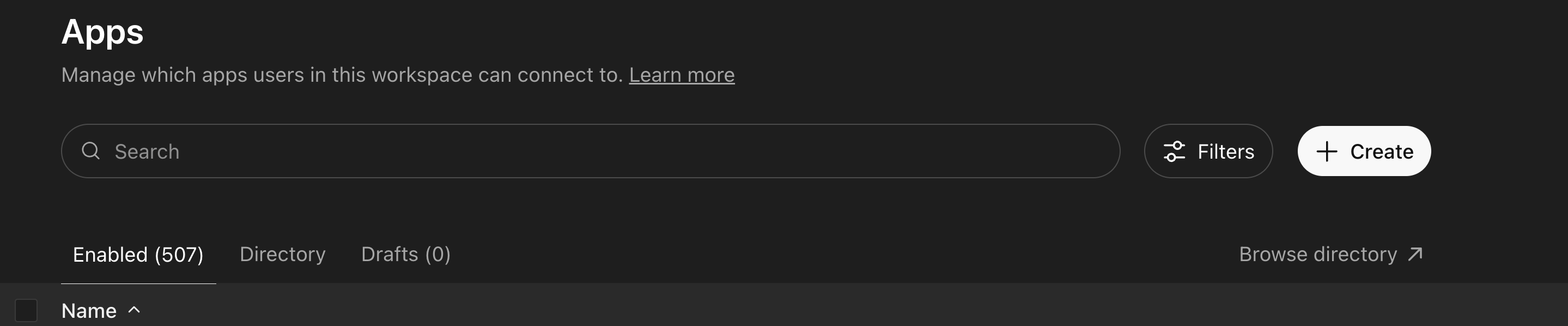
It will ask you to turn on Developer mode
Fill out the details
Name: Rhythms
Description: Rhythms MCP provides secure, structured access to create, manage, and update OKRs, documents, and other core work in Rhythms. It helps organizations keep goals, plans, and documentation aligned in one connected system of execution.
MCP Server URL:- https://mcpservers.rhythms.ai/rhythms/mcp
Click on "I understand and want to continue"
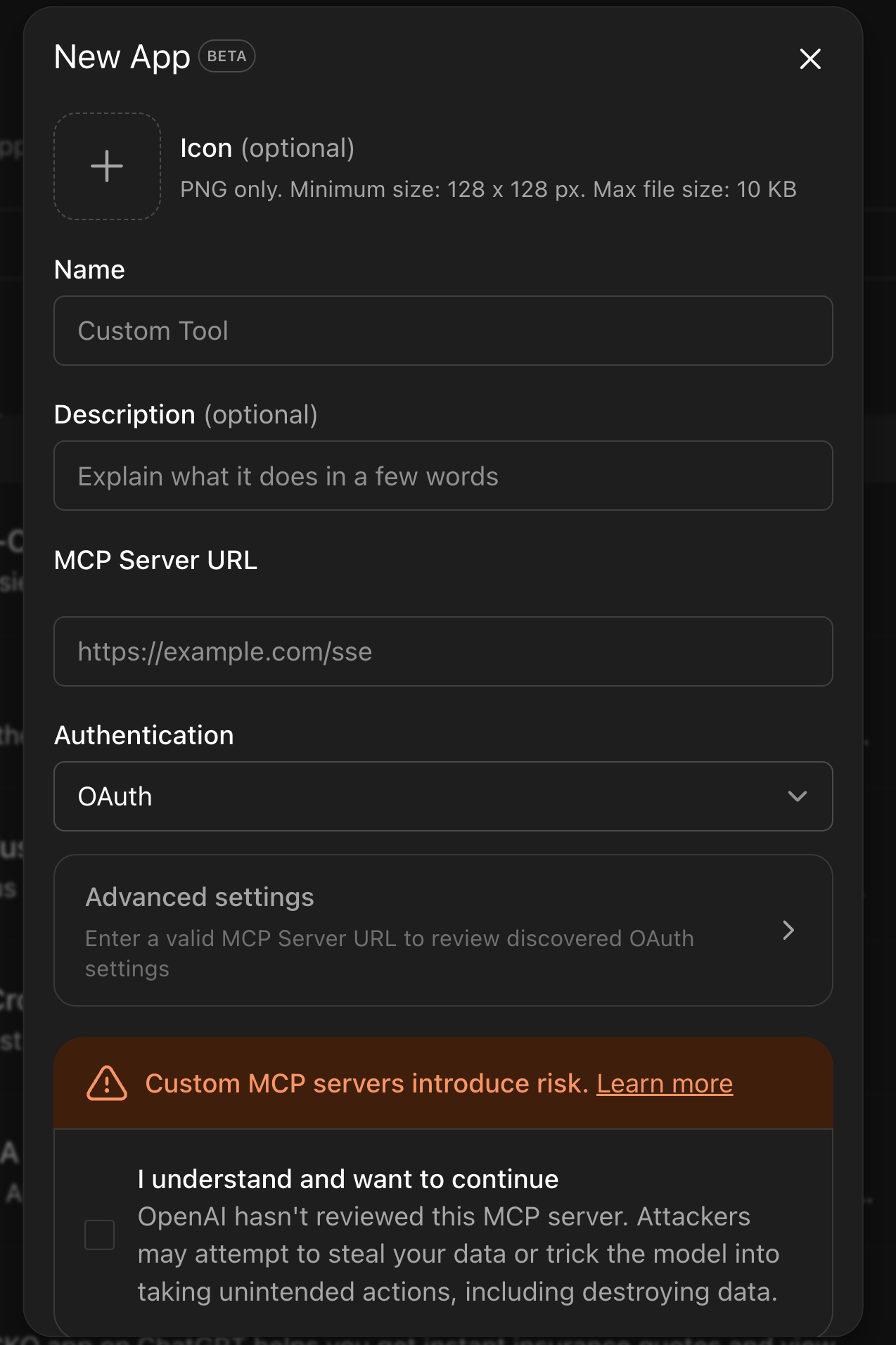
Go to https://chatgpt.com/admin/ca#drafts and publish the app
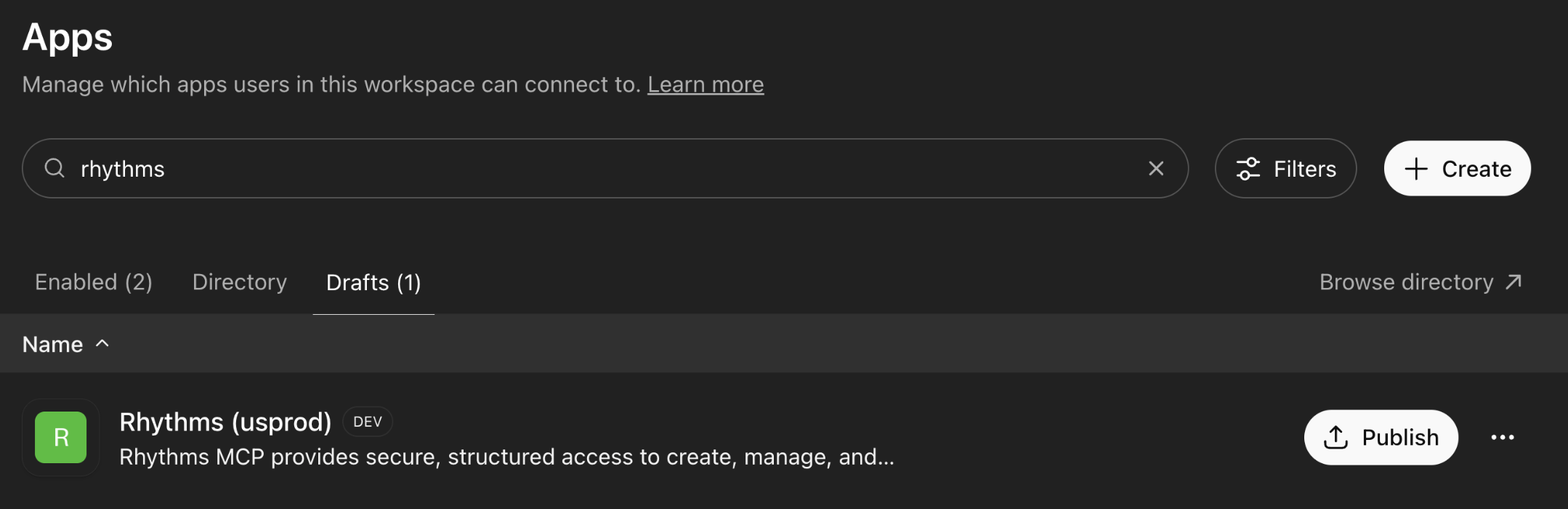
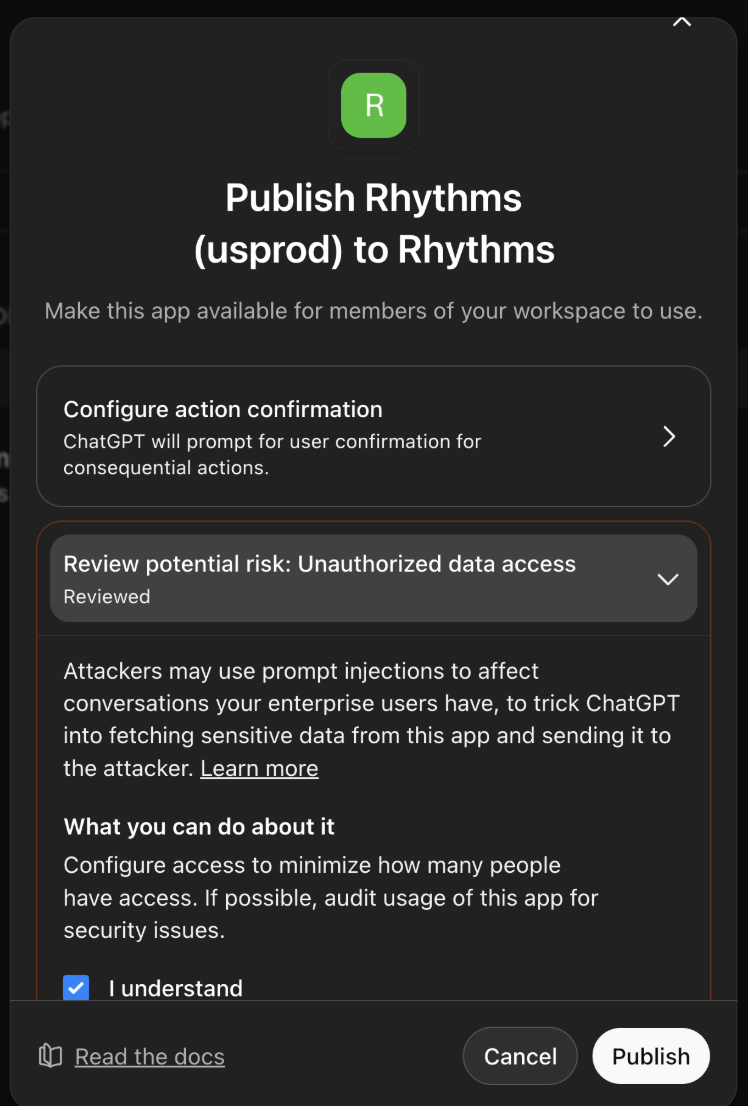
Now exit the developer mode, go to https://chatgpt.com/#settings/Connectors/Advanced
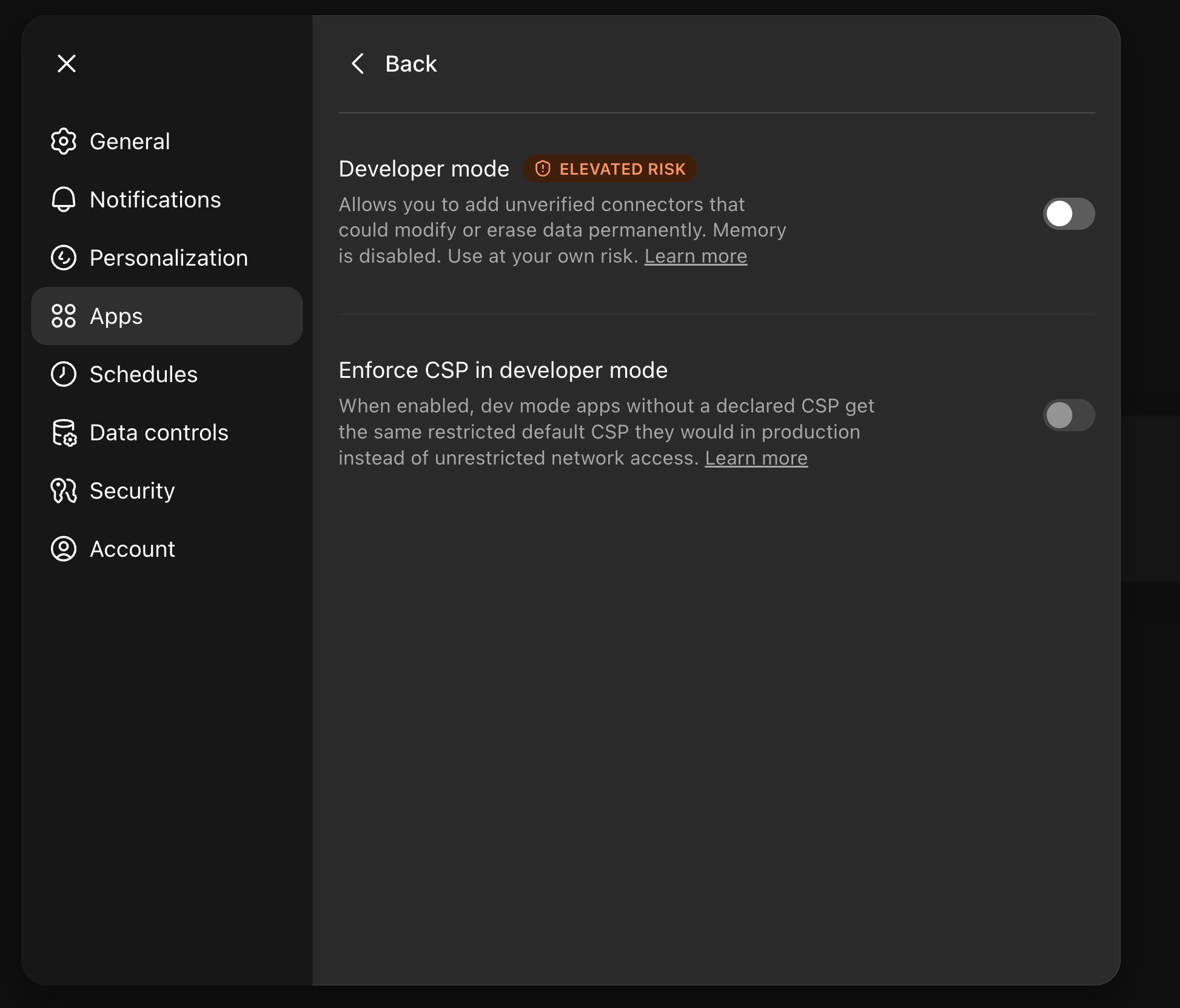
Now you can start querying, creating, managing OKRs & Documents.
How to connect Rhythms MCP with Cursor
Add as custom connector
{"mcpServers": {"Rhythms": {"url": "https://mcpservers.rhythms.ai/rhythms/mcp"}}}