Navigating the Rhythms OKR Platform: A Comprehensive Overview
Last updated: February 12, 2026
This step-by-step guide shows you how to navigate the dashboard, monitor progress, and leverage key features for strategic alignment.
Introduction to Rhythms
Log in to your Rhythms account. The main dashboard appears, tailored to your company, such as Contoso Gaming. Along the left-hand navigation panel, you'll find your OKRs, Reports, Views, and Dashboards — each of which we'll explore throughout this guide.
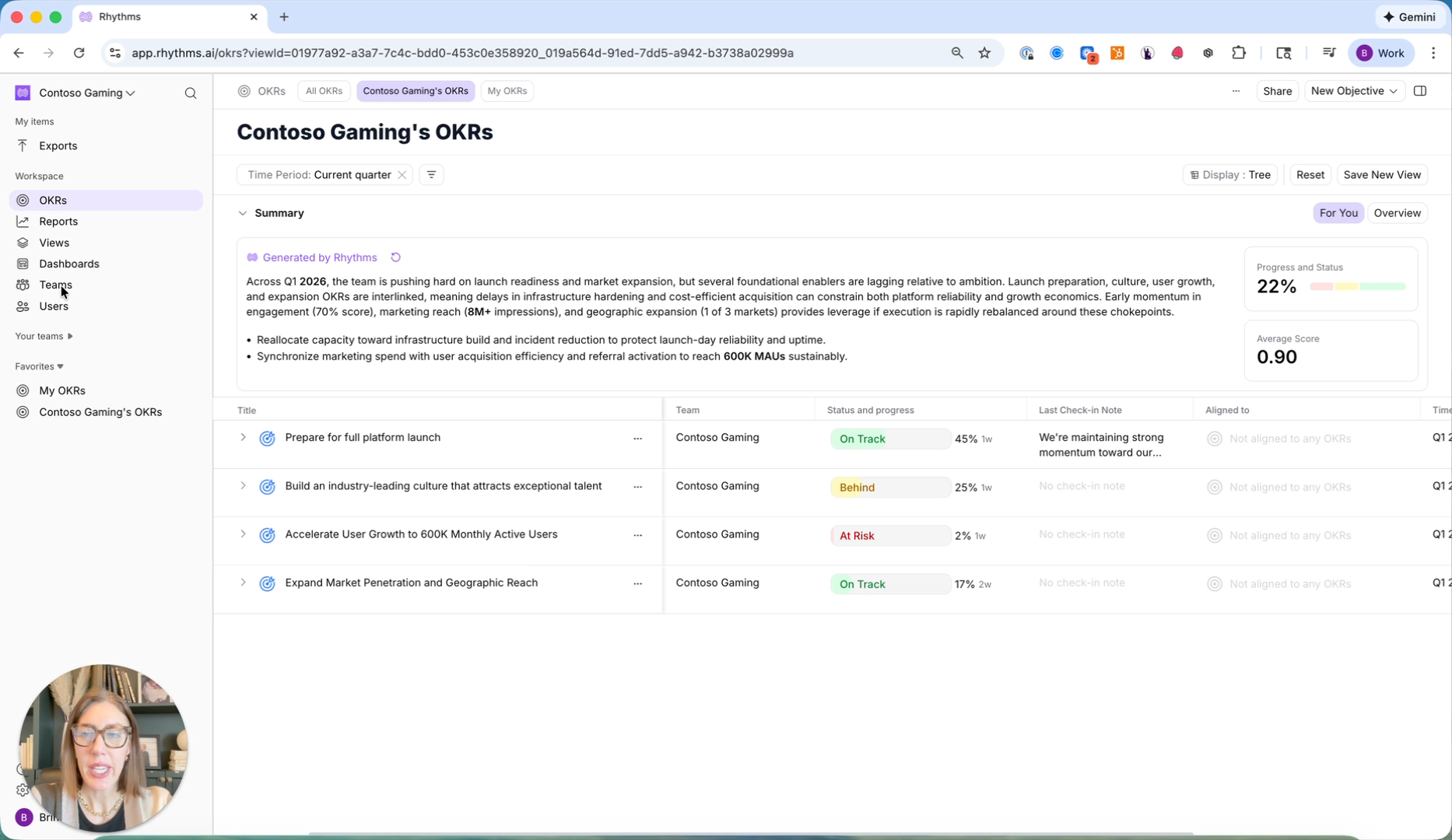
Teams: The Foundation of Your OKR Program
Start by exploring the Teams section. This is foundational to how your OKR program is structured, aligned, and cascaded throughout the organization.
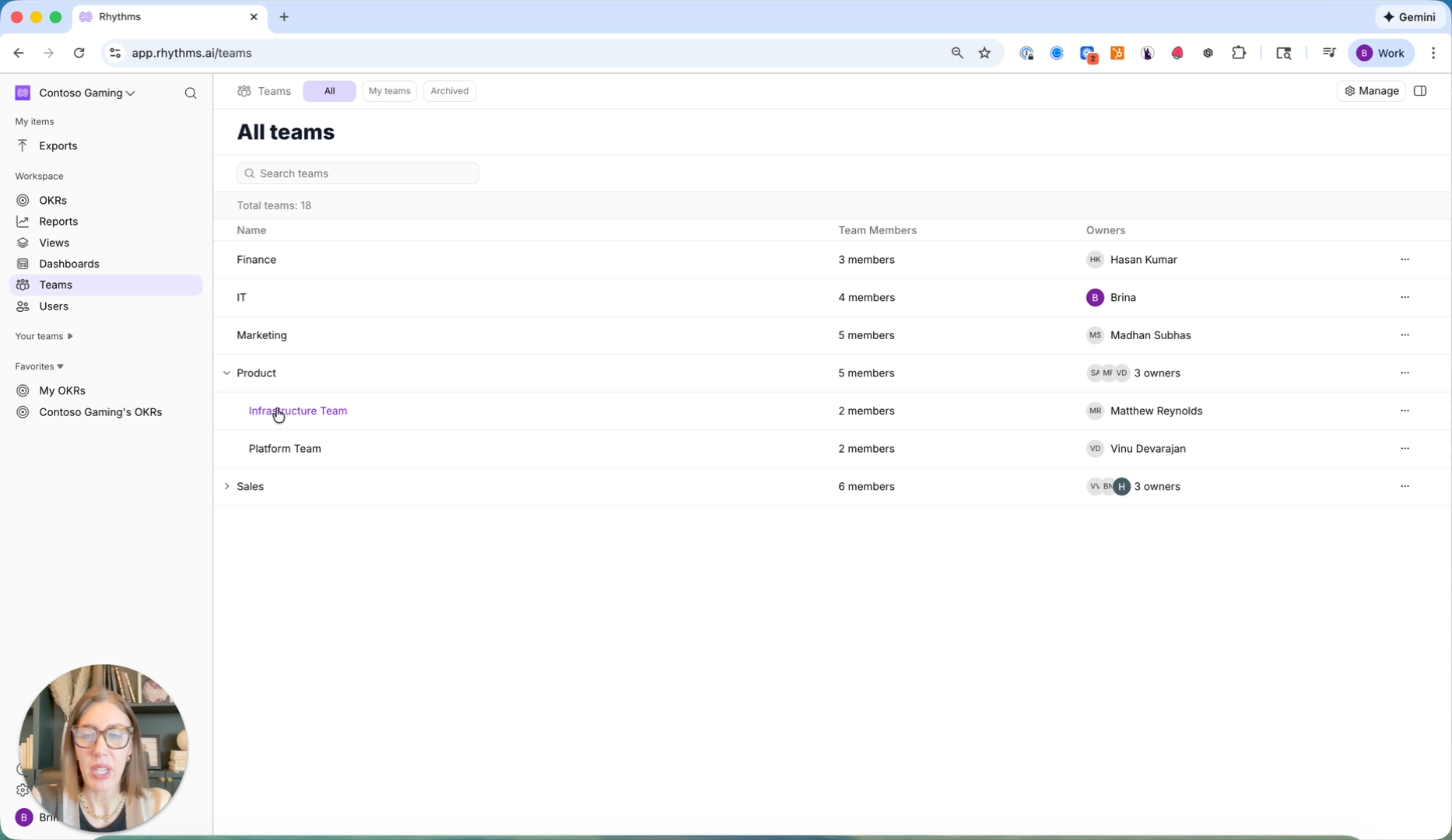
You'll see your main departments and see that some of these have children teams. For example, the Product team contains Infrastructure and Platform sub-teams, and the Sales team can be built out even further.
This structure can be as simple or as complex as your organization requires, and there is no limit to the number of teams or children teams you can have.
Viewing and Filtering OKRs
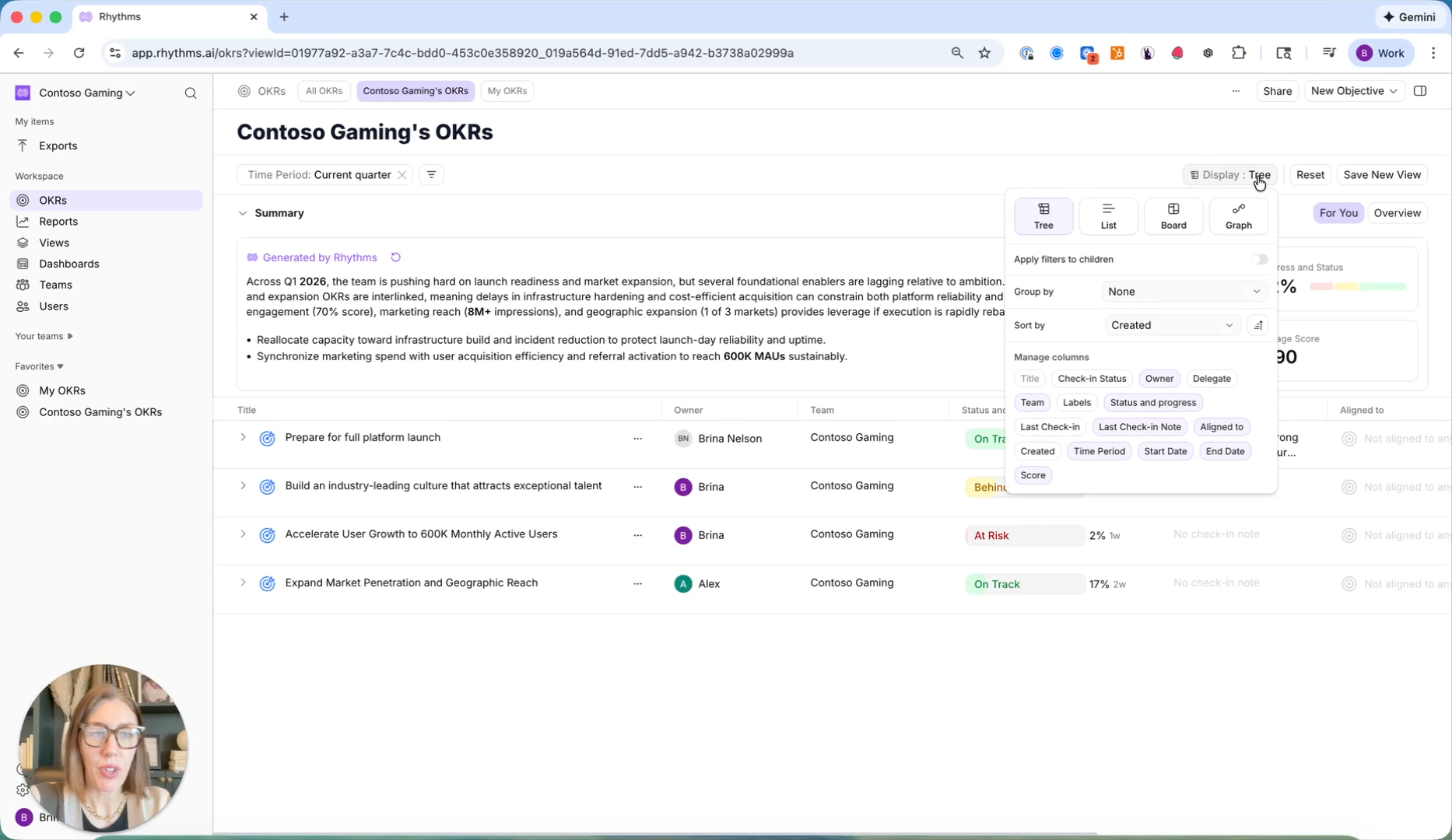
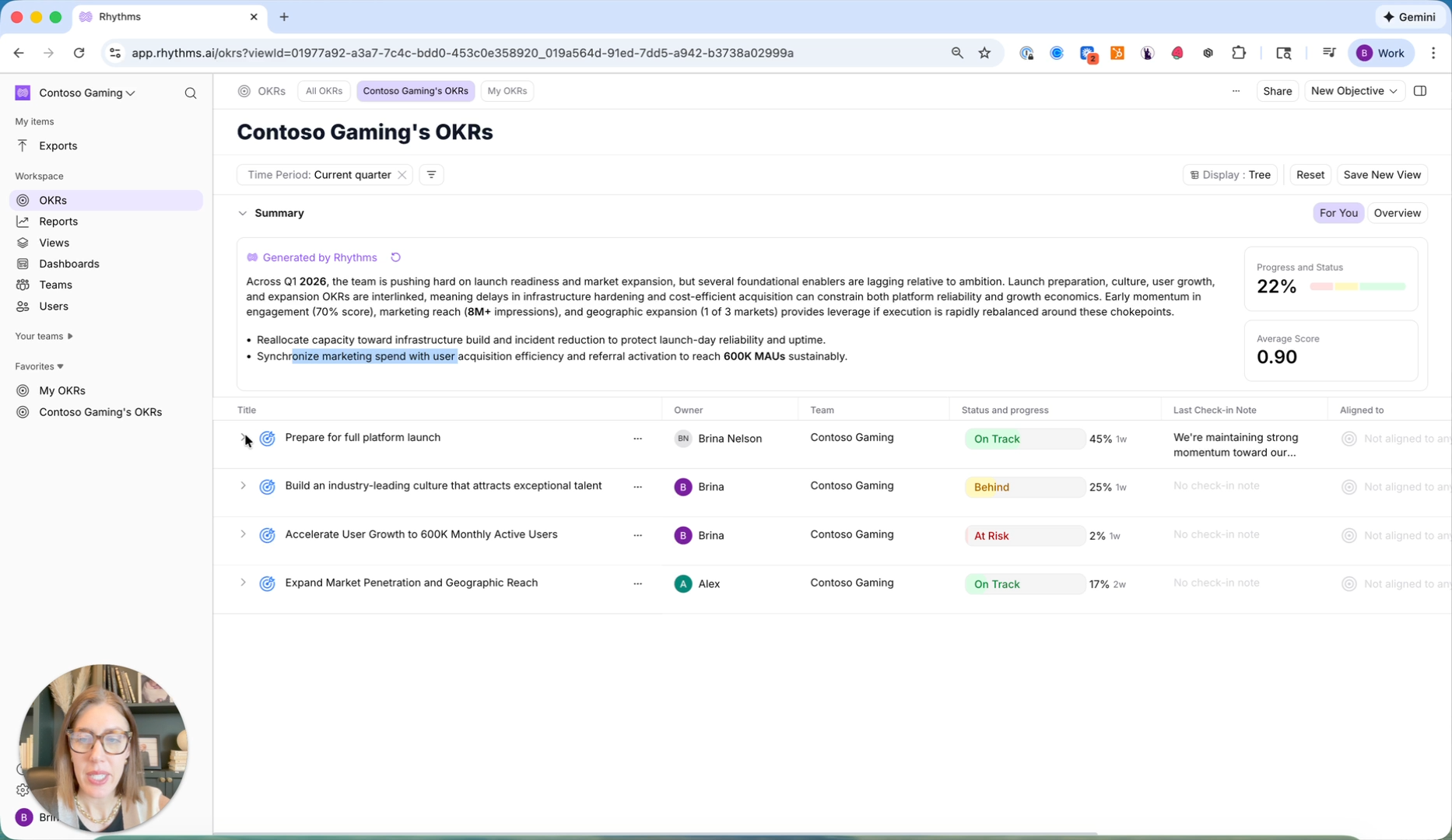
Navigate to the OKRs section to see your company-level objectives and key results. By default, you'll see the Tree View, which displays the objective hierarchy. Several other views are also available — List, Board, and Graph — so you can choose the visualization that fits your intent.
You can customize how your data is grouped, sorted, and which columns appear in your view. Use filter options to focus on specific teams, include or exclude children sub-teams, or filter by status to see only OKRs that are at risk or behind schedule. This allows you to create a personalized OKR view based on your role and responsibilities.
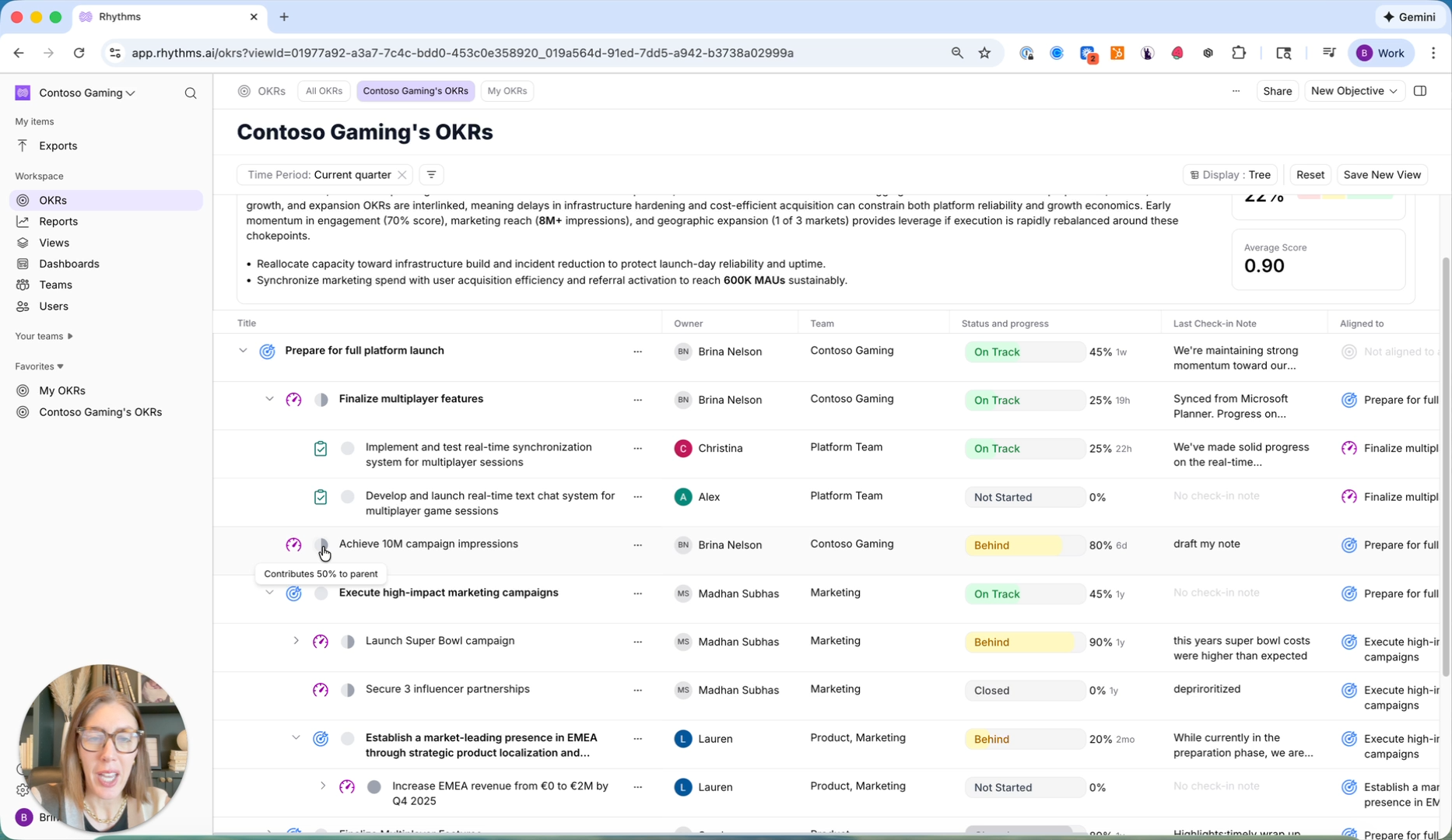
Expand any objective to drill down into its key results, initiatives, and projects. For example, you can see how the Platform team's projects align to a company-level objective like preparing for a full platform launch. The pie graph icon next to items indicates weighted contributions, showing how each key result or initiative contributes to its parent objective — all of which is configurable.
AI-Generated Summary Insights
Rather than drilling into every individual OKR, Rhythms provides an AI-generated summary based on your current view and all the data the platform has access to. This summary calls up real-time alerts, highlights areas that may need attention or are potentially at risk, and offers specific actionable recommendations such as suggesting you reallocate capacity towards a particular initiative or synchronize marketing spend based on current OKR performance.
These summaries enable leaders to be proactive rather than reactive, identifying areas of risk as they emerge rather than discovering problems at the end of a quarter during a QBR when it may be too late to course correct.
Automated Check-Ins and Integrations
Rhythms supports a number of connectors and integrations — including Planner, HubSpot, Jira, Linear, Salesforce, Azure DevOps, Power BI, Tableau, and more — to connect your key results directly to source data systems.
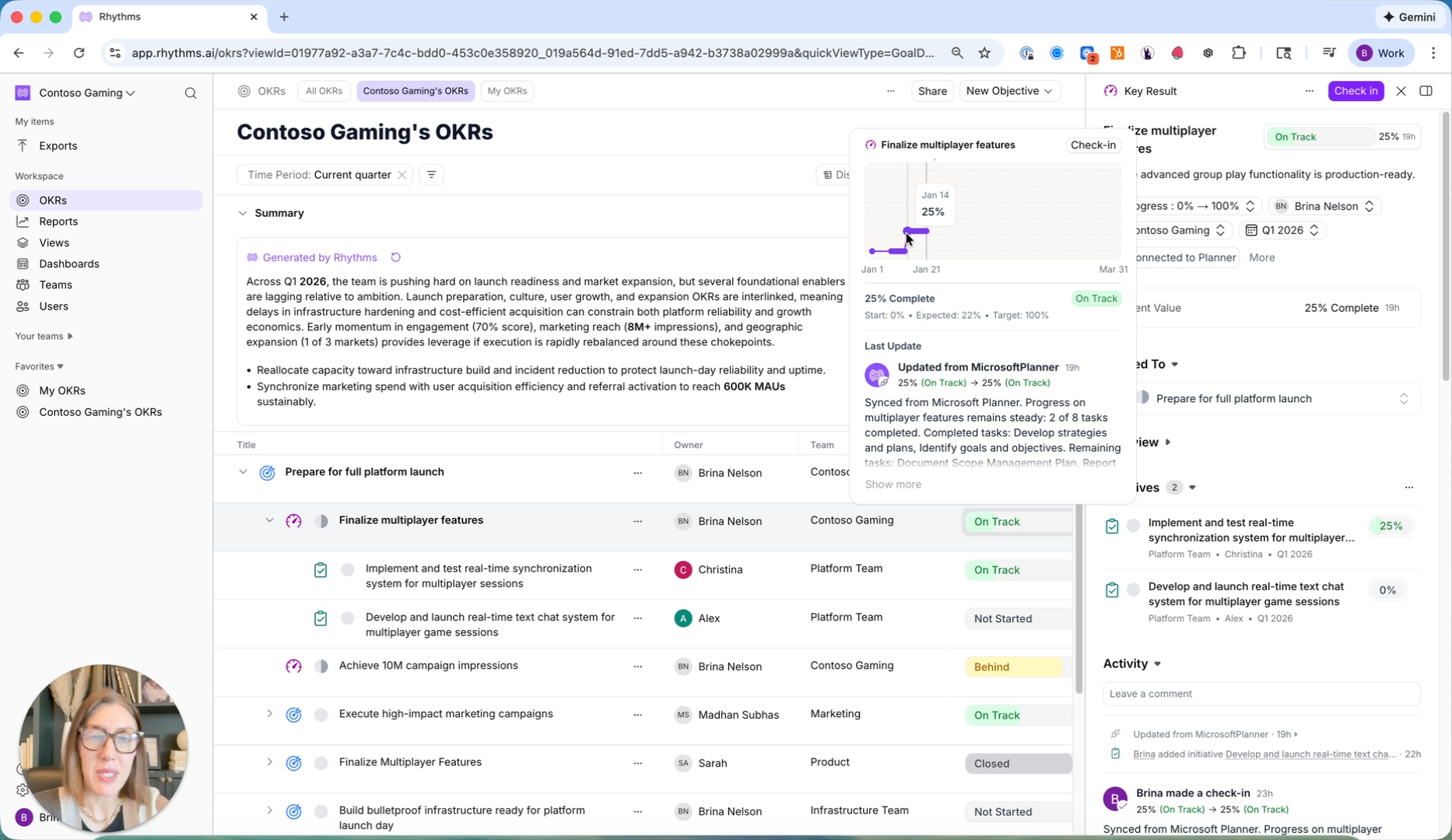
When a key result is connected to a data system, its progress and status are automatically updated on a daily basis. You can see this on the progress graph, where each dot represents a daily update. On the day actual progress is made in the connected system (such as tasks completed in Planner), that progress is automatically reflected in Rhythms.
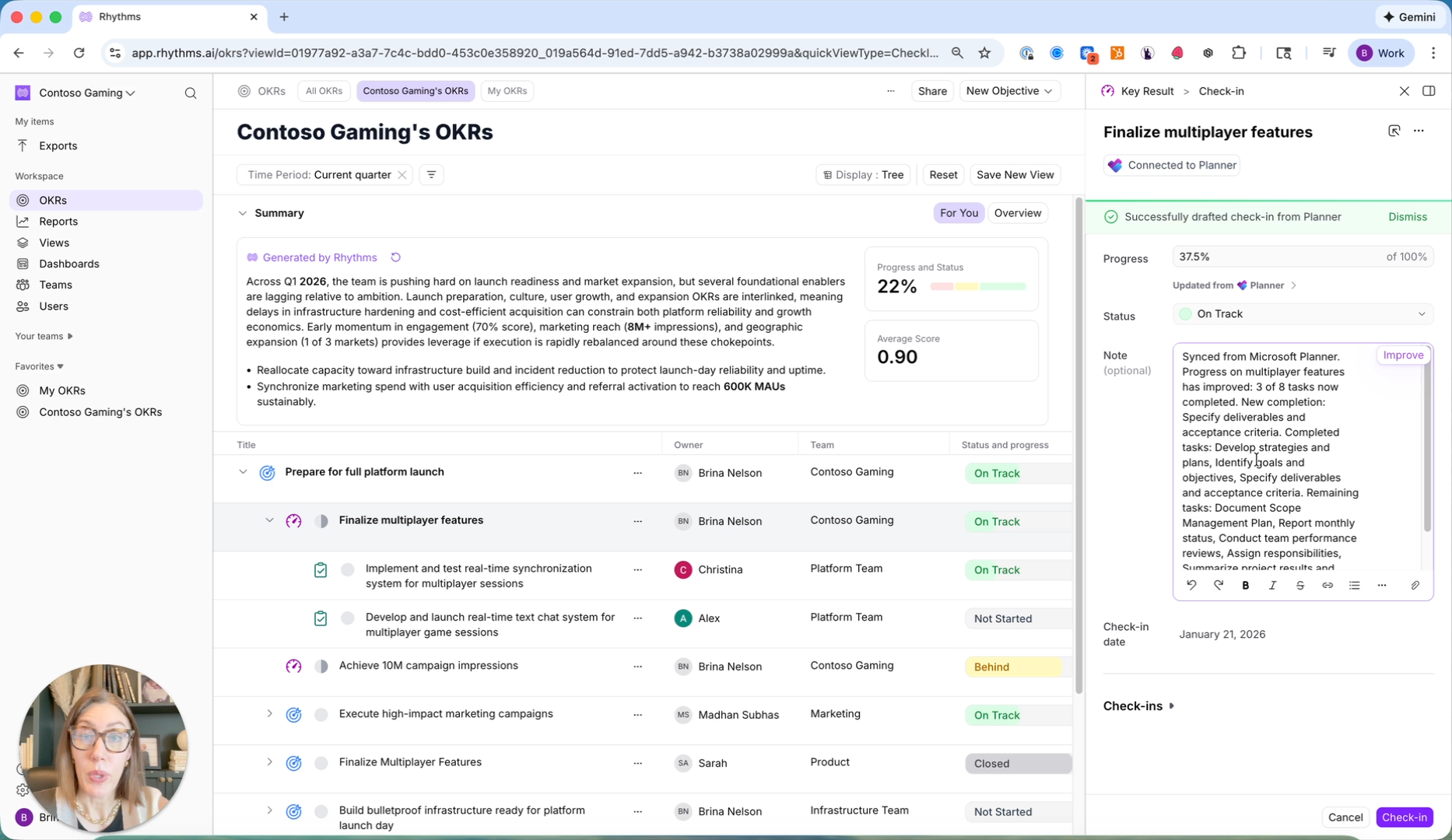
Check-in frequency is configurable by OKR or by team according to their respective review rhythm; for example engineering teams might prefer to do weekly check-ins while legal chooses a biweekly or monthly cadence. When a user initiates a check-in on a connected key result, Rhythms automatically pulls the current status and progress from the source data system. The status is updated automatically, though the human is always in control: users can override the status if they have additional context, though the progress metric from the data system cannot be overridden.
Rhythms also generates a suggested check-in note based on information from the connected data system, previous check-in notes, and related or aligned OKRs. This ensures leadership receives insightful, context-rich updates rather than generic notes like "we're on track." The user can edit, add to, or remove any part of the suggested note before completing their check-in.
Creating New OKRs with AI Coaching
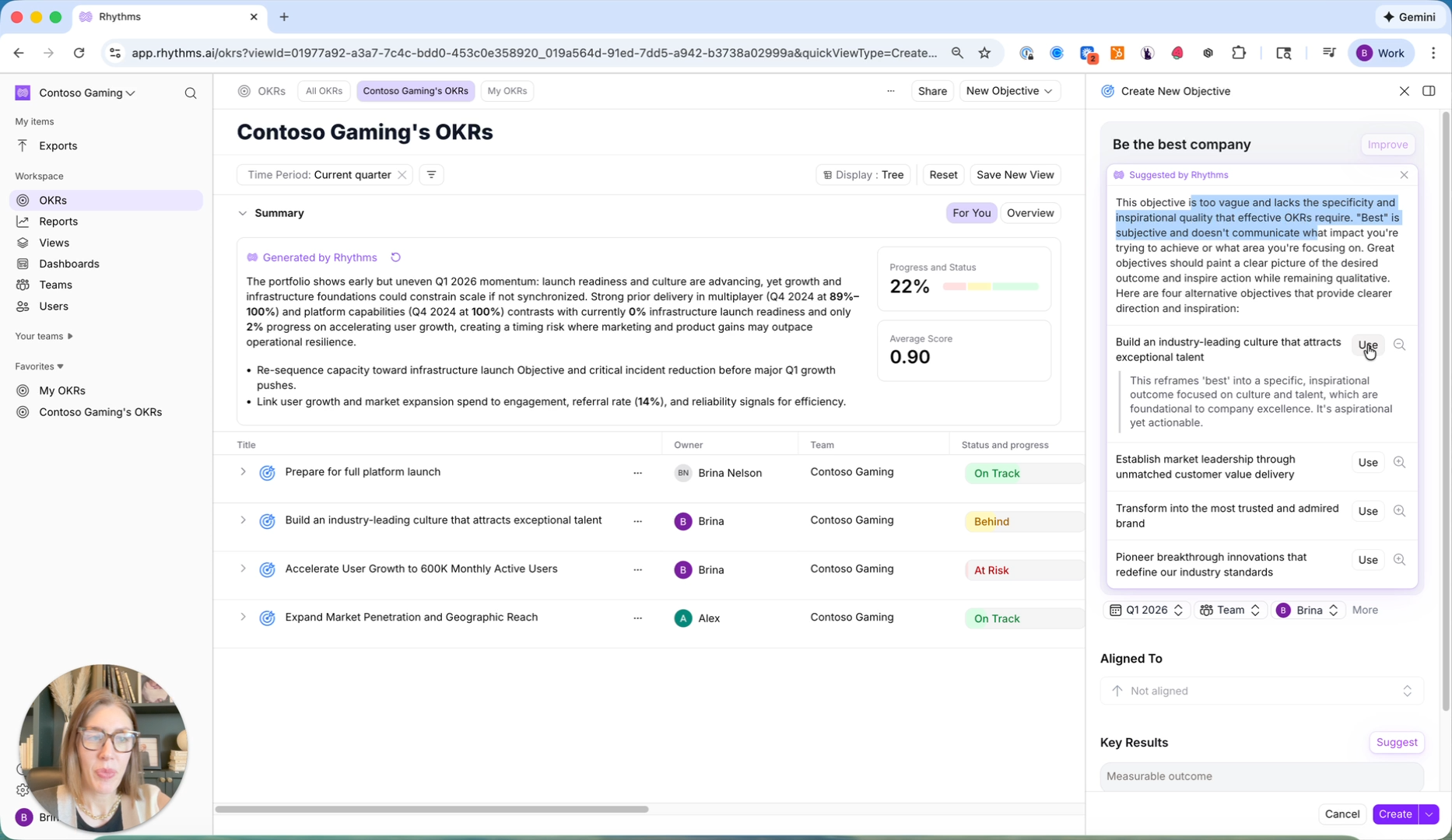
Writing good, measurable OKRs is challenging, even for experienced teams. Rhythms acts as your built-in OKR coach to help you write stronger objectives.
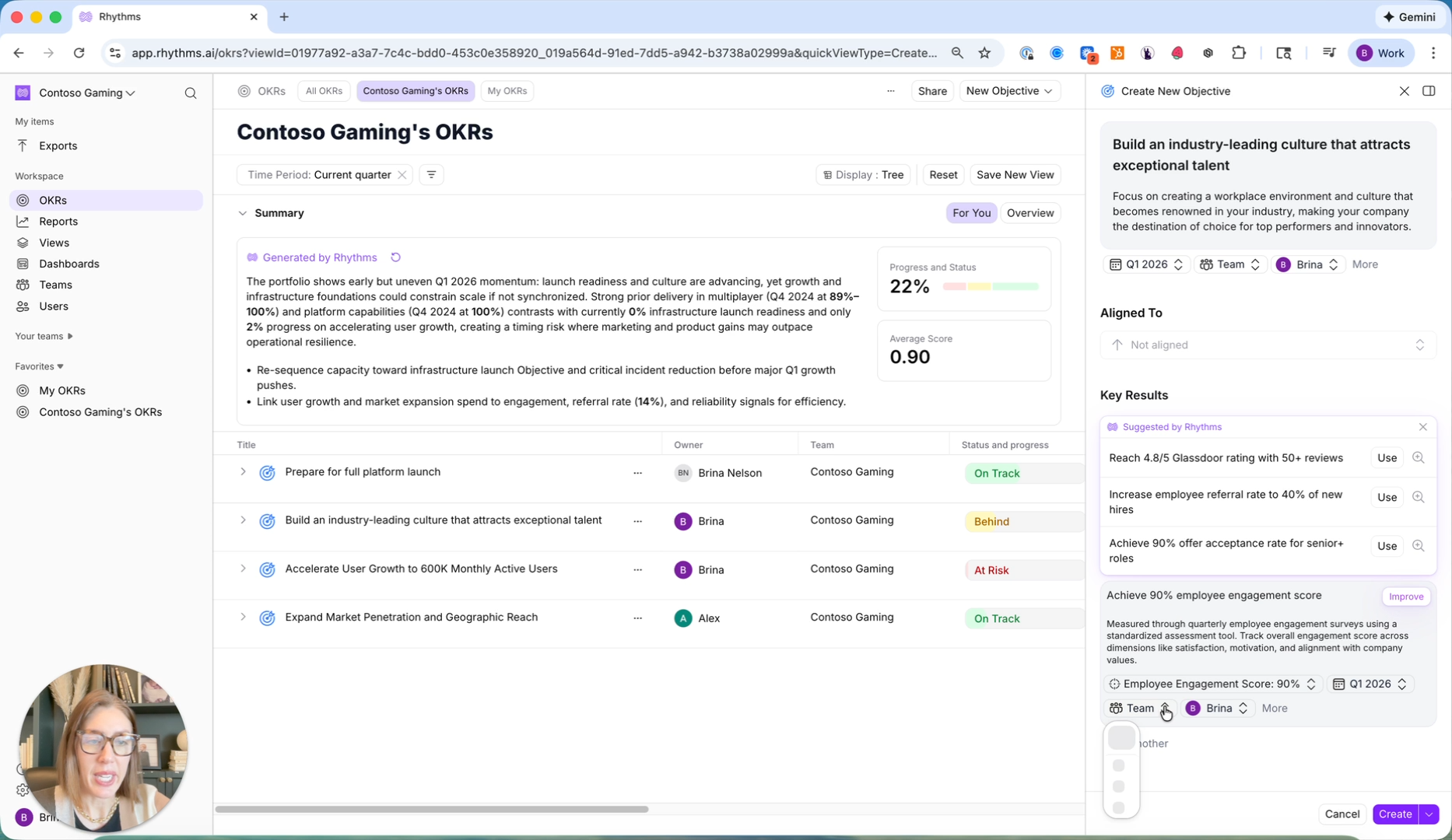
Start by creating a new objective, writing a first draft, and clicking the 'Improve' button. If the objective can be improved, Rhythms will explain why, then generate better recommended alternatives. The OKR coach draws on all of your company data in the platform, historical OKRs, any uploaded strategic planning documentation, and OKR best practices to make its suggestions. You can see the reasoning behind each recommendation and select the one that fits best.
Once you select an objective, Rhythms generates recommended key results aligned to it. You can review each suggestion, see why it's being recommended, edit the metrics (for example, adjusting a target from 85% to 90% employee engagement score), assign appropriate teams and owners and then lock them in.
Cascading OKRs Across the Organization
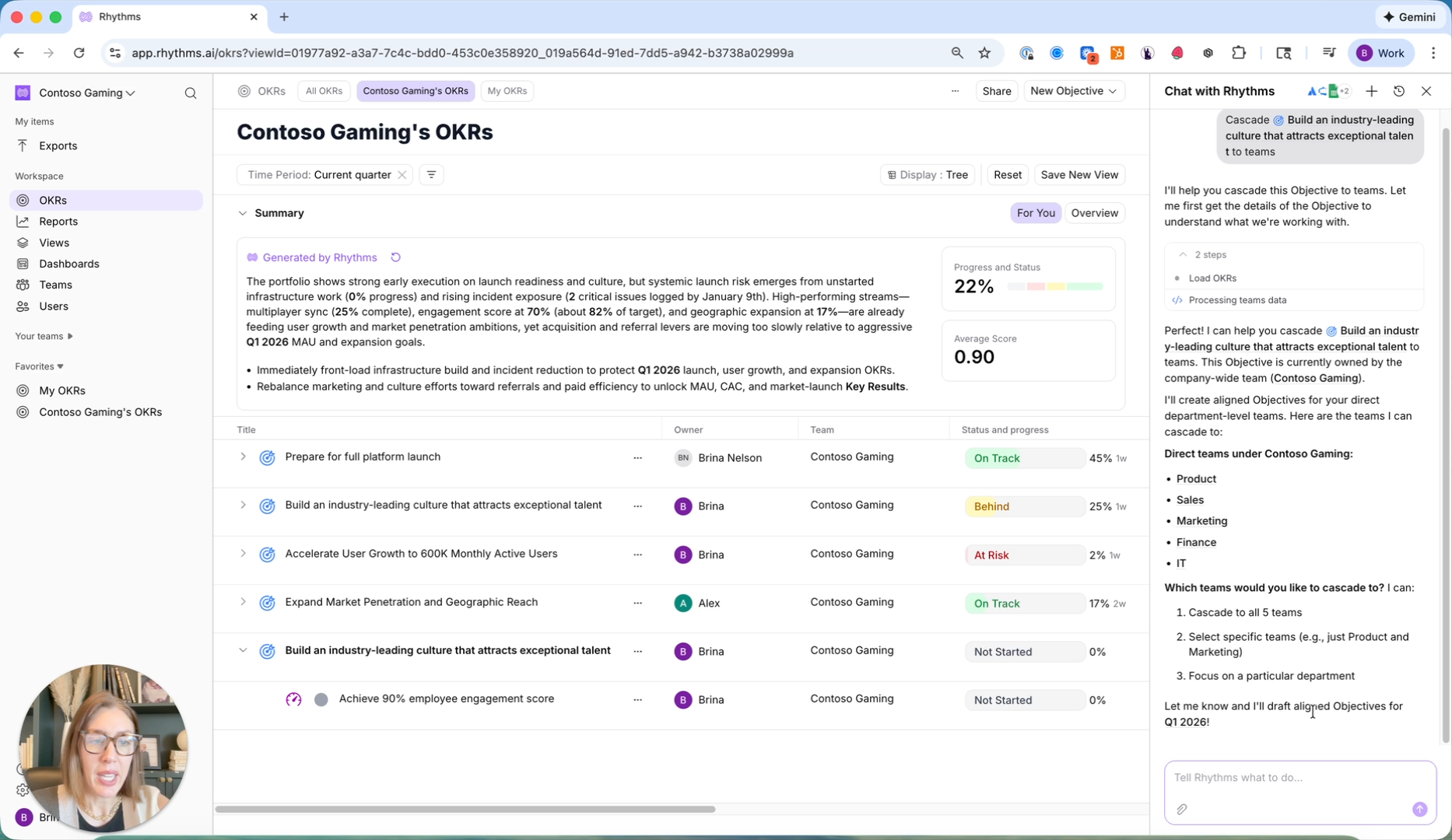
After creating a company-level objective and key results, you can cascade them down to all of your teams. After clicking the 'Cascade to Teams' button, Rhythms opens the Rhythms Chat, which takes into account your team structure, ownership history, historical OKRs, and any uploaded strategy documents to generate tailored OKRs for each team, all aligned to the newly created company-level objective.
This is an iterative, conversational process. The Rhythms Chat will ask clarifying questions such as whether you want to cascade to all teams or focus on a particular department, and you can continue engaging back and forth to refine the results. This accelerates the planning cycle for a new quarter or year while maintaining alignment throughout the entire organization and significantly curtailing back-and-forth conversations between teams.
Reporting and Dashboards
There are several ways companies can leverage Rhythms for reporting, depending on whether it's a weekly business review or a more formal quarterly business review.
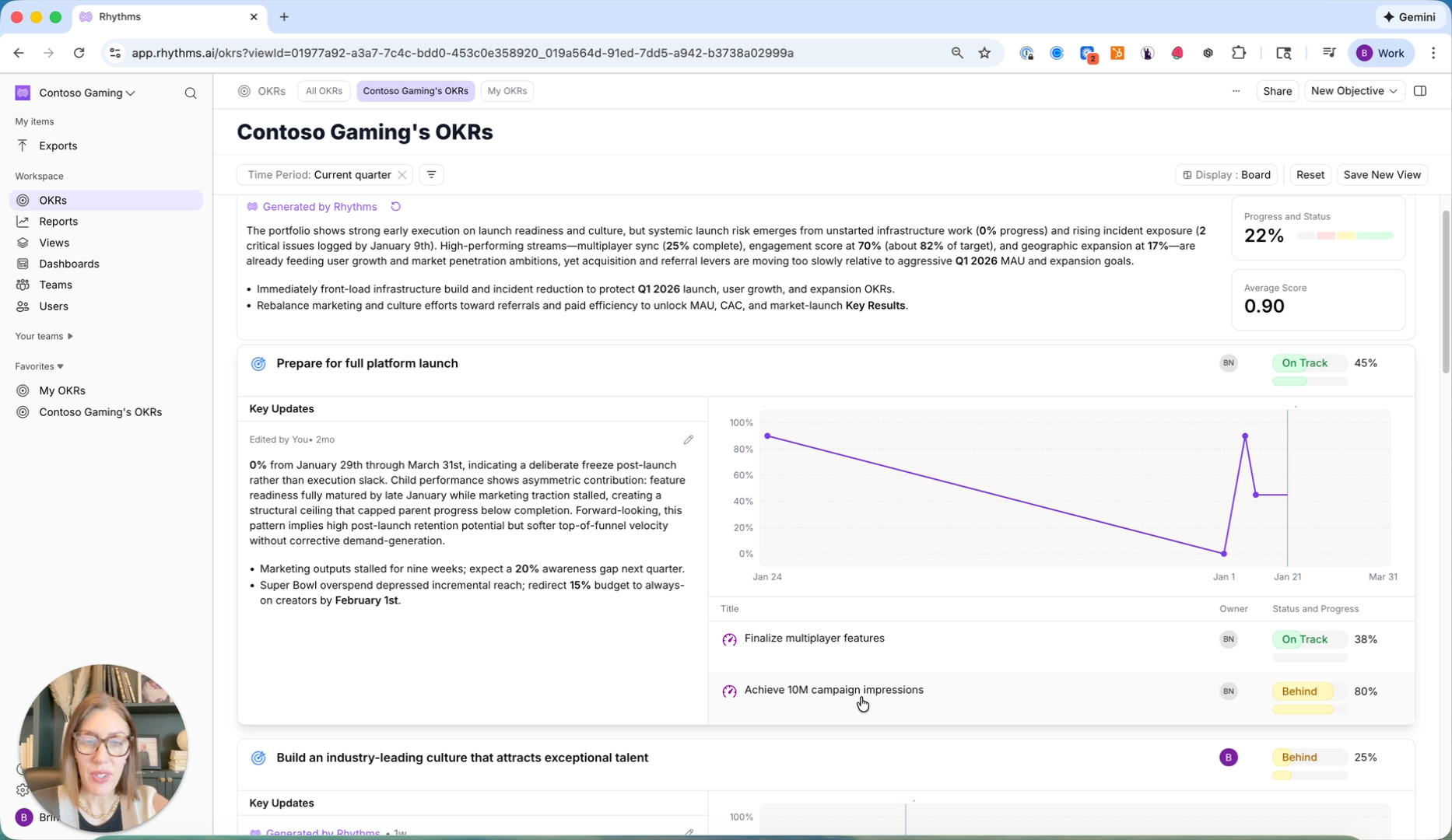
Weekly Business Review (WBR) View: From your OKR views, you can switch to 'Board' and find a WBR display that shows AI-generated summaries for each objective, the status of aligned key results, and progress graphs to track performance over time.
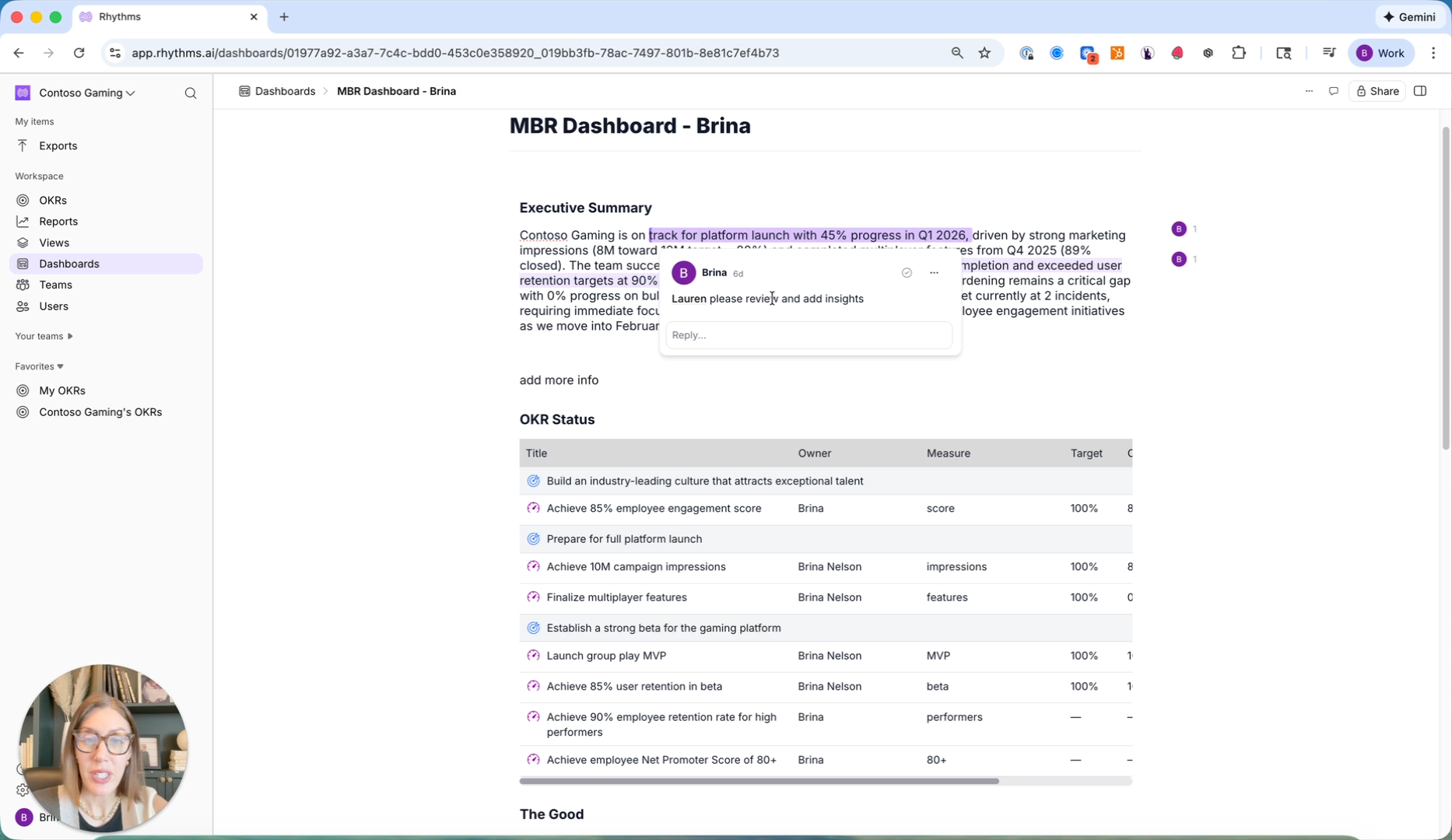
Monthly Business Review (MBR) Dashboard: For more dynamic and custom review cycles, Rhythms offers dashboard templates, such as the popular MBR template, that are generated directly from your saved OKR views. This MBR dashboard is created by Rhythms and includes AI-generated text, color-coded tables, and sections covering the Good, the Bad, and the Ugly, all based on how your OKRs are performing and the data Rhythms has access to.
These dashboards are collaborative. You can select and edit text, @mention team members, add information, fine-tune messaging, and remove key results that aren't relevant to the upcoming review, all directly within the dashboard. Once the MBR is finalized, you can share it through the platform or export it to Word or PowerPoint for external distribution.
Program Health Reports
The Reports section provides insight into the overall health of your OKR program. These are distinct from business performance dashboards which focus on how the business is executing against its goals.
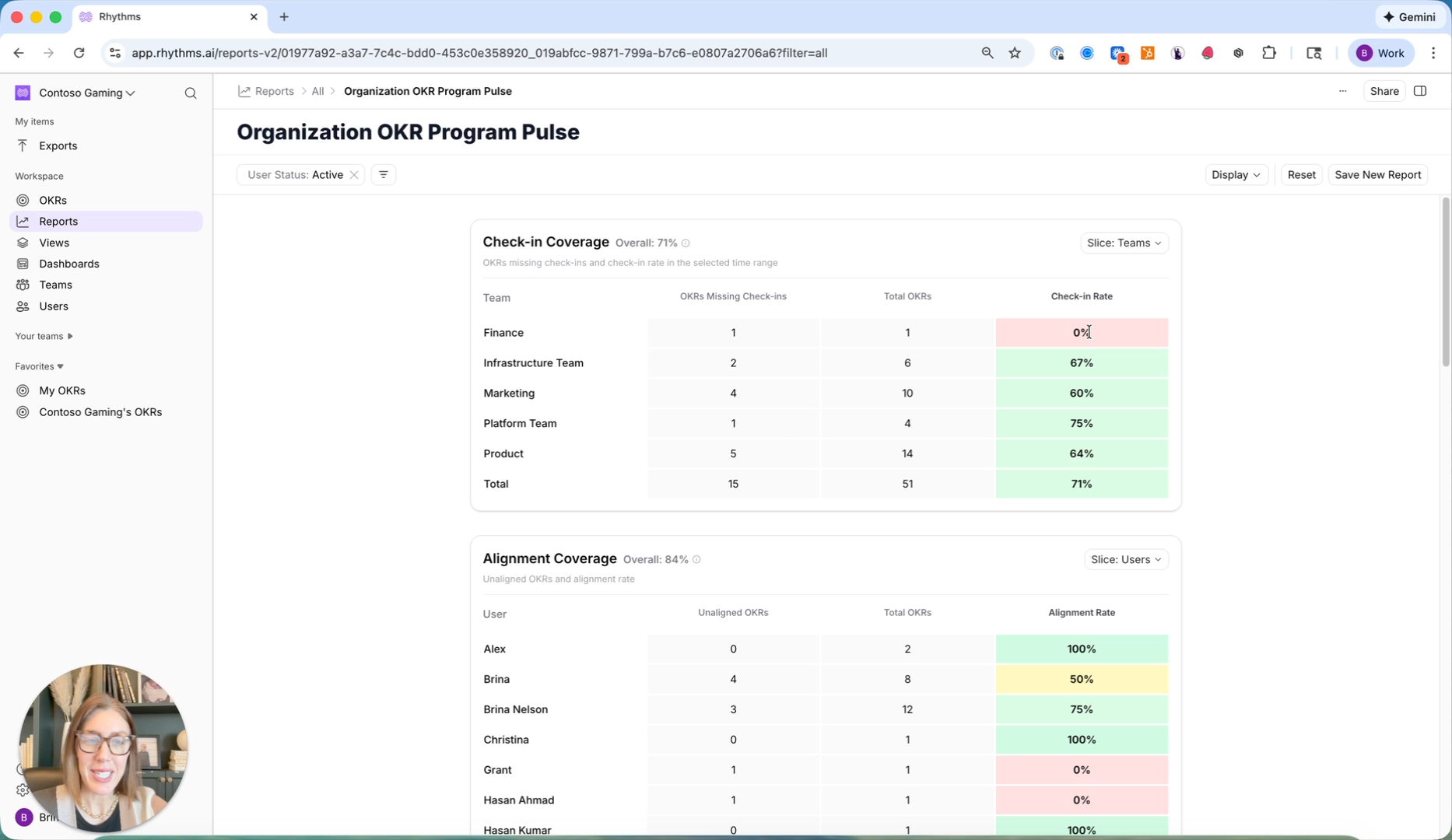
Reports include check-in coverage (showing how consistently teams are completing their check-ins, alignment coverage (ensuring OKRs are distributed fairly across employees), integration coverage (showing which OKRs are connected to source data systems for automated updates), and overall OKR adoption.
Each report can be filtered by team, owner, or time period, and sliced by teams, managers, or individual users.