Enable Integrations for Your Workspace
Last updated: April 14, 2026

Why Integrations Matter for Your Team
Integrations keep your team's work flowing by connecting Rhythms to the tools they use every day. When you enable integrations, your team can:
Eliminate manual updates: Key Results and Initiatives automatically pull progress from tools like Jira, Salesforce, or Google Sheets
Stay informed without switching apps: Get OKR notifications in Slack or Teams where your team already collaborates
Keep data synchronized: Changes in connected tools reflect immediately in Rhythms, giving everyone real-time visibility
As an administrator, you control which integrations are available to your team. Each team member then connects their own accounts through secure authentication meaning you're not managing passwords or API keys, just controlling access to integration options.
Understanding Integration Types
Rhythms offers two types of integrations, each working differently:
User-Scoped Integrations
Each person connects their own individual account through OAuth. Examples include Linear, GitHub, Google Sheets, HubSpot, and Jira. When you enable a user-scoped integration, it appears in each team member's integration settings, and they authenticate with their personal credentials.
Workspace-Scoped Integrations
These connect once at the workspace level and everyone shares the same connection. Currently limited to Slack and Microsoft Teams, which are always enabled for all workspaces and cannot be disabled.
Enabling Integrations for Your Team
Access Integration Settings
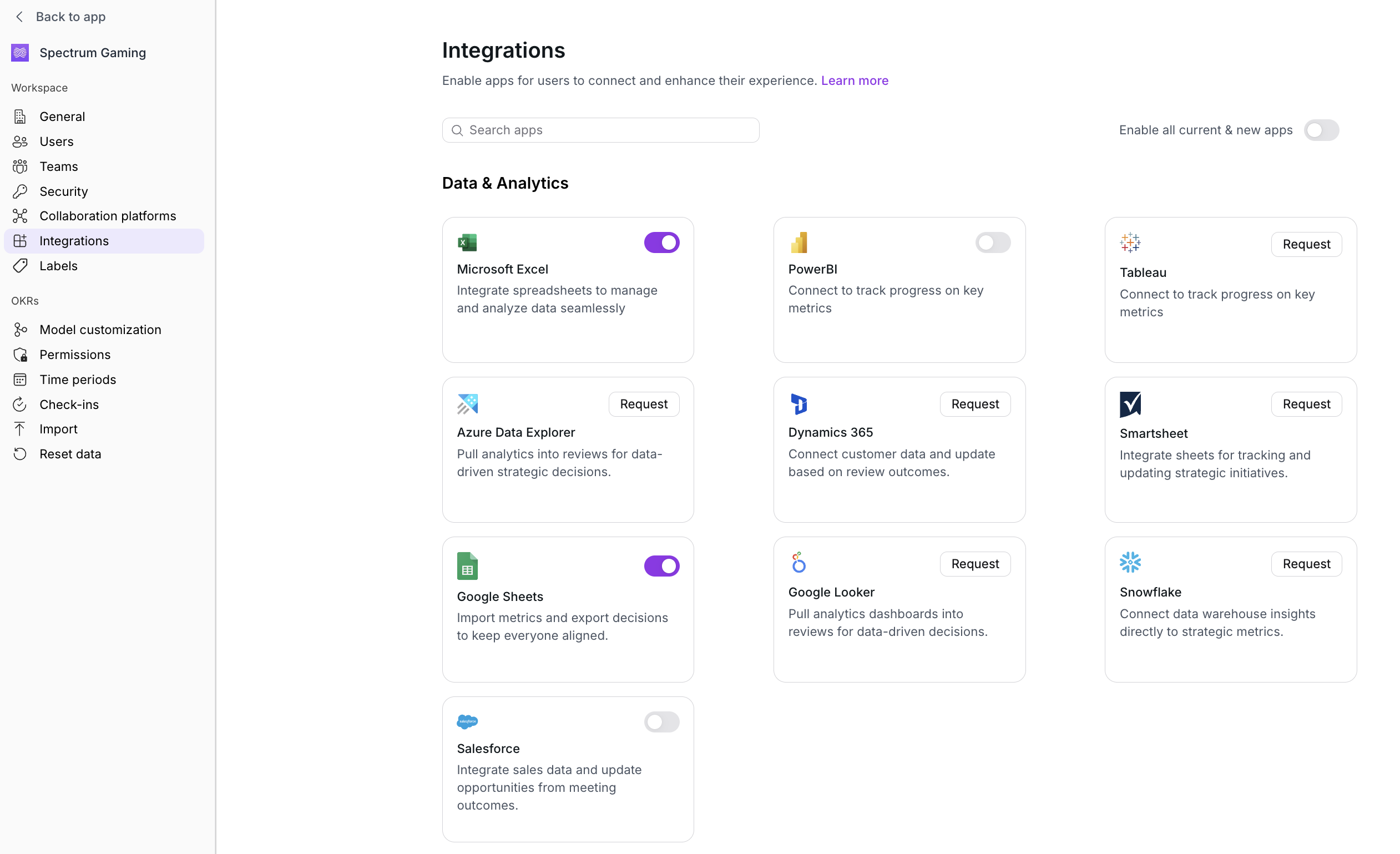
Navigate to Settings > Workspace > Integrations
You'll see a list of all available integrations, organized by category
Enable Specific Integrations
To make an integration available to your users:
Find the integration in the list (they're grouped by type: Collaboration, Scheduling, Project Management, Data & Analytics, or CRM)
Toggle the switch next to the integration name to On
The integration immediately becomes available when users set up auto-updates for their Key Results or Initiatives.
Verification: Ask a team member to check their integration options when setting up auto-updates, the newly enabled integration should appear in their list.
Enable All User Integrations at Once
If you want to give your team access to all available integrations:
Locate the "Enable all user integrations" toggle at the top right hand of the page
Switch it to On
All user-scoped integrations become available immediately
⚠ Note: This only affects user-scoped integrations. Workspace-scoped integrations (Slack and Teams) are always enabled.
Default Integrations for New Workspaces
When your workspace was created, these integrations were automatically enabled:
Slack (workspace-scoped)
Microsoft Teams (workspace-scoped)
Google Calendar (user-scoped, set as default calendar)
Requesting New Integrations
You can request new integrations if you find that a critical tool used by your teams is not available.
How requests work:
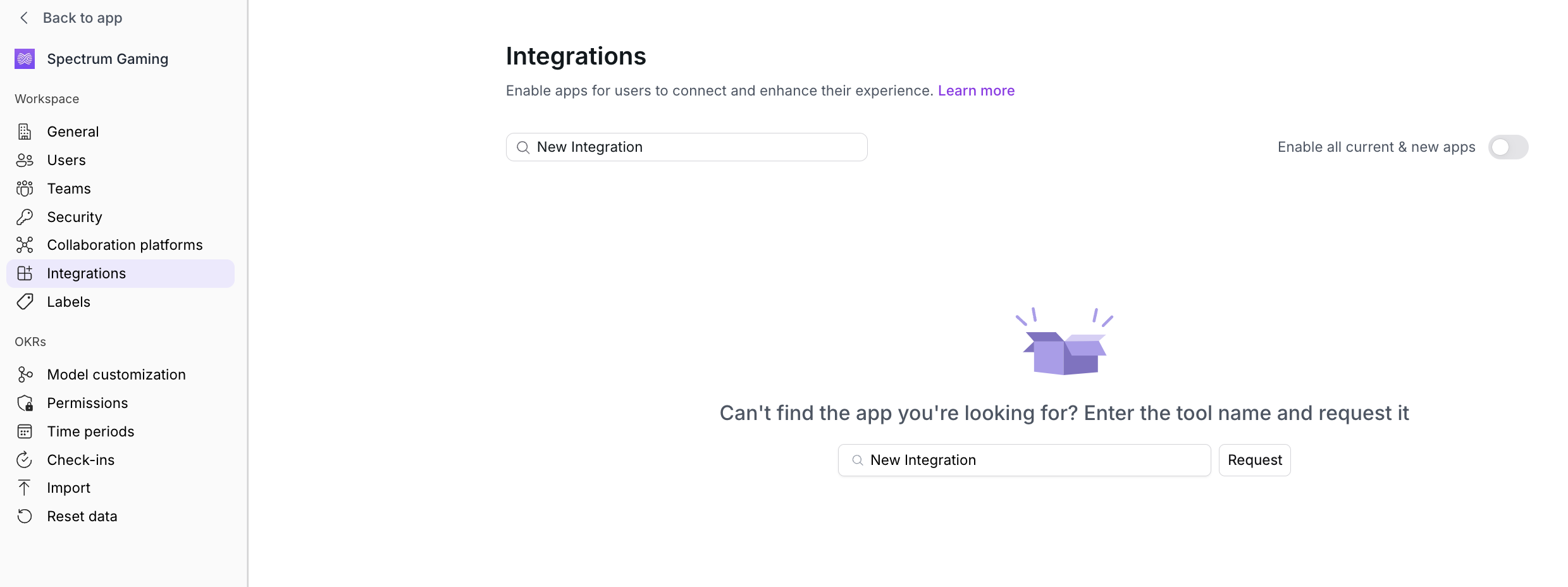
You discover a specific tool is not available for integration after using the search bar at the top of the Integrations page.
A new section appears on the page asking if you'd like to submit the integration request to the Rhythms team.
After you've submitted your request, your Rhythms representative will follow up with a estimated timeline for the integration based on the other integrations in development
Available Integrations by Category
In addition to the integrations below. More are in progress and will be coming soon.
Collaboration Platforms (Workspace-scoped)
Slack (always enabled)
Microsoft Teams (always enabled)
Scheduling (User-scoped)
Google Calendar ✅ Enabled by default
Outlook Calendar
Zoom
Project & Issue Management (User-scoped)
Linear
GitHub
Jira
Azure DevOps
Planner
Asana
Monday.com
Atlassian
Data & Analytics (User-scoped)
Microsoft Excel
Power BI
Google Sheets
Salesforce
CRM (User-scoped)
HubSpot
AI-Enabled Integrations (User-scoped)
Several integrations (Linear, Planner, Monday.com, Google Sheets, HubSpot, Atlassian) use advanced AI capabilities to provide richer context and insights.
Frequently Asked Questions
Can I connect integrations on behalf of my team members?
No. Each user must connect their own account through OAuth authentication. This ensures security and gives users control over which account they use. You can only enable which integration types are available.
What's the difference between enabling an integration and connecting one?
Enabling an integration (admin action) makes it available for users to connect. Connecting an integration (user action) means actually authenticating with a personal account and linking it to specific Key Results or Initiatives. Think of enabling as "making it possible" and connecting as "actually using it."
If I disable an integration, what happens to existing connections?
Existing user connections remain intact and continue to work. Disabling an integration only prevents new users from connecting it. If you want to fully remove an integration, users must disconnect their individual connections first.
Can I see which integrations my team members have connected?
You can see which integrations are active across your workspace via the Integrations page, however you cannot currently see which users or OKRs have Integrations actively enabled.
Do I need to provide API keys or credentials for user-scoped integrations?
No. User-scoped integrations use OAuth, meaning each user authenticates with their own credentials directly through the service provider (like Google, GitHub, or Salesforce). You never handle or store these credentials.
What happens if someone leaves the company—do their integrations break for others?
User-scoped integrations only affect that individual's OKRs. If someone leaves, their personal integrations stop working for their Key Results and Initiatives. Other team members' integrations remain unaffected because everyone has their own separate connections.
Can I set up workspace-wide credentials for integrations like Google Sheets?
No. Google Sheets and similar tools require user-scoped connections. Each person must connect their own account. This is by design to respect data access permissions—users can only pull data from sheets they personally have access to.
Can I disable Slack or Microsoft Teams integrations?
No. Workspace-scoped integrations (Slack and Microsoft Teams) are always enabled and cannot be disabled. They're core collaboration tools that support notifications and team communication within Rhythms.
Are there integrations that require special setup beyond enabling them?
Most integrations work immediately once enabled and users connect. However, some integrations may require specific permissions or configurations within the external tool itself. Refer to this collection of references for tool-specific instructions.