Rhythms MCP is now available in Claude, ChatGPT, and Cursor
Last updated: May 18, 2026
Your OKRs, documents, and team data now go wherever your AI tools go.
The Rhythms MCP connector lets your AI assistant read and write to your Rhythms workspace — goals, documents, teams, and check-ins — using your existing permissions.
The MCP server URL is the same for all three tools: https://mcpservers.rhythms.ai/rhythms/mcp
What you can ask
Once connected, try things like:
"What are my goals this quarter, and which are off track?"
"Summarize last week's status updates from the Engineering team."
"Create a goal: ship the new onboarding flow by end of Q2."
"Update the API migration goal to at risk and add a check-in explaining why."
"Draft an agenda for tomorrow's leadership review based on this quarter's OKRs."
How to set up
Connecting takes under two minutes. One admin step, then each user authenticates with their Rhythms email.
Claude
Admin: Go to Organization Settings → Connectors → Add custom connector.
Field | Value |
|---|---|
Name | Rhythms |
URL |
|
This makes Rhythms available to everyone in your Claude organization — on web and desktop.
User: Go to Settings → Connectors → click Connect on Rhythms → authenticate with your Rhythms email. If you're in multiple workspaces, you'll be asked to choose one. Start a new chat and ask away.
ChatGPT
Admin: Go to Admin Console → Create → enable Developer Mode.
Field | Value |
|---|---|
Name | Rhythms |
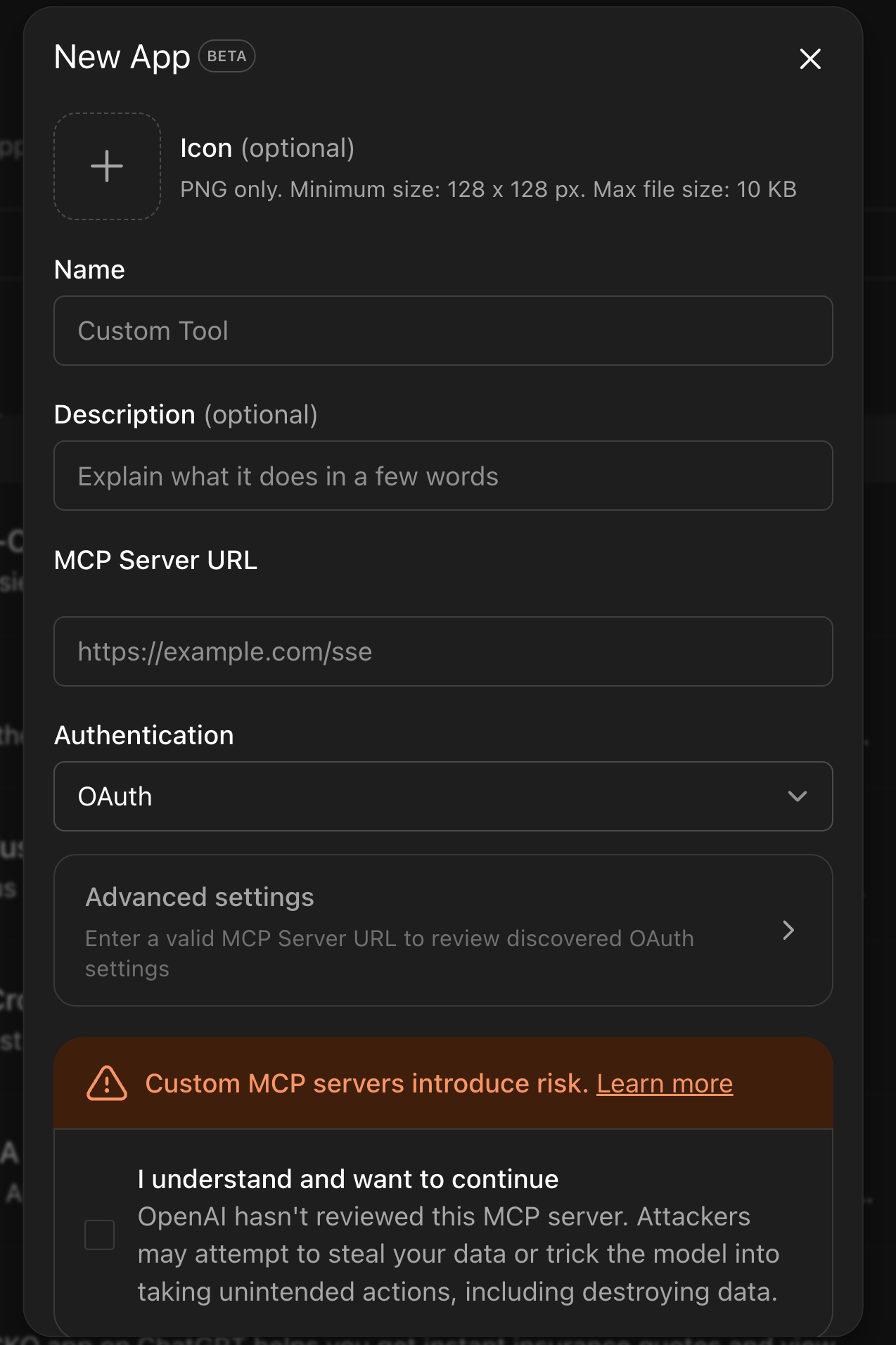
Description | Rhythms MCP provides secure, structured access to create, manage, and update OKRs, documents, and other core work in Rhythms. |
MCP Server URL |
|
Click "I understand and want to continue," then publish the app from the Drafts tab. Exit developer mode, and users can connect from Settings → Connectors.
Cursor
Add this to your MCP configuration:
json
{ "mcpServers": { "Rhythms": { "url": "https://mcpservers.rhythms.ai/rhythms/mcp" } } }
No admin step required — any user can add this directly.
Security
Rhythms MCP authenticates each user individually. Your AI assistant can only access data that user has permission to see in Rhythms — the same roles, teams, and visibility rules apply. No API keys are shared with the AI provider. Authentication uses OAuth, and users can disconnect at any time from their connector settings.
Availability
Rhythms MCP is available today for all Rhythms users on all plans.
Detailed Setup Instructions
Claude:
Admin setup
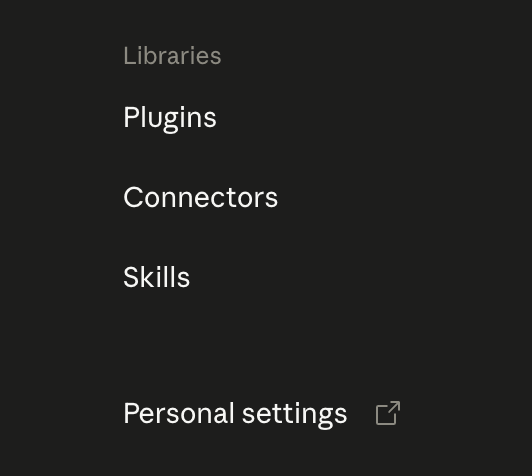
Go to https://claude.ai/admin-settings/organization. Click Connectors under Libraries section on the left.
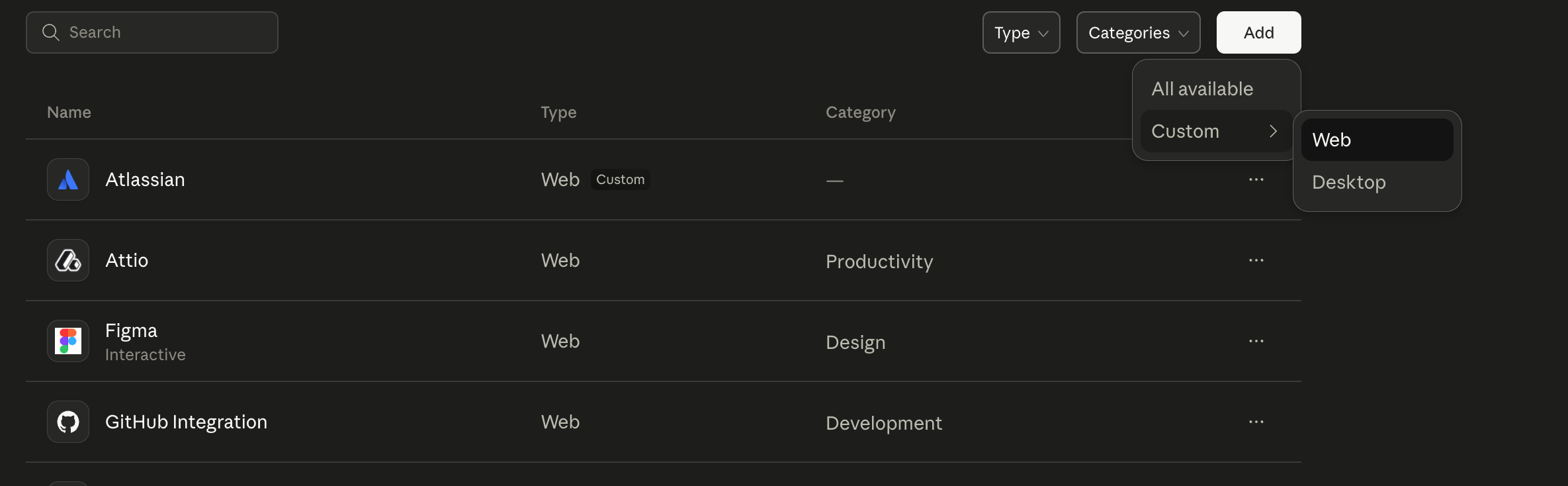
Add a custom connector from top for web (it will be available in both web as well as desktop)
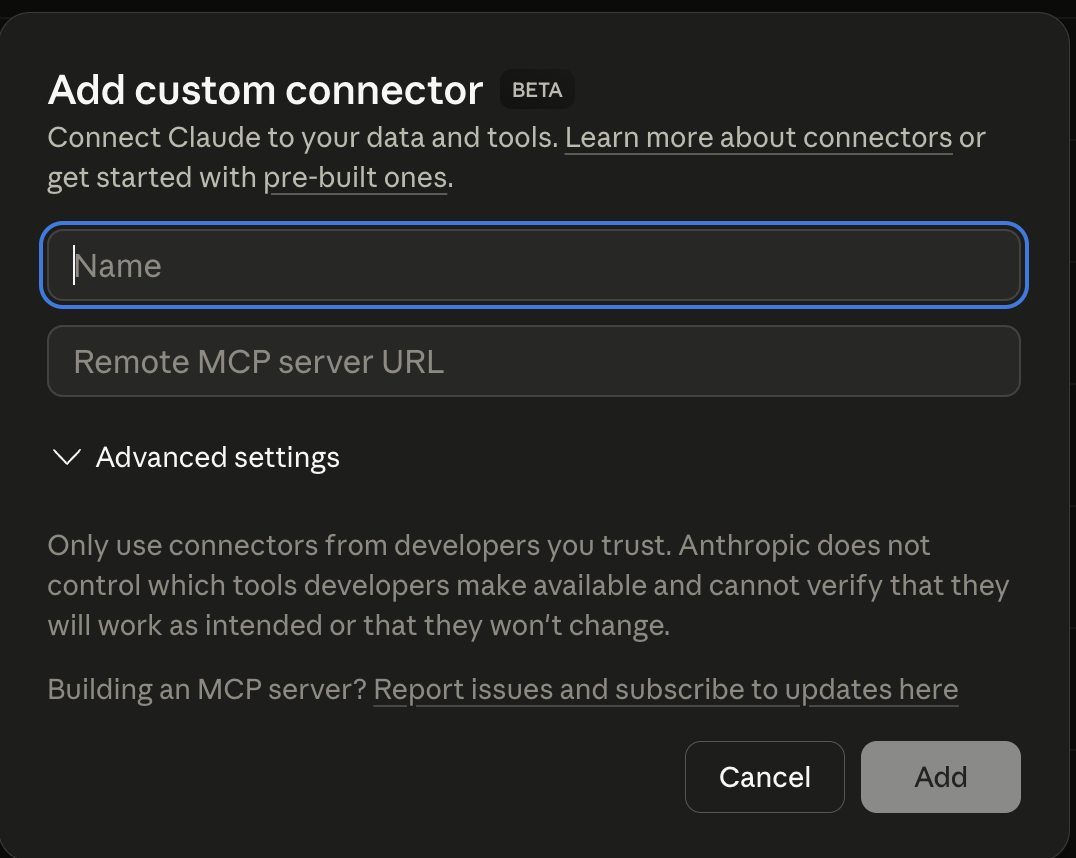
Add following details:-
Name: Rhythms
Url: https://mcpservers.rhythms.ai/rhythms/mcp
User Setup
Once it's added you will see, it available now to connect for everyone in the organization, under https://claude.ai/settings/connectors

Now, to connect with Rhythms MCP, click on connect. It will start the authentication. Enter you email (which is used in Rhythms workspace) and continue.
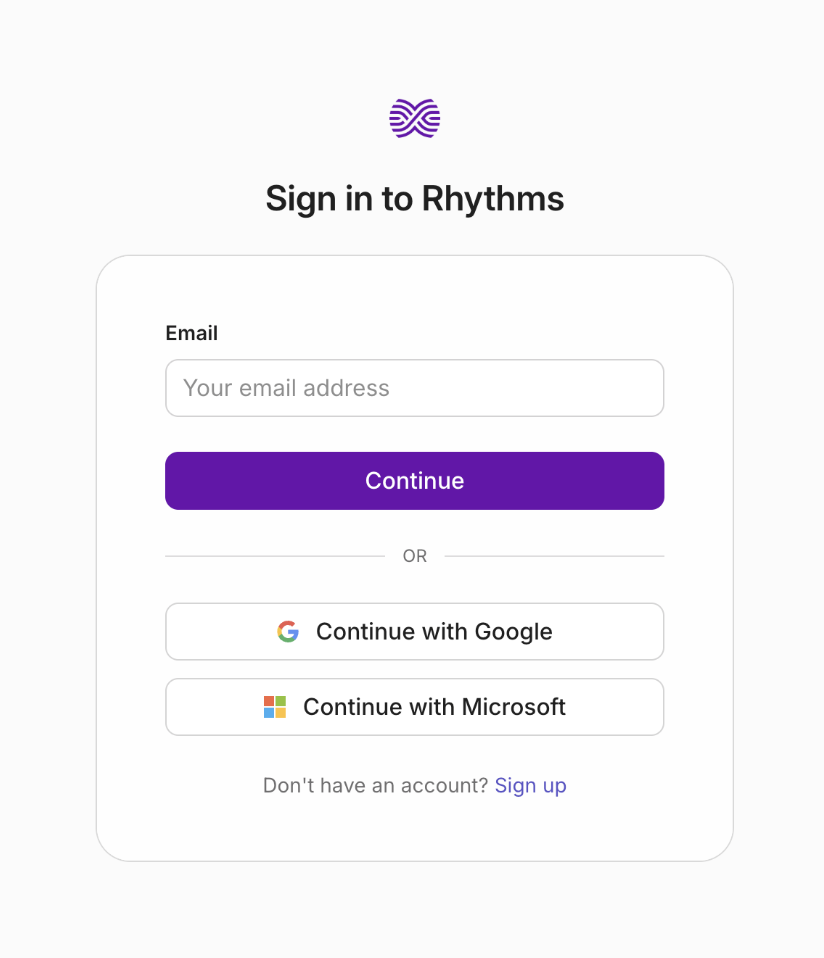
If you are part of multiple workspace, you will workspace/organization selection modal
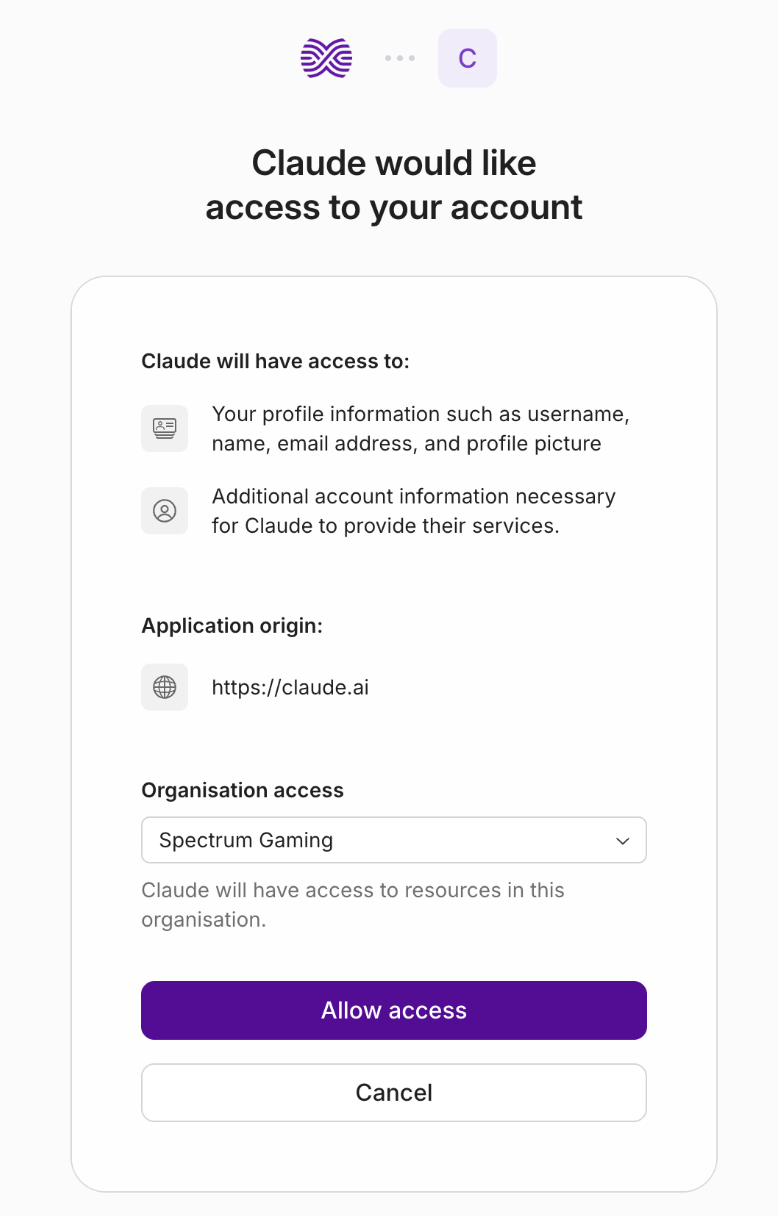
Once you are connected successfully, you will see
Connected to Rhythms pop up in the top right corner.
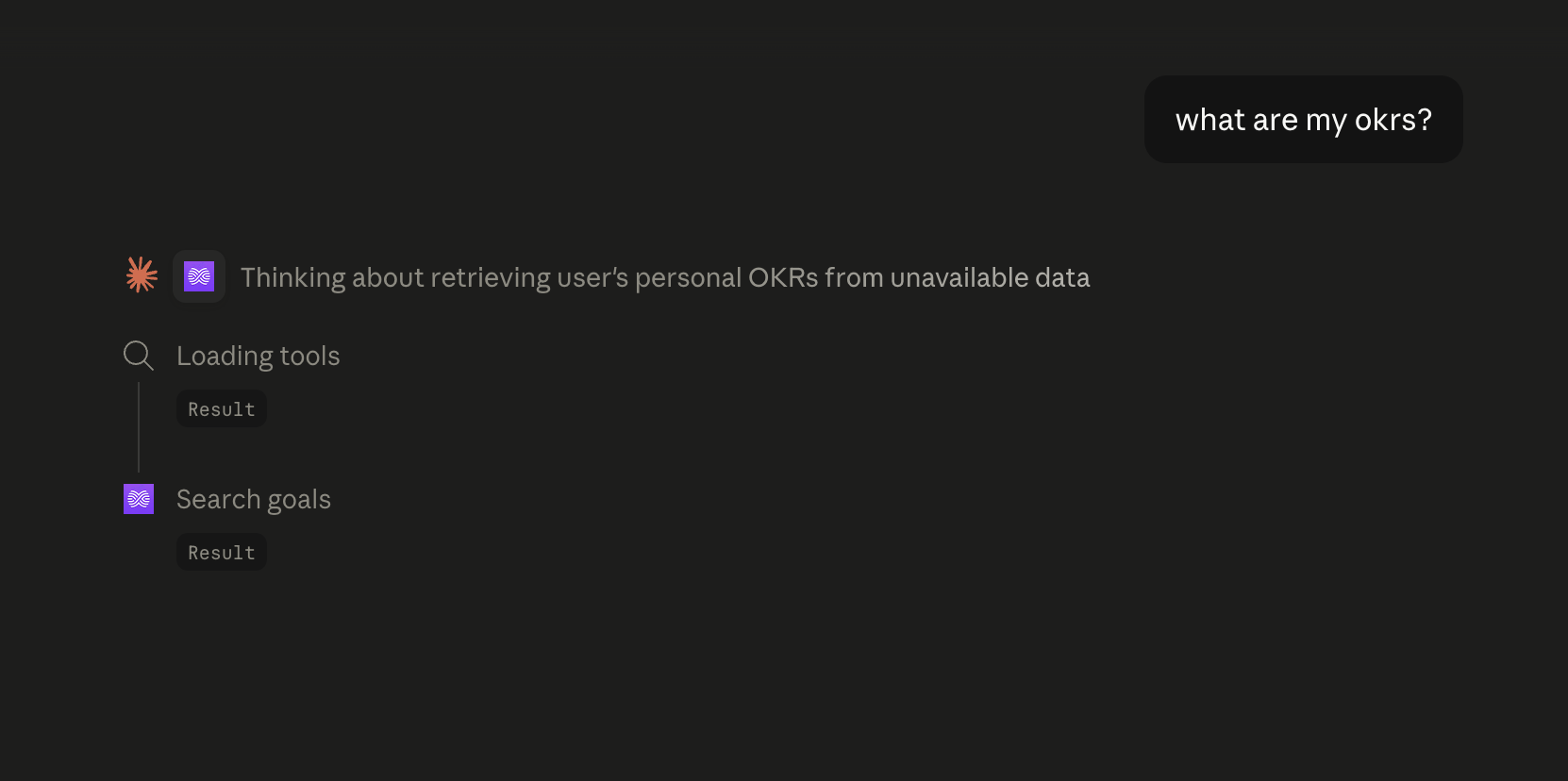
Now start a new chat (https://claude.ai/new) and ask questions related to your OKRs, Documents, Teams, Users etc.... Create and Manage your OKRs, Teams and Documents
ChatGPT
Admin Setup
Click on Create
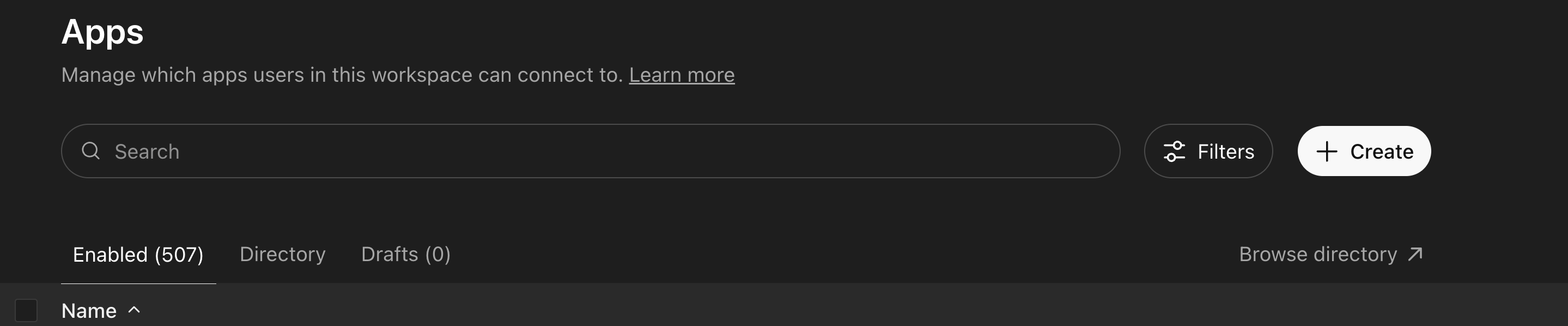
It will ask you to turn on Developer mode
Fill out the details
Name: Rhythms
Description: Rhythms MCP provides secure, structured access to create, manage, and update OKRs, documents, and other core work in Rhythms. It helps organizations keep goals, plans, and documentation aligned in one connected system of execution.
MCP Server URL:- https://mcpservers.rhythms.ai/rhythms/mcp
Click on "I understand and want to continue"
Go to https://chatgpt.com/admin/ca#drafts and publish the app
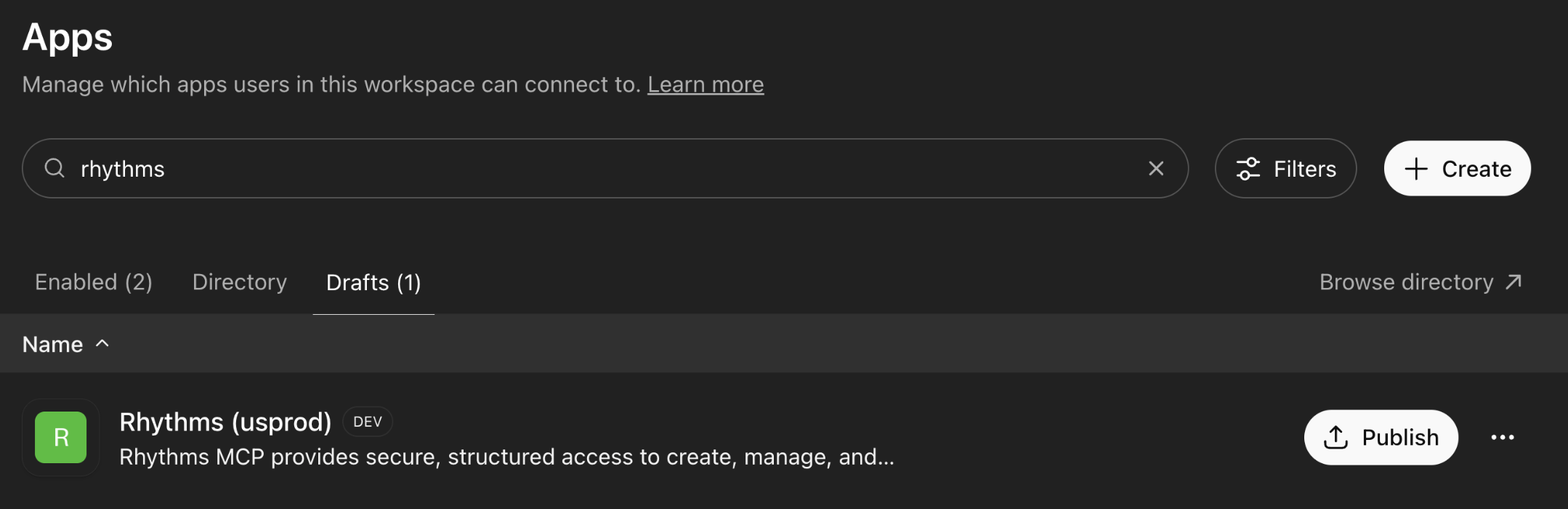
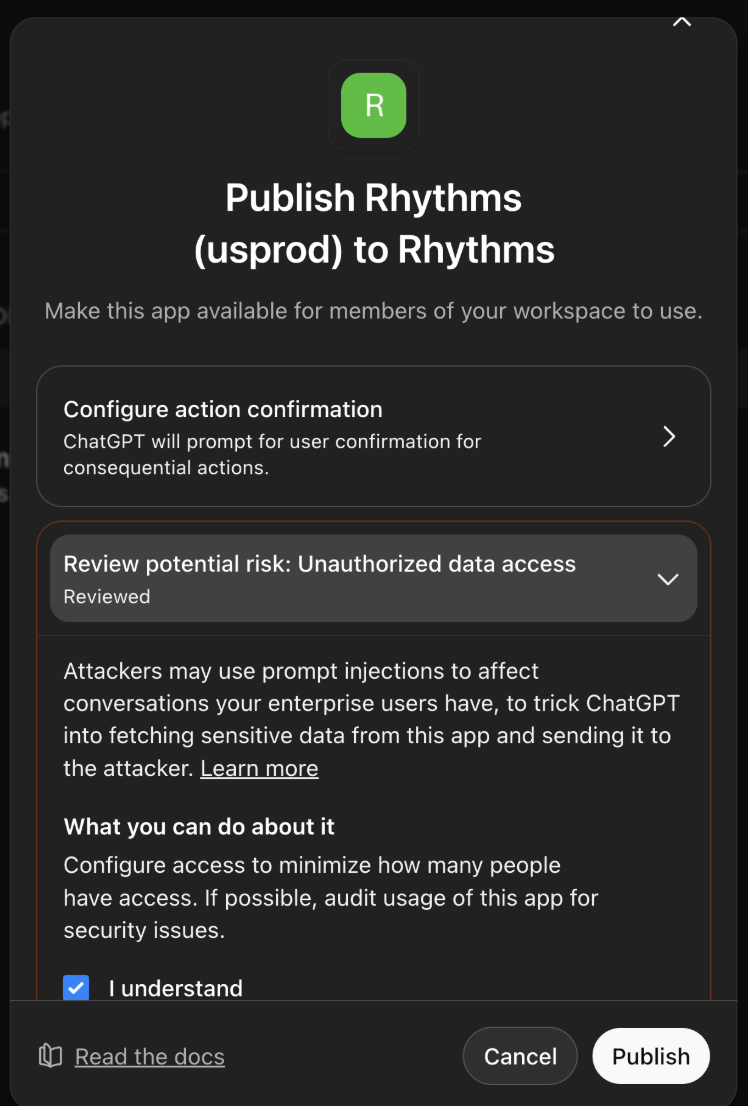
Now exit the developer mode, go to https://chatgpt.com/#settings/Connectors/Advanced
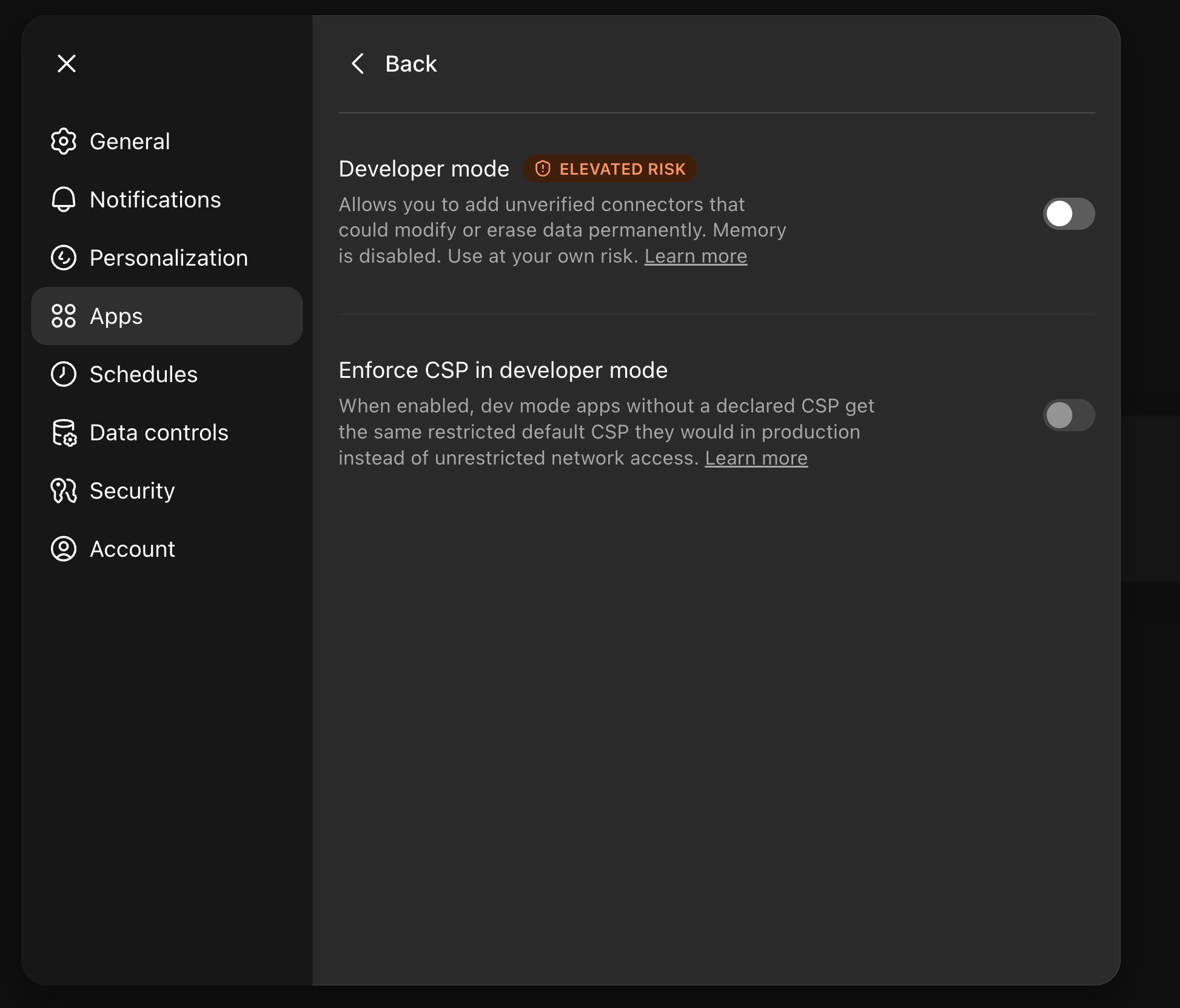
Now you can start querying, creating, managing OKRs & Documents.
Cursor
Add as custom connector
{"mcpServers": {"Rhythms": {"url": "https://mcpservers.rhythms.ai/rhythms/mcp"}}}